
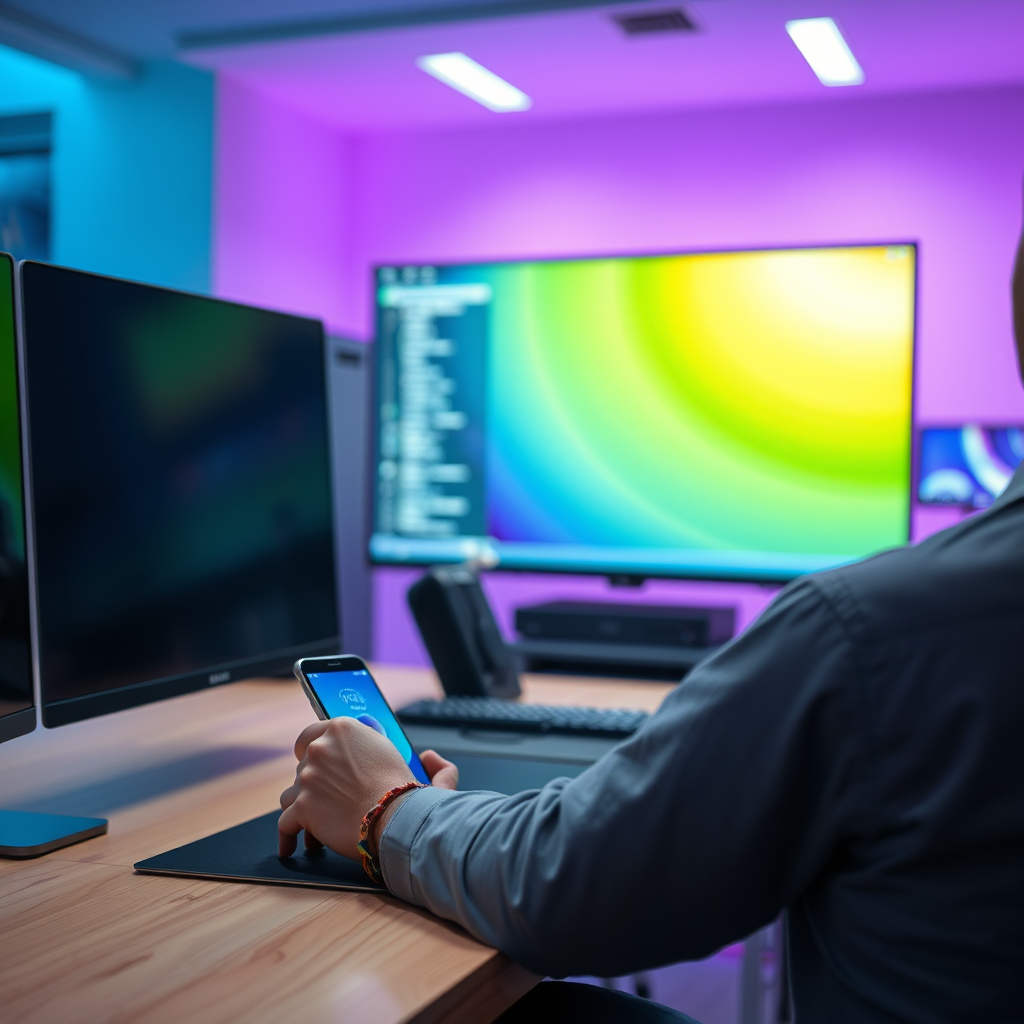

Connecting your smartphone to your smart TV is straightforward and can enhance your viewing experience by allowing you to stream content directly from your phone. In this guide, you’ll learn the various methods to establish this connection easily, whether you prefer wireless options or using cables. By utilizing these methods, you can enjoy your favorite movies, shows, or photos on a larger screen, making your entertainment experience much more immersive.
Wireless Connection Methods
Wi-Fi Direct
Wi-Fi Direct is a powerful feature available on most modern smart TVs that allows you to connect your smartphone directly to the TV without the need for a traditional router. This method establishes a peer-to-peer connection, enabling fast data transfer. To use Wi-Fi Direct, you typically need to access the settings on your smart TV, find the Wi-Fi Direct option, and then select your smartphone from the list of available devices. Once connected, you can easily stream videos, music, and even mirror your screen.
Screen Mirroring
Screen mirroring technologies such as Miracast for Android devices and AirPlay for Apple devices enable you to project your smartphone’s display onto your smart TV effortlessly. For Android users, you can usually enable screen mirroring in the settings menu under the “Connections” or “Display” section. For iPhone users, simply swipe down from the top-right corner of your screen to access Control Center, then tap on “Screen Mirroring” to select your TV. This method is particularly useful for presentations, gaming, or sharing photos with friends and family.
Using HDMI Cables
MHL (Mobile High-Definition Link)
If you prefer a wired connection, MHL is an excellent option if your smartphone supports it. MHL allows you to connect your smartphone to your TV using a standard HDMI cable. First, check if your smartphone has an MHL-compatible micro USB port. If so, purchase an MHL adapter that connects to HDMI. This method not only delivers high-definition video and audio but also charges your device while connected.
USB-C to HDMI
For newer smartphones equipped with USB-C ports, using a USB-C to HDMI adapter is a straightforward solution. This method is increasingly common as many flagship smartphones are adopting USB-C as their standard charging port. Simply connect the USB-C end into your smartphone and the HDMI end into your TV. Once connected, you can switch your TV to the appropriate HDMI input to start viewing content.
Streaming Devices
Chromecast
Chromecast is a popular streaming device that allows you to cast content from your smartphone to your TV. By using compatible applications like YouTube or Netflix, you can simply tap the Cast button and choose your TV. Once linked, you can enjoy seamless video streaming, and even control playback from your smartphone.
Amazon Fire Stick
Similar to Chromecast, the Amazon Fire Stick enables screen mirroring and direct streaming from supported apps. After setting up your Fire Stick and connecting it to your TV, you can access apps like Hulu, Disney+, and more. You can also use the Fire TV app on your smartphone to control the Fire Stick, providing a user-friendly interface for navigation.
Top 7 Streaming Devices for Smartphone to TV Connection (2024)
| # | Device | Resolution | Audio Support | Price |
|---|---|---|---|---|
| 1 | Chromecast | 4K | Dolby Audio | $49.99 |
| 2 | Amazon Fire Stick | 4K | Dolby Audio | $39.99 |
| 3 | Roku Streaming Stick | 4K | DTS | $49.99 |
| 4 | Apple TV | 4K | Dolby Atmos | $179.00 |
| 5 | NVIDIA Shield TV | 4K | Dolby Atmos | $199.99 |
| 6 | Xiaomi Mi TV Stick | 1080p | DTS | $29.99 |
| 7 | Roku Express | HD | Stereo | $29.99 |
App Solutions
Manufacturer Apps
Many smart TV manufacturers, such as Samsung and LG, provide dedicated applications for smartphone connectivity. For instance, Samsung’s Smart View app allows Galaxy phone users to easily connect, control, and share content with their Samsung smart TVs. These proprietary applications often come with additional features like remote control capabilities and content management.
Third-Party Apps
In addition to manufacturer apps, several third-party applications enhance the connection between smartphones and smart TVs. Apps like AllCast and LocalCast allow users to cast photos, videos, and even music stored on their devices to the TV. These applications often support a wide range of file formats and offer a user-friendly interface for seamless streaming.
Troubleshooting Connection Issues
Check Compatibility
When encountering issues while trying to connect your smartphone to your smart TV, the first step is to ensure compatibility. Verify that both devices support the connection method you wish to use, whether it’s Wi-Fi Direct, screen mirroring, or a physical connection. Consult the user manuals or the manufacturers’ websites for detailed specifications.
Network Issues
For wireless methods, both your smartphone and TV must be connected to the same Wi-Fi network. If you are experiencing connectivity issues, check your network settings and ensure that both devices are on the same network. Additionally, consider rebooting your router or resetting your devices to resolve any temporary glitches.
Additional Features to Explore
Voice Control
Many modern smart TVs and streaming devices offer voice command features. By connecting your smartphone to your TV, you can use voice assistants, such as Google Assistant or Alexa, to control playback, search for content, and even adjust volume levels. This hands-free control enhances the user experience significantly.
Casting Photos and Videos
Sharing personal media has never been easier. Once connected, you can quickly cast your favorite photos and videos from your smartphone to the big screen. This feature is particularly useful for family gatherings, allowing everyone to enjoy memories together in a more engaging format.
Connecting your smartphone to your smart TV opens up a world of entertainment possibilities. Whether you choose a wireless method, HDMI connection, or a streaming device, you can enjoy your favorite content in a more immersive way. Explore these options and start enjoying seamless streaming today! By understanding the available methods and troubleshooting tips, you can enhance your viewing experience and make the most of your devices.
Frequently Asked Questions
How can I connect my smartphone to my smart TV wirelessly?
To connect your smartphone to your smart TV wirelessly, ensure both devices are on the same Wi-Fi network. Use screen mirroring or casting features like Google Cast for Android or AirPlay for iPhones. On your smart TV, select the screen mirroring option, and then from your smartphone, choose the TV from the list of available devices to establish the connection.
What cables do I need to connect my smartphone to my smart TV?
To connect your smartphone to your smart TV using a cable, you’ll typically need an HDMI adapter that is compatible with your phone’s charging port—such as a Lightning to HDMI for iPhones or a USB-C to HDMI for newer Android devices. Connect the adapter to your smartphone, plug an HDMI cable into the adapter, and connect the other end to an HDMI port on your TV to display your phone’s screen.
Why won’t my smartphone connect to my smart TV?
If your smartphone won’t connect to your smart TV, check if both devices are on the same Wi-Fi network and that screen mirroring is enabled on your TV. Additionally, ensure that your phone’s software is up to date and restart both devices if necessary. Sometimes, interference from other devices or incorrect settings can also prevent a successful connection.
What is the best app to connect my smartphone to my smart TV?
The best app to connect your smartphone to your smart TV depends on your device and TV brand. For Android users, Google Home is a popular choice for casting, while iPhone users may prefer the Apple TV app for AirPlay. Additionally, third-party apps like AllCast or LocalCast can help you stream content to various smart TVs.
Which smart TVs support smartphone connectivity?
Most modern smart TVs from brands like Samsung, LG, Sony, and Vizio support smartphone connectivity through technologies like Miracast, Chromecast, or AirPlay. To determine if your specific TV model supports these features, check the user manual or the manufacturer’s website for compatibility details and instructions on connecting mobile devices.
References
- https://www.lifewire.com/how-to-connect-your-smartphone-to-your-tv-4173846
https://www.lifewire.com/how-to-connect-your-smartphone-to-your-tv-4173846 - https://www.bbc.com/news/technology-55853030
https://www.bbc.com/news/technology-55853030 - Google Scholar Google Scholar
https://scholar.google.com/scholar?q=connect+smartphone+to+smart+tv - Google Scholar Google Scholar
https://scholar.google.com/scholar?q=smartphone+TV+connection+methods - Google Scholar Google Scholar
https://scholar.google.com/scholar?q=wireless+streaming+smartphone+to+TV - Google Scholar Google Scholar
https://scholar.google.com/scholar?q=how+can+i+connect+my+smartphone+to+my+smart+tv - https://en.wikipedia.org/wiki/Special:Search?search=how+can+i+connect+my+smartphone+to+my+smart+tv
https://en.wikipedia.org/wiki/Special:Search?search=how+can+i+connect+my+smartphone+to+my+smart+tv - https://www.ncbi.nlm.nih.gov/search/research-articles/?term=how+can+i+connect+my+smartphone+to+my+smart+tv
https://www.ncbi.nlm.nih.gov/search/research-articles/?term=how+can+i+connect+my+smartphone+to+my+smart+tv
