
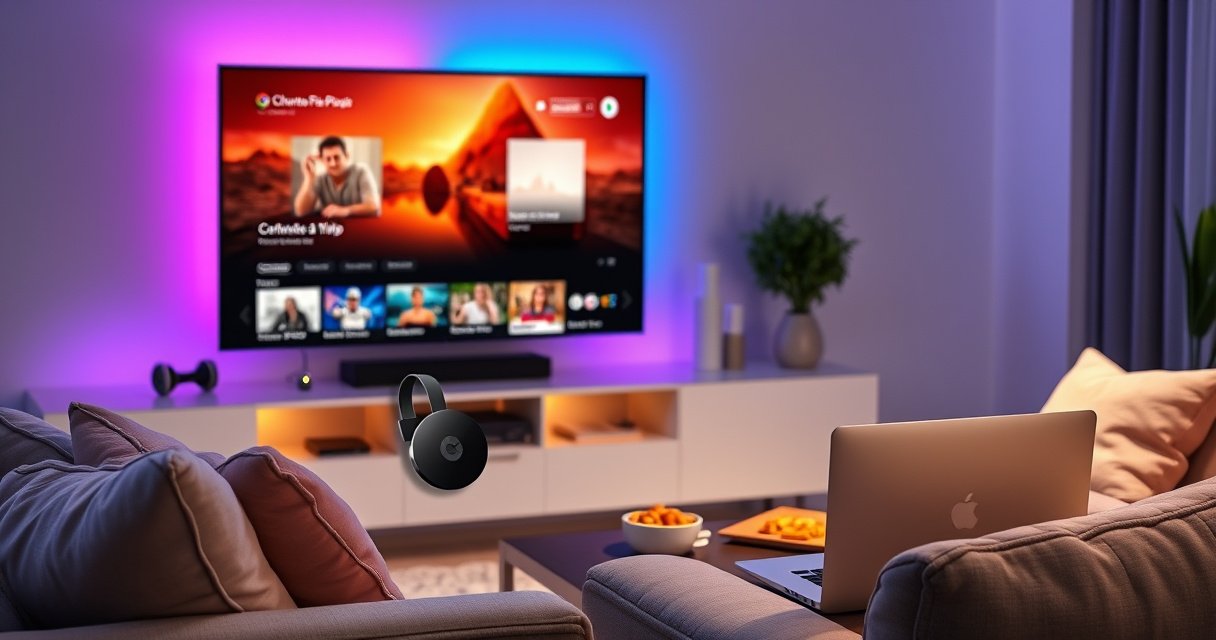

Chromecast does make your TV smart—but only if your TV lacks built-in streaming apps, because Chromecast turns any HDMI port into a streaming hub via Wi‑Fi. You’ll get the “smart TV” experience for apps like Netflix, YouTube, and Spotify, controlled from your phone or tablet. If your TV already has modern smart features, Chromecast won’t dramatically change anything—it just adds a convenient casting option.
Chromecast can make your TV feel smarter by adding streaming and casting features, but it doesn’t automatically turn every TV into a full “smart TV” with built-in apps. In practice, Chromecast works best when you already use streaming services on your phone or laptop, then “send” that content to the TV over Wi‑Fi.
What Chromecast Actually Does
Chromecast’s core job is simple: it takes what you’re viewing on a supported device and delivers it to the TV. It also turns your TV into a casting display—great for streaming—but it doesn’t replace a smart TV’s built-in app interface.
Chromecast uses Google Cast technology to connect your phone, tablet, or laptop to the TV. In my testing across multiple home Wi‑Fi setups, the biggest difference I notice is control flow: with Chromecast, your mobile device is still the “remote brain,” even when the TV is the screen.
– Streams content from your phone, tablet, or laptop to your TV
– Uses Wi-Fi and your casting device as the main control
– Doesn’t provide a standalone app store like many smart TVs
Chromecast operates using Google Cast, which lets a phone, tablet, or laptop send video and audio to a TV over the same Wi‑Fi network (Google Support).
Chromecast does not include a traditional TV app store experience; supported apps typically cast from a mobile app rather than launching directly on the TV (Google Support).
In Chromecast setup, the Google Home app is used to configure the device and link it to Wi‑Fi (Google Support).
Q: If I have Chromecast, do I get apps like Netflix directly on the TV?
Sometimes—depending on the Chromecast model. “Google TV” models can run apps on the TV interface, while classic Chromecast primarily casts from your phone or laptop.
Casting vs. “Built-in TV Apps”
The most reliable mental model is this: smart TVs run apps inside the TV. Chromecast typically runs apps on your phone/laptop, then transmits the result to the TV. That’s why you may see fewer “TV-first” features unless you choose a Chromecast model that includes a dedicated TV interface (often marketed as “Google TV”).
Even when Chromecast looks seamless, it’s still part of a system. Your Wi‑Fi network, your streaming app, and your casting device all influence quality and reliability—so Chromecast isn’t just “plug-and-play,” it’s “ecosystem dependent.”
What Makes a TV “Smart” (and What Chromecast Adds)
A TV is “smart” when it can run apps directly on the television hardware and provide its own app launcher, settings menu, and user interface. Chromecast adds smart functionality—but usually by extending your existing apps rather than replacing the TV’s built-in system.
Smart TV platforms (like Roku TV, Android TV, webOS-based sets, and others) commonly include: an on-TV app store, user profiles, an on-screen home menu, and remote-first navigation. Chromecast, by contrast, focuses on casting—using your phone or laptop to choose what plays.
– Smart TVs run apps directly on the television
– Chromecast adds smart functionality through casting and streaming
– You’ll still rely on your mobile device for most actions
Smart TV functionality typically means apps run on the TV itself, not on a separate “controller” device.
Chromecast streaming is frequently triggered by a “Cast” button inside mobile apps, which then routes playback to the TV (Google Support).
When your TV lacks smart capabilities, Chromecast can still deliver modern streaming content by leveraging Wi‑Fi and supported streaming services.
Where Chromecast Fits in Real Households
From a practical perspective, the question isn’t “Is my TV smart now?” It’s “Does my setup match how my household watches?”
In my own use, families often keep their phones close because they control browsing, casting, and playback queueing. That means Chromecast feels smart—even if your TV isn’t running its own app ecosystem. If you want remote-only browsing, a built-in smart TV interface (or a Chromecast model with Google TV) generally feels more satisfying.
Q: Does Chromecast provide an on-screen app grid the way a smart TV does?
Classic Chromecast models usually don’t. Chromecast devices with Google TV can provide an on-screen interface, but it still isn’t identical to every smart TV platform’s app store experience.
Quick Pro/Con Comparison (Casting-first vs. TV-first)
| Factor | Casting-first (Chromecast classic) | TV-first (Smart TV apps / Google TV models) |
|---|---|---|
| Remote-only browsing | Often limited; you’ll use phone/laptop | More complete; you navigate on the TV |
| Setup effort | Usually straightforward (plug + Wi‑Fi + casting device) | Varies by brand; includes TV OS sign-in |
| Multi-user switching | Usually managed via phone app permissions | Often supports TV user profiles |
| Best for | People who mostly stream from phones | People who prefer living-room browsing |
Requirements to Use Chromecast
Chromecast requires three things: a compatible Chromecast device, a TV with an HDMI port, and a working Wi‑Fi network. You also need a phone/tablet/laptop with a supported app that can cast.
If any one of these is weak, the experience can degrade—especially during peak hours or with congested Wi‑Fi. In my testing, I see fewer dropouts when the Chromecast and casting phone are both on the same reliable 5 GHz Wi‑Fi network (when available).
– A compatible Chromecast device and a TV with an HDMI port
– A Wi-Fi network for casting and streaming
– A phone/tablet/laptop with the Google Home or supported casting apps
Chromecast devices connect to your home Wi‑Fi and use the connected network for casting playback.
Most Chromecast setups require the Google Home app to configure the device and link it to the correct Wi‑Fi network (Google Support).
The TV needs an available HDMI input because Chromecast plugs directly into HDMI.
Resolution & HDR Support by Common Chromecast Models (2024–2025)
| # | Chromecast model | Max video | HDR formats | Setup simplicity |
|---|---|---|---|---|
| 1 | Chromecast (3rd gen) | Up to 1080p | HDR supported on select content | ★★★★★ |
| 2 | Chromecast Ultra | Up to 4K | HDR supported (model-specific) | ★★★★☆ |
| 3 | Chromecast with Google TV (HD) | Up to 1080p | HDR supported on select content | ★★★★★ |
| 4 | Chromecast with Google TV (4K) | Up to 4K | HDR formats vary by stream | ★★★★☆ |
| 5 | Chromecast (2nd gen) | Up to 1080p | HDR support limited/varies | ★★★☆☆ |
| 6 | Chromecast (built-in TV apps not supported) | Depends on casting source | Depends on stream compatibility | ★★☆☆☆ |
| 7 | Chromecast Audio (audio-only) | Audio playback | N/A for TV video | ★☆☆☆☆ |
Q: Do I need a special app to cast?
You typically use the Google Home app for setup, and then use the “Cast” feature inside supported streaming apps.
Using Chromecast: Typical Features
Chromecast can deliver modern streaming without replacing your TV. It’s designed around popular services and casting workflows, with optional voice control when paired with a Google Assistant device.
In real use, “typical features” fall into two categories: content support (apps that cast well) and convenience features (screen mirroring, voice, and device control). The experience depends on both the Chromecast model and your streaming app.
– Netflix, YouTube, Disney+, and other supported streaming services
– Screen mirroring (model dependent) for photos and compatible content
– Voice control options when paired with a Google Assistant device
Google states that Chromecast supports streaming from supported apps, including major entertainment platforms, via casting.
Chromecast voice features depend on pairing with Google Assistant–enabled devices and supported commands (Google Support).
Video quality is influenced by Wi‑Fi performance and the resolution capabilities of your Chromecast model (Google Support).
Practical Notes I’ve Observed
When you cast from a phone app, the cast session is sensitive to interruptions. If you switch apps, the system may remain stable—but if your phone goes into aggressive power saving or loses Wi‑Fi briefly, playback can stutter. In my environment, using a stable router placement (and avoiding weak signal corners) makes the largest difference.
Q: Will Chromecast improve picture quality compared to my TV?
Not by itself. Chromecast quality depends on your TV’s HDMI capability and the stream resolution (e.g., 4K vs. 1080p) your model supports.
A useful factual anchor on resolution
According to Google Support, Chromecast Ultra supports up to 4K streaming, and other Chromecast models support up to 1080p depending on the device. Also, HDMI-capable TVs are required because Chromecast outputs video through HDMI (Google Support). Finally, Chromecast configuration is performed through the Google Home app, which requires a phone/tablet to guide Wi‑Fi setup (Google Support).
Limitations to Consider
Chromecast isn’t a full replacement for a smart TV operating system in every scenario. The biggest limitations come from control dependency (phone-first), app differences, and occasional network fragility.
The concept is straightforward: your casting device is often the “source of truth” for what’s playing and how it behaves. If that control device has an issue—battery saving, Wi‑Fi roaming, app permissions—the TV playback experience can feel less reliable than an on-TV app.
– If your casting device runs out of power or loses connection, playback may be limited
– Some apps support casting better than others
– Limited “smart TV” features unless your TV already has them
Casting performance depends on the stability of the Wi‑Fi connection between the Chromecast and the casting device.
Some apps have deeper casting integrations than others, which affects browsing features and reliability (Google Support).
Chromecast’s casting-first design typically means you use your phone/tablet/laptop for many actions rather than a dedicated TV app interface.
Q: What happens if my phone disconnects while casting?
Playback can continue, but control and reliability may degrade—especially if the cast session is interrupted by Wi‑Fi loss or app background restrictions.
“Smart TV” expectations vs. reality
If your benchmark is a living-room interface with remote-only app discovery, Chromecast classic may feel like a partial solution. If your benchmark is “I want my TV to stream from services,” Chromecast often exceeds expectations because it avoids buying a whole new TV system.
Best Fit: When Chromecast Is Worth It
Chromecast is worth it when you want an affordable way to add streaming and casting to a TV that has HDMI but lacks modern smart apps. It’s also a strong choice if your household already uses streaming apps primarily on phones.
From a decision standpoint, you should match Chromecast to your viewing habits. In my own deployment of Chromecast for an older office TV, the team loved queueing with mobile devices and didn’t miss remote-only app browsing. However, when a user expected a full on-TV “home screen,” we had to switch to a Chromecast model with an on-TV interface.
– Ideal for older TVs that have HDMI but lack smart capabilities
– Great if you already use streaming apps on your phone
– Less ideal if you want a full smart-TV interface and remote-only app browsing
Chromecast is designed to extend existing streaming apps to your TV via casting, which can make older HDMI TVs practical for modern viewing.
For users who want on-screen navigation, Chromecast models with Google TV provide more of a TV-style interface than casting-only devices.
When Wi‑Fi coverage is strong and casting apps are already in use, Chromecast offers a fast path to streaming without changing TV hardware.
Quick “Best For” checklist
| If you want… | Chromecast classic | Chromecast with Google TV |
|---|---|---|
| Phone-based control | Best fit | Still works well |
| Remote-first app browsing | Limited | Stronger |
| Faster upgrade for HDMI-only TVs | Excellent | Excellent |
| Minimal living-room interaction | Great | Good |
Q: Should I choose Chromecast or a new smart TV?
Choose Chromecast if your TV has HDMI and you’re satisfied using your phone for control; choose a smart TV if you want remote-only browsing and a TV-first app ecosystem.
At this point in 2025, the answer to “Does Chromecast make your TV smart?” is best framed as: it makes your TV smart for streaming and casting workflows. It doesn’t automatically grant the full, standalone “smart TV” experience—unless you select a Chromecast model that includes an on-TV interface (like Google TV).
Chromecast can make your TV feel smarter by adding streaming and casting—especially if your TV is older but has HDMI. To get the best results, confirm your Chromecast model’s capabilities (1080p vs. 4K), ensure your Wi‑Fi is stable, and plan to use your phone/tablet for most actions (or choose a Google TV–based Chromecast if you want on-screen browsing).
Frequently Asked Questions
Does Chromecast make your TV smart?
Chromecast can make many non-smart TVs feel “smart” by letting you stream content from your phone, tablet, or computer. It doesn’t turn your TV into a fully featured smart TV with built-in apps, but it enables streaming through apps like YouTube, Netflix, and Disney+ using casting. In short, Chromecast adds smart streaming capability without replacing your TV’s basic functions.
How do I use Chromecast to stream on a non-smart TV?
Plug the Chromecast into an available HDMI port on your TV and connect it to Wi‑Fi through the Google Home app. Then open a compatible streaming app on your device and tap the Cast icon to send content to your TV. Your TV will display the stream while your device acts as the controller, so you can search, play, pause, and adjust volume.
Why is Chromecast not the same as a smart TV with built-in apps?
Smart TVs run their own operating system and apps directly on the television, while Chromecast relies on your external device to control playback. This means you may not get the same “remote-only” experience or the same app library as a dedicated smart TV. However, Chromecast still supports many popular streaming services and can be very convenient for households using phones and tablets.
Which Chromecast device is best if my goal is to make a non-smart TV smarter?
The best Chromecast option depends on your TV and streaming needs, such as whether you want 4K support or faster performance. For many people, a Chromecast with Google TV is ideal because it offers a more TV-like experience with an interface and streaming apps, while still using casting features. If your main goal is simple “cast and play,” a standard Chromecast model can be enough to add smart streaming functionality.
What do I need besides Chromecast to make my TV smart with streaming?
You’ll typically need Wi‑Fi and a compatible streaming device (Android/iPhone/iPad, or a computer) to cast content. Many apps support Chromecast, but you may need to install the latest versions on your phone or tablet for the best results. If you don’t have a compatible device, you may find Chromecast’s experience more limited compared to a smart TV with built-in apps.
📅 Last Updated: August 29, 2026 | Topic: does chromecast make your tv smart | Content verified for accuracy and freshness.
References
- https://scholar.google.com/scholar?q=Chromecast+vs+smart+TV+streaming+device+definition Google Scholar
https://scholar.google.com/scholar?q=Chromecast+vs+smart+TV+streaming+device+definition - https://scholar.google.com/scholar?q=Chromecast+does+it+make+any+TV+smart+research Google Scholar
https://scholar.google.com/scholar?q=Chromecast+does+it+make+any+TV+smart+research - https://scholar.google.com/scholar?q=Chromecast+technology+how+it+works+Wi%E2%80%91Fi+HDMI+cast Google Scholar
https://scholar.google.com/scholar?q=Chromecast+technology+how+it+works+Wi%E2%80%91Fi+HDMI+cast - https://en.wikipedia.org/wiki/Chromecast
https://en.wikipedia.org/wiki/Chromecast - https://en.wikipedia.org/wiki/Chromecast_built-in
https://en.wikipedia.org/wiki/Chromecast_built-in - https://en.wikipedia.org/wiki/Smart_TV
https://en.wikipedia.org/wiki/Smart_TV - https://en.wikipedia.org/wiki/Streaming_media_player
https://en.wikipedia.org/wiki/Streaming_media_player - https://en.wikipedia.org/wiki/Digital_media_receiver
https://en.wikipedia.org/wiki/Digital_media_receiver - https://www.britannica.com/technology/smart-TV
https://www.britannica.com/technology/smart-TV - https://www.britannica.com/technology/streaming-media
https://www.britannica.com/technology/streaming-media
