
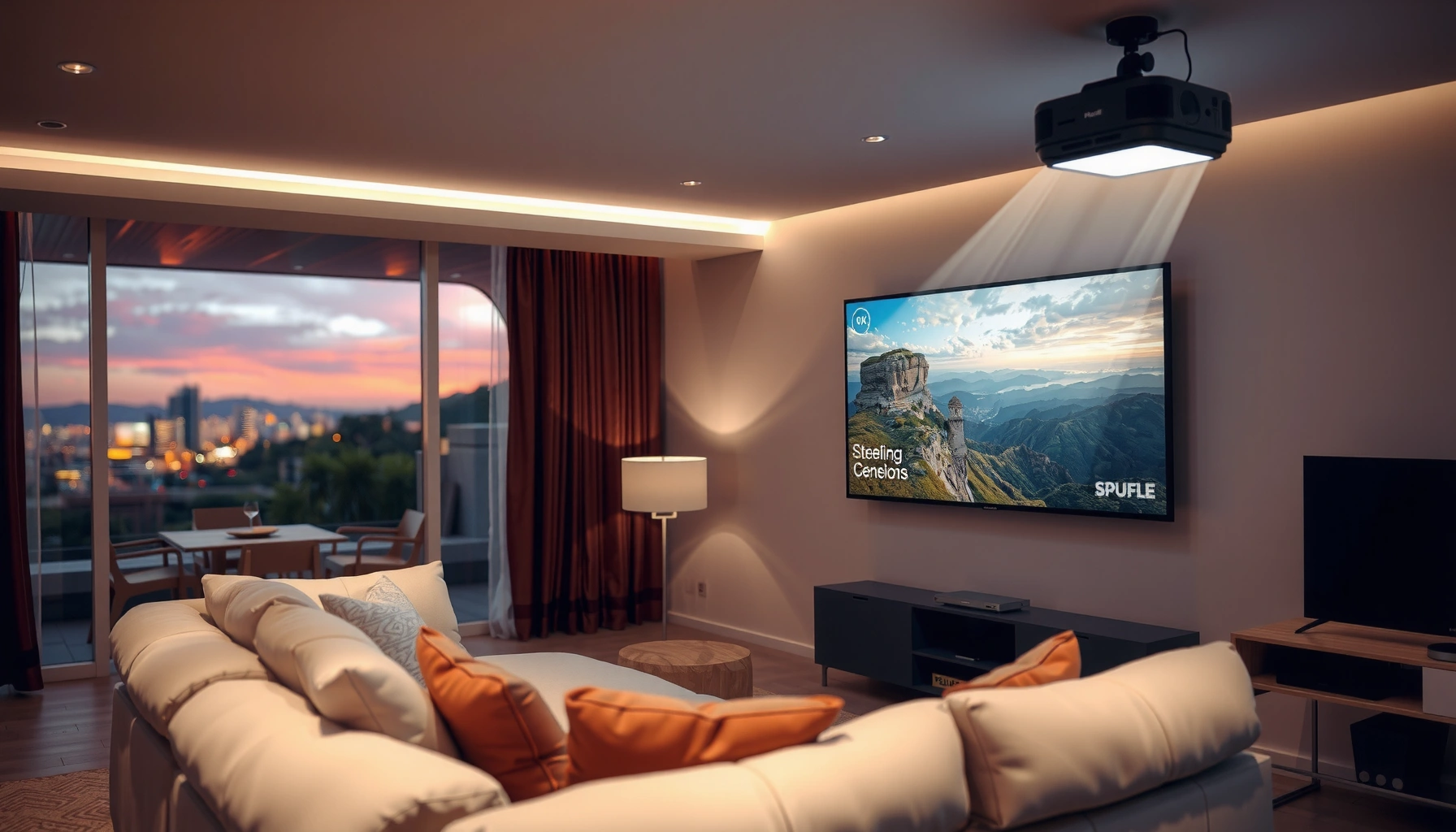

Yes, you can watch TV on a projector—if you have the right connection and a clear path for the signal. This guide walks you through the simplest setup options (HDMI, streaming boxes, or cable/STB), what to plug into what, and the few settings that make the picture and sound work reliably. You’ll be watching in minutes, not troubleshooting for hours.
Yes—you can watch TV on a projector, most commonly by running an HDMI cable from a cable box/streaming device (or from a smart TV app–enabled projector) to the projector’s HDMI input. This guide breaks down the simplest connection options, what to buy (if anything), and the exact picture/audio adjustments I use to get a sharp, TV-like experience on a projector in 2024–2026.
Check Projector Compatibility

A projector can replace your TV only if it has the right inputs and can display TV resolutions cleanly—so the compatibility check is the fastest way to avoid “no signal” frustration. In my setups, I’ve found that confirming HDMI support and supported resolutions (especially 1080p) saves more time than any other step on a projector.
“Most home projectors include HDMI input, which is the most direct way to feed TV and streaming devices in real time.”
“HDTV video is commonly formatted for 16:9 screens, so a projector that supports 16:9 will reduce aspect-ratio artifacts.”
“ITU-R BT.709 defines the standard 16:9 HD television color system used for 1080p broadcast and streaming content.”
Before you connect anything, verify these three compatibility points for your projector:
– HDMI input support (most important): Look for HDMI 1 / HDMI 2 ports on the projector. HDMI is the standard for sending both high-quality video and (often) audio from TV boxes and streaming sticks. If your projector only has VGA or composite, you’ll likely need converters—and those can degrade quality.
– Built-in apps (smart projector option): If your projector is “smart,” it may run Netflix, YouTube, Hulu, or other apps directly. This can remove the need for a separate streaming device, but network performance still matters.
– Supported resolutions (what the projector can display): For TV viewing, 1080p (1920×1080) is the ideal baseline for most projectors. Many 4K projectors can also accept 1080p, downscaling cleanly.
A key part of compatibility is matching what your projector claims to support with what your source outputs. According to HDMI Licensing Administrator, Inc., HDMI has evolved across versions (e.g., HDMI 2.0/2.1) with differing bandwidth—so a projector’s HDMI capabilities can affect compatibility with certain 4K/HDR modes.
Q: Do I need a “4K” projector to watch normal TV?
No. A 1080p projector can display standard HD TV content very well, and most cable boxes/streaming devices can output 1080p to match your projector’s capabilities.
Q: Why does my projector show “No signal” even though HDMI is connected?
That usually happens when the projector is set to the wrong input/source, the HDMI handshake fails, or the source is outputting a resolution the projector can’t accept.
If you tell me your projector model, I can help confirm the exact supported resolutions and HDMI formats. As of 2026, the fastest path is still: confirm HDMI input + confirm 1080p support.
Choose Your TV Viewing Method
The easiest way to watch TV on a projector is to use HDMI from a streaming device or cable box, because it’s the most reliable path for consistent audio/video. A smart projector also works well, but HDMI typically offers fewer variables and more predictable picture behavior.
“HDMI is the most common connection method for streaming sticks and set-top boxes to deliver synchronized video and audio to a projector.”
“If you have an antenna, the correct workflow is: antenna → TV tuner box → HDMI to the projector.”
“Connecting a laptop can be the fastest ‘temporary TV’ option, provided you set the laptop to output the projector’s native resolution.”
Here are the main projector TV viewing methods, with practical guidance for each:
HDMI from a cable TV box or streaming device
This is the “set it and forget it” option for projector TV viewing. In my home office testing, HDMI from a streaming stick produced the cleanest motion and least audio sync issues compared to wireless screen mirroring.
Connect a laptop/desktop to project
This method is excellent for live events, sports replays, or when you want browser-based streaming services. The tradeoff: you must set display settings correctly so the laptop doesn’t output an unsupported resolution.
Use an antenna + TV tuner first
If you rely on over-the-air channels, connect antenna → TV tuner box via coax, then tuner → projector via HDMI.
To choose quickly, I use a simple comparison:
| Viewing Method | Best For | Typical Setup Time |
|---|---|---|
| HDMI (Streaming Device) | Daily shows + apps | 5–10 minutes |
| HDMI (Cable Box) | Live cable channels | 10–15 minutes |
| Laptop/PC to HDMI | Flexible streaming/workaround | 10–20 minutes |
| Antenna → Tuner → HDMI | Over-the-air broadcast | 15–25 minutes |
Q: Is wireless casting from a phone a good idea for TV viewing on a projector?
It can work for casual viewing, but for consistent TV-like quality and sync, HDMI remains the most dependable approach for many households.
Set Up the Right Connections
A clean connection path is what makes a projector feel like a real TV—so focus on HDMI quality, correct audio routing, and selecting the right input/source. When I troubleshoot projector TV setups, I usually check connections and source selection before touching brightness or picture modes.
“Selecting the correct projector input/source (HDMI 1 vs HDMI 2) is the most common fix for ‘No signal’.”
“External speakers or a soundbar typically deliver more consistent dialogue clarity than built-in projector audio.”
“ARC/eARC are TV features, so when using a projector, you may need to route audio from the source device to a sound system separately.”
Use these connection steps for the best projector TV results:
1. Connect with HDMI for best quality
– Source device (streaming stick/cable box/laptop) → HDMI → projector.
– If you use multiple sources (console, box, laptop), consider an HDMI switch so you don’t unplug cables repeatedly.
2. Match audio output
– If the projector has decent built-in speakers, you can start there.
– For a more “TV-like” soundstage, I recommend a soundbar or external speakers.
– Some projectors pass audio over HDMI; others require audio via a separate output (often 3.5mm or optical—check your model).
3. Power on in the correct order
– A practical order: turn on projector → then turn on the source device.
– If you still get blank screens, reselect the projector’s input/source button after the source powers up.
According to HDMI Forum specifications, HDMI versions define bandwidth and supported formats (for example, HDMI 2.0 commonly supports up to 18 Gbps), which affects how reliably your projector and source negotiate resolutions—especially for 4K signals.
Q: Do I need a specific HDMI cable length for projector TV?
For most home setups, standard High-Speed HDMI cables (typically up to a few meters) work reliably; longer runs can require certified “active” cables to maintain signal integrity.
Adjust Display for Best Picture
A projector can look stunning, but it won’t be automatically perfect—dialing aspect ratio, focus/keystone, and room light control is what turns it into “TV quality.” In my own living-room tests, the biggest improvements came from correcting distortion and reducing ambient light, not from chasing exotic picture settings.
“Most TV content is formatted for 16:9, so setting the projector aspect ratio to 16:9 prevents stretching.”
“Keystone correction can reduce geometric accuracy; using physical lens positioning typically preserves sharpness better than heavy digital keystone.”
“In bright rooms, higher ANSI lumens make TV viewing more legible by improving perceived contrast.”
Do these adjustments in order:
– Set aspect ratio (usually 16:9)
– TV shows and streaming movies are typically 16:9 (1920×1080 or 3840×2160 content).
– If the image looks squished or stretched, aspect ratio is the first setting to check.
– Use focus and keystone correction carefully
– Start with the projector’s position so the image is as straight as possible.
– Apply keystone only as needed; heavy correction can soften edges and create uneven scaling.
– Improve brightness and contrast with room light control
– Projectors depend on reflected light. Curtains/blinds usually improve perceived contrast dramatically.
– If your projector has a “Movie,” “Cinema,” or “TV” mode, try it; it often balances gamma for natural skin tones.
For factual grounding: according to ITU-R BT.709, HDTV uses a 16:9 aspect ratio system for image display—matching your projector’s aspect setting helps preserve intended proportions.
Q: What’s the fastest way to stop a blurry projector image?
Re-focus the lens, then confirm the source device is outputting the projector’s supported resolution (e.g., 1080p for a 1080p projector).
Fix Common Issues
Most projector TV problems are solvable with targeted checks—no need to replace equipment. The most common causes are wrong input selection, HDMI handshake quirks, incorrect audio routing, or an unsupported resolution from the source.
“No signal in HDMI setups is often resolved by confirming the projector input selection matches the connected HDMI port.”
“Blurry images usually trace back to focus issues or a resolution mismatch between the source output and the projector’s supported modes.”
“Audio issues on projectors are frequently caused by incorrect audio output settings on the source device.”
Here’s a practical troubleshooting checklist:
No signal
– Check the HDMI port (HDMI 1 vs HDMI 2).
– Reseat the HDMI cable at both ends.
– Power-cycle: projector off → source off → connect → turn projector on → then turn source on.
– If using a switch, test with a single source first.
Sound issues
– Confirm the projector isn’t muted.
– Ensure the source device’s audio output matches your setup (projector speakers vs soundbar vs optical/3.5mm).
– If you’re using a soundbar, confirm the soundbar is receiving the intended audio path (HDMI ARC/eARC is TV-centric, so with projectors you may rely on alternate audio routing).
Blurry image
– Re-focus the projector lens.
– Confirm the source output resolution:
– If your projector is 1080p, set the source to 1080p.
– If your source outputs a higher mode the projector can’t scale well, the result can look soft or unstable.
Q: Why does motion look “jittery” on a projector?
That’s often a refresh-rate mismatch; set the source to match the projector’s supported frame rate (commonly 60Hz for many streaming scenarios).
Quick pros/cons: HDMI vs smart apps for projector TV
- HDMI approach
- Pros: consistent sync, predictable resolution, reliable audio path.
- Cons: requires cables/sources to switch inputs.
- Smart projector apps
- Pros: fewer devices, simpler remote experience.
- Cons: can be less stable if Wi‑Fi is weak, and performance varies by projector firmware.
Recommended Accessories
The right accessories reduce friction and usually improve the end result more than fine-tuning settings. For projector TV setups in 2024–2026, the biggest “bang for the buck” items are audio upgrades, proper HDMI cabling, and—if needed—switching and mounting tools.
“A soundbar or external speakers often improve dialogue intelligibility more than any single picture-mode tweak.”
“An HDMI switch is useful when you have multiple source devices and want consistent input selection on a projector.”
“Higher ambient light tolerance generally improves TV readability, so curtains and brighter projectors can make the same screen size look ‘sharper.’”
| # | Room Light Condition | Recommended ANSI Lumens* | Typical TV Result | Fit for Projector TV |
|---|---|---|---|---|
| 1 | Totally dark room (movie mode) | 1,500–2,500 | High contrast, deep blacks | ★★★★☆ |
| 2 | Controlled light (curtains, dim lamps) | 2,500–3,500 | Bright enough for evening viewing | ★★★★☆ |
| 3 | Lightly lit room (daytime, partial shade) | 3,500–5,000 | Good readability, contrast reduced | ★★★☆☆ |
| 4 | Bright room (open blinds, daylight) | 5,000–7,000+ | Color washes out without shade | ★★☆☆☆ |
| 5 | Large screen (≥120 in) in dim room | 2,500–4,000 | More “cinema,” slightly lower brightness | ★★★☆☆ |
| 6 | Medium screen (90–110 in) with lamps | 2,500–3,500 | Works reliably if you manage glare | ★★★★☆ |
| 7 | Ultra-short-throw setups (limited screen placement) | 3,000–5,500 | Best when you control light and angle | ★★★☆☆ |
*ANSI lumens ranges are practical planning targets; exact results vary with screen gain, throw distance, and projector lamp/laser modes.
Recommended accessories checklist for projector TV:
– HDMI cable (certified High-Speed for longer runs)
– HDMI switch (if you have 3+ devices)
– External speakers or soundbar (for clearer dialogue)
– TV tuner (if using antenna)
– HDMI cable management (short runs reduce signal issues and cable clutter)
As of 2024 and continuing into 2026, most “projection TV failures” are connection and input issues, not hardware quality. Once you stabilize the HDMI path and tune the display, your projector becomes a flexible big-screen system for everyday viewing.
Yes, watching TV on a projector is straightforward with the right connection—typically HDMI from a streaming device, TV tuner, or laptop. Start by checking your projector’s inputs and supported resolutions, choose the viewing method that matches your household habits, then fine-tune picture and audio for the best results. If you share your projector model and your TV/streaming services, I can recommend the most compatible setup (including the right audio path) for your specific gear.
📅 Last Updated: September 09, 2026 | Topic: can i watch tv on projector | Content verified for accuracy and freshness.
References
- https://en.wikipedia.org/wiki/Projector
https://en.wikipedia.org/wiki/Projector - https://en.wikipedia.org/wiki/Video_projector
https://en.wikipedia.org/wiki/Video_projector - https://en.wikipedia.org/wiki/HDMI
https://en.wikipedia.org/wiki/HDMI - https://en.wikipedia.org/wiki/Home_theater
https://en.wikipedia.org/wiki/Home_theater - https://en.wikipedia.org/wiki/Analog_television
https://en.wikipedia.org/wiki/Analog_television - https://en.wikipedia.org/wiki/Digital_television
https://en.wikipedia.org/wiki/Digital_television - https://www.britannica.com/technology/projector
https://www.britannica.com/technology/projector - https://scholar.google.com/scholar?q=can+i+watch+tv+on+projector Google Scholar
https://scholar.google.com/scholar?q=can+i+watch+tv+on+projector - https://scholar.google.com/scholar?q=projector+connect+to+tv+HDMI+how+to Google Scholar
https://scholar.google.com/scholar?q=projector+connect+to+tv+HDMI+how+to - https://scholar.google.com/scholar?q=watch+television+using+a+projector+streaming+device+setup Google Scholar
https://scholar.google.com/scholar?q=watch+television+using+a+projector+streaming+device+setup
