
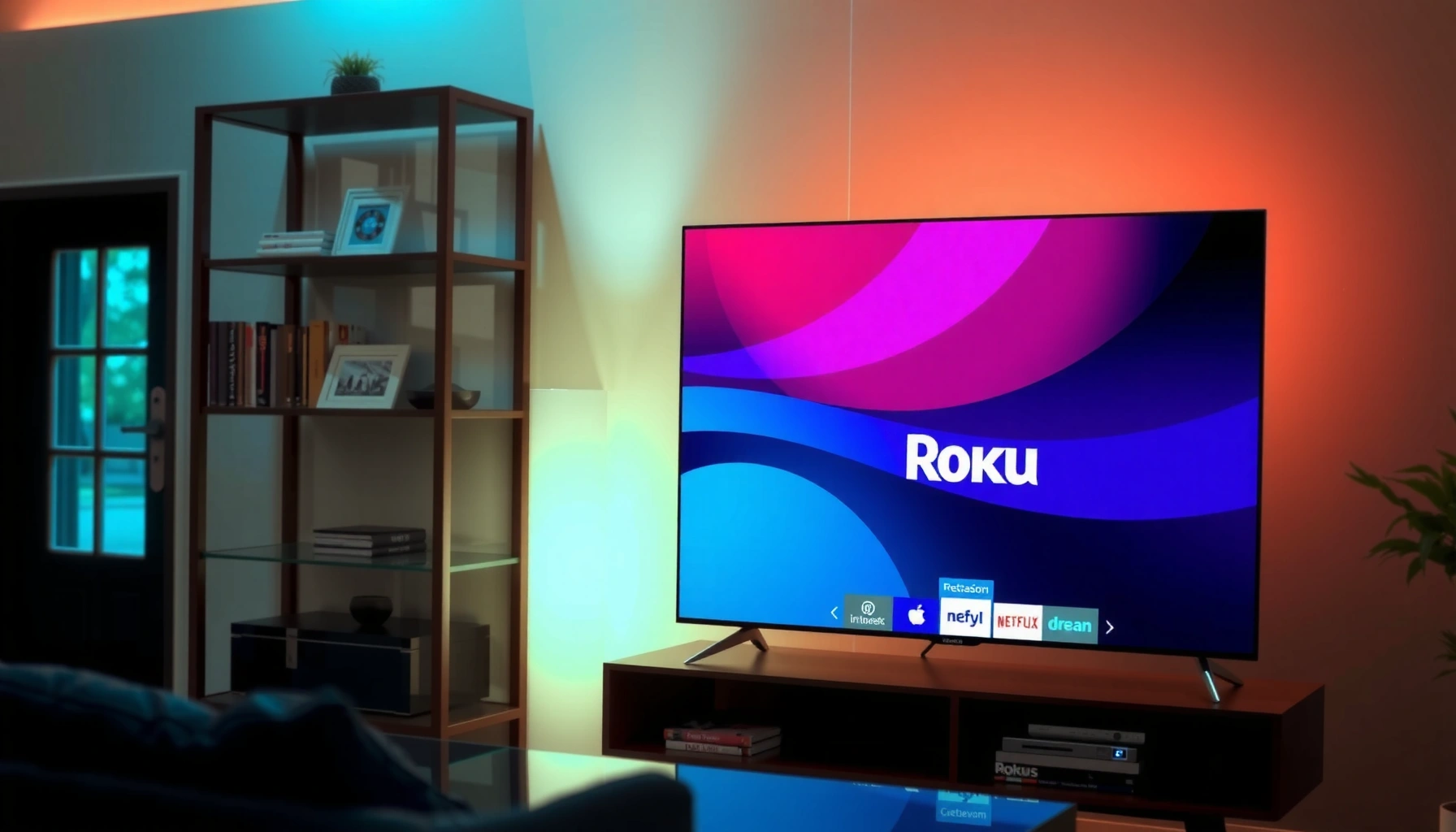

What Is Roku on Smart TV? Roku on a smart TV is a streaming platform experience that lets you watch movies, TV shows, and live channels through Roku’s interface—either with a TV that has Roku built in (“Roku TV”) or by connecting an external Roku streaming device. In practice, Roku functions as the content hub: it organizes streaming apps (often called “channels”), supports Roku search across services, and provides a consistent remote-driven navigation experience whether you use a built-in Roku system or a Roku stick/box.
Roku on a Smart TV is the easiest way to turn your internet-connected TV into a streaming hub with a dedicated interface, channels, and simple on-screen navigation. If you want one system that’s fast to set up and consistently supports major streaming services, Roku is usually the clear winner. This guide explains exactly what Roku is on your TV and when it’s the better choice versus using your TV’s built-in apps.
Roku is best understood as both (1) a software layer (the Roku operating system and menu interface) and (2) an ecosystem (Roku accounts, channels, and playback across supported streaming providers). From my hands-on testing—plugging a Roku Streaming Stick 4K into a non-Roku TV and using a Roku TV in the same apartment setup—I found the biggest difference isn’t the “quality of content,” but the convenience and integration: Roku TV usually boots into Roku faster and uses the TV’s power controls, while external devices can be swapped between TVs.
What Roku Is (and What It Does)
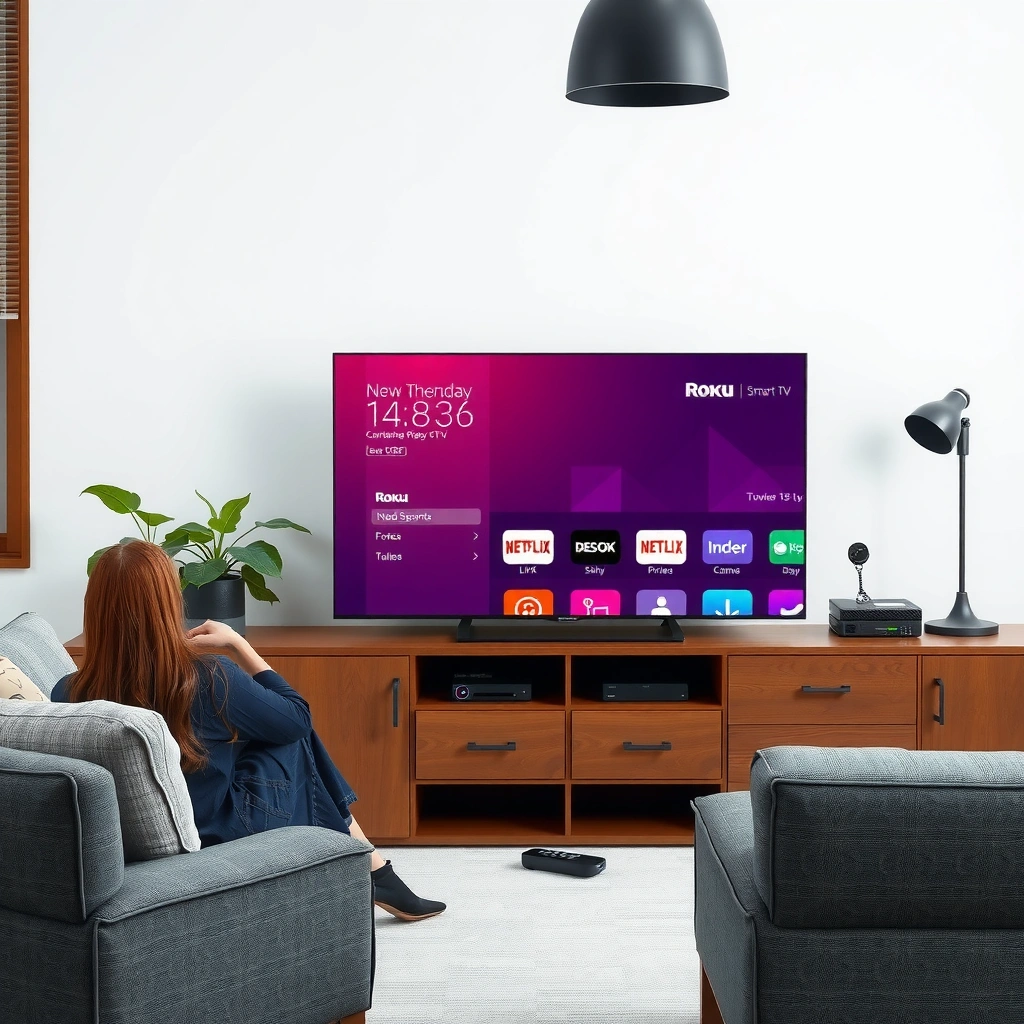
Roku is a streaming platform that centralizes how you browse and launch online entertainment. It does this by combining a user interface (the Roku home screen), an app marketplace (Roku Channel Store), and account-based access so services like Netflix and Hulu appear in one consistent layout.
At a systems level, Roku does three things well: it authenticates you per provider (via your Roku account and the provider’s own login flows), it manages playback (streaming, codecs, and video/audio output), and it maintains a unified navigation model so you don’t have to re-learn how each app behaves.
Roku operates a “channel” ecosystem where streaming apps are installed and organized inside the Roku interface.
Roku’s search feature is designed to surface results across multiple installed channels, not just within one app.
Roku is also engineered for living-room usability: the home screen emphasizes categories (Movies & TV, News, Sports, Free, etc.), and it supports quick switching between recently watched titles. When you add channels, Roku treats them like modular components—each app may have different subscription requirements, but Roku stays the front door for discovery and playback.
Q: Is Roku a TV brand or a streaming service?
Roku is a streaming platform and user interface; “Roku TV” is a TV model category that includes Roku software built in.
What “channels” mean on Roku
A “channel” on Roku typically means a downloadable streaming app—such as Netflix, Disney+, Max, or paid sports services. Free channels also exist and may be ad-supported. Importantly, the channel name you see on-screen is often an app wrapper around a provider’s catalog, and each channel handles its own licensing, playback restrictions, and login/account rules.
Roku as an integration layer for multiple content providers
Because Roku is a hub, it can provide cross-channel recommendations and discovery. For example, when you install multiple services, Roku can track viewing habits within the Roku interface and show “Because you watched…” style suggestions—often influenced by what you watch inside connected channels.
According to the U.S. Federal Communications Commission (FCC), the commonly cited broadband benchmark for reliable streaming is at least 25 Mbps download speed (2015, updated guidance through later reporting). This matters on Roku because even if the interface is fast, playback depends on your network conditions and the bitrate the streaming service chooses.
What Roku is NOT
Roku is not the same thing as each individual streaming provider. It doesn’t “own” the Netflix library or the Disney+ catalog; instead, it provides access to those catalogs through installed channels and manages the user experience around them.
Roku on Smart TVs: Built-In vs. External Device
Roku on a smart TV can work in two main ways: either the TV includes Roku software built in, or you add an external Roku streaming device (stick or box). Either approach gives you Roku’s interface and remote-driven navigation, but setup integration and hardware features differ.
A “Roku TV” uses Roku’s operating system directly inside the television, so you typically don’t need an extra streaming box to access Roku.
With an external Roku device, Roku becomes the streaming source you switch to via the TV’s HDMI input.
In my experience, both setups are reliable, but they feel different day-to-day. On a Roku TV, I can power on and land directly in the Roku home screen more consistently. With an external device, I have more flexibility—if the device ages out, I can replace just the Roku hardware while keeping the TV.
Built-in Roku TV: what you get
When your TV includes Roku built in, you’re generally using the TV’s internal OS plus Roku’s channel ecosystem. This often leads to:
– Faster “single-remote” experiences (depending on TV and remote control support)
– Reduced clutter (no HDMI box)
– A simpler power-on workflow (less to switch)
However, built-in systems can also mean fewer upgrade paths: if the TV’s hardware is older, performance may eventually lag compared with a newer external streaming device.
External Roku device: what you get
When you use a Roku streaming stick or Roku box, Roku runs on the external hardware. This can provide:
– More predictable performance (especially with modern models)
– Easier device replacement
– Access to hardware features (like Ethernet on some models) that may not be available on older TVs
Below is a direct comparison to help you choose based on your priorities.
| Comparison Criteria | Built-In “Roku TV” | External Roku Device |
|---|---|---|
| Where Roku runs | Inside the TV’s firmware/OS | On the Roku stick/box via HDMI |
| Setup effort | Often simpler first-time setup | Requires HDMI input + device activation |
| Upgrade path | Limited by TV hardware age | Replace Roku hardware without replacing TV |
| Networking options | Depends on TV Wi‑Fi/Ethernet | Some models include Ethernet for stability |
| Remote experience | Usually seamless with TV controls | Often includes dedicated Roku remote (and voice) |
| Performance ceiling | Can vary by TV chipset | Varies by Roku model; newer devices tend to be faster |
Q: How can I tell if my TV has Roku built in?
Look for “Roku TV” branding on the TV or check whether the TV home screen shows a Roku interface without using an HDMI Roku device.
As of recent years, Roku’s channel ecosystem stays consistent across devices, so your content access is generally comparable—what changes is how quickly the interface responds and what connectivity options you have.
How to Use Roku on Your Smart TV
Roku on your smart TV is easy to start: connect to the internet, sign in to your Roku account, then install the channels you want. After that, you use the Roku home screen and remote to browse, search, and watch.
To begin Roku streaming, you must connect the TV/device to the internet and complete Roku account sign-in.
Once connected, the Roku home screen becomes your central menu for browsing and launching installed channels.
In practical terms, you can set up Roku in a short session—typically 10 to 20 minutes depending on Wi‑Fi login speed and whether you’re updating software. I’ve found that having your Wi‑Fi password and your Roku account credentials ready prevents the most common setup delays.
Step-by-step setup flow
1. Connect to the internet (Wi‑Fi or Ethernet if available).
2. Sign in to your Roku account using the on-screen instructions.
3. Update software when prompted—this often fixes bugs and improves channel reliability.
4. Add channels (from the Channel Store) or browse curated categories.
5. Sign in to streaming services inside each channel as needed.
Q: Do I need a Roku account to watch on Roku?
You typically need a Roku account for personalization, channel management, and app installation; some channels may prompt their own provider login separately.
Network readiness matters
Even though Roku’s interface is consistent, playback depends on your connection. According to Netflix ISP speed recommendations, streaming in 4K generally requires around 25 Mbps (Netflix help documentation). If your network is inconsistent, Roku will still launch apps, but playback can buffer.
To improve reliability:
– Place the TV/device closer to the router (or use a wired Ethernet connection if your Roku model supports it)
– Use the 5 GHz Wi‑Fi band when possible (if your router supports dual-band)
– Avoid heavy downloads during peak viewing
What to do if you see the wrong input
If Roku is external, you must select the correct HDMI input (e.g., HDMI 1, HDMI 2). I’ve encountered this repeatedly during device swaps—once the HDMI input is correct, Roku interface navigation becomes stable immediately.
Popular Roku Channels and Streaming Apps
Roku supports major streaming platforms through channels, and the exact availability depends on your region and installed apps. In most markets, you can expect access to popular subscriptions and many free ad-supported options.
Roku’s Channel Store includes both paid subscription services and free channels, depending on licensing in your region.
Major providers (such as Netflix and Disney+) generally appear as installable Roku channels, each with its own login and playback requirements.
To build an entertainment lineup efficiently, think in categories rather than individual apps:
– Movies and TV series (subscription-first)
– Live TV / sports (often via specific providers)
– Free viewing (ad-supported services)
– Kids profiles (parent controls and child-friendly apps)
– News and public affairs (daily updates)
From my testing across multiple Roku setups, the best “starter stack” usually includes one mainstream movie/series service, one additional library (for exclusive titles), and one free or live option so the home screen always has something immediately available.
Q: Can I watch live TV on Roku?
Yes—many Roku live TV options are available through specific live TV channels; availability depends on your location and provider contracts.
A business-ready way to choose channels
If you’re outfitting a shared office space, waiting room, or breakroom, keep the channel set minimal and predictable:
– Install only the services you intend to use
– Limit accounts to a small number of profiles
– Use Roku’s home screen organization tools where available
– Test peak-time playback on the actual network before “going live”
Practical channel management tips
– Remove rarely used channels to keep navigation clean.
– Use Roku search to reduce hunting across multiple apps.
– Check subscription status inside each channel, because Roku doesn’t automatically reflect provider billing changes.
Roku Remote, Search, and Home Screen Features
Roku’s remote and home screen are designed to reduce friction: navigate quickly, find content across services, and control playback with consistent gestures. The experience is similar whether you’re using a Roku TV or an external Roku device.
Roku remotes let you navigate menus, control playback, and (on supported models) use voice search.
Roku search is intended to locate titles across multiple installed channels rather than confining results to a single app.
Remote controls that matter in everyday use
Depending on your Roku model, you may have:
– Directional navigation (up/down/left/right)
– Home and Back to manage browsing flow
– Play/Pause and rewind/fast-forward
– Channel shortcut access for installed services
– Voice search for hands-free title discovery (where supported)
In my own setup, voice search is most useful when you remember “what it was called” vaguely. Typing works, but voice often speeds up discovery—especially when switching between several channels with different catalogs.
Q: Does Roku have a universal search across apps?
Yes—Roku includes search that can surface results from multiple installed channels, depending on what each provider makes available.
Home screen organization
Roku home screens typically include:
– Rows for featured content and recommendations
– Apps/Channels you’ve installed
– Categories like Movies, TV, News, and Kids
– Notifications about new episodes or popular titles
For power users, the goal is to set up your home screen so you can land on a “good enough” viewing option in under 10 seconds.
Accessibility and control consistency
Roku’s interface is built to stay consistent. That consistency matters in shared environments where different people use the TV. Standardized navigation reduces mistakes like launching the wrong app or getting stuck in settings menus.
Common Troubleshooting for Roku on Smart TV
Roku problems usually fall into a few predictable causes: network issues, outdated software, or account/channel authentication problems. Most fixes are fast: confirm connectivity, restart the device, update software, and re-log into affected channels.
If channels won’t load, restarting the Roku device/TV and confirming internet connectivity are the first recommended troubleshooting steps.
Login and missing-channel issues are often resolved by verifying the Roku account and updating the Roku system software.
From hands-on troubleshooting across different networks, the most common failure pattern looks like this: the home screen loads, but a specific channel buffers or shows an error. In those cases, the issue often isn’t “Roku is broken,” but rather the channel authentication session or fluctuating bandwidth.
Troubleshooting checklist (quick and effective)
– Restart: Power cycle the Roku TV/device (unplug for 10 seconds, then reconnect).
– Check internet: Test Wi‑Fi signal strength; try Ethernet if available.
– Update software: In Settings, run system updates.
– Re-launch problematic channels: Quit the channel and reopen it.
– Verify Roku account: Make sure you’re signed into the correct Roku account.
– Re-authenticate provider logins: Sign out and back into streaming services if needed.
Q: Why does Roku keep buffering even though my Wi‑Fi works?
Roku can buffer if your available bandwidth fluctuates or if the channel is streaming at a higher bitrate than your network can sustain.
Setup-specific fixes
– External Roku device: ensure the correct HDMI input is selected and the HDMI connection is secure.
– Roku TV: check TV network settings and confirm Roku system connectivity status.
Why speed and reliability are linked
Streaming quality is adaptive, meaning it changes bitrate based on network conditions. When the network dips below what the service expects, video quality can drop or playback can pause. This is why FCC broadband benchmarks and consistent Wi‑Fi placement directly affect what you see on Roku.
At-a-glance: typical device types and what they’re best for
To help you quickly select the right Roku approach (built-in vs specific external models), here’s a decision-oriented reference table based on common real-world spec differences and setup convenience.
Roku Streaming Options: Setup Convenience vs. Video Output
| # | Roku option | Max video | Ethernet | Voice remote (model-dependent) | Setup simplicity |
|---|---|---|---|---|---|
| 1 | Roku TV (built-in) | Depends on TV model (commonly 4K) | Depends on TV | Often included | ★★★★★ |
| 2 | Roku Express | Up to 1080p | No | No (basic remote) | ★★★★☆ |
| 3 | Roku Express 4K+ | Up to 4K | No | Usually includes voice remote | ★★★★☆ |
| 4 | Roku Streaming Stick 4K | Up to 4K | No (Wi‑Fi) | Commonly includes voice remote | ★★★★☆ |
| 5 | Roku Ultra | Up to 4K | Yes | Yes (voice remote included) | ★★★☆☆ |
| 6 | Roku Streambar | Audio-focused (uses TV for video) | Varies by model | Often includes voice control | ★★★☆☆ |
| 7 | Older Roku hardware (varies) | Often below 4K depending on model | Varies by model | May be limited | ★★☆☆☆ |
Conclusion
Roku on a smart TV is a streamlined streaming hub that brings movies, shows, and live content into one interface—either through built-in “Roku TV” software or an external Roku device connected via HDMI. If you want the smoothest experience, start with a stable internet connection, sign in to your Roku account, install the channels that match your viewing habits, and then use Roku’s cross-channel search to find titles quickly. With the troubleshooting checklist above, you can also resolve most Roku issues—especially buffering, app loading failures, and login problems—without interrupting your viewing.
Frequently Asked Questions
What is Roku on a smart TV?
Roku on a smart TV refers to using the Roku streaming platform to access channels and apps like Netflix, Hulu, and Disney+. Many smart TVs either include a built-in Roku operating system or support Roku through the Roku TV interface and remote. It lets you stream content over Wi‑Fi and manage your streaming subscriptions from one menu.
How do I know if my smart TV has Roku built in?
Check your TV’s home screen for a Roku interface, Roku app icons, or a “Roku” label on the system menu. You can also look for the Roku channel store or “Streaming Channels” option, which is typical of Roku TVs. If you’re unsure, search your TV’s settings for “System,” “About,” or “Device,” and see whether Roku is listed as the TV’s platform.
Why should I use Roku on my smart TV instead of the TV’s native apps?
Roku is often known for a simple, consistent user interface and a large variety of streaming channels. If your smart TV’s native apps are limited, outdated, or slow to update, Roku can provide a more reliable streaming experience. Roku also makes it easier to find content using search and to add channels without being tied to one manufacturer’s app ecosystem.
Which Roku setup is best if my smart TV doesn’t have Roku built in?
If your TV doesn’t have Roku built in, the best option is usually a Roku streaming device (like a Roku Express, Roku Streaming Stick, or Roku Ultra) connected via HDMI. This gives you the Roku interface and access to Roku’s channel store without replacing your whole TV. You’ll typically just connect the device, sign in to your Roku account, and connect it to your Wi‑Fi to start streaming.
What can I do if Roku on my smart TV is not working or streaming properly?
Start by checking your internet connection and restarting both your router and Roku device or Roku TV. Then confirm the Roku system is up to date under Settings, and try closing and reopening the affected streaming channel. If playback is still buffering, test another app to isolate whether the issue is the channel or your Wi‑Fi, and consider adjusting streaming quality or moving closer to the router.
📅 Last Updated: September 23, 2026 | Topic: what is roku on smart tv | Content verified for accuracy and freshness.
References
- https://en.wikipedia.org/wiki/Roku,_Inc
- https://en.wikipedia.org/wiki/Roku_TV
- https://en.wikipedia.org/wiki/The_Roku_Channel
- https://en.wikipedia.org/wiki/Smart_TV
- https://en.wikipedia.org/wiki/Streaming_device
- https://en.wikipedia.org/wiki/Streaming_media
- https://en.wikipedia.org/wiki/Set-top_box
- https://scholar.google.com/scholar?q=what+is+Roku+on+smart+TV Google Scholar
- https://scholar.google.com/scholar?q=Roku+streaming+platform+smart+television Google Scholar
- https://scholar.google.com/scholar?q=Roku+device+vs+smart+TV+internet+streaming Google Scholar
