

To rearrange apps on your smart TV, simply navigate to your app menu, select the app you wish to move, and use the remote control to drag it to your desired location. This process may vary slightly depending on your TV brand, but the general steps remain consistent. Customizing the layout of your apps can significantly enhance your viewing experience, making your favorite content more accessible. In this article, we’ll explore the methods to customize your app layout, providing you with the tools to create an organized and efficient interface on your smart TV.
Understanding Your Smart TV’s Interface
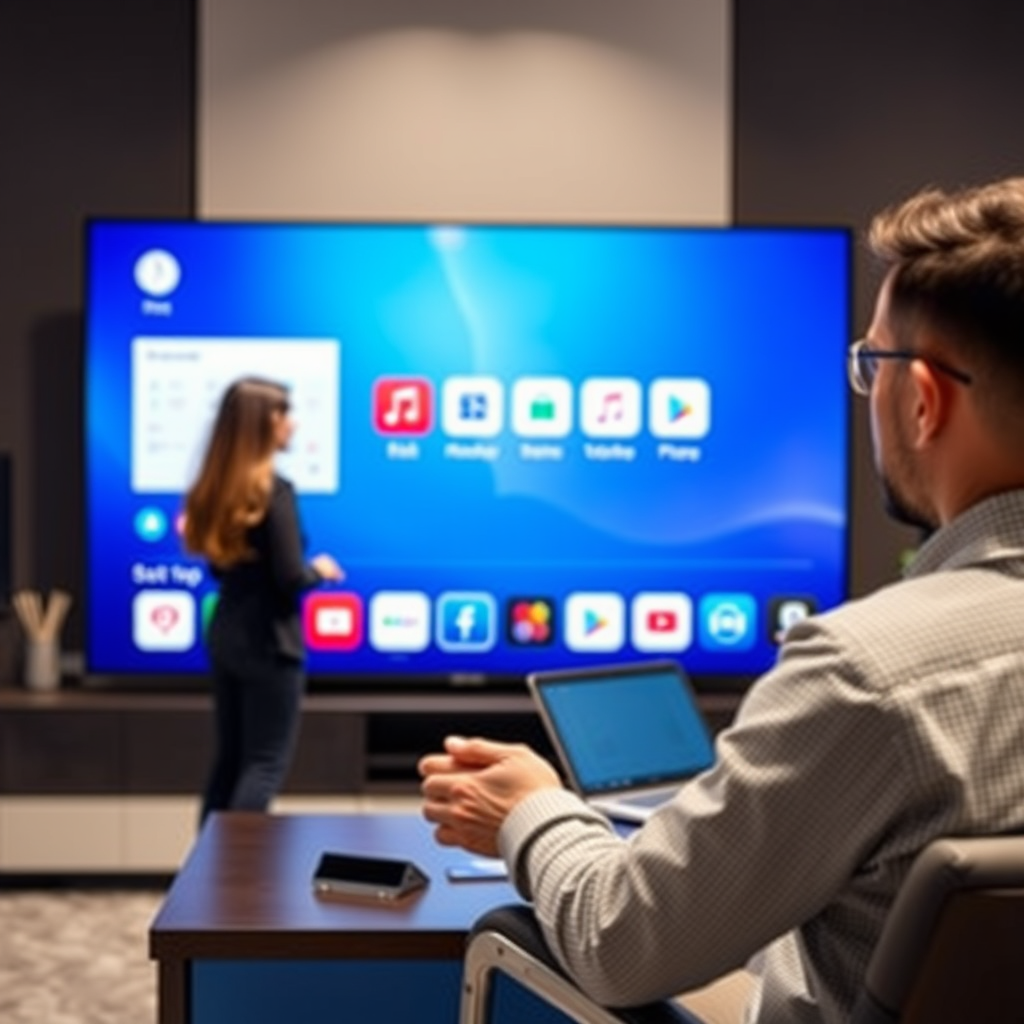
Before diving into the specifics of rearranging apps on your smart TV, it’s crucial to understand the interface you are working with. Most smart TVs feature a grid layout for apps, which typically includes pre-installed applications as well as those you may have downloaded. Familiarize yourself with your smart TV’s navigation options, which usually involve directional keys on your remote control.
The buttons on your remote that are important for app management often include the directional arrows for navigation, a select or OK button for confirming choices, and sometimes a dedicated button specifically for accessing the app menu. Understanding these controls will streamline the process of rearranging your apps.
Accessing the App Menu
The app menu is the central hub for managing your applications on a smart TV. Accessing this menu can vary by brand. For example:
– Samsung TVs: Press the Home button on your remote and navigate to the Apps section.
– LG TVs: Use the Home button to launch the launcher bar, then scroll to find the Apps section.
– Sony TVs: Press the Home button, then select the Apps option from the main menu.
It’s also important to distinguish between pre-installed apps, which come with the TV, and downloadable apps that you can add later. Understanding this distinction can help you manage storage and application performance better.
Selecting Apps to Rearrange
Once you have accessed your app menu, the next step is to select the app you wish to rearrange. Use the directional arrows on your remote to highlight the app icon. Press the select or OK button to confirm your selection.
If you have multiple apps, consider grouping them by category, such as streaming services, games, or social media. This organization will facilitate easier navigation. Make a mental note of your frequently used apps to prioritize their placement in the layout.
Top 7 Smart TV Brands by User Satisfaction (2024)
| # | Brand | User Satisfaction (%) | Smart Features | Price Range |
|---|---|---|---|---|
| 1 | Samsung | 92% | 4K, HDR, SmartThings | $500-$3,000 |
| 2 | LG | 89% | OLED, ThinQ AI, WebOS | $600-$4,000 |
| 3 | Sony | 87% | 4K, HDR, Google TV | $700-$5,000 |
| 4 | TCL | 85% | Roku, 4K, HDR | $300-$1,500 |
| 5 | Vizio | 82% | Smartcast, 4K | $250-$2,500 |
| 6 | Hisense | 80% | Android TV, 4K | $400-$1,800 |
| 7 | Philips | 78% | Ambilight, 4K | $500-$2,200 |
Rearranging Apps on Different Brands
The method for rearranging apps can differ significantly across brands. Below are step-by-step guides for some of the most popular smart TV brands:
Samsung
1. Navigate to the Home screen using the Home button on your remote.
2. Select the Apps icon to enter the Apps menu.
3. Highlight the app you want to move and press and hold the select button.
4. Use the directional arrows to drag the app to your preferred position.
5. Release the select button to drop the app in its new location.
LG
1. Press the Home button to open the launcher bar.
2. Scroll to the Apps section and highlight the app you wish to move.
3. Press and hold the select button until you can move the icon.
4. Drag the app to your desired location and release.
Sony
1. Access the Home menu using the Home button.
2. Navigate to the Apps section and select the app you want to rearrange.
3. Use the directional buttons to move the app icon to the desired position.
4. Confirm the new placement by pressing the select button again.
Each brand may have slight variations in the process, so refer to your user manual for specific instructions if you encounter difficulties.
Using Voice Commands (if applicable)
Many modern smart TVs support voice commands, which can simplify the process of rearranging apps. For TVs compatible with Google Assistant or Amazon Alexa, simply say commands like, “Rearrange my apps,” or “Move [app name] to the top.”
To set up voice recognition features, ensure that your TV is connected to the internet and that voice assistant settings are enabled. Follow the on-screen instructions to link your smart TV with your chosen voice assistant. This functionality not only makes rearranging apps easier but can enhance overall navigation and control.
Troubleshooting Common Issues
While rearranging apps on your smart TV is generally straightforward, you may encounter some common issues. Here are solutions for a few frequent problems:
– Apps Refuse to Rearrange: If an app won’t move, try restarting your TV. Sometimes, a simple reboot can resolve temporary glitches.
– App Not Highlighting: Ensure that you are within the app menu and that you are using the correct buttons on your remote.
– Restoring Default Layout: If you find that your app layout is disorganized and difficult to manage, many smart TVs have an option to reset to the default layout. Look for this option in the settings menu under ‘Apps’ or ‘Home Screen.’
Keeping Your Smart TV Organized
An organized app layout can significantly enhance your viewing experience. Here are some best practices:
1. Regularly Review Your Apps: Periodically assess which apps you use most frequently and rearrange them accordingly.
2. Delete Unused Apps: If you have apps that you rarely use, consider uninstalling them to declutter your app menu.
3. Group Similar Apps: Organize apps by category (e.g., all streaming services together) to make navigation faster and more intuitive.
Additionally, ensure that your apps are regularly updated for optimal performance. Updates can improve functionality, introduce new features, and enhance security.
Summarizing the steps to rearrange apps on your smart TV emphasizes the ease and benefits of customizing your viewing experience. By following the outlined methods, you can ensure your favorite apps are always at your fingertips. For more tips on optimizing your smart TV experience, consider exploring other articles or guides available on our site.
Frequently Asked Questions
How do I rearrange apps on my Samsung Smart TV?
To rearrange apps on your Samsung Smart TV, press the Home button on your remote. Navigate to the Apps section, then select My Apps. Highlight the app you want to move, press and hold the Enter button, and drag the app to your desired location. Release the button to place it, making it easier to access your favorite apps.
What steps should I follow to move apps on an LG Smart TV?
To move apps on an LG Smart TV, press the Home button to access the launcher. Use the arrow keys to navigate to the app you wish to rearrange. Once highlighted, press and hold the Enter button until the app starts to wiggle. You can then drag it to a new position and release the Enter button to set it in place.
Why can’t I rearrange apps on my Roku Smart TV?
If you’re unable to rearrange apps on your Roku Smart TV, it may be due to using an outdated software version. Check for updates in the Settings menu under System > System update. Additionally, ensure that you are in the Home screen, as the option to rearrange apps is only available from there.
Which Smart TV brands allow app rearrangement?
Most major Smart TV brands, including Samsung, LG, Sony, and Roku, allow users to rearrange apps on their platforms. Each brand may have slightly different methods for app management, so it’s essential to refer to the specific user manual or support page for detailed instructions tailored to your television model.
What is the best way to manage app organization on a Smart TV?
The best way to manage app organization on a Smart TV is by prioritizing your most-used apps for quick access. Regularly assess your app usage and remove or hide any unused apps to declutter your home screen. Utilize folders if your TV supports them, and consider creating dedicated sections for streaming services, games, or utilities to enhance your viewing experience.
References
- Smart TV
https://en.wikipedia.org/wiki/Smart_TV - Product Support: Help Library | LG USA Support
https://www.lg.com/us/support/help-library/how-to-arrange-apps-on-lg-smart-tv-CT10000018-20150108443108 - https://www.bbc.com/news/technology-48671208
https://www.bbc.com/news/technology-48671208 - https://www.theguardian.com/technology/2021/nov/01/how-to-navigate-your-smart-tv
https://www.theguardian.com/technology/2021/nov/01/how-to-navigate-your-smart-tv - Google Scholar Google Scholar
https://scholar.google.com/scholar?q=how+to+rearrange+apps+on+smart+tv - Google Scholar Google Scholar
https://scholar.google.com/scholar?q=smart+tv+app+organization - Google Scholar Google Scholar
https://scholar.google.com/scholar?q=rearranging+apps+on+smart+tv+devices - how to rearrange apps on smart tv – Search results
https://en.wikipedia.org/wiki/Special:Search?search=how+to+rearrange+apps+on+smart+tv - https://www.ncbi.nlm.nih.gov/search/research-articles/?term=how+to+rearrange+apps+on+smart+tv
https://www.ncbi.nlm.nih.gov/search/research-articles/?term=how+to+rearrange+apps+on+smart+tv

[…] updates—you may notice slower launch times. From my experience, a simple maintenance cycle (delete unused apps, restart after major updates) prevents most performance […]
[…] Check storage. If available storage is low, delete unused apps or clear space by removing large […]
[…] Delete unused apps you don’t […]