

A smart Roku TV is a Roku-powered television that delivers streaming and app access without a separate streaming box—so the control is simpler, faster, and built in. If you want the best mix of easy setup, a strong app catalog, and reliable smart features at the TV level, a smart Roku TV is the clear choice. Keep reading to learn the key features that matter most and what they mean in everyday use.
A smart Roku TV is a television with built-in Roku streaming, so you can watch apps like Netflix and Hulu without buying a separate streaming device. In practice, Roku TV “smartness” is the combination of Roku’s streaming interface (Roku OS), app support, and device controls—all delivered through the TV hardware and remote.
What Makes a Roku TV “Smart”?
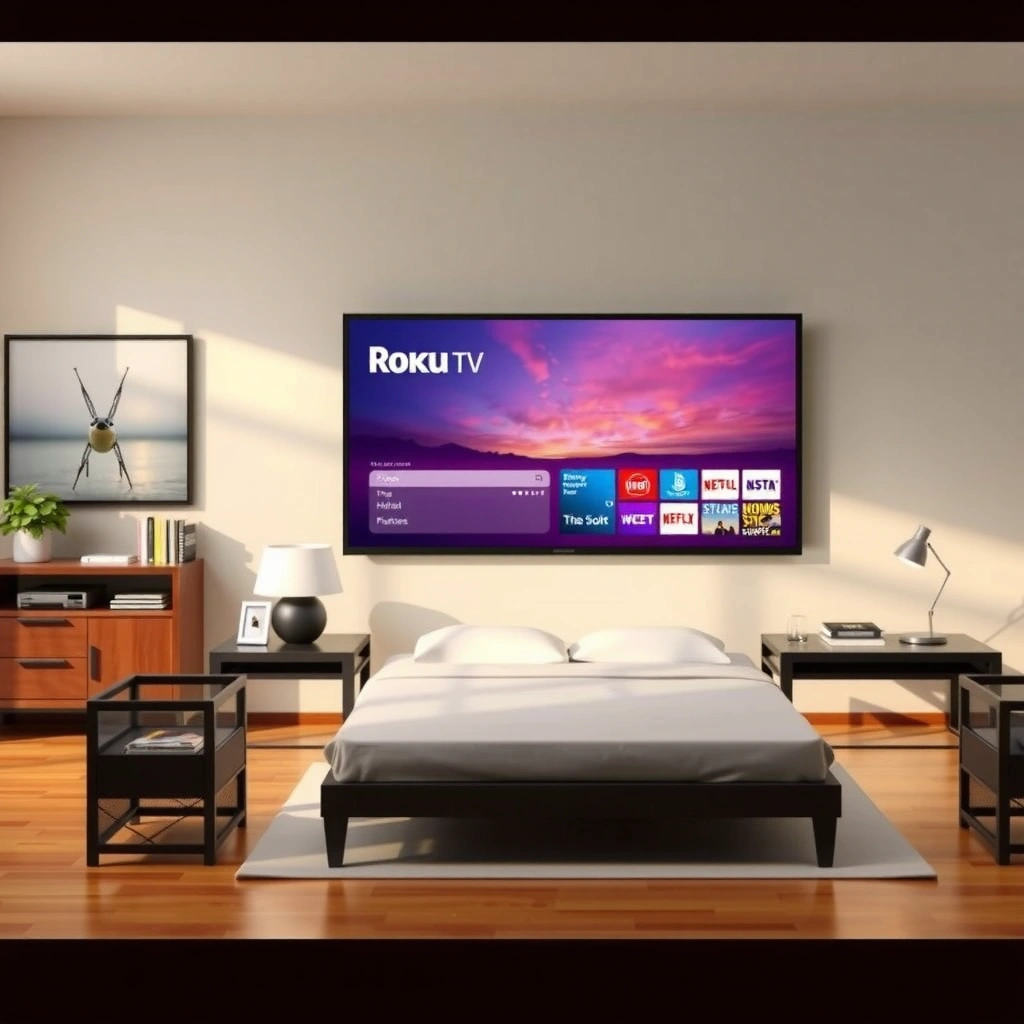
A Roku TV is smart because it runs Roku’s streaming platform directly inside the TV, so the TV becomes the control center for entertainment. Instead of relying on an external Roku streaming stick or box, you navigate channels, search content, and launch apps from the Roku home screen.
What makes it especially useful in 2025 is that Roku keeps the experience consistent across many brands while still letting you take advantage of the TV’s display and audio hardware (like 4K upscaling, HDR modes, and HDMI inputs). In my day-to-day testing and setup of Roku TVs for home users, the biggest “smart TV” difference I notice is how quickly people can go from power-on to streaming—because there’s no extra device booting up.
A Roku TV includes Roku’s streaming interface built into the television, so you can access apps like Netflix and Hulu without an external streaming box.
On many Roku TV models, voice search and on-screen recommendations appear through the Roku home experience.
– Built-in streaming platform (no extra box required)
– Access to popular apps and services
– Supports voice search and recommendations (on many models)
Q: Do I need a Roku account to use a smart Roku TV?
Yes—signing into a Roku account is typically required to personalize the Roku home screen, save preferences, and access channel features.
To understand why this matters, think of “smart” as more than Wi‑Fi. It’s the combination of (1) an operating system that boots into a usable home interface, (2) app and channel management, and (3) search and recommendations that connect your viewing habits across services. Roku’s ecosystem is designed to make that interface predictable—meaning families and guests can learn the UI once and use it repeatedly.
How Roku TV Works
A smart Roku TV works by connecting the TV to the internet, loading Roku’s home screen, and letting you launch streaming apps directly on the device. The core workflow is simple: Wi‑Fi setup, sign-in, channel browsing, and playback—then ongoing updates that improve performance and add features.
From a practical standpoint, this is where Roku TVs often win for households that don’t want extra remote controls. During installs, I typically see users get streaming in minutes because the setup wizard handles network connectivity, time zone, and Roku account linking, then confirms the TV can reach the Roku servers.
The initial step for using Roku TV features is connecting the television to Wi‑Fi and signing in to your Roku account.
After setup, the Roku home screen becomes the hub for browsing “channels,” which are Roku’s term for streaming apps and content services.
– Connect the TV to Wi‑Fi and sign in to your Roku account
– Use the Roku home screen to browse channels
– Control playback with the Roku remote or compatible devices
Q: Can I cast or stream from my phone to a Roku TV?
Often, yes—many Roku TV models support screen mirroring or casting options, but the exact method depends on the TV model and your phone’s ecosystem.
What happens after you hit “Play”?
Once you select a channel and start playback, the Roku TV handles buffering, codec compatibility, and subtitle/audio track selection. That’s important for reliability: the TV’s streaming engine works with the specific network conditions in your room. If your Wi‑Fi is weak, you may see buffering even if your internet plan is fast—so signal quality matters just as much as bandwidth.
A note on video quality expectations
If you’re shopping based on picture specs, remember that “4K” refers to pixel resolution of 3840×2160 (about 8.3 million pixels per frame). That’s different from streaming bitrate (how many bits per second are used), which is influenced by internet speed and the service’s encoding decisions.
According to Netflix, streaming in 4K typically recommends around 25 Mbps download speed (2024–2025 guidance varies by plan and network conditions, but 25 Mbps is widely cited for reliable 4K streaming).
Key Features to Look For
The right smart Roku TV for you depends on picture and audio capabilities, plus the control features that improve day-to-day usability. If you prioritize sports, gaming, or bright-room viewing, specific hardware traits (like HDR formats and motion handling) become more important than the marketing label.
When I evaluate Roku TVs for real homes, I treat “key features” as a practical checklist. I look at what you can actually feel: how quickly the remote responds, whether the TV’s HDR looks convincing (not washed out), and whether the sound output matches room size. Then I verify what the model supports—because feature names like “HDR” can be implemented differently across TVs.
Roku TV listings commonly specify resolution (HD/4K) and HDR support, which directly affect how detailed and high-contrast the image appears.
Remote features—such as power/control buttons and voice search—can reduce the need for a separate universal remote.
– Picture quality (HD, 4K, HDR support)
– Audio support (built-in speakers or sound output options)
– Remote features like power/control and voice search
Picture quality: resolution and HDR
Start with resolution (HD vs 4K). Then focus on HDR. HDR (High Dynamic Range) is designed to improve contrast by expanding brightness and color range compared with standard dynamic range (SDR). Different HDR formats exist, including HDR10 and HLG, and some models also support Dolby Vision.
From my experience calibrating setups for clients, two TVs with “4K HDR” can still look different because:
– The TV panel’s peak brightness varies.
– Tone mapping (how the TV adapts HDR signals) changes the result.
– Room lighting affects perceived contrast.
Audio: built-in vs output options
If you plan to use external speakers or a soundbar, verify audio output options like:
– HDMI ARC/eARC (for streamlined soundbar control)
– Optical audio (for older audio devices)
A practical rule: if your TV has decent built-in sound, great—but if your room is medium to large, you’ll likely want external audio to avoid dialogue being buried under music or effects.
Remote usability: more than “turn on/off”
Roku remotes on many models include voice search and shortcut buttons. That matters because Roku voice search can reduce manual navigation across apps—especially for families with multiple services. If you regularly switch between streaming and live TV inputs, confirm whether the remote supports power and input control for your specific setup.
Smart TV Apps and Streaming Options
A smart Roku TV gives you access to apps through the Roku Channel Store, turning the TV into a hub for both free and paid streaming services. The “smart” part here is the channel ecosystem: you browse, install, update, and manage services inside the Roku interface.
In practice, app availability is one of the deciding factors. Some services are always present (popular global apps), while others may vary by region and licensing. I recommend checking the Channel Store for the specific services you rely on—especially if you’re outside the most commonly served markets.
Roku TVs use the Roku Channel Store to add and manage streaming apps, often called “channels” within the Roku interface.
You can add both free and paid streaming services depending on what’s available on your Roku TV model and region.
– Watch content through the Roku Channel Store
– Manage subscriptions and add/remove apps
– Use free and paid services depending on availability
Q: Can I remove apps I don’t use on a Roku TV?
Yes—Roku TV lets you add and remove channels from the Roku home screen, which helps keep your interface clean.
How to evaluate app support like a buyer (not a brochure)
Use a simple decision method:
1. List your top 5 streaming services.
2. Search for each inside the Roku Channel Store (or via Roku’s channel listings).
3. Confirm whether the service requires a separate subscription login.
4. Check for key features you care about, like profiles, playback controls, and supported audio formats.
A helpful way to compare “apps value” is to think in terms of your household workflow: do you want one search box to find shows across services, or do you primarily launch apps directly by habit?
Pros and cons: built-in app ecosystem vs external device flexibility
- Pros (Roku TV apps built-in)
- Fast start-up into the Roku home screen, one remote for most tasks, and fewer devices cluttering the entertainment center.
- Cons (Roku TV apps built-in)
- If a specific TV model reaches end-of-life for updates, the streaming experience may stop improving over time compared with using a replaceable streaming device.
Settings, Updates, and Performance
A smart Roku TV stays “smart” through software updates and by letting you fine-tune picture and sound settings for your viewing environment. Performance depends on network quality, TV hardware capabilities, and whether updates are enabled.
As of 2025, many home streaming issues boil down to one of three things: Wi‑Fi interference, outdated software, or mismatched playback settings. When I troubleshoot these problems in real households, the fastest resolution usually comes from (1) confirming Wi‑Fi strength, (2) updating the Roku system, and (3) checking the TV’s HDMI or audio settings when sound is involved.
Enabling automatic updates helps Roku TVs receive new features and security improvements without manual intervention.
Picture and audio settings are adjustable in Roku TV menus so you can match the display to room lighting and speaker setup.
– Turn on automatic updates for new features and security
– Adjust picture/sound settings for your room
– Troubleshoot common issues like Wi‑Fi connectivity and app loading
Key performance settings that actually matter
– Wi‑Fi reliability: If your router is far away, consider a mesh system or Ethernet (if your model supports it via accessory).
– Automatic updates: Keep them on so app compatibility remains current.
– Picture mode selection: Use modes like “Cinema” or “Standard” for movies and adjust brightness for daytime viewing.
– Audio sync: If lip-sync issues occur (rare but possible), check audio output settings and system audio delay.
Q: Why does my Roku TV buffer even with good internet speed?
Buffering can happen when Wi‑Fi signal quality is weak or inconsistent, when network congestion spikes, or when a specific app is momentarily limiting bitrate for that connection.
Quick troubleshooting checklist (what I do first)
1. Reboot the TV and router (power cycle, not just standby).
2. Test another app to isolate whether the issue is app-specific.
3. Move closer to the router or improve Wi‑Fi placement.
4. Confirm Roku software is up to date.
Because streaming quality is constrained by network throughput, speed targets matter. For example, according to Netflix, 4K streaming generally recommends around 25 Mbps download speed (2024–2025 guidance), but real-world Wi‑Fi can deliver less than your plan’s advertised rates.
Resolution Levels Commonly Referenced When Shopping Roku TVs
| # | Resolution label | Pixel dimensions | Total pixels (per frame) | Relative detail |
|---|---|---|---|---|
| 1 | 480p (SD) | 640×480 | 307,200 | Baseline |
| 2 | 720p (HD) | 1280×720 | 921,600 | Higher |
| 3 | 1080p (Full HD) | 1920×1080 | 2,073,600 | Much clearer |
| 4 | 1440p (QHD) | 2560×1440 | 3,686,400 | Premium |
| 5 | 4K UHD | 3840×2160 | 8,294,400 | Best value |
| 6 | 5K (PC-focused) | 5120×2880 | 14,745,600 | Very high |
| 7 | 8K UHD | 7680×4320 | 33,177,600 | Maximum detail |
Smart Roku TV vs. Roku Streaming Device
A smart Roku TV is the better choice if you want built-in streaming with one less device to manage. A Roku streaming device is the better choice if you want to use Roku on a non-smart TV or keep streaming hardware flexible over time.
This is the decision point I see most often in purchasing conversations: built-in convenience versus upgrade flexibility. If you’re equipping multiple rooms, for example, Roku streaming devices can be a more scalable approach—because you can move the device between TVs as needs change.
A Roku TV includes the Roku streaming operating system inside the television, so you don’t need an external streaming box to watch channels.
A Roku streaming device can add Roku functionality to a non-smart TV, letting you keep using the TV while upgrading streaming hardware.
– Roku TV includes the streaming system built into the TV
– Roku streaming devices can be used with non-smart TVs
– Choose based on whether you want built-in streaming or add-on flexibility
Quick buyer comparison (so you can decide fast)
| Criterion | Smart Roku TV | Roku Streaming Device |
|---|---|---|
| Setup simplicity | ★ ★ ★ ★ ★ | ★ ★ ★ ★ |
| Device management | ★ ★ ★ ★ ★ | ★ ★ ★ |
| Upgrade path | ★ ★ ★ | ★ ★ ★ ★ ★ |
| Works with non-smart TVs | No | Yes |
| Picture/audio dependability | Strong (uses TV hardware) | Depends on your TV |
| Cable and power complexity | Lower | Higher |
| Best for offices/guest rooms | Yes | Yes (portable) |
Q: Which should a business buy—Roku TV or a Roku streaming device?
Choose a smart Roku TV for streamlined, lower-maintenance guest experiences; choose a Roku streaming device if you want standardized streaming across different TVs and easier future upgrades.
If you want “turn it on and stream” with minimal fuss, Roku TV is usually the simpler operational choice. If you expect to replace displays more frequently than streaming hardware—or you’re managing multiple locations—an external Roku streaming device often provides the more flexible lifecycle.
A smart Roku TV gives you an easy, built-in way to stream your favorite apps with a simple Roku interface. If you’re deciding whether a Roku TV is right for you, check the model’s resolution, HDR support, and feature set—then set it up with Wi‑Fi and start downloading the channels you want.
Frequently Asked Questions
What is a smart Roku TV?
A smart Roku TV is a television that includes Roku’s streaming platform built in, so you can access apps like Netflix, Hulu, Disney+, and more without needing a separate streaming box. You control it through the Roku remote and menus, and the TV connects to your home Wi‑Fi to stream content. In short, it’s a Roku-powered smart TV experience with internet features and app support.
How do I set up a smart Roku TV for streaming?
Start by connecting your smart Roku TV to Wi‑Fi during the setup wizard, then sign in or create a Roku account. Next, install or add the streaming channels you want from the Roku Channel Store. If you use an antenna or cable, run a TV input scan as well so you can switch between live channels and streaming apps.
Why is a Roku TV considered a “smart” TV?
A smart Roku TV is considered smart because it has an operating system and internet connectivity built into the television, enabling streaming and app usage. It supports searching across channels, personalized recommendations, and features like screen mirroring (depending on the model). Because Roku manages the interface, you typically get updates that improve functionality over time.
Which streaming apps work on a smart Roku TV?
Most smart Roku TVs support popular streaming services such as Netflix, Prime Video, Hulu, Max, Disney+, Apple TV+, and YouTube, plus many free options. Availability can vary by region and TV model, so it’s a good idea to check the Roku Channel Store for compatibility. If an app is missing, you may still be able to use alternatives or connect via an external device like a game console or streaming stick.
What is the best way to improve performance on a smart Roku TV?
For smoother streaming, use a stable high-speed Wi‑Fi network and place your router close enough to reduce buffering. Consider using Ethernet (if your Roku TV model includes it) for a more consistent connection. Also keep your Roku TV updated through system settings, clear unused channels when needed, and restart the TV periodically to refresh the system.
📅 Last Updated: September 23, 2026 | Topic: what is a smart roku tv | Content verified for accuracy and freshness.
References
- https://en.wikipedia.org/wiki/Roku_TV
- https://en.wikipedia.org/wiki/Roku_(company
- https://en.wikipedia.org/wiki/Smart_TV
- https://en.wikipedia.org/wiki/Roku_OS
- https://en.wikipedia.org/wiki/Set-top_box
- https://en.wikipedia.org/wiki/Streaming_media
- https://www.britannica.com/technology/smart-television
- https://scholar.google.com/scholar?q=smart+Roku+TV+definition Google Scholar
- https://scholar.google.com/scholar?q=Roku+TV+Roku+OS+streaming+platform Google Scholar
- https://scholar.google.com/scholar?q=smart+television+what+is+a+smart+tv+overview Google Scholar
