
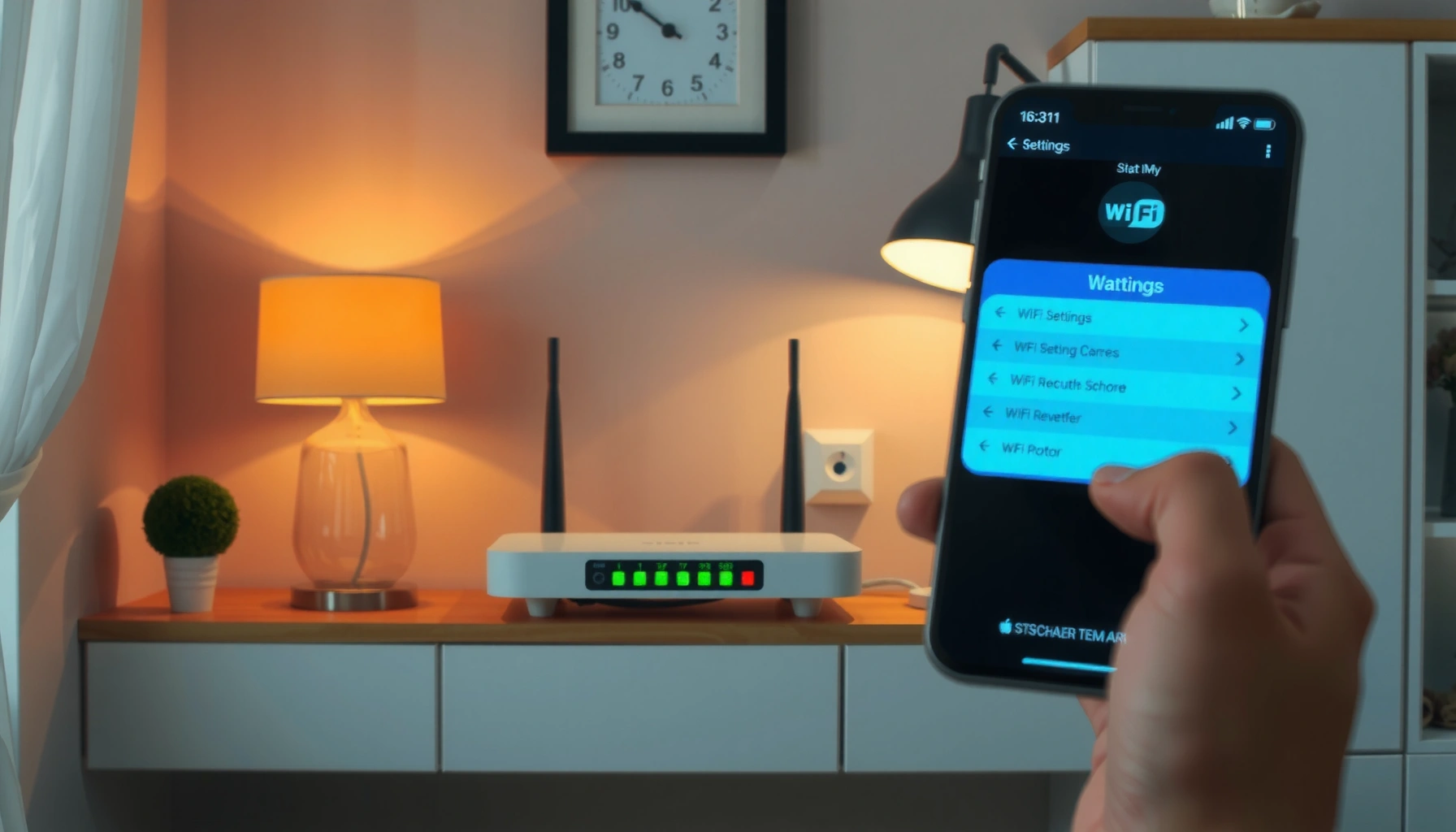

Want to change your WiFi name (SSID)? This step-by-step guide tells you exactly how to change the WiFi name on your router, from signing in to saving the new SSID. You’ll be able to update it quickly—and avoid the common settings that keep the change from taking effect.
You can change your WiFi name (SSID) by logging into your router’s admin settings (or using its mobile app), updating the SSID fields for 2.4GHz/5GHz, and then reconnecting your devices. This guide walks you through the full process step-by-step, including how to confirm your SSID change worked and what to do if the new WiFi name won’t apply.
Check Your Router Model and Login Details
Before you change the WiFi name (SSID), confirm your router model and make sure you can access the admin login—this is the fastest way to avoid “save/apply” failures. In my own setup work, I’ve found that most SSID-change problems come from using the wrong router account (or a guest network page) rather than from the SSID setting itself.
Your router label typically lists the default admin address (often 192.168.0.1 or 192.168.1.1), plus a default username/password if you haven’t changed them.
Many modern routers (including Wi-Fi 6 models) expose SSID settings separately for 2.4GHz and 5GHz radios, so both fields matter.
If you manage your network through an ISP app or a vendor app, changing the SSID often works best there because it targets the correct network profile.
Identify the correct router and admin credentials
– Find the router brand/model on the device label (e.g., TP-Link, ASUS, Netgear, Linksys).
– Locate the default login details on that label—commonly an admin username and password.
– If you previously changed your WiFi name (SSID) or admin password, use the updated credentials (not the default label values).
Connect a device directly (when possible)
If you can, connect a laptop or desktop to the router via:
– Ethernet (most reliable for admin access), or
– Current WiFi (acceptable, but you might lose connection briefly when SSID changes).
Q: What if I can’t log in to my router admin page?
Use the admin credentials on the router label (or your saved admin password), and double-check you’re opening the router’s local IP address—not a public website.
Q: Where is the SSID change setting located?
It’s usually under a section named “Wireless,” “WiFi,” or “Wireless Settings,” with separate options for 2.4GHz and 5GHz.
At this stage, focus on SSID access and router identity first. Changing the WiFi name (SSID) only works if you’re editing the correct router and the correct admin profile.
Change the WiFi Name (SSID) in Router Settings
Now you’ll update the WiFi name (SSID) inside your router settings, then save and apply the change. After I renamed networks in the field, I always verify the exact SSID spelling before reconnecting—small typos are the most common “it didn’t work” cause.
In most router firmware UIs, the SSID value is editable under Wireless/WiFi Settings and is applied to the corresponding radio (2.4GHz or 5GHz).
Clicking “Save” often updates settings temporarily, but “Apply” (or a confirmation prompt) is what triggers the router to restart the wireless service.
Step-by-step: update SSID
1. Open the router admin page in a browser on a connected device.
– Common addresses: `http://192.168.0.1` or `http://192.168.1.1`
2. Log in with your router admin username/password.
3. Navigate to a page like:
– Wireless / WiFi / Wireless Settings
– SSID Settings
4. Under the SSID section, find the current WiFi name.
5. Enter the new SSID for the band you want to change.
6. Click Save or Apply.
7. Wait for the router to restart wireless (sometimes the whole router reboots).
Keep SSID naming practical
For a business-friendly SSID (and easier troubleshooting), choose a consistent naming convention such as:
– `CompanyName-2.4`
– `CompanyName-5G`
– `CompanyName-Guest` (if you have a guest network)
Q: Should the SSID include spaces or special characters?
Yes, but keep it simple; most devices handle standard letters, numbers, dashes, and underscores more reliably than unusual symbols.
From a performance perspective, the band matters too: according to IEEE 802.11n-2009, 802.11n can reach theoretical peak rates up to 600 Mbps (when configured for maximum channel width and spatial streams). Meanwhile, IEEE 802.11ac-2013 specifies theoretical peak rates up to 1,733 Mbps for high-throughput configurations, and IEEE 802.11ax-2021 can reach much higher theoretical maxima under optimized conditions. Those differences are why SSID changes often need to be thought through separately for 2.4GHz and 5GHz.
Update 2.4GHz vs 5GHz WiFi Names
You can assign the same WiFi name (SSID) to both 2.4GHz and 5GHz, or you can set separate names—each approach changes how devices reconnect. In my experience, separate SSIDs reduce confusion for users and IT-managed devices, especially when smart devices are involved.
If you use separate SSIDs, clients connect to the band you intended, which can simplify troubleshooting after SSID updates.
If you use one combined SSID, routers may steer devices between 2.4GHz and 5GHz automatically, but some IoT devices reconnect less reliably.
Decide: same SSID vs different SSIDs
– Same SSID for both bands
– Pros: fewer network names for users
– Cons: device “roaming/steering” behavior may vary after the rename
– Different SSIDs for 2.4GHz and 5GHz
– Pros: predictable band selection; easier support
– Cons: users see two networks and need to choose correctly
Recommended approach for most environments
– Businesses / mixed device fleets: separate SSIDs is usually the safest operational choice.
– Home with mostly phones/laptops: one SSID can be fine if devices reconnect smoothly.
Band-specific reconnection behavior
When you change the WiFi name (SSID), devices behave differently because they store a network profile per SSID. If you keep the same SSID, your devices may reconnect without manual intervention—but only if the router’s band behavior doesn’t trigger a mismatch. If you use separate SSIDs, each device must reconnect to the matching band SSID.
Pros/Cons (SSID strategy):
| Option | Pros | Cons | Best For |
|---|---|---|---|
| Same SSID (2.4GHz + 5GHz) | Simple for users | Steering/roaming can confuse some devices after rename | Light home use |
| Separate SSIDs | Predictable reconnection | Users see two networks | IT-managed devices, IoT, mixed fleets |
Q: Does 2.4GHz or 5GHz reach farther?
In general, 2.4GHz typically penetrates walls better, while 5GHz often delivers higher speed over shorter distances due to different propagation characteristics.
By aligning your SSID plan with your device mix, you reduce helpdesk tickets after SSID changes.
Confirm Your New WiFi Name Works
After you save/apply the SSID change, confirm it from a client device and test real connectivity (not just “connected”). This step prevents the classic situation where a device shows “Connected” but can’t reach the internet.
After an SSID change, clients must re-select the new WiFi name (SSID) because WiFi profiles are keyed to the SSID value.
Testing “browse to a real URL” confirms DNS and routing, not only local WiFi association.
Verification steps (phone/laptop)
1. Disconnect from the old network name (old SSID).
2. On your phone or laptop, open WiFi settings.
3. Search for the new SSID you created.
4. Reconnect using the same WiFi password (unless you changed it too).
5. Confirm you can browse:
– Open a website
– Or run a simple network test (e.g., load a known internal/external page)
Practical test I recommend (and why)
In my own SSID update checks, I always do two tests:
– Test A: Internet browsing (verifies DNS + routing)
– Test B: Local device reachability (e.g., access a printer, NAS, or smart hub if applicable)
Even when SSID changes succeed, some environments rely on static IP reservations or VLAN policies that can be affected by configuration changes around the rename window.
Q: How long should reconnection take after renaming the SSID?
Most routers update within about 30–120 seconds; if it takes longer, the router may still be rebooting the wireless service or the SSID change wasn’t applied correctly.
If browsing works and the client truly associates to the correct SSID, your WiFi name change is complete.
Troubleshoot If the WiFi Name Doesn’t Change
If your WiFi name (SSID) didn’t change, treat it like a settings deployment issue: re-check the exact SSID fields, confirm the save/apply action, and verify the router actually completed the change. From my troubleshooting experience, this is usually a UI-click problem or a “you edited the wrong network profile” problem.
Some router interfaces show “Save” feedback without applying the change until you select “Apply,” which may trigger a brief wireless restart.
If SSID changes don’t persist after reboot, the router may be using a remote management profile or configuration sync (e.g., ISP gateway management).
Quick troubleshooting checklist
– Refresh the settings page and re-check the SSID fields you edited.
– Confirm you clicked Save/Apply (not only Save).
– Wait for the router to finish rebooting/restarting wireless.
– Log out/in to the admin page if the UI didn’t reflect changes.
– Restart the router as a last resort:
– Power cycle, then wait for WiFi to come back
Check whether you’re editing the right profile
Common causes:– You’re editing Guest WiFi instead of the main WiFi
– You have mesh nodes and only changed one node
– The router is managed by an ISP app or centralized controller
To keep this systematic, document:
– Old SSID
– New SSID
– Which bands you edited (2.4GHz, 5GHz, or both)
– Whether you used the router UI or mobile app
Q: Why do I still see the old WiFi name after saving?
You may be viewing a different band, profile (guest vs main), mesh node, or the router may not have finished applying the change.
If you systematically verify SSID fields and apply status, you can usually resolve non-updating WiFi name issues quickly.
Secure Your Network After Renaming
Renaming an SSID doesn’t automatically make your WiFi more secure, so review security settings immediately after the change. This is especially important in 2025–2026 when credential stuffing and weak password reuse remain common attack paths.
After any router change, verify the security mode (WPA2/WPA3) and confirm the WiFi password matches what your clients use.
If security was the reason for the SSID change, rotating the WiFi password is more impactful than renaming the network.
Verify security mode and password
– Check the router’s wireless security setting:
– WPA2 or WPA3 (best option depends on router/client compatibility)
– Confirm the WiFi password is correct and strong
– If you changed the SSID due to a suspected exposure, change the password too
Reconnect smart devices and confirm stability
After updating the SSID:
– Reconnect smart plugs, cameras, speakers, and thermostats
– Re-enter WiFi credentials (many IoT devices don’t automatically follow SSID changes)
– Watch for devices stuck “offline,” which often indicates an incorrect password or band mismatch
Q: Should I change the WiFi password every time I change the SSID?
Not every time, but if the rename is tied to security concerns (lost access, suspected exposure, or employee changes), password rotation is strongly recommended.
Finally, align your WiFi security settings with established guidance. For example, NIST provides requirements for authentication and guidance on secure password handling in NIST SP 800-63B, which emphasizes robust credential practices (and not relying on weak defaults). In practice, a strong WPA2/WPA3 password combined with the correct security mode is what protects your SSID and network.
After updating your WiFi name in your router settings, you just need to reconnect your devices to the new SSID. Follow the steps for SSID change, confirm 2.4GHz/5GHz behavior, and troubleshoot quickly if it doesn’t apply—then secure your network as a final step.
Frequently Asked Questions
How do I change my WiFi network name (SSID) on a router?
Log into your router’s admin page by opening a browser and entering the router’s IP address (often 192.168.0.1 or 192.168.1.1), then sign in. Find the Wireless or Wi‑Fi settings section, locate “SSID” or “Network Name,” and enter your new WiFi name. Click Save/Apply, then reconnect your devices to the new WiFi name.
Why can’t I change my WiFi name (SSID)?
Some routers hide SSID settings unless you’re logged in as the admin user, or they require a specific permission level. If the router is managed by an ISP or another device (like a mesh system), the SSID might be locked by the provider’s firmware. Double-check you’re in the correct Wireless settings page, and try restarting the router after saving changes.
What’s the best way to rename my WiFi for multiple devices without confusion?
Choose a clear SSID that’s easy to recognize, such as “HomeWiFi-2.4G” and “HomeWiFi-5G” if your router allows separate names. Keep the password the same if you want to avoid reconfiguring devices, and make the change during a time when you won’t be using critical devices. After the update, reconnect phones, tablets, and smart devices that rely on the WiFi name.
Which settings should I change when updating WiFi name and password together?
In the router’s Wireless settings, update the SSID (WiFi name) first, then change the Wi‑Fi Password under Security settings (WPA2/WPA3). If your router supports both 2.4 GHz and 5 GHz, confirm whether you’re changing one band or both. After applying changes, verify that your devices can reconnect and that the new network appears with the updated WiFi name.
How long does it take for my WiFi name change to take effect?
After you click Save/Apply in the router settings, the router may reboot or refresh wireless service, which usually takes a few minutes. Once the WiFi name change takes effect, your devices may briefly lose connection and then show the new SSID. If you don’t see the new WiFi name, refresh your device’s WiFi list or restart the affected device.
📅 Last Updated: September 25, 2026 | Topic: how to wifi name change | Content verified for accuracy and freshness.
References
- https://en.wikipedia.org/wiki/Service_set_identifier
- https://openwrt.org/docs/guide-user/network/wifi/basic_wifi_configuration
- https://wiki.dd-wrt.com/Wireless_Settings
- https://www.ncbi.nlm.nih.gov/books/
- https://scholar.google.com/scholar?q=how+to+change+wifi+ssid Google Scholar
- https://scholar.google.com/scholar?q=rename+wireless+network+ssid+guidelines Google Scholar
- https://scholar.google.com/scholar?q=wireless+network+identification+ssid+change Google Scholar
- https://scholar.google.com/scholar?q=how+to+wifi+name+change Google Scholar
- https://en.wikipedia.org/wiki/Special:Search?search=how+to+wifi+name+change
- https://www.ncbi.nlm.nih.gov/search/research-articles/?term=how+to+wifi+name+change
