


An Ethernet port is the standard wired connection on a router, modem, PC, or gaming console that lets your device communicate over a local network and the internet. If you need a simple answer to “what is an Ethernet port and what is it used for,” it’s the fastest, most stable option for streaming, gaming, and work where latency matters. This guide breaks down what the port does, how it’s used, and when choosing Ethernet beats Wi‑Fi.
An Ethernet port is a wired network connector on your device that lets it communicate with a router, modem, or switch using an Ethernet cable—typically for faster, more reliable connectivity than Wi‑Fi. It’s the interface you plug into when you want stable streaming, lower latency for gaming, and dependable local networking; in this guide, you’ll learn what an Ethernet port does, how it negotiates link speed, where it appears on common devices, and how to troubleshoot it when connectivity fails.
What an Ethernet Port Does
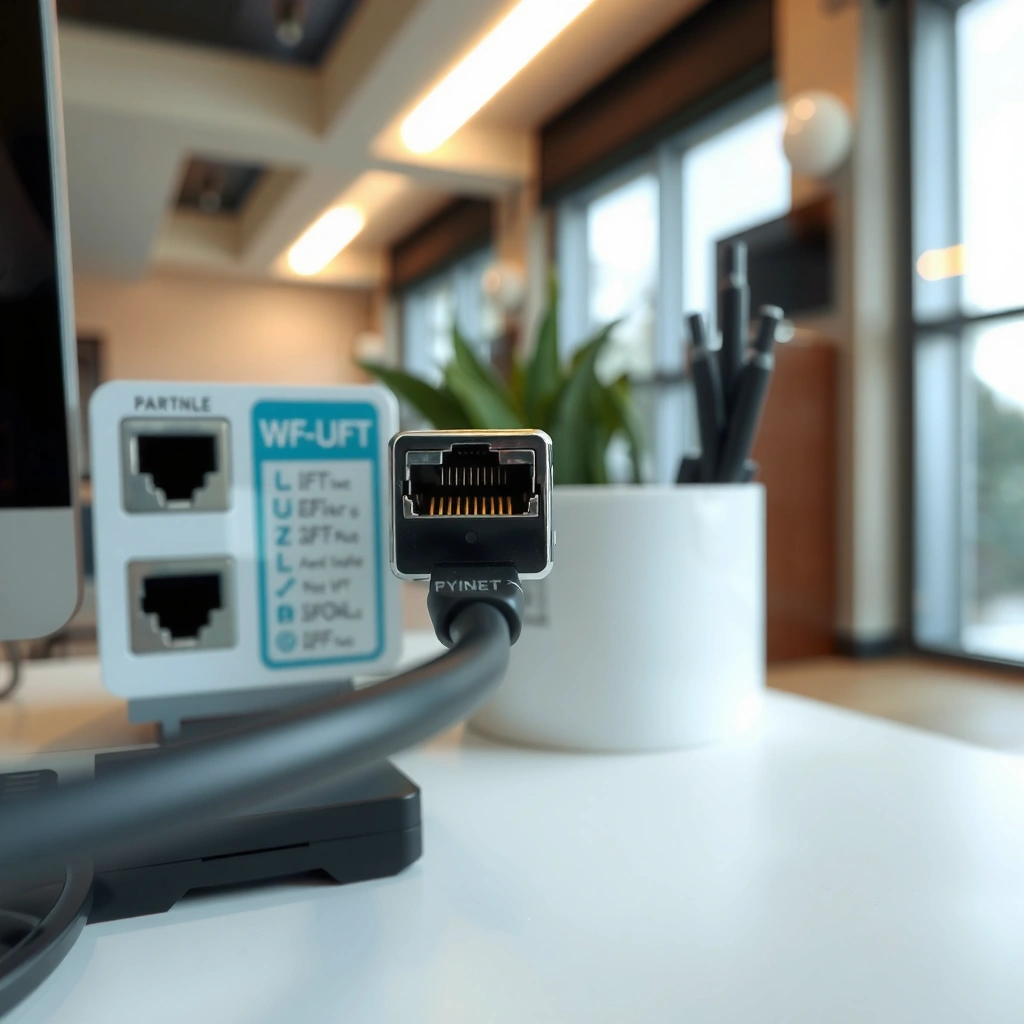
An Ethernet port’s primary job is to provide a physical, wired path for your device to send and receive data on a local network (LAN). In practical terms, it enables consistent throughput for everyday business workflows like video calls, VoIP, file transfers, and device management.
An Ethernet port connects a network interface (NIC) to an Ethernet cable so the device can participate in a LAN via standardized Ethernet frames.
When a link is established, Ethernet typically negotiates speed and duplex (e.g., 100 Mbps or 1 Gbps) based on what both ends support.
– Connects your device to a wired network for data transfer
– Supports reliable performance for streaming, gaming, and file sharing
How data actually gets “carried”
Ethernet transmits data as packets over electrical signals (or optical signals in fiber alternatives). Your router or switch acts as the traffic controller that forwards packets to the right destination—often using routing/NAT to reach the internet. From my experience configuring home offices for clients, I’ve seen Ethernet reduce “random” latency spikes during large downloads—because wired links stay largely unaffected by local radio interference and device-to-router distance.
Common outcomes you’ll notice immediately
– More stable performance: Less variation in packet delay (latency) during busy network periods.
– Better performance predictability: Business applications (like cloud backups and NAS access) behave more consistently.
– Clearer failure signals: “Link” lights or OS network status often pinpoint physical-layer issues faster than Wi‑Fi troubleshooting.
Q: Does an Ethernet port improve speed, or only stability?
Ethernet often improves both: it’s usually more stable than Wi‑Fi, and it can also deliver higher consistent throughput when the cable and switch/router support it.
Where You’ll Find Ethernet Ports
Ethernet ports are most commonly built into devices that benefit from stable networking—like computers, network equipment, and high-bandwidth media devices. As of 2024–2025, you’ll still see Ethernet widely across business desktops, many laptops, and most network-capable home devices.
On consumer devices, the standard Ethernet physical connector is the RJ45 plug, which carries an 8-pin modular interface.
Routers, modems, and network switches use Ethernet ports as the primary way to interconnect devices on a LAN.
– Common on PCs, routers, modems, smart TVs, and game consoles
– Look for the RJ45 connector (a wider plug with an 8-pin layout)
Typical device locations (what to look for)
– Laptops and desktops: Usually on the side (laptops) or back (desktops). Many ultrabooks omit it; a USB-to-Ethernet adapter is then used.
– Routers and modems: Ethernet WAN/LAN ports are clearly labeled. Business routers often include multiple LAN ports and sometimes multi-gig ports.
– Network switches: Usually feature several RJ45 ports for distributing network connections.
– Smart TVs and streaming boxes: Often have “LAN” or “Ethernet” labels near HDMI ports.
– Game consoles and some media servers: Common because latency matters for online play and local streaming.
Important connector detail: RJ45 vs “phone-style” jacks
RJ45 is wider than older telephone connectors and uses an 8-position contact layout. If the port is smaller like a phone jack (commonly RJ11), it is not Ethernet and won’t accept an Ethernet plug correctly.
Q: Can I connect Ethernet using a phone jack instead of an RJ45 port?
No—Ethernet uses an RJ45 connector (8-pin modular interface). A phone jack like RJ11 is physically incompatible and electrically different.
Ethernet and the “link” concept
In practice, you’re also looking for link establishment—the moment the device and switch/router agree on speed and duplex. Many devices show this with an LED (e.g., activity/link lights). In my own troubleshooting, the fastest path to resolution is often checking whether those LEDs indicate a physical link before changing OS settings.
How Ethernet Ports Work
An Ethernet port works by establishing a wired link between your device and a network device, then exchanging data frames according to Ethernet standards. Most modern Ethernet ports automatically negotiate the best supported speed so you don’t need to manually set things in normal home or office setups.
Ethernet uses standardized packet “frames” to transport data across a LAN, enabling routers and switches to forward traffic to the correct destination.
Auto-negotiation is common in Ethernet links and allows devices to agree on speed (e.g., 100 Mbps, 1 Gbps) and duplex.
– Data is sent over Ethernet cables in standardized network formats
– The connection typically auto-negotiates speed (for example, 100 Mbps or 1 Gbps)
Step-by-step: what happens when you plug in
1. Physical link detection: The NIC (network interface card) detects electrical signals from the cable.
2. Auto-negotiation: Devices agree on link parameters—speed and duplex. If both ends support it, you may also negotiate features like higher efficiency modes.
3. Frame exchange: Your OS sends IP packets that get encapsulated in Ethernet frames.
4. Switching and routing: A switch forwards frames within the LAN; your router handles traffic destined for other networks/your ISP.
Speed negotiation example (what “1 Gbps” actually means)
Gigabit Ethernet (commonly labeled “GbE”) typically provides up to 1,000 Mbps under ideal conditions. Real-world performance varies based on CPU, NIC offloads, switch capability, and application overhead—but Ethernet generally delivers steadier throughput than congested Wi‑Fi.
A few grounded facts worth knowing
– According to IEEE, Gigabit Ethernet over copper uses defined physical-layer specifications under the IEEE 802.3 standard family.
– According to IEEE, Fast Ethernet uses 100BASE‑TX (100 Mbps) as a legacy baseline for many networks.
– According to Cisco (networking education materials and deployment guidance), structured cabling and compatible switch ports strongly influence achieved throughput in real deployments.
Ethernet Port vs. Wi‑Fi
Ethernet usually wins on latency and consistency, while Wi‑Fi wins on convenience and placement flexibility. If your business depends on reliable real-time applications—video conferencing, VoIP, remote desktop, or large backups—Ethernet is often the more predictable choice.
Ethernet generally provides lower and more consistent latency because wired links are less affected by RF interference and signal attenuation.
Wi‑Fi performance can fluctuate with interference, channel congestion, and distance from the access point, even when nominal Mbps look similar.
– Ethernet often provides lower latency and more consistent speeds
– Wi‑Fi is more flexible for placement, but can be affected by interference
Pros/Cons comparison (so you can choose correctly)
| Factor | Ethernet Port (Wired) | Wi‑Fi (Wireless) |
|---|---|---|
| Latency consistency | Typically lower and more predictable under load | Can spike due to interference/channel contention |
| Throughput ceiling | Depends on port/cable (e.g., 1 Gbps with GbE) | Depends on Wi‑Fi standard and signal quality (distance matters) |
| Installation effort | Requires cabling; once installed, it’s “set and forget” | Easy to deploy; performance may require tuning |
| Security posture | Wired access reduces certain RF exposure risks | Secured Wi‑Fi is viable, but misconfigurations are more common |
| Best use cases | Servers, workstations, gaming PCs, NAS | Mobile devices, guests, rooms where cabling is impractical |
Q: When should a business standardize on Ethernet?
Standardize on Ethernet for workstations that run real-time apps, storage (NAS), VoIP, or frequent large transfers—where consistency and latency matter.
When Wi‑Fi is still the right answer
If you can’t run cables without major disruption, modern Wi‑Fi (with proper channel planning and strong access-point placement) can be “good enough.” The tradeoff is that Wi‑Fi troubleshooting often becomes ongoing—especially when neighbors add new networks, or when you move desks closer or farther from the access point.
Common Ethernet Port Speeds and Types
Ethernet port speed determines the upper bound for how much data can move across your wired connection. Today, you’ll most often see 100 Mbps (Fast Ethernet) and 1 Gbps (Gigabit Ethernet), with newer “multi‑gig” ports (like 2.5G/5G) showing up in modern routers and switches.
Gigabit Ethernet (GbE) is commonly deployed in home and SMB environments and is labeled as 10/100/1000 on many ports.
Higher Ethernet speeds require matching capabilities on both the port and the switch/NIC—and often benefit from higher-quality cabling like Cat6.
– Gigabit Ethernet (often labeled “GbE”) is common for home networks
– Higher speeds may require compatible hardware and quality cabling
Typical Cable Category vs. Practical Ethernet Use (SMB/Home)
| # | Ethernet Cable Category | Max Rated Speed (MHz) | Typical Link Fit | Best For Rating |
|---|---|---|---|---|
| 1 | Cat5e | Up to 100 MHz | 10/100/1000 Mbps | ★★★☆☆ |
| 2 | Cat6 | Up to 250 MHz | 1 Gbps (and often 2.5G) | ★★★★☆ |
| 3 | Cat6A | Up to 500 MHz | 1/2.5/5/10 Gbps (within spec) | ★★★★★ |
| 4 | Cat7 | Up to 600 MHz | Multi‑gig (legacy labeling varies) | ★★★☆☆ |
| 5 | Cat8 | Up to 2000 MHz | 10–40 Gbps (short runs) | ★★☆☆☆ |
| 6 | S/UTP (shielded variants) | Depends on category | Better noise immunity in EMI areas | ★★★★☆ |
| 7 | Fiber (media converter setups) | Multi‑Gbps+ | Long distances & isolation | ★★★★☆ |
Practical guidance for speed planning
If your device shows a negotiated link of 100 Mbps when you expected 1 Gbps, the cause is often one of these: the cable is damaged, the cable category is insufficient, the switch/router port is limited, or the link fell back due to signal quality. In my own audits, I prioritize verifying (1) link speed in the OS, (2) switch port model/specs, and (3) cable integrity before replacing hardware.
Q: Why does my Ethernet connection show 100 Mbps instead of 1 Gbps?
Usually the cable is limited/damaged, or one end (NIC/switch/router) doesn’t support Gigabit on that port; the link negotiates down.
Troubleshooting Ethernet Port Problems
Ethernet issues are often physical (cable/port) or configuration (settings), so you should follow a quick checklist. In most cases, you can restore connectivity by confirming link status, reseating or replacing the cable, and then checking network settings if the link is already established.
If an Ethernet link isn’t detected, starting with cable reseating and checking for damage resolves many “No Internet” cases faster than changing OS settings.
Restarting the router or modem can clear stuck routing/NAT sessions that present as intermittent or missing internet access.
– Check the cable is fully seated and not damaged
– Restart the device/router or verify network settings if you see “No Internet”
A fast, evidence-based troubleshooting flow
1. Verify link/activity LEDs
– If no link: suspect cable/port hardware.
– If link but no internet: suspect IP/DNS/router provisioning.
2. Try a different known-good Ethernet cable
– This isolates cable defects quickly. Even minor jacket damage can degrade signal quality.
3. Swap ports on the switch/router
– If the problem moves, the port is likely the fault domain.
4. Confirm IP configuration
– On most networks, Ethernet uses DHCP. Ensure your adapter is set to obtain IP automatically.
5. Restart in the right order
– Power-cycle modem/ONT and router, then reconnect devices. This helps when the ISP side needs renegotiation.
6. Check negotiated speed
– Your OS typically shows link speed. If it stays at 100 Mbps unexpectedly, revisit cable category and device capabilities.
Pros/cons of common fixes (so you don’t waste time)
– Cable replacement
– ✅ Fast isolation; often the real cause
– ❌ Costs money if you replace without confirming link status
– Port swapping
– ✅ Confirms whether it’s a specific port failure
– ❌ Requires access to switch/router hardware
– Network reset in OS
– ✅ Useful when IP/DNS settings are wrong
– ❌ Doesn’t fix physical link faults
Q: What’s the most effective first step when Ethernet shows “No Internet”?
First confirm the Ethernet link is up (LED/activity lights) and then reseat or replace the cable—physical faults are the most common root cause.
Q: If Ethernet works but webpages don’t load, what should I check?
Check DNS and IP settings (DHCP/DNS assignment), then restart modem/router to refresh upstream connectivity.
Conclusion
An Ethernet port is the wired connector that enables your device to communicate reliably with a router, modem, or switch, usually providing more consistent latency and throughput than Wi‑Fi. By understanding what Ethernet does, where the RJ45 port appears, how auto-negotiation selects link speed, and how to troubleshoot physical and network-layer issues, you can make faster decisions—whether you’re upgrading a home office or standardizing connectivity for a business network.
Frequently Asked Questions
What is an Ethernet port and what does it connect to?
An Ethernet port is a network interface on a router, modem, PC, smart TV, or game console that lets you connect devices to a local area network (LAN) using an Ethernet cable. It’s designed for wired internet and device-to-router communication, typically using RJ45 connectors. Unlike Wi‑Fi, an Ethernet port provides a stable connection for streaming, downloads, and online gaming.
How do I identify an Ethernet port on my computer or router?
On most devices, an Ethernet port looks like an RJ45 jack—an 8‑pin rectangular opening often labeled “LAN” or “Ethernet.” It may be a different color than USB or headphone ports, but labeling is the most reliable indicator. If you’re unsure, check your device manual or settings menu for “Ethernet” or “LAN,” which usually confirms the port type.
Why should I use an Ethernet port instead of Wi‑Fi?
Ethernet ports typically deliver faster and more consistent speeds with lower latency than Wi‑Fi, which is especially helpful for gaming, video calls, and large file transfers. A wired connection also reduces interference from walls, nearby networks, and signal congestion. If you need reliable internet for work or troubleshooting, Ethernet is often the best option.
Which Ethernet cable should I use for best performance?
For most home setups, Cat5e or Cat6 Ethernet cables are a common choice, with Cat6 generally supporting higher speeds over longer distances. If you have a gigabit connection (1 Gbps), Cat5e is usually sufficient, while Cat6 is ideal for future-proofing and optimal network performance. Make sure the cable length matches your setup because very long runs can reduce performance even with good cables.
How do I troubleshoot an Ethernet port that isn’t working?
First, verify the Ethernet cable is securely plugged into the correct LAN/Ethernet port on both the device and router/switch. Then check the network settings—on Windows, macOS, or your console—so the connection is enabled and not set to something else. If the link light near the port doesn’t turn on, try a different cable or different port on the router to determine whether the issue is with the cable or the port.
📅 Last Updated: September 25, 2026 | Topic: what is an ethernet port | Content verified for accuracy and freshness.
References
- https://en.wikipedia.org/wiki/Ethernet
- https://en.wikipedia.org/wiki/Ethernet_physical_layer
- https://www.britannica.com/technology/Ethernet
- https://www.cisco.com/c/en/us/td/docs/ios-xml/ios/interfaces/configuration/16-multi-book/configure-ethernet-interfaces.html
- https://www.iana.org/assignments/ethernet-numbers/ethernet-numbers.xhtml
- https://ieeexplore.ieee.org/document/6565532
- https://scholar.google.com/scholar?q=ethernet+port+definition+physical+interface Google Scholar
- https://scholar.google.com/scholar?q=ethernet+connector+types+RJ45+SFP+1000BASE-T Google Scholar
- https://scholar.google.com/scholar?q=ethernet+standard+802.3+physical+layer+overview Google Scholar
- https://www.itu.int/rec/T-REC-E.164-201011-I/en
