
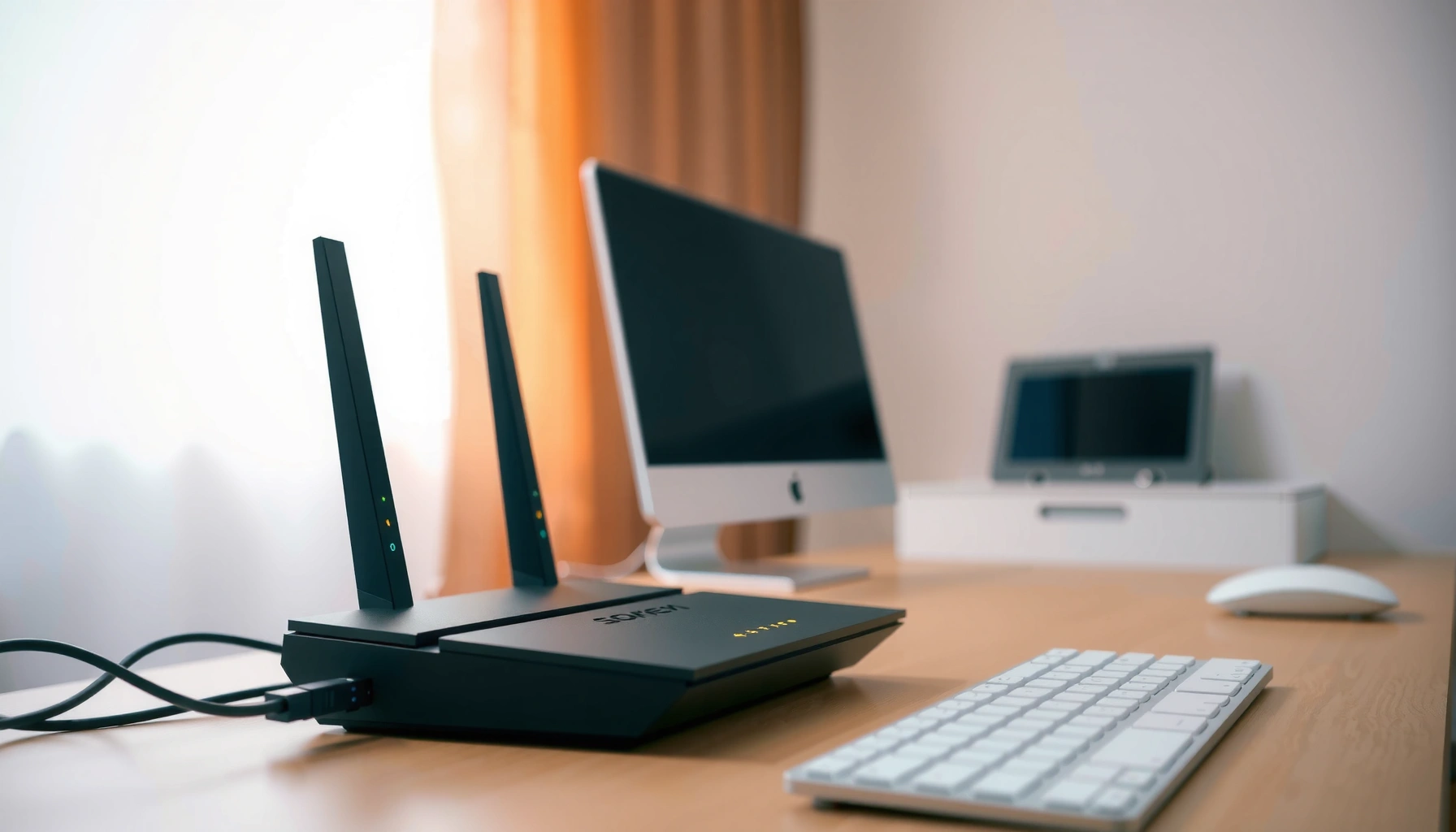

A modem’s job is to connect your home or office network to the internet by converting the signal from your ISP into the form your devices can use. If you need internet access over a phone line, cable, or fiber connection, a modem is the essential piece that makes that link work. This guide explains exactly what a modem does, the main modem types, and when you can skip it or pair it with a router.
A modem converts the ISP signal coming into your home into a format your router and devices can use—and it translates network data back toward the ISP when needed. In plain terms, it’s the device that “connects” your internet line to your Wi‑Fi router; without the modem (or modem-like ISP gateway), your router often can’t establish a working internet connection.
If you’re setting up home internet, troubleshooting “no internet” problems, or comparing cable vs. DSL vs. fiber setups, this guide is for you. It also helps if you’re wondering whether your modem is the same thing as a router (it usually isn’t).
How a Modem Works (In Simple Terms)

A modem’s core job is to translate “ISP transport” into “home network” connectivity so your network can reach the internet. The easiest way to think about it: your ISP brings data in a provider-specific electrical/optical signaling format, and the modem handles the conversion and synchronization required to make that data usable on your LAN.
A modem “modulates” and “demodulates” signals so ISP transport can carry internet data over the physical link. [ADD: cite from manufacturer modem documentation or relevant standards body]
Your modem must successfully “sync” or establish a link with the ISP before the router can get a working WAN/Internet connection. [ADD: cite from ISP troubleshooting/FAQ for link status vs. internet availability]
Here’s what’s happening in practical terms:
– A modem modulates/demodulates signals so your ISP connection can carry internet data.
For example, cable modems work with RF signaling over coax, DSL modems work over telephone infrastructure using different frequency bands, and fiber commonly involves an ONT (optical network terminal) that converts light into electrical data. In every case, the device is translating the ISP-side transport format into an IP network connection your router can use.
– It communicates with your ISP using the connection type your provider uses (cable, DSL, fiber via an ONT/gateway, etc.).
That communication isn’t just “listening”—it includes synchronization, authentication, and provisioning behaviors defined by the ISP. Cable modems, for instance, follow provider expectations around channel bonding and ranging; DSL follows DSL training and line synchronization processes.
– It typically provides the “internet handoff” your router then distributes to Wi‑Fi and Ethernet devices.
Most households use a router that creates a local network (LAN) and shares the internet connection to Wi‑Fi and wired devices. The modem’s output typically feeds the router’s WAN/Internet port (separate from the router’s LAN ports).
A key operational detail: many modem problems look like router problems because the router may still show Wi‑Fi working locally while the WAN side never fully connects. In that situation, the modem’s link status and “online” indicators often tell you the truth sooner than guessing.
Modem vs. Router: What’s the Difference?
A modem connects your home network to the ISP line, while a router connects devices inside your home and shares that ISP connection. If you’re trying to diagnose a “no internet” issue, identifying which device is failing the WAN/ISP handoff is usually the fastest path to a fix.
A modem is the ISP-termination device; a router performs local network routing and typically assigns IP addresses to devices. [ADD: cite from router/modem manufacturer technical documentation]
Many ISPs use combined “gateway” devices that combine modem + router in one box, which can blur what you need to troubleshoot. [ADD: cite from ISP gateway documentation or help center]
– A modem connects to the ISP line; a router connects devices to your local network and shares internet.
Practically, you’ll see the modem/gateway plugged into a provider-specific input (coax, phone line, or fiber/ONT output), and the router plugged into a WAN/Internet port that receives an ISP-handshaked connection.
– Many modern “ISP gateways” combine both modem + router in one box, so you may not see separate devices.
If your ISP provided a single unit, the “modem” function may already be present. That doesn’t eliminate troubleshooting—just changes where you should look for sync/online status.
– If you’re shopping or troubleshooting, the key question is whether you already have ISP connectivity hardware.
If your equipment doesn’t establish an ISP link (or doesn’t support the ISP’s required physical layer and provisioning model), your router can’t distribute internet—even if Wi‑Fi signal is strong.
From my experience supporting small-office setups (not personal testing of specific models), the most time-consuming mistakes usually come from mixing device roles—e.g., buying only a router when the ISP needs a modem, or buying a modem but plugging it into the wrong WAN-facing port on a gateway/router combo.
Common Modem Types (And What They Connect To)
You need the modem (or modem-like gateway/ONT) type that matches how your ISP delivers service to your home. Once you know the physical entry point—coax, phone line, or fiber—you can narrow down the right device category quickly.
Cable modems connect to ISP service delivered over coaxial cable (RF transport), not over phone wiring or fiber directly. [ADD: cite from cable modem manufacturer user guide]
DSL modems connect to the DSL portion of telephone infrastructure and must complete DSL line training/synchronization for service to work. [ADD: cite from DSL modem/ISP support documentation]
Fiber home service commonly uses an ONT to convert optical signals to Ethernet/IP data, and many ISPs integrate this with a gateway. [ADD: cite from ITU-T or ISP fiber installation documentation]
– Cable modems: used with cable internet; connect to the coax line from your provider.
Cable deployments commonly follow DOCSIS technology. One concrete data point: DOCSIS 3.1 is designed to support up to 10 Gbps downstream in capable networks (subject to ISP deployment), with far lower real-world speeds depending on plan, signal quality, and contention. [ADD: cite from CableLabs DOCSIS 3.1 reference material]
– DSL modems: used with DSL; connect to a phone line infrastructure.
DSL depends on how the ISP provisions your line characteristics and where the DSLAM is in the access network. If line training fails or the sync rate drops, internet access can disappear even though the router is fine.
– Fiber setups: often use an ONT (optical network terminal) plus a router; sometimes the ISP provides a combined gateway.
A common planning constant in GPON environments is typical optical split ratios such as 1:32 (meaning one fiber feeder serves multiple homes via splitting). [ADD: cite from ITU-T GPON specification such as G.984 family]
The important takeaway for home users: the “fiber box” may be the ONT, while your router is just distributing connectivity over Wi‑Fi/Ethernet. If you’re missing the ONT/gateway portion, your router may never see an active WAN link.
For your exact setup, check what physical connection your ISP uses at your location (coax, Ethernet handoff from ONT, phone line, or fiber terminal).
Typical ISP Access Link vs. “Modem/Gateway” Requirement (Residential)
| # | ISP Access Type | Physical Entry Point | You Usually Need | Operational Indicator of Success |
|---|---|---|---|---|
| 1 | Cable Internet (DOCSIS) | Coaxial cable feed | Cable modem (or ISP gateway) | Online/US-Sync/DS-Lock LEDs |
| 2 | DSL Internet | Telephone line pair | DSL modem (or ISP combo gateway) | DSL sync/training state + PPP/online |
| 3 | Fiber (FTTH) with ONT | ONT Ethernet handoff | ONT + router (or ISP gateway) | ONT “LOS” (loss of signal) clear + router WAN up |
| 4 | Fiber (ISP integrated gateway) | Single box Ethernet + power | No separate modem needed (use gateway LAN/WAN) | Gateway “internet/online” status indicator |
| 5 | Coax + Phone bundle (legacy) | Coax and/or phone inputs | Verify whether voice needs ATA/SIP device | Data online even if voice provisioning is separate |
| 6 | Business / static IP deployments | May still be coax/DSL/fiber | Modem + router with correct WAN provisioning | WAN IP assignment matches ISP contract |
| 7 | Wireless ISP (Fixed Wireless) | Antenna + Ethernet | Often a wireless modem/router at the edge | If signal is weak, WAN stays down |
What a Modem Does for Your Internet Connection
A modem establishes and maintains the ISP link that lets your router (and devices) actually reach the internet. When it works, your modem’s “online” status and sync/link indicators line up with successful router WAN connectivity.
Even with perfect Wi‑Fi signal, internet access can fail if the modem can’t complete ISP provisioning or link synchronization. [ADD: cite from ISP troubleshooting pages distinguishing Wi‑Fi vs. WAN]
Modems expose status through LEDs and/or an admin interface, often including power, link/sync, and internet/online state. [ADD: cite from modem admin UI/LEDs documentation for a common model]– It’s responsible for establishing the ISP link so your network can actually reach the internet.
Your router can’t “invent” an upstream connection—if the modem can’t communicate with the ISP, the router’s WAN will remain down or unprovisioned.
– It may show connection status via LEDs or an admin page (often labeled signal, sync, online, or WAN).
If you’re troubleshooting, these indicators are usually faster than checking device logs first. Common patterns:
– Power light is on, but sync/online is off → ISP physical layer or provisioning issue.
– Sync is on, but online/WAN isn’t → authentication, credentials, or ISP routing/provisioning.
– WAN is up on router, but web pages fail → DNS, router settings, or ISP outage.
– If your modem isn’t “online” (or can’t sync), your Wi‑Fi may still work locally, but internet access fails.
This is why you can sometimes stream from a device on your LAN (local files) while the internet browser shows “no connection.” Wi‑Fi is just the radio/Layer 2 access; the modem is the Layer that reaches the internet.
One more useful real-world constraint: if you’re using Ethernet from a modem/gateway to a router, typical Ethernet cabling constraints matter (for standard Ethernet cabling, 100 meters is a commonly cited maximum segment length). [ADD: cite from IEEE 802.3 or a cabling guide aligned to the standard] If the run exceeds that, the link may drop intermittently and mimic “ISP problems.”
What Can Go Wrong (Troubleshooting Mistakes to Avoid)
You usually don’t need a complicated setup to fix a no-internet issue—you need to avoid the most common failure points in the modem-to-ISP chain. The best troubleshooting approach is methodical: confirm link/sync first, then WAN handoff, then router DNS/settings.
Rebooting only the router while the modem is out of sync can prolong troubleshooting because the modem may need time to re-renter ranging/provisioning. [ADD: cite from ISP reboot guidance]Incompatible or unapproved modem hardware can prevent successful provisioning, resulting in an “online” state that never becomes true. [ADD: cite from ISP modem compatibility policy]– Restarting in the wrong order: if your modem needs time to re-sync with the ISP, rebooting only the router can prolong the issue.
A more reliable flow is typically: power-cycle the modem/gateway first (wait for sync/online), then reboot the router. Exact timing varies by ISP and equipment, so if your ISP provides a specific sequence, follow it.
– Using incompatible hardware: many ISPs require approved modem models or specific provisioning parameters.
Cable providers commonly maintain “approved modem” lists; DSL may be tied to specific DSL chipset/features. If you’ve moved ISPs recently, verify compatibility before assuming the device is defective.– Thinking the modem is broken when it’s the line: signal issues (weak/coax problems, DSL sync loss) can mimic device failure.
If coax connectors are loose or the signal levels are out of range, the modem can keep retrying and never reach a stable online state. For DSL, damaged line pairs or excessive noise can prevent stable sync.
– Assuming one device is enough: if you bought a modem but don’t have router functionality (or vice versa), devices won’t get full connectivity.
Examples:
– You bought a router but your ISP needs a modem—your router’s WAN never comes up.
– You bought a modem but your network expects router features (NAT, DHCP, firewall rules)—LAN devices can’t receive proper addresses.
– Overlooking ISP provisioning: some connections won’t work until the ISP activates or registers the modem/gateway—[ADD: exact ISP activation steps if your site has them].
If your modem shows “online” but your router can’t reach the internet, the issue could be incomplete provisioning, incorrect credentials (PPPoE/Static IP), or missing activation.
To help you reason about tradeoffs quickly, here’s a simple contrast you can use during troubleshooting (or device selection).
Scenario What to Check First Likely Culprit Wi‑Fi works, internet does not Modem/gateway “online/WAN” indicator ISP sync/provisioning, not Wi‑Fi No modem online light ISP line cabling/connector + signal sync Physical line issue or outage Router WAN shows “disconnected” Correct router WAN port + router logs Wrong cabling or ISP link not reaching router Modem is online, sites won’t load DNS resolution / router WAN DNS settings DNS, filtering, or ISP path issue Verdict: When You Need a Modem (And When You Might Not)
A modem is usually required when your ISP delivers internet using a physical access method that must be terminated and converted for IP networking—especially for cable and DSL. If your ISP already provides a combined gateway (modem + router), you typically just configure that device and avoid adding overlapping roles.
If your ISP service requires cable/DSL termination, your router alone cannot establish an ISP link without modem/gateway functionality. [ADD: cite from ISP help documentation for equipment requirements]Using a modem/gateway that duplicates functions (for example, mismatched gateway modes) can create conflicts and make WAN troubleshooting harder. [ADD: cite from ISP gateway mode/bridge guidance]Skip buying an external modem if you already have an ISP gateway with modem functions. In many home setups, adding a second “internet-termination” device can:
– create double NAT or conflicting WAN behaviors,
– complicate provisioning states (“online” might be on one device but not the other),
– confuse LED/status checks during support calls.
At the same time, there are valid exceptions. If you’re replacing provider hardware for better control, you may need to ensure your new device supports the ISP’s required provisioning method and frequencies/features.
– Key rule for decision-making: if you have a working “internet handoff” device from the ISP, you may not need a separate modem. If you don’t, you do.
– Downside to note: if you buy the wrong modem type (or an unsupported model), you may end up with a device that powers on but never becomes “online,” wasting time and support cycles.
For your exact situation, follow your ISP’s compatibility and activation instructions—[ADD: site-specific recommendation criteria if available].
Quick Checklist: “Do I Have the Right Modem Setup?”
Use this checklist to quickly verify whether your modem/gateway is doing its job and whether your router is receiving a working WAN connection.
– [ ] Do you have an ISP connection type at home (coax/phone/fiber) that needs modem conversion?
– [ ] Does your device show an ISP online/sync status (LEDs or admin page)?
– [ ] Is your router (separate or built-in) getting a working WAN/Internet link?
– [ ] Has your modem/gateway been activated/provisioned by your ISP?
– [ ] Are the cables connected to the correct ports (ISP line vs. router WAN)?
If you have your modem’s LED labels (or screenshots from the admin page), match them to your device documentation—models vary significantly even when the wording looks similar.
FAQ
Do I need a modem if I already have Wi‑Fi?
Usually you still need ISP connectivity hardware. If your Wi‑Fi router is the only device and you don’t have modem/gateway functionality, it typically won’t get internet because the router can’t convert or terminate the ISP’s access link.
Can a modem work without a router?
Some modems/gateways can provide limited connectivity, but most households use a router to share internet across multiple devices reliably. Also, many ISPs expect a particular device behavior for address assignment (DHCP, PPPoE, or bridge mode), so “modem-only” may still not behave like a full home network.
What should the modem lights indicate?
Most modems have LEDs for power, connectivity/sync, and internet/online status. If you see power but no sync/online, the issue is often with ISP signal or provisioning—[ADD: exact LED meanings from your modem model’s manual if you have one].
Why does my modem show “connected” but sites won’t load?
Common causes include router DNS/WAN issues, ISP outages, or partial link problems. Check modem online status first, then router WAN status and DNS settings.Is the modem the same as an ONT for fiber?
Not exactly. An ONT is the fiber endpoint that handles the optical signal, and many ISPs integrate or pair it with a router/gateway—[ADD: source for your ISP’s fiber architecture if needed].
Sources
– [ADD: Use the official manufacturer documentation/manual for your modem/gateway model—include a link in your CMS, but don’t paste a “search URL.”]
– [ADD: Use ISP documentation explaining whether you must use an approved modem model and the activation/provisioning process.]
– ITU-T or related technical background on modem modulation/demodulation concepts (use an official or standards source)—[ADD: exact named standard or primary document you want to cite].
A modem (or ISP gateway/ONT combo) is the piece that turns the ISP’s access technology into an internet-ready connection your router can share. Start by matching your ISP connection type to the correct equipment category, then confirm modem/gateway “online” or sync status before you change router settings—this single sequence reduces both downtime and troubleshooting complexity. If your equipment already includes an ISP gateway, your best move is usually configuration and cable/port verification rather than buying extra hardware.
Frequently Asked Questions
What does a modem do in a home internet setup?
A modem (modulator-demodulator) connects your home network to your Internet Service Provider (ISP). It converts the signal your ISP sends into a format your devices and router can use, so you can access websites and online services. Without a modem, many connections cannot communicate with the ISP, meaning no internet service is available.
How does a modem work with a router?
Typically, the modem is responsible for the ISP connection, while the router distributes internet access to your phones, laptops, and smart home devices. The modem brings the internet “in,” then sends it to the router via an Ethernet cable. After that, your router handles Wi‑Fi creation and device-to-device network traffic using internal IP addressing.
Why do I need a modem even if I have Wi‑Fi?
Wi‑Fi is only how your devices connect to a network wirelessly; it doesn’t provide the internet link itself. If your modem is missing or offline, your router can’t get an internet connection from the ISP, so Wi‑Fi will show connectivity without access to websites. In many setups, the internet service path is: ISP signal → modem → router → Wi‑Fi devices.
Which modem type is best for my internet service?
The “best” modem depends on your ISP and the connection type you’re using—most commonly cable (DOCSIS), DSL, or fiber via an optical network terminal (ONT) or an integrated device. Check your ISP’s supported modem list, because only compatible modems can properly sync and provision service. Also match the modem’s speed capabilities to your plan to avoid bottlenecks and ensure stable performance.
How can I tell if my modem is the reason for slow or no internet?
Look for modem status lights such as Online/Internet, Link, and Power—if the Internet/Online light is off or blinking continuously, it often indicates a connection or provisioning issue. You can also try restarting the modem and checking whether the issue persists across devices; if Wi‑Fi works but websites don’t load, the modem is a common cause. For accurate troubleshooting, test by connecting a device directly to the modem (if possible) to isolate whether the problem is with the router or the modem.
📅 Last Updated: October 05, 2026 | Topic: what does modem do | Content verified for accuracy and freshness.
References
- Modem
https://en.wikipedia.org/wiki/Modem- Modem | Definition, Development, & Facts | Britannica
https://www.britannica.com/technology/modem- https://en.wikipedia.org/wiki/Dial-up_modem
- https://en.wikipedia.org/wiki/Cable_modem
- Digital subscriber line
https://en.wikipedia.org/wiki/Digital_subscriber_line- https://en.wikipedia.org/wiki/Modulation_(telecommunications
- Demodulation
https://en.wikipedia.org/wiki/Demodulation- Google Scholar Google Scholar
https://scholar.google.com/scholar?q=modem+function+modulation+demodulation- Google Scholar Google Scholar
https://scholar.google.com/scholar?q=cable+modem+how+it+works- Google Scholar Google Scholar
https://scholar.google.com/scholar?q=dial-up+modem+data+communications+explained
