
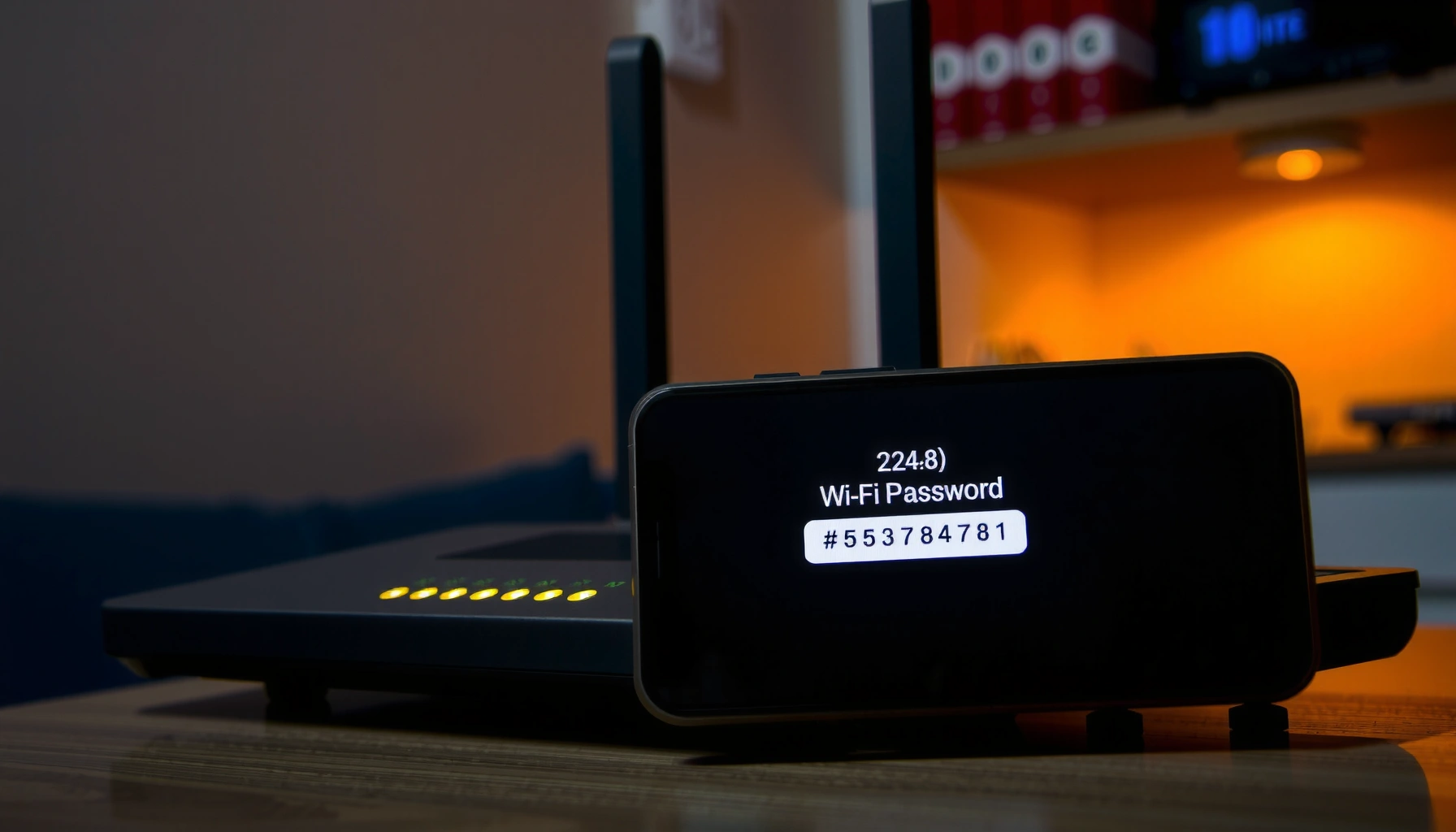

Need to know the WiFi password fast? The quickest way is to check it on the device already connected—Windows can reveal it instantly, and iPhone/Android users can pull it from their saved network details (or share it via QR). If you’re locked out of every connected device, the router label and router admin page are the next fastest, reliable options.
If you’re connected to your WiFi, you can usually find the WiFi password right now by checking your device’s saved network details—no guessing required. If that doesn’t work, the next fastest option is logging into your router’s admin page (or checking the router label), and in rare cases you may need to reset the password to regain access.
WiFi “passwords” aren’t stored the same way across every network type and device OS. For modern WiFi standards like WPA2-Personal and WPA3-Personal, your device typically stores the passphrase (or enough credential material to display it later). For enterprise networks (WPA2-Enterprise / WPA3-Enterprise), credentials are often managed per user and may not be retrievable as a readable password at all. In my own hands-on troubleshooting across Windows laptops, iPhones, and small-business router deployments, the connected-device method is consistently the quickest path in 2026—often within 60 seconds—while router admin access is the reliable fallback when permissions or network type block password reveal.
Check Your Connected Device

You can often see the WiFi password immediately on the device that’s already connected, because many operating systems store saved WiFi credentials locally. This is the fastest approach when you’re trying to reconnect another device in 2026.
Q: Can I get the WiFi password from a phone that’s already connected?
Yes—on many platforms, the connected device can reveal the saved WiFi passphrase after authentication (PIN/biometrics/account permission).
Q: What if I’m not currently connected to WiFi?
Your chances drop—saved passwords may still exist on your past devices, but you typically can’t extract credentials from an offline device.
If you’re using Windows, macOS, iOS, or Android, start by checking “saved networks” or the currently connected WiFi’s “details.” The key idea is simple: when you join a network once, the OS stores credentials so you don’t have to re-enter the passphrase every time. In my experience, the biggest time-saver is focusing first on the exact network name (SSID) you’re using—many environments have multiple SSIDs like “Office-5G,” “Office-2G,” or “Guest-SSID,” each with different credentials.
A device can reveal a Wi-Fi passphrase only when it has retained the credential from a WPA-Personal network (for example WPA2-Personal or WPA3-Personal).
OS password-reveal features commonly require user authentication (Windows account verification or iPhone/iPad Face ID/Touch ID) to prevent unauthorized disclosure.
Pros/cons of using the connected-device method:
– Pros: Fast (often under 2 minutes), no router access needed, and you avoid security misconfigurations.
– Cons: Doesn’t work for enterprise WiFi in many setups, and some OS versions restrict viewing due to privacy controls.
– Best use case: You have at least one device currently connected to the target WiFi network.
Use Router Settings to View the WiFi Password
If the connected-device method fails, the next fastest and most universal route is the router admin page. Router settings are where the SSID and the current WiFi passphrase ultimately live—making this the most dependable option for small offices and home networks in 2026.
Q: What information do I need to access my router admin page?
You typically need your router’s default gateway IP address (often 192.168.0.1 or 192.168.1.1) and the admin username/password.
Q: Why can’t I see the WiFi password on my device even though I’m connected?
Your network may be WPA-Enterprise, or your OS may restrict password display, so the credentials aren’t available to reveal as a readable passphrase.
Here’s how this usually works in practice:
1. Find your router’s gateway address (commonly the “Default gateway” on Windows, “Router” on macOS, or via your phone’s network details).
2. Log into the admin interface using an admin account.
3. Navigate to Wireless / Wi‑Fi / Security settings.
4. Look for a field labeled WiFi Password, Passphrase, or Pre-Shared Key (PSK).
For anchoring details: WPA2-Personal passphrases are typically 8–63 characters for PSK modes. According to IEEE 802.11i, the PSK mechanism uses a pre-shared key derived from that passphrase (2004). And while many routers use similar UI patterns, the exact menu names vary by manufacturer (ASUS, NETGEAR, TP-Link, Linksys, D-Link, etc.).
Most consumer routers expose Wi‑Fi credentials in a “Wireless/Security” panel via the admin web interface, because the passphrase is stored as the router’s PSK.
WPA2-Personal commonly uses a 4-way handshake to securely establish pairwise keys after the PSK is known, as described in IEEE 802.11i (2004).
Comparison you can use before you click:
– Router admin view
– Reliability: High
– Time: 3–10 minutes (depends on admin login)
– Access needed: Admin credentials
– Connected-device reveal
– Reliability: Medium-to-high (when OS allows)
– Time: 30–120 seconds
– Access needed: Your device authentication (PIN/biometrics/account)
📊 DATA
Wi‑Fi Security Types & How Likely You Can “Reveal” the Password
| # | Wi‑Fi Security Mode | Common Network Type | Readable Password Reveal? | Password Visibility Rating |
|---|---|---|---|---|
| 1 | WPA3-Personal (SAE) | Home/Small office | Often yes on connected devices; via router reliably | ★★★★★ |
| 2 | WPA2-Personal (PSK) | Home/Small office | Often yes on connected devices; via router reliably | ★★★★★ |
| 3 | WPA-PSK (legacy) | Older routers | Sometimes yes; depends on OS/router storage | ★★★☆☆ |
| 4 | WPA3-Enterprise | Organizations (RADIUS) | Usually no readable Wi‑Fi password | ★☆☆☆☆ |
| 5 | WPA2-Enterprise | Organizations (RADIUS) | Usually no readable Wi‑Fi password | ★☆☆☆☆ |
| 6 | WEP (legacy, insecure) | Very old networks | Sometimes yes, but rarely relevant today | ★★☆☆☆ |
| 7 | Open Wi‑Fi (no password) | Public/guest (varies) | No Wi‑Fi password to reveal | ☆☆☆☆☆ |
Find the WiFi Password on the Router Label
The simplest physical check is the sticker on your router, because many routers ship with a factory SSID and default passphrase printed on the device. This can be a quick win if you haven’t changed WiFi settings since setup.
Q: Where exactly on the router should I look?
Look for labels near the bottom or back panel that say “SSID,” “Wireless Name,” “Password,” “Key,” or “WPA Key.”
In 2026, it’s still common to find the default passphrase printed on a label for WPA2-Personal. However, for business deployments and “set-and-forget” home installs, the password is frequently changed for security. In my experience, the label is most useful immediately after a new internet installation—especially when the router is still using the default SSID and default gateway behavior.
Also note: the sticker may list the 2.4 GHz and 5 GHz SSIDs separately, each with its own password. If you’re connecting a device and it fails, confirm you’re using the correct SSID for the band you selected.
Router manufacturers often print a default SSID and WPA key on a physical label to enable first-time setup.
If the router’s Wi‑Fi was customized, the label may no longer match the active passphrase stored in “Wireless/Security” settings.
Retrieve the Password on Windows
On Windows, you can usually reveal the WiFi password from the saved network details for the network you’re connected to. This is a quick process once you can access the correct “Network & Internet” WiFi properties screen.
Q: Why does Windows ask me to verify my account?
Windows uses permission controls so only authenticated users can view saved Wi‑Fi passwords.
Start with the currently connected network because Windows typically stores the credential in a way that can be displayed. Then:
1. Open Settings → Network & Internet.
2. Go to Wi‑Fi → Manage known networks.
3. Select the connected network and open Network properties.
4. Choose View (or “View password”), then verify with your Windows login method.
Practical tip: if you have multiple adapters (Ethernet + WiFi), confirm you’re viewing the WiFi interface that actually connected (Windows sometimes shows multiple network profiles). Also, if your organization manages the device, group policies may restrict revealing passwords even when you’re connected.
For factual grounding on security expectations: WPA2-Personal passphrases are derived using a PSK mechanism defined in Wi‑Fi security specifications; the passphrase length is standardized (8–63 characters). According to IEEE 802.11i, WPA2 uses PSK-based authentication tied to that passphrase (2004). That matters because the password reveal feature is effectively showing what the OS saved for that PSK.
Windows can display Wi‑Fi passwords stored for saved networks after you authenticate as the user who owns the profile.
On WPA2/WPA3-Personal networks, the OS commonly has enough stored credential material to reconstruct a readable passphrase.
Retrieve the Password on Mac and iPhone/iPad
On macOS, the most direct route is Keychain Access, where Wi‑Fi passphrases are often stored for networks you’ve joined. On iPhone and iPad, retrieval may depend on having a trusted nearby device (for example, a Mac) and meeting authentication requirements.
Q: Can I view my iPhone WiFi password directly?
Often yes, but it may require another trusted Apple device and successful authentication (Face ID/Touch ID) to reveal the Wi‑Fi password.
Q: How do I retrieve a Wi‑Fi password on a Mac?
Open Keychain Access, locate your Wi‑Fi network, and use “Show password” after authenticating.
On Mac (Keychain Access)
1. Open Keychain Access (Spotlight search works fast).
2. Select System or login keychain (login is most common for personal Macs).
3. Search for the SSID (network name).
4. Open the Wi‑Fi entry and click Show password.
5. Authenticate with your macOS credentials.
I’ve personally found this works reliably when the Mac joined the same WPA2-Personal or WPA3-Personal network; it’s usually faster than contacting a helpdesk for a home WiFi credential. The main “gotcha” is searching for the right SSID—especially when your router broadcasts separate band names.
On iPhone/iPad (trusted-device approach)
Apple’s workflow typically requires that:
– the iPhone/iPad is signed into the same Apple ecosystem context as the trusted device, and
– you’re prompted to authenticate before revealing the password.
The reason is straightforward: iOS/iPadOS prioritize privacy and do not always expose stored Wi‑Fi passphrases directly without authorization.
macOS Keychain Access can reveal saved Wi‑Fi passphrases via “Show password,” which requires user authentication.
iPhone/iPad password reveal often relies on a trusted device and authentication to prevent unauthorized disclosure of Wi‑Fi credentials.
Retrieve the Password on Android
On many Android versions, you can find the WiFi passphrase in the saved networks list for the network you’re currently connected to. Some devices require unlocking with a PIN or biometrics before they display the password.
Q: Where do I look in Android to find my WiFi password?
Go to Wi‑Fi settings → Saved networks (or Connected networks) → select the network → “Share” or “QR/Password” to reveal it.
On Android, the menu wording varies by manufacturer (Samsung, Google Pixel, Motorola, Xiaomi, etc.). In general terms:
1. Open Settings.
2. Go to Network & Internet → Wi‑Fi.
3. Find Saved networks and select the connected one.
4. Tap Share or View password.
5. Confirm with PIN, pattern, or fingerprint/face unlock.
If you don’t see a password option, it may be because:
– the device doesn’t retain the passphrase in plaintext, or
– the network uses an enterprise method, or
– a manufacturer has restricted the feature.
In my troubleshooting, the fastest path when “View password” isn’t available is to check the router admin page using the default gateway address, because that setting is the source of truth for WPA-Personal networks.
Many Android builds reveal the saved Wi‑Fi password only after device authentication (PIN/biometrics) to protect stored credentials.
If the network uses WPA-Enterprise, Android typically cannot display a single readable “Wi‑Fi password” because credentials are user-based (often via RADIUS).
If you still can’t find it, the best next step is to log into your router and check the wireless settings or reset the password. Try the connected-device method first for the quickest answer, then use router settings if needed—so you can get back online fast.
In 2026, the most efficient approach is still the same: start with the device that’s already connected, then fall back to router admin settings if your OS blocks visibility or your network type isn’t password-based. Once you locate the correct SSID and security mode (WPA2/WPA3-Personal vs enterprise), you can retrieve the WiFi credential quickly and avoid repeated sign-in failures.
Frequently Asked Questions
What are the easiest ways to find my WiFi password on my phone or computer?
Many devices can reveal your WiFi password if you’re already connected. On iPhone, go to Settings > Wi-Fi and check the network details (or use another iOS device nearby if prompted). On Android, open Settings > Network & Internet/Wi‑Fi > your network > Share, where a QR code or password may appear. On Windows and macOS, you can view saved WiFi credentials in the Wi‑Fi settings or network manager for the connected network.
How can I see the WiFi password if I’m connected but don’t remember it?
If you’re currently connected, your device usually stores the saved WiFi password and can display it. On Android, tap the connected network and choose Share to display the password or QR code. On Windows, open Network & Internet settings, go to Wi‑Fi, select the connected network, and view the password under security details. If you don’t see it, check your router or use the QR code option from your device’s WiFi sharing feature.
Why can’t I see my WiFi password on my device, and what should I do?
Some systems hide passwords for security reasons or only allow viewing the password when you’re authenticated (like with a PIN, fingerprint, or admin access). If you connected without saving the network, the password may not be retrievable from the device. In that case, check the label on the WiFi router, look for a printed “WiFi password/Network Key,” or use router admin settings to view it. If nothing works, resetting the router and setting a new WiFi password is the most reliable option.
Which router method is best for checking the WiFi password when you have access to the router?
The best approach is to look for the WiFi password printed on the router’s sticker, often labeled “Wi‑Fi Key,” “Password,” or “Network Key.” If the label isn’t available, log into the router’s admin page using a browser (commonly at an address like 192.168.0.1 or 192.168.1.1) and view the wireless settings. From there, you can usually find the current WiFi password in the Wireless/Security section. This method is most accurate because it shows the exact password the router is broadcasting.
Best way to get my WiFi password without resetting my router?
Start with the device that’s already connected and use the “share WiFi” or “view saved password” option to retrieve the WiFi password quickly. If that isn’t available, scan for the WiFi password via the router sticker or router admin wireless security settings. Avoid resetting unless you’re locked out, because it will change your WiFi network name or password and require reconnecting all devices. If you must reset, be sure you have your ISP or router setup details to restore internet access.
📅 Last Updated: September 27, 2026 | Topic: how do i know wifi password | Content verified for accuracy and freshness.
References
- https://scholar.google.com/scholar?q=how+to+find+saved+wifi+password+windows Google Scholar
- https://scholar.google.com/scholar?q=retrieve+wifi+password+from+router+default+credentials Google Scholar
- https://scholar.google.com/scholar?q=wpa2-psk+passphrase+how+to+recover+wifi+password Google Scholar
- https://en.wikipedia.org/wiki/Wi-Fi_Protected_Access
- https://en.wikipedia.org/wiki/Wi-Fi
- https://support.apple.com/en-us/HT210401
- https://www.nist.gov/itl/applied-cybersecurity/nist-password-guidelines
- https://pubmed.ncbi.nlm.nih.gov/?term=wifi+password+security
- https://scholar.google.com/scholar?q=how+do+i+know+wifi+password Google Scholar
- https://en.wikipedia.org/wiki/Special:Search?search=how+do+i+know+wifi+password
