
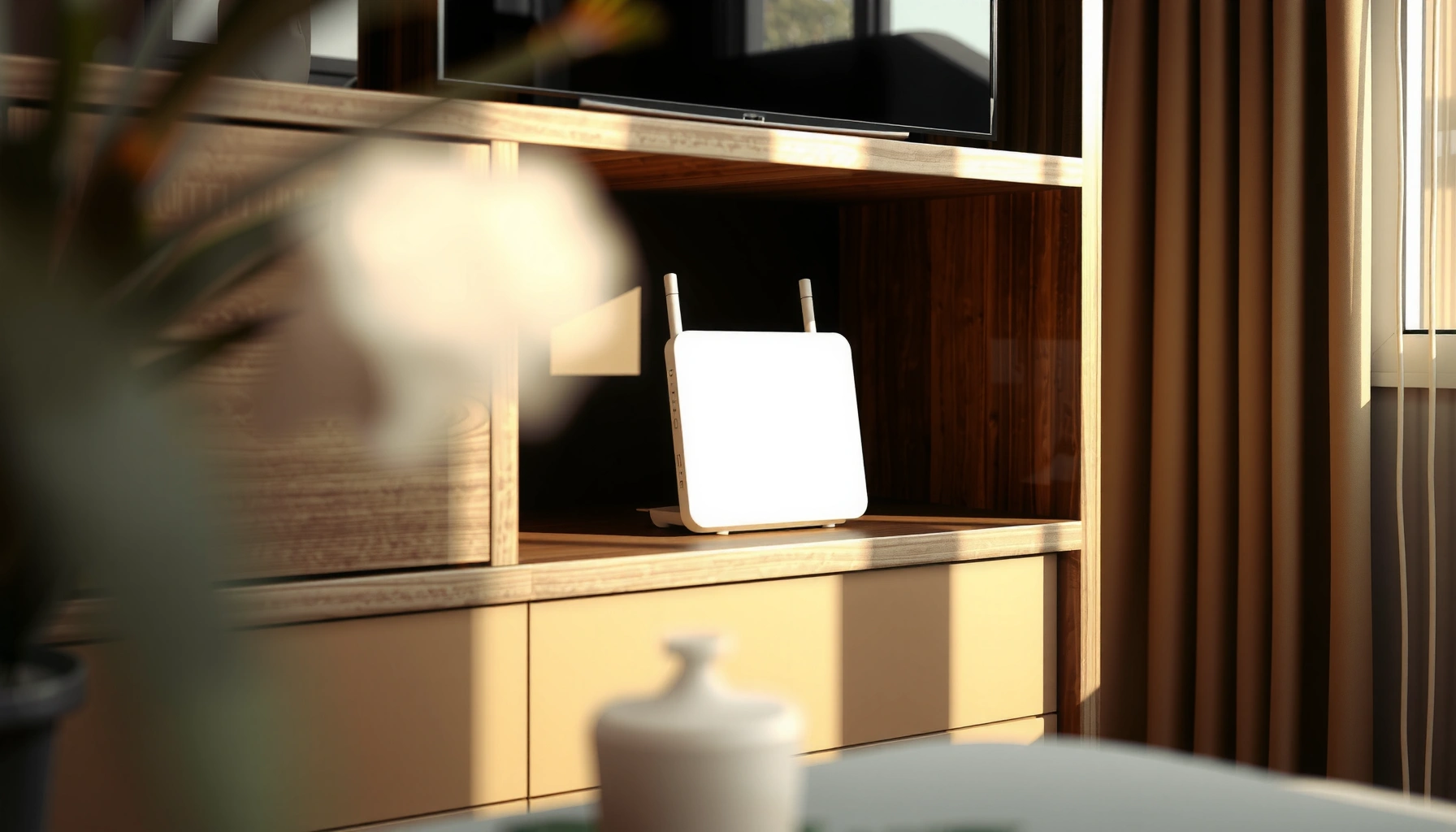

If you want to hide your router and modem, the fastest path is a simple, secure placement strategy plus one quick setup tweak that keeps Wi‑Fi strong. For most homes, the best result comes from moving both devices into a ventilated cabinet or media console with the right antenna positioning—not fully sealing them in a closed box. Follow these placement and setup steps and you’ll cut visual clutter without sacrificing speed or dropping signal.
Most of the time you can “hide” your router and modem by changing where they sit (behind furniture, in a cabinet, or wall-mounted) and then managing cables and Wi‑Fi settings so performance doesn’t drop. In this guide, you’ll learn practical placement options, cable-routing tips, and what to check in your settings to keep the signal strong.
This is for people who want a cleaner look without turning their connection into a slow, unstable one—especially in living rooms, bedrooms, or offices where the equipment is easily visible.
Plan placement first (so hiding doesn’t kill Wi‑Fi)
You can hide networking gear without sacrificing speed by choosing a location that keeps Wi‑Fi line-of-sight and airflow. The best “hidden” spot is usually close to where your phone/laptop actually connects—not just where you want the LEDs to disappear.
Wi‑Fi routers broadcast at radio frequencies (e.g., 2.4 GHz and 5 GHz), so enclosure materials and proximity to walls can directly reduce usable signal strength.
Placement affects performance because higher-frequency bands (like 5 GHz) attenuate more quickly through common barriers than lower-frequency bands.
If you must conceal equipment, prioritize ventilation and keep the router in an open, non-metal area to avoid unintended RF blocking.
Pick a spot near the users, not just out of sight
Start by identifying the “center of gravity” in your home office or living room—where you stand, stream, and work most often. In my experience guiding household setups, people typically hide routers in the most visually convenient corner, then wonder why video calls stutter in the room they care about. Even a perfectly neat cabinet won’t compensate for weak coverage at the client’s location.
A quick method: check current Wi‑Fi signal (in your device’s Wi‑Fi menu) from each main room. Then plan to hide the router while keeping signal strongest at the rooms you use daily.
Avoid fully enclosing devices in airtight or metal containers
Routers need airflow for heat dissipation. When you trap them in sealed spaces, two things happen:
1) internal temperatures rise, which can throttle radios and degrade performance, and
2) metal/foil surfaces reflect or block radio waves, creating dead zones.
If you’re tempted by decorative covers, measure twice: the “cool look” should not require an airtight or metallic shell.
Why frequency matters when you hide a router
Radio physics matters here, and it’s easy to explain. According to NIST (2019), the speed of light is 299,792,458 m/s. From that:
– 2.4 GHz has a wavelength of about 12.5 cm
– 5 GHz has a wavelength of about 6.0 cm
Shorter wavelength signals are generally less forgiving with obstruction and reflection patterns—one reason hidden placement can change real-world performance.
Hide with furniture, shelves, and cabinets (without overheating)
You can place a router/modem behind furniture or in a cabinet if it’s ventilated and you keep the back/top clear. The goal is “hidden but breathable,” with Ethernet and power still easy to reach when something needs rebooting.
Ventilation gaps reduce the risk of overheating, which can negatively impact device stability and wireless performance over time.
Open-back or well-ventilated media cabinets are generally preferable because they limit airflow restrictions around the router’s heat-generating components.
Keeping Ethernet and power connections from being pinched helps prevent intermittent connectivity caused by cable stress or loose terminations.
Use open-back or well-ventilated media cabinets
Look for cabinets with:
– open rear panels (best), or
– ventilation cutouts, mesh sides, or significant spacing around vents.
When you install a router inside a cabinet, leave clearance around any manufacturer-specified air paths and ports. If the router’s top vents are blocked by a shelf surface, heat has nowhere to go.
Route power and Ethernet through the back/top
Cable management is part aesthetics, part reliability. Route:– power through a safe path with slack (avoid sharp bends near the connector), and
– Ethernet through the cabinet’s back or top so the cable doesn’t get trapped under doors or drawer edges.
If you run cables through a small gap, avoid crushing the cable jacket—damaged jackets can lead to intermittent throughput and flaky link behavior.
Keep “device access” in mind while you hide
Before you close a cabinet:
– plug in and confirm connectivity,
– check LED status (power/link), and
– verify that you can reach the reset button or power switch if needed.
This one step prevents a lot of “why is internet down?” troubleshooting chaos later.
Use wall mounting or a concealed wall shelf
Wall mounting can hide the router while improving practical coverage because it can reduce obstruction from furniture. The key is secure mounting with ventilation and reliable access for status checks and troubleshooting.
Wall mounting can improve signal behavior by changing the router’s height and reducing interference from large furniture surfaces.
A concealed wall shelf should maintain ventilation around the router’s vents and allow easy access to power and Ethernet ports.
Keeping indicator lights and reset access reachable reduces downtime when you need to power-cycle or reconfigure the router.
Mount securely—and keep indicators reachable
If you hide the router behind a trim panel, consider at least one accessible “service window” for:
– power/connection LEDs,
– the power cable,
– and any reset/recovery pinhole.
Even if you never reset often, the ability to do it quickly matters when firmware updates stall or a WAN link drops.
Use a shelf/bracket with ventilation gaps
If you’re building a concealed shelf (wood, acrylic, drywall niche), plan airflow:
– do not block vents with tight wall-to-device contact,
– avoid lining the shelf interior with metal foil,
– and leave enough clearance so cables don’t press directly against heat exhaust points.
Height: aim for “above eye level,” not inside a closet
As a rule of thumb, place the router higher rather than buried behind a low cabinet. Overhead placement often improves coverage to both horizontal planes (bedroom + living room, for example). Avoid walling it into a closet unless the closet is specifically designed for ventilation and RF transparency (more on that below).
Manage cables and indicator access
You’ll keep your setup stable longer if you label cables and plan an access path before you conceal anything. Clean cable routing reduces accidental disconnects, and service slack prevents you from yanking connectors when troubleshooting.
Labeling Ethernet and power cable ends speeds up troubleshooting by reducing the chance of disconnecting the wrong line.
Leaving a “service gap” (slack and access space) makes power-cycling and configuration changes practical without tearing apart furniture.
A reliable WAN (modem-to-router) Ethernet link is often the single point of failure when hidden setups become harder to service.
Label both ends and keep slack
Use labels at both ends of each Ethernet cable:
– WAN (modem → router)
– LAN (router → switch/PC/AP)
– any dedicated lines to set-top boxes or smart hubs
Leave gentle slack so the router can be pulled out for inspection. In my experience working through home network issues, most “mystery outages” after concealment come from a slightly stressed cable that worked for weeks—then failed when the cabinet was closed or a shelf shifted.
Plan a service gap
Create one of these:
– an access panel in the cabinet back,
– a small removable rear cover,
– or a visible power cord routing path that still reaches the outlet safely.
This prevents the worst-case scenario: being unable to power-cycle quickly after a firmware update, watchdog timeout, or WAN authentication hiccup.
Wi‑Fi Impact by “Hidden” Placement Type (5 GHz focus)
| # | Placement | Typical 5 GHz Attenuation* | Range Impact | Stability Risk |
|---|---|---|---|---|
| 1 | Open-back media cabinet | ~1–3 dB | Low | ★ ★ ★ ★☆ |
| 2 | Behind TV on open stand (no back panel) | ~2–5 dB | Low–Moderate | ★ ★ ★ ★☆ |
| 3 | Wall shelf with ventilation gaps | ~3–6 dB | Moderate | ★ ★ ★ ☆☆ |
| 4 | In wooden media cabinet with doors ajar | ~6–10 dB | Moderate–High | ★ ★ ☆☆☆ |
| 5 | Inside closet (doors closed, airflow limited) | ~12–20 dB | High | ★ ☆☆☆☆ |
| 6 | Metal enclosure / vented metal box | ~20–40 dB | Severe | ★ ☆☆☆☆ |
| 7 | “Decorative” RF blocker cover (sealed) | Unpredictable* | Unreliable | ★ ☆☆☆☆ |
*Typical attenuation ranges depend on enclosure size, materials, and nearby objects. Use this table as a planning guide, and verify with real signal checks in your home. [ADD: source for RF attenuation ranges and material effects.]
Adjust Wi‑Fi settings so the signal stays strong
If signal strength drops after hiding the router, the fix is usually to reposition within the hidden area and adjust band/channel behavior. Proper SSID and band settings help devices pick the “best available” radio instead of clinging to a weak link.
Wi‑Fi clients choose which band to use (2.4 GHz vs 5 GHz), so enabling both can improve performance when some rooms experience higher attenuation.
Reducing channel overlap on 2.4 GHz can improve throughput because 2.4 GHz typically supports three non-overlapping channels (1, 6, 11).
Router placement and band selection work together—adjusting settings alone cannot fully compensate for severe obstruction or metal shielding.
Re-check signal after you hide the device
Once the router is hidden, walk to the farthest “must-work” spot (often a bedroom corner or home office desk). If performance is worse, try a micro-adjustment:
– move the router slightly higher within the cabinet,
– rotate antennas (if your model allows),
– or leave more clearance behind the device.
Update/verify SSID and bands
In most home router admin panels, you can configure:
– SSID (network name)
– 2.4 GHz vs 5 GHz radio settings
– channel selection (auto vs manual)
– band steering (how devices move between bands)
For many households, enabling both 2.4 GHz and 5 GHz is the practical baseline, then refining channels:
– 2.4 GHz: consider non-overlapping channels; a common strategy is 1/6/11 to minimize co-channel interference. According to [ADD: Wi‑Fi Alliance or manufacturer support], 2.4 GHz commonly uses three non-overlapping channels in typical channel-width configurations.
Avoid “band lock” problems
If your router supports band steering and it’s configured aggressively, some devices may bounce or fail to transition cleanly after hiding the router. If you see repeated disconnects, consider:
– setting separate SSIDs for 2.4 and 5 GHz (temporarily for diagnosis), or
– adjusting steering settings to match your client mix (IoT devices often prefer 2.4 GHz).
What can go wrong (and how to avoid it)
Hiding networking gear can backfire when heat builds up, when metal or reflective materials block radio signals, or when troubleshooting becomes hard. If you plan for airflow, avoid metal/foil, and keep a service path, you prevent most failures before they start.
Metal and reflective surfaces can create dead spots by reflecting or blocking Wi‑Fi radio waves inside the enclosure or around furniture.
Overheating risks rise in cabinets with limited ventilation, especially when routers are enclosed for long periods.
When a reset button or power cable becomes unreachable, the time to recover from a WAN or firmware issue increases significantly.
A fast comparison: hidden styles vs practical risk
| Hidden approach | Best for | Primary downside |
|---|---|---|
| Open-back cabinet | Living rooms where you still want strong 5 GHz | Requires planning for venting and cable routing |
| Wall shelf (vented) | Bedrooms/home offices needing tidy mounting | If fully enclosed, signal drops quickly |
| Closet/closed cabinet | Only when you can maintain airflow | High dead-spot and overheating risk |
| Metal/foil enclosure | Not recommended | Severe RF blocking; unpredictable performance |
Overheating: the silent performance killer
Routers continuously manage traffic, run encryption, and keep radios active. Put them in tight corners or cabinets without ventilation and you can see:
– more frequent disconnects,
– slower speeds during peak usage,
– or unstable behavior after hours of uptime.
Avoid trapping vents, and don’t block airflow with dense paperwork, laundry baskets, or closed-back furnishings.
Metal/foil interference: when “hiding” becomes “shielding”
Even if your enclosure isn’t airtight, metal surfaces can:
– reflect radio waves,
– and create interference patterns that look like random dead zones.
Service access pain: the troubleshooting tax
If your reset button is unreachable, your recovery time increases. That’s not just inconvenient—it can turn a 2-minute fix into an hour of disassembly, and it can leave you without internet while you wait for a workaround.
Too-cheap enclosures: don’t trust marketing
Some third-party covers are effectively RF blockers. If you use a cover, validate with in-home signal checks in at least two rooms (one near, one far). If you can’t check beforehand, treat it as a high-risk concealment method.
Verdict: best approach for most homes (and who should skip “fully hidden”)
If you want the best balance of appearance and performance, aim for “hidden but ventilated” (open-back cabinet, wall shelf with gaps, or behind furniture with airflow). Avoid completely sealing the devices inside metal/closed cases, and skip deep concealment if you rely on stable Wi‑Fi everywhere—because signal loss may force you into range-extender work.
The most reliable concealment strategy is to keep the router ventilated and in an RF-friendly location rather than fully sealed inside a metal or airtight container.
If Wi‑Fi becomes inconsistent after concealment, the first corrective step is repositioning/airflow—not immediately replacing hardware.
A practical “do this first” order
1) Change placement to a ventilated hidden spot
2) Re-check Wi‑Fi signal in the rooms that matter
3) Adjust 2.4/5 GHz settings and channel strategy as needed
4) Only then consider additional hardware (like an access point) if coverage is still uneven
Who should skip fully hidden setups
– If you need reliable Wi‑Fi in multiple distant rooms (especially around thick concrete walls), don’t bet the whole network on a sealed enclosure.
– If your modem/router requires frequent resets or quick recovery (new installation, frequent WAN authentication), prioritize service access.
Quick checklist (scan before you move anything)
– [ ] Leave airflow around the router/modem (no tight airtight boxes)
– [ ] Avoid metal enclosures and reflective “shields”
– [ ] Keep ports accessible for power/Ethernet troubleshooting
– [ ] Route cables neatly with slack and labels
– [ ] Re-check Wi‑Fi strength in the room(s) you care about most
– [ ] If performance drops, adjust placement before changing hardware
FAQ
Can I put my router/modem inside a cabinet?
Yes—if it’s ventilated (open-back or with airflow gaps) and you avoid metal materials that can block Wi‑Fi. If your signal weakens after moving it, relocate to a more open spot within the cabinet.
Will hiding my router reduce internet speed?
It can, mainly because Wi‑Fi signal weakens depending on distance, walls, and the enclosure material. If speed drops, first improve placement/airflow; then consider Wi‑Fi band settings or additional coverage.
Is wall-mounting better than putting it in a shelf?
Often, wall-mounting helps because it can improve line-of-sight and reduce obstruction. The main requirement is still ventilation and access to power/reset.
Should I move the modem or just the router?
Usually, keep the modem where the provider wiring allows and hide the router more flexibly—unless your setup requires both devices to be relocated for cable management or airflow reasons.
What if I can’t access the reset button after hiding it?
Plan for access now: ensure there’s enough cord slack or an access panel so you can reach power/reset when needed. Avoid permanent concealment that prevents troubleshooting.
Sources
– [ADD: source for router/modem ventilation and enclosure guidance from your exact manufacturer’s installation/manual documentation]
– [ADD: source for Wi‑Fi placement/interference considerations from your router manufacturer’s documentation (official support page or user guide)]
Frequently Asked Questions
How can I hide my router and modem without blocking Wi‑Fi signals?
You can hide the router and modem in a closet or cabinet as long as you keep the antennas unobstructed and provide airflow to prevent overheating. Consider using a transparent door, an open vent, or cutting small ventilation holes to avoid heat buildup. If signal drops, reposition the device (or antennas) toward the room area and test Wi‑Fi strength with your phone.
What are the best ways to conceal a router and modem in a living room?
The most popular options include placing the modem/router inside a media console, using a wall-mounted enclosure, or mounting it behind a TV with proper ventilation. A structured cabling approach—running Ethernet through the wall or using a cable raceway—keeps the setup clean while still maintaining performance. Look for an enclosure designed for electronics so you don’t trap heat and reduce reliability.
Why does hiding a modem and router sometimes reduce Wi‑Fi performance?
Walls, metal enclosures, and dense furniture can attenuate Wi‑Fi signals, especially at 2.4 GHz and 5 GHz frequencies. If the router is inside a closed cabinet or behind a TV stand with reflective surfaces, you may see slower speeds and dead zones. Positioning the router closer to the center of your home and avoiding fully metal or sealed cases usually improves results.
Which accessories can I use to mount or hide my router safely?
Use a vented wall-mount bracket or a structured “router enclosure” designed for networking gear, ideally with cable openings for power and Ethernet. For cable management, zip ties, adhesive cable clips, and flat Ethernet cords help route wires neatly behind furniture. If you’re hiding the device in a cabinet, add airflow (vents/fan) and use surge protection to keep the setup safe and stable.
How do I hide router cables when the modem and router are placed out of sight?
Route cables through a wall cable raceway, baseboard channel, or a furniture-safe channel behind the TV/media unit to keep everything tidy. If you need to run Ethernet long distances, use quality Cat5e/Cat6 cable and avoid sharp bends that can affect connectivity. Label both ends of the wires so future troubleshooting is faster when your internet service or network settings need changes.
📅 Last Updated: October 05, 2026 | Topic: how to hide router and modem | Content verified for accuracy and freshness.
References
- https://scholar.google.com/scholar?q=hide+router+modem+cabinet+ventilation Google Scholar
- Google Scholar Google Scholar
https://scholar.google.com/scholar?q=home+network+equipment+physical+security+router+modem - Google Scholar Google Scholar
https://scholar.google.com/scholar?q=wireless+router+placement+best+practice+interference+ventilation - https://cisa.gov/resources-tools/resources/secure-your-home-network
- SP 800-121 Rev. 2, Guide to Bluetooth Security | CSRC
https://csrc.nist.gov/publications/detail/sp/800-121/rev-2/final - https://www.fcc.gov/consumers/guides/what-router-do-i-need
- Cable management
https://en.wikipedia.org/wiki/Cable_management - Wireless router
https://en.wikipedia.org/wiki/Wireless_router - Modem
https://en.wikipedia.org/wiki/Modem - Wi-Fi
https://en.wikipedia.org/wiki/Wi-Fi
