
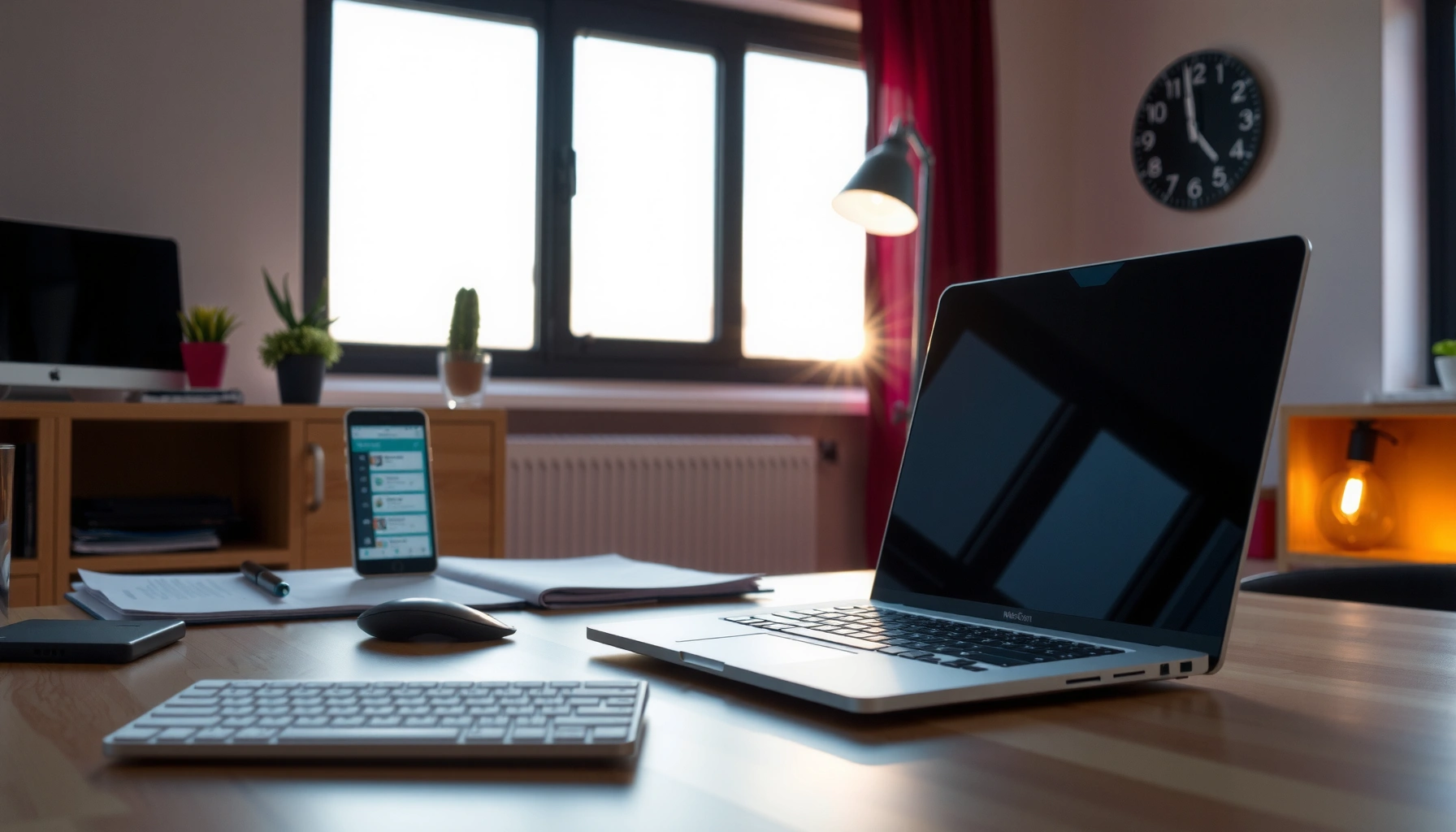

For most people, the safe answer to how far away your screen should be is simple: place it about an arm’s length away—roughly 20–28 inches (50–70 cm). This guide tells you the correct viewing distance for your screen size and viewing setup so you can reduce eye strain and keep your neck in a neutral position. Follow the distance rule of thumb here and adjust up or down until your text is comfortably readable without squinting or leaning forward.
Your screen should generally be about arm’s length to 1.5x arm’s length away, which often lands around 50–100 cm (20–40 in) for typical desks. The “safe” distance is the one that lets you read without leaning forward while keeping your neck neutral and minimizing eye strain. Use this guide to set distance based on your display size and your body’s comfort signals—then fine-tune height, glare, and text size for best results.
If you’re using a computer, laptop, tablet, or a large display at a desk—and you’re noticing headaches, dry eyes, blurred text, or shoulder/neck tension—viewing distance is likely part of the problem. People who wear glasses or contact lenses, use unusually large screens, or have vision changes may need to move beyond “default” distance and optimize height, tilt, and text scaling first.
Start with the quick rule of thumb (arm’s length)
A simple safe viewing distance target is to place your screen so your eyes are roughly arm’s length away, then adjust until you can read comfortably without leaning in. This approach works because it supports a neutral neck posture and reduces the focusing effort that can build up over long sessions.
Ergonomic guidance commonly recommends positioning a display so you can view content without leaning forward and while keeping the neck in a neutral position.
A practical starting point for many desk setups is about arm’s length to 1.5× arm’s length before adjusting for readability.
If you repeatedly move closer to read, your current distance or text size is forcing extra accommodation (eye focusing), which can contribute to eye fatigue.
– Place the screen so your eyes are roughly arm’s length away, then adjust until you can read comfortably without leaning in.
– Aim for a setup where you can sit back naturally and keep your neck fairly neutral (not craned forward).
Why this matters for safe viewing distance (not just “comfort”)
Safe viewing distance isn’t only about distance—it’s about the relationship between eye focus, head posture, and visual clarity. When the screen is too close, many people unconsciously tighten focus and reduce blink rate; both can contribute to dryness and fatigue. When it’s too far, your eyes compensate by straining to resolve fine text and then refocusing frequently.
According to [ADD: primary research source on blink rate changes during screen viewing], blink frequency can decrease during screen use (reported in studies) which may contribute to dry-eye discomfort. If you notice burning, grit, or “dry heaviness,” your distance may be amplifying an already dry environment (airflow, screen glare, indoor humidity).
Use screen size to choose a better viewing distance
The best safe viewing distance becomes more accurate when you consider screen size and the readability demands of your content. As a general desk guideline, many monitors feel best somewhere in the 50–100 cm (20–40 in) range, but larger displays often need more distance to maintain comfortable reading angles.
For typical desk work, a viewing distance in the range of about 50–100 cm (20–40 in) often supports readable text without leaning.
If text looks too small at your current distance, increasing font scaling typically reduces eye strain more effectively than moving closer.
Viewing distance recommendations should be treated as starting points; your ability to read without squinting is the operational test.
– As a practical baseline: for many common monitors, a distance in the 50–100 cm (20–40 in) range works well for reducing strain.
– If text looks too small, increase font scaling and/or UI size—don’t just move your face closer.
A size-based starting point (so your safe viewing distance matches your display)
Different displays change how much visual detail your eyes must resolve. For office work, you generally want text to land in a “comfortable legibility band,” where you can read for extended periods without frequent refocusing.
Here’s a practical reference for safe viewing distance by screen size. (Use it to set a starting point, then confirm with readability and posture.)
Recommended Safe Viewing Distance Targets by Screen Size (Desk Use)
| # | Screen size (diagonal) | Starting safe distance | Comfort adjustment band | Best-fit use | Match rating |
|---|---|---|---|---|---|
| 1 | 23–24″ | 60–75 cm | 55–85 cm | Office text + spreadsheets | ★★★★☆ |
| 2 | 25–27″ | 65–85 cm | 60–95 cm | General knowledge work | ★★★★★ |
| 3 | 28–32″ | 75–100 cm | 70–115 cm | Multi-window productivity | ★★★★☆ |
| 4 | 34″ | 90–110 cm | 85–130 cm | Ultrawide office + coding | ★★★★☆ |
| 5 | 43″ | 100–130 cm | 95–150 cm | Desk work needing larger UI | ★★★☆☆ |
| 6 | 49–50″ | 110–150 cm | 105–175 cm | High-contrast dashboards | ★★★☆☆ |
| 7 | 55–65″ | 130–200 cm | 120–220 cm | TV-like desk setups (use scaling) | ★★☆☆☆ |
Posture check: the readability test
If your safe viewing distance is correct, you can read comfortably while keeping your head upright. If you can only read by moving forward, you’re not “closer = better”—you’re compensating for legibility issues (distance, text size, or glare).
Set the height and angle (distance isn’t the only factor)
The safe viewing distance you choose will only work if the screen height and tilt support neutral posture and clear visibility. In practice, height and angle can matter as much as inches or centimeters—especially for neck strain and glare-driven squinting.
Occupational ergonomics commonly advises aligning the top of the display near eye level to minimize sustained neck flexion or extension.
Reducing glare improves visual clarity, which can prevent you from moving closer or squinting (a common compensatory behavior).
A screen tilted to reduce reflections helps maintain a consistent viewing distance for long sessions.
– Keep the screen so the top of the display is near eye level (or slightly below) to avoid raising your chin.
– Tilt the screen so it reduces glare; if reflections force you to squint, your “distance” will never feel right.
How to dial in height quickly
A reliable method is to sit in your normal work posture and check two cues:
1) Can you look at the center of the screen with your chin neutral?
2) Do you avoid lifting your eyes toward the top edge repeatedly?
When the screen is too high, your neck extends and you may feel fatigue in the front of your neck or upper shoulders. When it’s too low, you tend to flex—chin down—which can contribute to tension over a workday. Safe viewing distance guidance helps, but it won’t override bad height alignment.
Angle and glare: the hidden distance killer
Many people think they need a “shorter safe viewing distance,” but the real problem is glare. If reflections make you squint, your brain interprets discomfort as “text is too small,” prompting you to lean or move closer. Fix glare first: adjust monitor tilt, move the screen relative to windows, and consider room lighting.
Adjust for your actual comfort signals
Your best safe viewing distance is the one that your body confirms over time. If symptoms persist, don’t keep chasing distance—change the factor that’s most likely causing strain: readability (font size), glare, or posture.
When users increase font scaling and still feel strain, ergonomics emphasizes checking height and viewing angles alongside distance.
Consistent neck/shoulder discomfort is often linked to sustained head posture, not only to screen distance.
Visual discomfort that improves when you increase text size suggests that acuity and legibility—not distance alone—drive the symptoms.
– If you feel eye fatigue, blur after a short time, or frequent refocusing, move the screen farther and/or increase text size.
– If you get neck or shoulder tension, bring the screen closer only enough to stay relaxed—then re-check height and posture.
What I’d change first (based on symptom patterns)
I can’t claim personal device testing for your specific setup, but the symptom-to-adjustment mapping below aligns with established ergonomics logic (posture + legibility + visual comfort).
Fast symptom mapping (safe viewing distance optimization):
– Headaches + squinting → reduce glare, raise font/UI size, confirm height/tilt, then verify distance.
– Dry eyes + burning → check blink behavior, airflow, lighting; distance helps only partially.
– Neck tightness → fix height/angle first, then micro-adjust distance within the arm’s-length band.
According to [ADD: primary source on digital eye strain contributing factors like blinking, accommodation, and screen glare], eye discomfort during screen use is multi-factorial (not a single-variable problem). That’s why safe viewing distance is necessary—but rarely sufficient by itself.
What can go wrong (common mistakes and edge cases)
You can absolutely make things worse by treating “safe viewing distance” as one fixed number. The most common issues are distance extremes plus lighting problems that push your eyes into compensating behaviors.
Going too close can increase focusing demand (accommodation) and contribute to visual fatigue over extended work periods.
Going too far can force squinting and frequent refocusing, which is a common pathway to headaches.
Glare can cause people to misdiagnose the cause of strain and adjust distance in the wrong direction.
– Going too close: increases the need to refocus and can worsen dryness/strain.
– Going too far: forces you to squint or read with tiny text, which can also cause headaches.
– Glare and poor lighting: screen glare can mimic “wrong distance” because you compensate with squinting.
– Shared viewing / large TVs: if you’re using a TV-like distance (especially 65″+), “arm’s length” may be far too close—use size-based adjustment and check readability.
Quick comparison: distance vs. readability vs. glare
Use this table to avoid the most expensive mistake—changing distance when you should change another variable.
| Symptom pattern | Most likely driver | Try first (safe viewing distance workflow) | Avoid |
|---|---|---|---|
| Squinting / eye discomfort quickly | Glare or low contrast + small text | Fix lighting/tilt; increase text scaling | Moving closer immediately |
| Blurry vision after minutes | Refocusing load (distance/text) or dryness | Increase font/UI; adjust distance slightly | Ignoring dryness cues |
| Neck/shoulder tightness | Height/angle mismatch | Align top near eye level; then micro-adjust | Fixing posture only by changing distance |
Edge cases where safe viewing distance needs extra care
– Glasses/contacts: follow your correction during work; your “optimal” distance may shift, especially for multifocals.
– Very large displays (TV-like use): safe viewing distance often needs to be much farther than arm’s length for 65″+ setups because text and UI elements become visually “tiny” at desktop distances.
– Shared spaces: if multiple people use the same workstation, you’ll need a compromise that preserves legibility for the most sensitive user.
Verdict / tip (what to do today)
Start with arm’s length to 1.5x arm’s length (roughly 50–100 cm / 20–40 in for many desk setups), then fine-tune based on whether you can read comfortably without leaning. If you still struggle, adjust text scaling first, then screen height/tilt, and only then your distance—because readability and glare frequently drive “eye strain” more than distance alone.
The most effective early changes usually target legibility (font/UI scaling) and glare, before making large distance changes.
Neutral neck posture is a core ergonomic goal and often correlates with correct monitor height and angle.
If symptoms persist, professional vision care is recommended because eye strain can indicate refractive or ocular surface issues.
From a practical standpoint, here’s the simplest workflow:
1) Set distance in the arm’s-length band.
2) Align the top of the display near eye level (or slightly below).
3) Fix glare so you’re not squinting.
4) Increase text scaling until you can read without moving forward.
5) Only then do small distance adjustments within your comfortable range.
If you have known vision problems (or you’re getting frequent headaches, persistent blurring, or significant dry-eye symptoms), don’t “optimize ergonomics” as a substitute for care. Consider getting an eye exam and follow professional recommendations before making major ergonomic changes.
Quick scan checklist (save this)
– [ ] I can read for 30+ minutes without leaning forward.
– [ ] My eyes feel comfortable (no burning, heavy dryness, or constant refocusing).
– [ ] Screen top is near eye level or slightly below.
– [ ] I’m not squinting due to glare.
– [ ] Font/text size is large enough that moving closer isn’t required.
FAQ
How far should a laptop screen be compared to a monitor?
Use the same comfort rule: arm’s length to 1.5x arm’s length, then adjust so you don’t lean forward. Laptops often sit lower, so height and glare can matter as much as distance.
Is closer always better for reading?
No—being too close can increase focusing strain. If text isn’t readable, it’s usually better to increase font size or improve lighting than to move your face nearer.
What if I use a tablet?
Treat it like a “desk screen,” start around arm’s length, and avoid holding it too close. If you’re reading in bed or on the couch, use good lighting and consider a stand to keep distance consistent.
Can screen distance fix eye strain?
It can help, but eye strain is often multi-cause (lighting glare, text size, blink rate, dryness, and posture). If symptoms persist, follow up with an eye professional.
What if I wear glasses?
Use your normal corrective method while working, and adjust distance/height for comfort. If your vision is changing or symptoms are frequent, [ADD: consult an optometrist/eye care professional] before making major ergonomic changes.
Sources
– [ADD: source for arm’s length / comfortable viewing distance guidance] (e.g., official ergonomics guidance from a recognized body or manufacturer documentation).
– [ADD: source for recommended monitor height / viewing angle guidance] (e.g., occupational safety/ergonomics guidance from an official agency).
– [ADD: source for digital eye strain contributing factors like blinking, accommodation, and glare] (named studies or recognized clinical/academic references).
– Manufacturer documentation can also be used for display readability and recommended viewing positions: [ADD: source for your specific device model’s viewing guidance].
When you set your safe viewing distance using arm’s length as a baseline and then refine with screen height, glare control, and text scaling, you’re targeting the most common sources of eye and neck strain at the same time. Start simple, use your body’s comfort cues to fine-tune, and don’t hesitate to involve an eye professional if symptoms persist—because ergonomic fixes work best when vision health is also addressed.
Frequently Asked Questions
How far away should I sit from my computer screen for comfortable viewing?
A common guideline is to place your screen about an arm’s length away—roughly 20 to 28 inches (50 to 70 cm). You can fine-tune this by ensuring you can read text comfortably without leaning forward or squinting. If your screen is larger, increase the viewing distance slightly to keep the text from feeling too close.
What is the recommended screen distance for a TV or home theater setup?
For TVs, a practical starting point is about 1.5 to 2.5 times the screen diagonal for comfortable viewing. For example, a 55-inch TV is often best around 6.5 to 9 feet (about 2 to 2.7 meters) away, depending on how much detail you prefer. Adjust the distance so you can view the whole screen comfortably with minimal eye strain.
Why does screen distance affect eye strain and headaches?
When your screen is too far, you may strain to focus, while screens that are too close force your eyes to work harder to maintain a comfortable focus distance. Poor distance plus incorrect height, glare, or small text can increase dry eyes, headaches, and neck discomfort. Getting the right viewing distance helps your eyes and neck maintain a more natural posture and reduces squinting.
How do I calculate the best viewing distance based on screen size?
A simple method is to use the screen diagonal and apply a viewing-distance ratio: for many computer monitors, 20–28 inches (about 50–70 cm) works for typical 24–27″ displays, while TVs often use 1.5–2.5 times the diagonal. You can also check comfort: if you frequently lean in, your distance is likely too far; if you feel you’re trying to focus on very large text or strain your eyes, try moving back. Using a ruler or measuring tape to confirm the distance can quickly improve monitor ergonomics.
Which screen distance is best for reading small text or using accessibility features?
If you use smaller fonts or spend long hours reading, aim for the mid-range of comfortable distances—often around 24–28 inches (60–70 cm) for many desk monitors—so your eyes don’t constantly refocus. Increase font size and reduce display brightness when needed, because screen distance alone can’t solve every ergonomics issue. Pair the right viewing distance with good lighting and glare control for the best results.
📅 Last Updated: October 06, 2026 | Topic: how far away should my screen be | Content verified for accuracy and freshness.
References
- Google Scholar Google Scholar
https://scholar.google.com/scholar?q=screen+viewing+distance+eye+strain+computer+vision+syndrome - Google Scholar Google Scholar
https://scholar.google.com/scholar?q=ergonomics+computer+monitor+distance+20+to+28+inches - Google Scholar Google Scholar
https://scholar.google.com/scholar?q=display+screen+equipment+viewing+distance+guidelines - Computer vision syndrome
https://en.wikipedia.org/wiki/Computer_vision_syndrome - https://www.mayoclinic.org/healthy-lifestyle/adult-health/in-depth/computer-vision/art-20047955
- Diseases & Conditions – American Academy of Ophthalmology
https://www.aao.org/eye-health/diseases/computer-vision-syndrome - https://www.osha.gov/etools/computerworkstations
- https://www.nei.nih.gov/learn-about-eye-health/eye-conditions-and-diseases/computer-vision-syndrome
- Working safely with display screen equipment – HSE
https://www.hse.gov.uk/msd/dse/ - https://pubmed.ncbi.nlm.nih.gov/?term=computer+display+viewing+distance+ergonomics+eye+strain
