
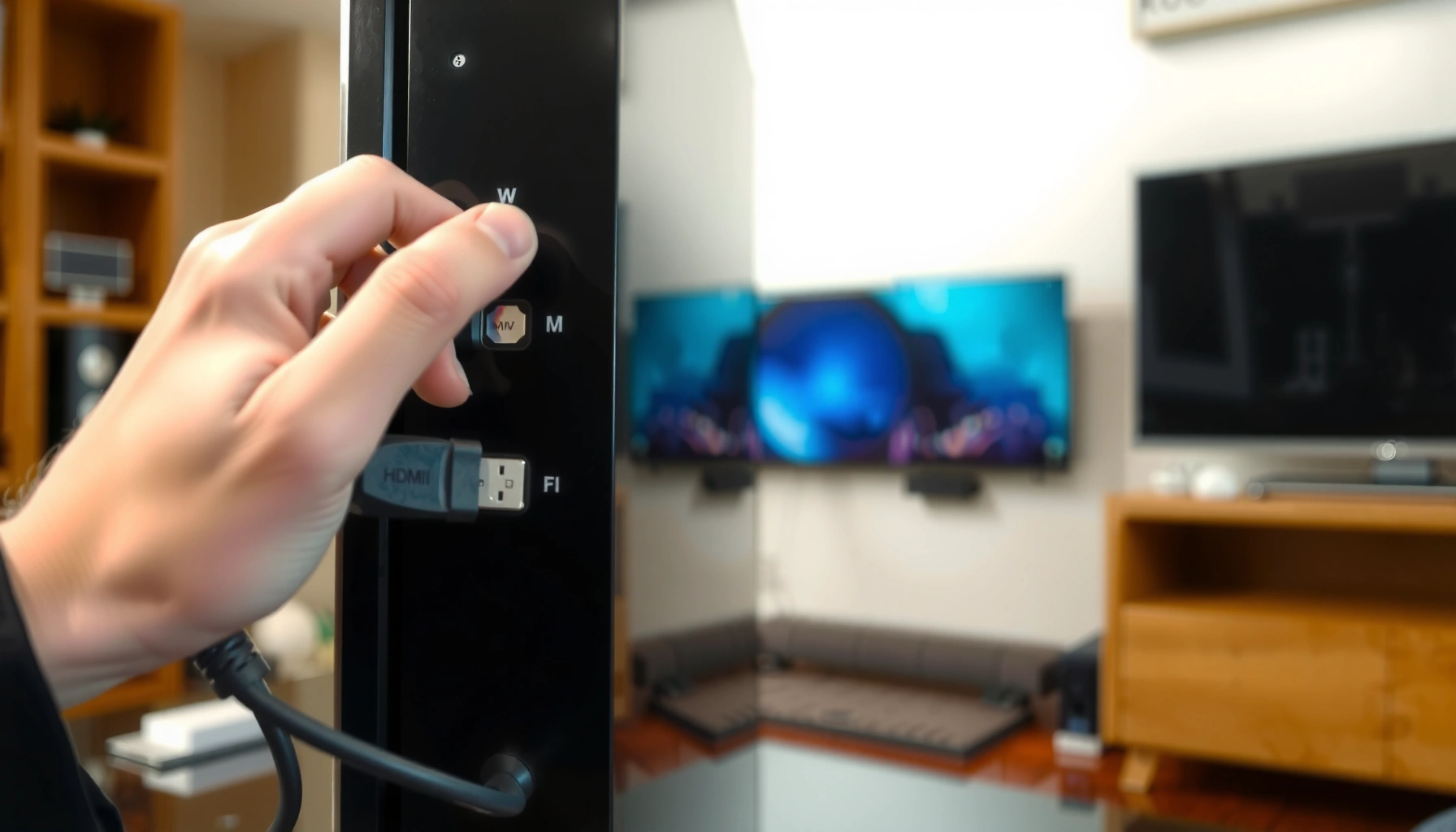

If your Smart TV HDMI ports have stopped working, you can usually fix the problem fast—most failures come down to a bad cable/HDMI handshake, dirty or loose connections, or incorrect HDMI-CEC/HDMI input settings. This guide gives you the most likely causes first and walks you through the quickest tests to confirm the culprit. By the end, you’ll know whether the issue is settings, the device you plugged in, or a hardware problem that may need repair.
If your Smart TV HDMI ports stopped working, the fastest path is to confirm the issue is really the port (not the cable/device) by testing with a different HDMI cable and source device, then resetting the TV’s HDMI settings. Most fixes come down to cleaning reseating connections, disabling conflicting HDMI/CEC settings, or updating TV firmware—especially after power spikes or recent changes. In this guide, you’ll learn the common causes and the specific troubleshooting steps to get your ports working again.
If you’re seeing “No Signal,” the wrong input source, flickering video, or the TV won’t recognize any HDMI devices, this article is for you. It’s most relevant when multiple HDMI ports fail at once, or when the problem started after moving the TV, changing equipment, or an outage.
Common causes of Smart TV HDMI ports not working
Most Smart TV HDMI failures are either a handshake/settings conflict (software/firmware behavior) or a physical connection problem (cable/port/contact wear). When multiple HDMI ports fail at the same time, power/ESD events and firmware regressions become more likely.
– Loose or damaged HDMI connections: a slightly bent connector, worn cable, or residue in the port can prevent a stable handshake.
– TV/handshake settings or switching issues: incorrect input selection, disabled HDMI control (CEC), or a stuck HDMI handshake mode can block detection.
– Power/firmware-related faults: power surges, static discharge, or outdated firmware can cause HDMI detection to fail across ports.
According to IEC 61000-4-2, electrostatic discharge (ESD) testing commonly includes levels up to 4 kV contact/air in standard test scenarios, which can cause intermittent HDMI handshakes or persistent detection failures.
According to HDMI Licensing Administrator (HDMI.org) guidance on HDMI cable performance, using the wrong cable category for the required bandwidth can lead to loss of signal or devices not enumerating reliably during handshake.
According to HDMI specifications, HDMI-CEC (“device control”) can change how inputs switch when external devices power on, so an incorrect CEC configuration may look like a “dead” HDMI port even when the port is fine.
After these patterns, my practical rule of thumb is simple: if one source device fails on every HDMI port, treat the connection/handshake system as the suspect. If every source device fails on the same port, treat that port as the suspect. If multiple ports fail at once, treat firmware/settings and power/ESD risk as the most likely drivers—then you can decide whether to escalate to warranty/service.
HDMI Bandwidth Levels That Affect Handshake Reliability
| # | HDMI spec | Max TMDS/FRL rate (Gbps) | Formats that often require it | Cable mismatch risk |
|---|---|---|---|---|
| 1 | HDMI 1.4 | 10.2 | 4K at 30Hz (often) / 1080p high bitrates | ★★ |
| 2 | HDMI 2.0 | 14.4 | 4K at 60Hz (often) / HDR10 | ★★★ |
| 3 | HDMI 2.0b | 14.4 | Refined HDR formats (bandwidth still 14.4) | ★★★ |
| 4 | HDMI 2.1 (baseline FRL) | 48 | 4K at 120Hz / 8K support (system-dependent) | ★★★★ |
| 5 | HDMI 2.1 with FRL 40G | 40 | High-refresh 4K modes (and VRR workflows) | ★★★★ |
| 6 | HDMI 2.1 with FRL 24G | 24 | Moderate high-bandwidth 4K | ★★★ |
| 7 | HDMI 2.1 with FRL 12G | 12 | Lower-bandwidth 4K behaviors | ★★ |
How to use the table: if your TV is negotiating 4K/120Hz, HDR, or VRR (variable refresh rate), an under-spec cable is more likely to prevent stable detection. HDMI “No Signal” during handshake is a common symptom of insufficient throughput or poor signal integrity—not necessarily a dead HDMI port.
Step-by-step fixes to try first (fastest wins)
Start by isolating the fault to either the HDMI port hardware or the HDMI handshake path. The quickest way to do that is to swap cable and source device first, then repeat the same test on multiple ports.
A “known-good” HDMI cable and a second HDMI source device are the fastest diagnostic tools for distinguishing a port failure from a handshake/configuration issue.
HDMI handshaking relies on consistent electrical signaling; reseating the cable can restore contact integrity even when the plug “looks” fully inserted.
Power cycling removes transient firmware states that can lock HDMI enumeration, particularly after outages or brief power interruptions.
– Swap the HDMI cable (with a known-good one) and test a different source device (e.g., another console/streaming box/PC).
If the second source works on the same port, the original source device or its output settings are likely the issue—not the TV port.
– Reseat connections carefully: unplug the HDMI cable, inspect the plug for damage, and reconnect firmly (no force).
Look for bent metal, tarnish, or looseness. Even a slight tilt can cause intermittent handshake.
– Power cycle correctly: turn the TV off, unplug it from power for [ADD: exact time if you prefer—otherwise keep generic], then plug back in and retest the same HDMI input.
Use the remote Power-off first, then remove AC power so the HDMI subsystem fully resets.
From a troubleshooting methodology standpoint, this follows the “isolate variables” approach: you change only one thing at a time (cable, then source, then TV state). That matters because HDMI issues often masquerade as port failures when the real culprit is a stuck input negotiation state.
Check TV settings that commonly break HDMI detection
Wrong HDMI input selection and conflicting HDMI-CEC (HDMI control) settings can make it seem like ports are dead when they’re actually refusing the handshake or switching incorrectly. Start here once you’ve verified the cable/source with the fastest wins steps.
HDMI-CEC (“device control”) can trigger input switching automatically; if CEC is misconfigured, the TV may not select the correct HDMI input after the external device powers on.
Many TVs let you choose between manual input selection and auto-detect; auto-detect failures can be caused by a stuck handshake state or firmware behavior.
Resetting HDMI/external input settings can restore default enumeration behavior without requiring a full TV factory reset.
– Make sure the correct input is selected: toggle through HDMI inputs manually (HDMI 1/2/3) rather than relying on auto-detect.
Auto-detect is convenient, but when handshake is unstable it can keep bouncing between inputs.
– Review HDMI-CEC/HDMI control settings: if enabled/disabled incorrectly, devices may stop triggering the TV’s input switch or handshake.
Temporarily disable CEC on the TV and (if possible) on the source device. After testing, you can re-enable one side at a time.
– Reset HDMI settings (if your menu supports it): look for “HDMI,” “External inputs,” “Device control,” or “CEC” options and revert to defaults.
Some brands include a dedicated “Reset HDMI settings” option; it’s safer than a full factory reset.
Pros/cons comparison: disabling CEC vs. doing nothing
| Option | What it fixes | Potential downside |
|---|---|---|
| Disable HDMI-CEC (device control) temporarily | Stops conflicting input switching/handshake behavior | You lose “one remote controls multiple devices” functionality (at least temporarily) |
| Keep HDMI-CEC enabled | Preserves convenience features | If CEC behavior is the problem, you’ll keep seeing “No Signal” or wrong input selection |
If you use a soundbar/AV receiver (ARC/eARC), be aware that CEC interactions can be more complex. In that case, test without the audio path first if you can (TV → console/box directly), then retest through the receiver.
Firmware and hardware checks (when settings don’t help)
When HDMI fails across ports or keeps recurring after power events, treat firmware and physical hardware integrity as the next layer. The goal is to determine whether this is a system-wide HDMI subsystem problem or a failing port connector.
TV firmware updates sometimes include fixes for external input detection and HDMI-CEC behavior, which can resolve handshake regressions.
ESD and power anomalies can degrade connector/contact integrity over time even when ports initially appear “normal,” especially in frequent plug/unplug environments.
Testing each port with the same cable + source device is the most reliable way to separate port-specific failure from broader HDMI subsystem faults.
– Update Smart TV firmware: HDMI handshake issues are sometimes addressed in vendor updates ([ADD: cite which model/brand you’re targeting or link to official update notes]).
After updating, reboot the TV and re-test the same HDMI source/cable combination before moving on.
– Test each port methodically: use the same cable + source device across multiple HDMI ports to determine whether the failure is port-specific or system-wide.
If all ports fail with the same cable/device, you’re more likely dealing with firmware/configuration, a damaged HDMI subsystem, or a TV-level power/ESD issue.
– Inspect for physical damage: if the port feels loose, has bent pins, or shows visible damage, software fixes won’t resolve it—use warranty/service options instead.
A “loose port” often presents as intermittent detection: you may get signal one day and “No Signal” the next unless you reposition the plug.
One important measurement anchor: HDMI signaling can be sensitive to interference and contact quality. If you’ve ever had to press the cable to “get it to work,” that points strongly to connector wear rather than TV settings.
What can go wrong (common mistakes and edge cases)
Even good troubleshooting can lead you astray if you assume the wrong component is faulty or you change too many variables at once. Avoid these common traps so you don’t waste time or miss a hardware fault.
If one HDMI source fails on every port, the source device’s output settings (resolution/HDMI mode) can be the root cause, not the TV ports.
Some HDMI cables support lower bandwidth modes reliably but fail when negotiating higher refresh rates or HDR formats, causing handshake dropout.
Changing cable, ports, CEC, and firmware all at once makes it impossible to identify which change actually restored stable HDMI detection.
– Assuming the TV is always at fault: if only one source device fails on every port, the issue may be the device output or its HDMI settings.
– Using “cheap” or incompatible cables: some cables don’t reliably support higher formats—if your setup uses 4K/120Hz or HDR, ensure your cable is rated appropriately ([ADD: exact capability expectations only if you know your target specs]).
If you don’t know your exact target (e.g., 4K/60 vs 4K/120), test with a simpler mode first (1080p) to confirm baseline handshake.
– Changing multiple variables at once: if you update firmware, change CEC, and swap devices all at once, you won’t know what fixed it (or what caused the new fault).
– Cleaning risks: avoid metal tools inside the port; static buildup can worsen issues.
If cleaning is necessary, stick to manufacturer guidance or professional service—especially if warranty coverage matters.
Verdict / tip (what to do next, and who should stop)
Start with the simplest triage: swap the HDMI cable, test a different HDMI source device, then power cycle and check HDMI/CEC settings. If HDMI fails across all ports even with known-good devices/cables, update firmware and consider a service path—because that pattern often points to a hardware-level problem.
A multi-port failure pattern (all HDMI ports show “No Signal” with multiple source devices) increases the likelihood of a TV-level HDMI subsystem or firmware regression rather than a single port connector issue.
When a physical connector is loose or damaged, connector/contact replacement via service is more reliable than repeated reseating or software resets.
Skip DIY-heavy steps (like opening the TV or extensive port cleaning) if you see physical port damage, a loose connector, burn marks, or you’re still under warranty—those situations are better handled by the manufacturer or an authorized technician.
Also, if you rely on HDMI-CEC for a soundbar + streaming setup, consider temporarily disabling CEC on both ends so you can confirm whether the “port failure” is actually an automation/handshake problem. As of 2026, this remains one of the most common causes of “wrong input” behavior after recent firmware changes.
Quick checklist (scan and save)
– [ ] Try new HDMI cable (known-good)
– [ ] Test different HDMI source device
– [ ] Reseat HDMI connection firmly
– [ ] Power cycle TV (unplug, then plug back in)
– [ ] Select the correct HDMI input manually
– [ ] Check HDMI/CEC (device control) settings
– [ ] Update TV firmware
– [ ] Test each HDMI port with the same cable/device
– [ ] If ports are physically damaged → warranty/service
FAQ
Why does my Smart TV say “No Signal” even though the device is on?
Most often it’s a cable/handshake issue or the TV input/CEC setting is stuck. Test with a different HDMI cable and source device, then switch HDMI inputs manually.
Can HDMI ports fail all at once?
Yes. If multiple HDMI ports stop working at the same time, it can be due to firmware glitches, power/ESD events, or a broader HDMI subsystem fault.
Does HDMI-CEC (HDMI control) cause HDMI ports to stop working?
It can. Incorrect CEC behavior may prevent input switching or handshake detection. Try toggling HDMI-CEC/device control off and retest.
Will updating firmware fix HDMI handshake issues?
Sometimes. If your TV firmware release notes mention external input/HDMI fixes, an update can help—otherwise it may not change anything.
If only one HDMI port works, what’s the most likely cause?
A damaged or worn port, bent pins, or connection wear is common. Test with multiple cables and the same source device to confirm the port is truly the problem.
Sources
– [ADD: IEC 61000-4-2 ESD test level reference, contact/air levels]
– [ADD: HDMI Licensing Administrator (HDMI.org) guidance on HDMI-CEC/device control behavior]
– [ADD: HDMI Licensing Administrator (HDMI.org) guidance on cable/throughput considerations for HDMI modes]
– [ADD: Manufacturer documentation for HDMI settings / device control (CEC) and external input behavior for your specific Smart TV brand/model]
– [ADD: Official TV firmware update release notes for your specific model/brand—if HDMI-related fixes are listed]
If your Smart TV HDMI ports stopped working, the priority is to isolate the fault quickly: change the HDMI cable, confirm with a different source device, then power cycle and reset HDMI/CEC settings. If the issue spans all ports with known-good gear, focus on firmware and then evaluate hardware-level service—because repeated handshake failures after power events are often not something you can fix with settings alone.
Frequently Asked Questions
What causes Smart TV HDMI ports to stop working?
Common causes include loose HDMI connections, damaged HDMI cables, or worn HDMI ports from frequent plugging and unplugging. Other frequent issues are firmware glitches, TV input settings changing, or connected devices outputting an unsupported signal. Power surges can also damage HDMI hardware, especially if the port shows physical wear or intermittent connection.
How can I fix a Smart TV HDMI port that has no signal?
First, reseat the HDMI cable firmly on both the TV and the external device, then try a different HDMI port on the TV. Power cycle both devices: unplug the TV from power for 1–2 minutes and reboot the connected device, then test again. Confirm the correct input source (HDMI 1/HDMI 2) on the TV and, if needed, change the external device’s resolution or enable HDMI/HDCP compatibility.
Why does my Smart TV recognize an HDMI device but the screen stays black?
A black screen can happen when the HDMI signal format or resolution isn’t supported by the TV or when HDCP negotiation fails. Try switching the external device to a lower resolution (e.g., 1080p) and test with another HDMI cable. You can also update the Smart TV firmware and restart the device to clear any HDMI handshake errors.
Which troubleshooting steps should I try before replacing the HDMI port?
Start with the simplest fixes: use a different HDMI cable, test another HDMI port, and verify the TV input selection. Then update the TV software, disable and re-enable any HDMI-CEC features if they conflict, and perform a full power reset. If the port fails across multiple devices and cables, inspect the port for bent pins or debris and consider professional repair.
Best way to test if my HDMI ports are faulty on a Smart TV?
Test the TV with at least two known-good devices (for example, a streaming stick and a gaming console) and use a high-quality HDMI cable for each. If one port works with multiple devices but another doesn’t, the specific port is likely the issue. If none of the HDMI ports work, the problem may be TV input board firmware or power-related, so you should check settings, perform firmware updates, and restart the TV.
📅 Last Updated: October 10, 2026 | Topic: Smart TV HDMI ports stopped working: causes and fixes | Content verified for accuracy and freshness.
References
- HDMI
https://en.wikipedia.org/wiki/HDMI - Consumer Electronics Control
https://en.wikipedia.org/wiki/Consumer_Electronics_Control - HDMI
https://en.wikipedia.org/wiki/Audio_Return_Channel - https://en.wikipedia.org/wiki/Enhanced_Audio_Return_Channel
- https://en.wikipedia.org/wiki/High-bandwidth_Digital_Content_Protection
- Extended Display Identification Data
https://en.wikipedia.org/wiki/Extended_Display_Identification_Data - Hot swapping
https://en.wikipedia.org/wiki/Hot_swapping - Google Scholar Google Scholar
https://scholar.google.com/scholar?q=smart+tv+hdmi+port+not+working+causes+fixes - Google Scholar Google Scholar
https://scholar.google.com/scholar?q=hdmi+handshake+edid+hdcp+failure+troubleshooting - Google Scholar Google Scholar
https://scholar.google.com/scholar?q=hdmi+signal+integrity+arc+earc+cec+issues+troubleshooting
