
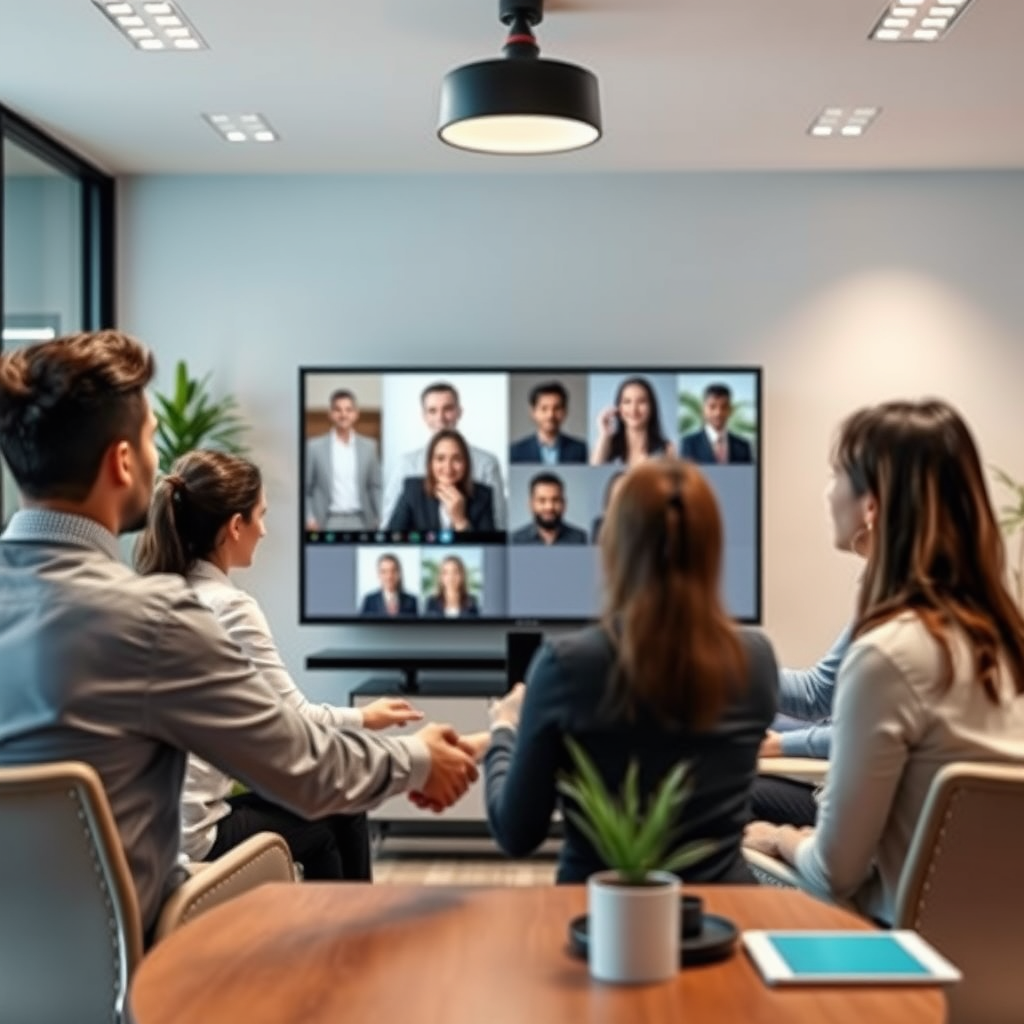

You can indeed cast a Zoom meeting to your TV, allowing for a larger viewing experience and a more engaging interaction. This can be done through various methods depending on your TV and devices. Whether you want to connect via built-in smart features, streaming devices, or direct cables, this guide will walk you through the different ways to cast your Zoom meetings effectively.
Understanding Casting Options
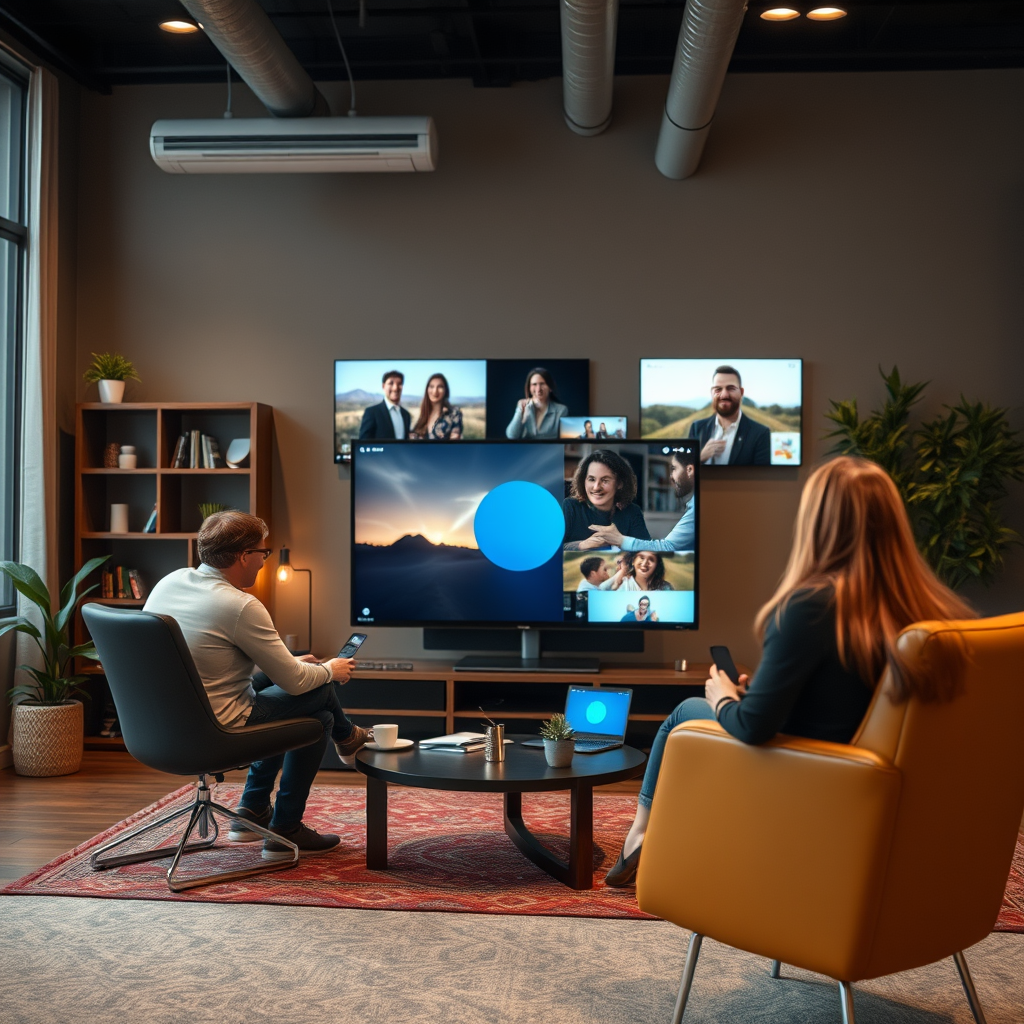
Casting a Zoom meeting to your TV can significantly enhance the meeting experience, especially for group discussions or presentations. There are several methods to achieve this, each suited to different setups:
– Smart TV Compatibility: Many modern smart TVs come equipped with built-in casting features such as Chromecast or Apple AirPlay. This means you can easily cast content without needing additional hardware, provided your TV is compatible.
– Streaming Devices: If you don’t have a smart TV, you can use streaming devices like Roku, Amazon Fire Stick, or Apple TV to facilitate the casting process. These devices support various apps and services, making it easier to stream content from your devices to your TV.
– Direct Connections: Alternatively, you can use a wired connection via HDMI cables to connect your laptop or mobile device directly to your TV. This method is often the most reliable as it bypasses potential Wi-Fi issues.
Understanding your options will help you choose the method that best suits your needs and equipment.
Using Chromecast to Cast Zoom
Chromecast is a popular choice for casting content to your TV due to its simplicity and ease of use. Here’s how to set it up:
– Setup Process: First, ensure that your Chromecast is plugged into the TV and connected to the same Wi-Fi network as your smartphone, tablet, or computer. You can check your Wi-Fi connection through the settings on both the Chromecast and your device.
– Casting Steps: Open the Zoom app on your device and navigate to the meeting you want to attend. Tap on the ‘More’ option (three dots), select ‘Cast’, and then choose your Chromecast device from the list. Your Zoom meeting should now be mirrored on your TV screen, providing a larger view for all participants.
Using Chromecast allows for an intuitive and wireless experience, making it an optimal choice for those who prefer not to deal with cables.
Using Apple AirPlay with Zoom
If you are an Apple user, AirPlay offers a seamless way to cast your Zoom meetings to an Apple TV or compatible smart TV:
– For iOS Devices: Begin by swiping down from the upper-right corner of your iPhone or iPad to access the Control Center. Tap on ‘Screen Mirroring‘ and select your Apple TV from the list of available devices.
– Zoom App Integration: Once connected, open the Zoom app and join your meeting as usual. The content will be displayed on your TV screen, allowing you to engage with other participants more effectively. This method is particularly beneficial for those using iPads, as the larger screen enhances the viewing experience.
AirPlay is known for its high-quality streaming, so you can expect clear video and audio during your meetings.
Utilizing HDMI Connections
For those who prefer a more traditional approach, using an HDMI connection can be a reliable method to cast Zoom meetings:
– Direct Connection: Simply connect your laptop or mobile device to your TV using an HDMI cable. Most modern laptops come with an HDMI port, and you may need an adapter for mobile devices.
– Display Settings: Once connected, adjust your display settings to either extend or duplicate your screen. On Windows, you can do this by right-clicking on the desktop and selecting ‘Display settings’. On Mac, go to ‘System Preferences’, then ‘Displays’, and choose your preferred option.
This direct method guarantees a stable connection without the risk of Wi-Fi interruptions, making it suitable for important meetings where clarity is essential.
Top Casting Methods for Zoom Meetings (2024)
| # | Method | Compatibility | Setup Ease | Reliability |
|---|---|---|---|---|
| 1 | Chromecast | Android, iOS | Easy | High |
| 2 | Apple AirPlay | iOS, macOS | Very Easy | High |
| 3 | Roku | Android, iOS | Moderate | Medium |
| 4 | Amazon Fire Stick | Android, iOS | Moderate | Medium |
| 5 | HDMI Cable | All Devices | Simple | Very High |
| 6 | Smart TV Native App | TV Brand Dependent | Easy | High |
| 7 | Miracast | Android, Windows | Moderate | Medium |
Troubleshooting Common Issues
Even with the best technology, issues can arise when casting Zoom meetings to your TV. Here are some common problems and their solutions:
– Connection Problems: If you’re experiencing difficulty connecting, ensure that all devices are on the same Wi-Fi network. Restarting your router or devices can often resolve minor connectivity issues.
– Audio Issues: Sometimes, the audio may not play through the TV. Check your TV’s audio settings to ensure it is set as the default output device. Additionally, verify that the Zoom app is configured to direct audio to the right source.
By being proactive in troubleshooting, you can minimize disruptions during your meetings.
Best Practices for an Effective Experience
To ensure the best experience while casting Zoom meetings to your TV, consider these best practices:
– Quality Check: A stable and strong Wi-Fi connection is crucial to avoid lag during the meeting. If possible, use a wired connection for your router to enhance performance.
– Positioning: Place your camera at eye level to foster better interaction with remote participants. This not only provides a more natural view but also improves engagement and focus during discussions.
– Screen Maintenance: Regularly clean your TV screen to minimize glare and improve visibility, especially in brightly lit rooms. A clean screen can significantly enhance the viewing experience.
By implementing these best practices, you can create a more professional and effective virtual meeting environment.
In casting a Zoom meeting to your TV, you can enhance your virtual meeting experience by making it more interactive and visually appealing. Whether you choose to use casting features, HDMI connections, or streaming devices, the methods are straightforward. Be sure to troubleshoot any issues and follow best practices for an optimal experience. Now that you know how to cast your Zoom meetings, give it a try in your next session!
Frequently Asked Questions
How can I cast a Zoom meeting to my TV?
You can cast a Zoom meeting to your TV using various methods such as Chromecast, Apple AirPlay, or an HDMI cable. For Chromecast, ensure your TV and device are on the same Wi-Fi network, open the Zoom app, and select the cast option. For Apple AirPlay, tap on the AirPlay icon in the Zoom meeting and choose your Apple TV or compatible smart TV.
Why is my Zoom meeting not casting to my TV?
If your Zoom meeting is not casting to your TV, check your Wi-Fi connection and ensure both devices are on the same network. Additionally, confirm that your TV supports the casting method you are using, such as Chromecast or AirPlay, and that the latest updates for both Zoom and your casting device are installed.
What devices are best for casting Zoom meetings to my TV?
The best devices for casting Zoom meetings to your TV include Chromecast, Apple TV, and smart TVs with built-in casting capabilities. Chromecast is ideal for Android users, while Apple TV works seamlessly with iOS devices. Additionally, many smart TVs support screen mirroring, allowing you to easily cast without additional hardware.
Can I use an HDMI cable to connect my laptop to the TV for Zoom meetings?
Yes, using an HDMI cable is a reliable way to connect your laptop to your TV for Zoom meetings. Simply plug one end of the HDMI cable into your laptop and the other into your TV, then select the appropriate HDMI input on your TV. This method provides a stable connection and high-quality video and audio for your Zoom meeting.
Which smart TVs support Zoom meetings directly?
Many smart TVs support Zoom meetings directly, particularly those running Android TV or having built-in Zoom apps, such as LG, Samsung, and Sony models. Check your TV’s app store for the Zoom app to install it directly. If your smart TV doesn’t support Zoom natively, you can still cast using devices like Chromecast or Fire TV Stick.
References
- Official Zoom Support | Help Center
https://support.zoom.us/hc/en-us/articles/201362763-Casting-to-a-TV - https://www.lifewire.com/how-to-cast-zoom-to-your-tv-5078300
https://www.lifewire.com/how-to-cast-zoom-to-your-tv-5078300 - Google Scholar Google Scholar
https://scholar.google.com/scholar?q=cast+a+zoom+meeting+to+tv - Google Scholar Google Scholar
https://scholar.google.com/scholar?q=zoom+meeting+screen+casting - Google Scholar Google Scholar
https://scholar.google.com/scholar?q=how+to+cast+zoom+to+tv - https://www.pcmag.com/how-to/how-to-cast-zoom-to-your-tv
https://www.pcmag.com/how-to/how-to-cast-zoom-to-your-tv - Google Scholar Google Scholar
https://scholar.google.com/scholar?q=can+i+cast+a+zoom+meeting+to+my+tv - can i cast a zoom meeting to my tv – Search results
https://en.wikipedia.org/wiki/Special:Search?search=can+i+cast+a+zoom+meeting+to+my+tv - https://www.ncbi.nlm.nih.gov/search/research-articles/?term=can+i+cast+a+zoom+meeting+to+my+tv
https://www.ncbi.nlm.nih.gov/search/research-articles/?term=can+i+cast+a+zoom+meeting+to+my+tv
