


Casting Twitter to your TV is indeed possible and can enhance your viewing experience by allowing you to see tweets and media on a larger screen. In this article, you’ll learn various methods to cast Twitter, whether you’re using smart TVs, streaming devices, or screen mirroring options. With the correct setup, you can enjoy live tweets, trending topics, and multimedia content in a more engaging way.
Understanding Twitter Casting Options
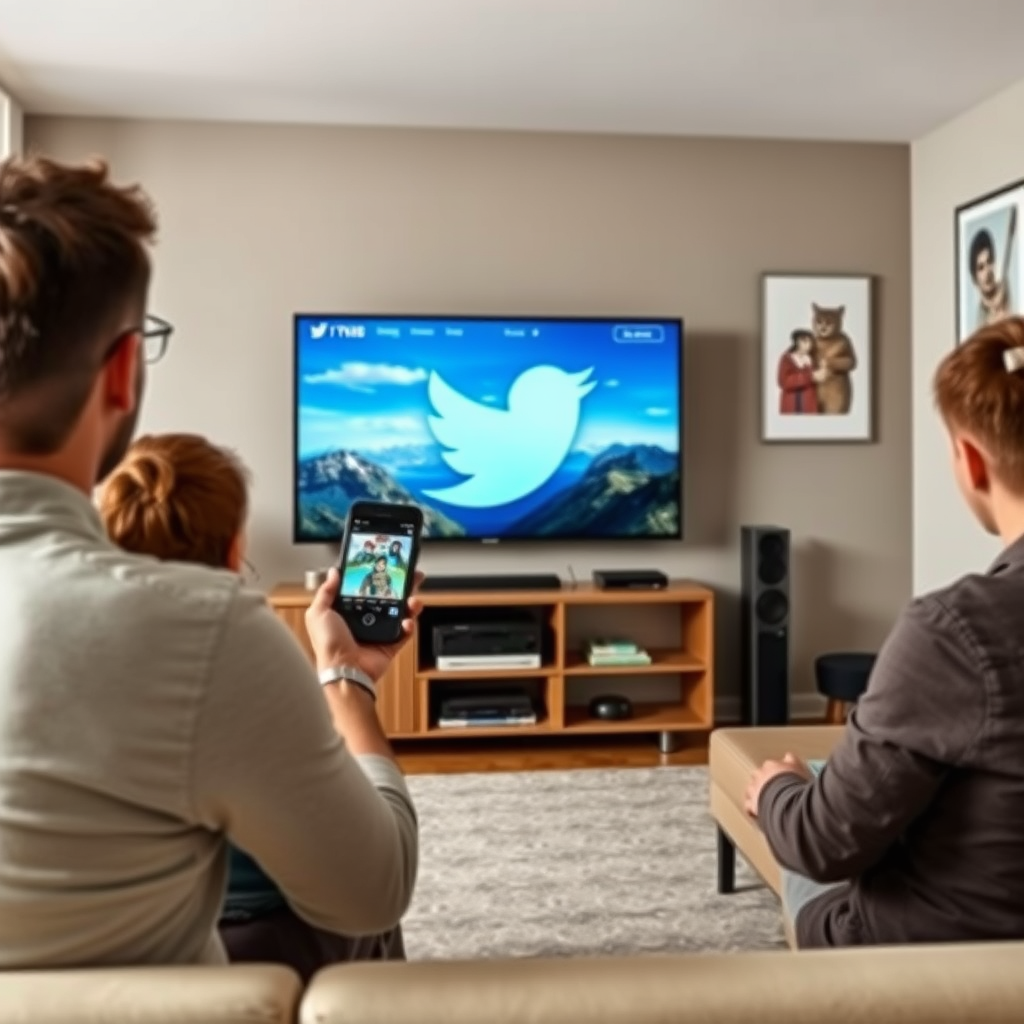
To cast Twitter to your TV, the first step is to understand the different casting options available. Many modern smart TVs come equipped with built-in casting features that allow users to stream content effortlessly from their mobile devices. Platforms like Apple AirPlay and Google Cast are particularly popular, enabling seamless integration with compatible devices.
Furthermore, streaming devices such as Chromecast, Roku, and Amazon Fire TV also support casting from Twitter and other applications. These devices act as intermediaries, making it easy to mirror your smartphone or tablet’s screen directly to your television. Knowing which devices you have at your disposal can help you choose the most effective method for casting Twitter.
Using Chromecast to Cast Twitter
Chromecast is a widely used device that simplifies the process of casting content from various apps, including Twitter. Here’s a step-by-step guide on how to set it up and cast the Twitter app from your mobile device to your TV:
1. Set Up Your Chromecast:
– Connect your Chromecast to your TV’s HDMI port.
– Ensure your TV is on and set to the correct HDMI input.
– Download the Google Home app on your smartphone and follow the instructions to set up your Chromecast.
2. Connect Your Device:
– Make sure your smartphone and Chromecast are connected to the same Wi-Fi network.
3. Open the Twitter App:
– Launch the Twitter app on your mobile device.
4. Cast to Your TV:
– Tap on the “Cast” icon located at the top of the app.
– Select your Chromecast device from the list to start casting.
5. Enjoy Twitter on Your TV:
– Navigate through tweets, videos, and images on your TV screen as you normally would on your phone.
By using Chromecast, you can easily share content with others or enjoy your Twitter feed in the comfort of your living room.
Screen Mirroring from Your Smartphone
Screen mirroring is another effective method for casting Twitter to your TV. This technique allows you to display your smartphone’s entire screen on the TV, enabling you to interact with Twitter directly. Here’s a brief explanation of screen mirroring and instructions for both Android and iOS devices:
Explanation of Screen Mirroring
Screen mirroring transmits your mobile device’s display to a TV, providing a comprehensive view of all applications, including Twitter. This method is beneficial because it allows you to showcase everything on your screen, including notifications and live interactions.
Instructions for Android Devices
1. Enable Screen Mirroring:
– Go to the settings on your Android device and find the “Connected devices” or “Screen mirroring” option.
– Turn on the screen mirroring feature.
2. Connect to Your TV:
– Select your TV from the list of available devices.
3. Open Twitter:
– Launch the Twitter app and start browsing.
Instructions for iOS Devices
1. Use AirPlay:
– Swipe down from the top-right corner of your iPhone to access Control Center.
– Tap on “Screen Mirroring” and select your Apple TV.
2. Open Twitter:
– Once your screen is mirrored, open the Twitter app to view your feed.
By mirroring your screen, you can easily display tweets and engage with your followers while enjoying the larger screen experience.
Top Smart TVs with Casting Features (2024)
| # | Brand | Model | Screen Size | Casting Support |
|---|---|---|---|---|
| 1 | Samsung | Q80T | 55″ | Yes |
| 2 | LG | CX OLED | 65″ | Yes |
| 3 | Sony | A8H | 55″ | Yes |
| 4 | Vizio | P-Series | 65″ | Yes |
| 5 | TCL | 6-Series | 55″ | Yes |
| 6 | Hisense | U8G | 65″ | Yes |
| 7 | Philips | PUS8555 | 70″ | Yes |
Accessing Twitter on Smart TVs
Many smart TVs now offer dedicated apps for popular social media platforms, including Twitter. These applications are designed to provide a user-friendly interface and enhanced functionality for accessing Twitter directly from your TV. Here’s an overview of some Twitter apps available on popular smart TV platforms:
– Roku: The Roku platform features a Twitter app that allows users to view tweets, trending topics, and even media directly from their TV screen.
– Apple TV: With AirPlay functionality, Apple TV users can easily cast the Twitter app directly from their iPhones or iPads.
– Android TV: Many Android TVs come with the Google Play Store, where users can download the Twitter app, allowing for easy access without the need for additional devices.
To navigate and use Twitter directly from your television, simply download the app, log in with your credentials, and start engaging with your feed. This method offers a streamlined experience, allowing you to maximize your engagement with content on the platform.
Troubleshooting Common Issues
While casting Twitter to your TV can be an enjoyable experience, users may encounter some common issues. Here are tips for resolving connectivity problems and solutions for issues related to video playback or tweet visibility:
– Connectivity Issues: If you experience difficulty connecting your device to your TV, ensure both are on the same Wi-Fi network. Restart your router and devices if necessary.
– Video Playback Problems: If videos aren’t playing correctly, check for updates on the Twitter app and your TV software. Clearing the app cache on your mobile device may also resolve playback issues.
– Tweet Visibility: If tweets are not displaying properly, ensure you have a stable internet connection. Logging out and back into your Twitter account can also help refresh the feed.
Addressing these common issues proactively can enhance your overall experience while using Twitter on your TV.
Alternative Methods to View Twitter on TV
Apart from the methods mentioned, there are alternative ways to view Twitter on your television. One such method involves using a web browser on smart TVs. Most modern smart TVs come with built-in browsers that allow users to navigate to Twitter’s website directly.
Using a Web Browser
To access Twitter via your TV’s web browser:
1. Open Your TV’s Web Browser: Navigate to the browser application on your smart TV.
2. Visit the Twitter Website: Type in the URL for Twitter and log in with your credentials.
3. Browse Content: You can scroll through tweets, view images, and interact with the platform as you would on a standard computer.
Additionally, consider exploring other social media platforms that can be cast similarly. Platforms like Instagram and Facebook also offer multimedia content that can be enjoyed on a larger screen.
Best Practices for an Enhanced Experience
To optimize your Twitter casting experience, consider the following best practices:
– Network Optimization: Ensure your Wi-Fi network has sufficient bandwidth. A strong connection can reduce buffering and improve video quality.
– Engaging with Content: While watching Twitter on TV, consider using your smartphone to engage with tweets and respond in real-time. This dual-device approach can enhance your experience and allow for immediate interaction with your followers.
By applying these best practices, you can create a seamless and enjoyable environment for consuming Twitter content on your television.
Summarizing the methods and options available, casting Twitter to your TV can significantly enhance your engagement with content on the platform. Whether you choose to use Chromecast, screen mirroring, or access Twitter directly through a smart TV app, each method offers unique benefits. Explore these options today to take your Twitter experience to the next level!
Frequently Asked Questions
How can I cast Twitter to my TV using Chromecast?
To cast Twitter to your TV using Chromecast, ensure your mobile device and Chromecast are connected to the same Wi-Fi network. Open the Twitter app, select the tweet or video you want to cast, tap on the Cast icon, and choose your Chromecast device. Your content will then appear on the TV screen, allowing you to enjoy tweets and videos on a larger display.
What devices support casting Twitter to TV?
Many devices support casting Twitter to your TV, including Chromecast, Apple TV, Amazon Fire Stick, and smart TVs with built-in casting capabilities. You can also use HDMI cables to connect your laptop directly to your TV. Check your device specifications to ensure compatibility with casting features.
Why can’t I cast Twitter to my TV?
If you’re having trouble casting Twitter to your TV, it could be due to connectivity issues or outdated apps. Ensure that both your mobile device and TV are on the same Wi-Fi network, and check for updates for the Twitter app. Restarting your devices can also help resolve minor connectivity problems.
What is the best way to stream Twitter videos on my TV?
The best way to stream Twitter videos on your TV is by using a streaming device like Chromecast or Apple TV, which allows for seamless casting. Alternatively, you can use the Twitter website on a laptop connected to your TV via an HDMI cable. This gives you a larger screen experience for enjoying videos and live streams directly from Twitter.
Which smart TVs have built-in support for casting Twitter?
Many smart TVs from brands like Samsung, LG, Sony, and Vizio come with built-in support for screen mirroring and casting, which includes casting Twitter. Look for models that support Google Cast or Apple AirPlay for easy integration. Always check the specifications or user manual to confirm compatibility with casting features before purchasing.
References
- https://www.bbc.com/news/technology-51691631
https://www.bbc.com/news/technology-51691631 - https://www.lifewire.com/how-to-cast-twitter-to-tv-4776857
https://www.lifewire.com/how-to-cast-twitter-to-tv-4776857 - Google Scholar Google Scholar
https://scholar.google.com/scholar?q=casting+twitter+to+tv - Google Scholar Google Scholar
https://scholar.google.com/scholar?q=how+to+stream+twitter+to+tv - Google Scholar Google Scholar
https://scholar.google.com/scholar?q=twitter+casting+to+television - https://www.nytimes.com/2021/02/01/technology/twitter-tv.html
https://www.nytimes.com/2021/02/01/technology/twitter-tv.html - https://www.theguardian.com/technology/2020/mar/02/how-to-watch-twitter-live-streams-on-your-tv
https://www.theguardian.com/technology/2020/mar/02/how-to-watch-twitter-live-streams-on-your-tv - Google Scholar Google Scholar
https://scholar.google.com/scholar?q=can+i+cast+twitter+to+tv - can i cast twitter to tv – Search results
https://en.wikipedia.org/wiki/Special:Search?search=can+i+cast+twitter+to+tv - https://www.ncbi.nlm.nih.gov/search/research-articles/?term=can+i+cast+twitter+to+tv
https://www.ncbi.nlm.nih.gov/search/research-articles/?term=can+i+cast+twitter+to+tv
