
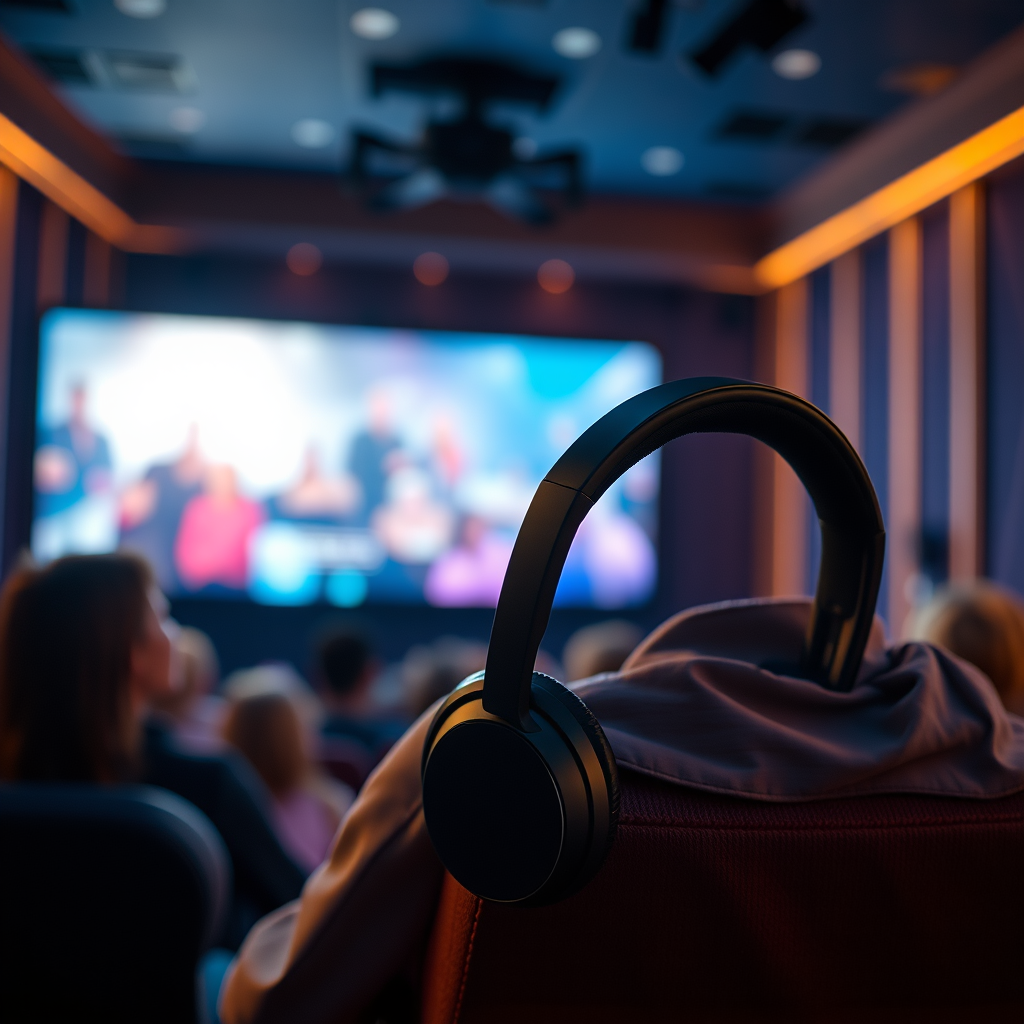

Yes, you can connect your Bose headphones to your TV using either Bluetooth or a wired connection, depending on the capabilities of both your headphones and your TV. This guide will provide a detailed overview of how to achieve a seamless audio experience, ensuring you can enjoy your favorite shows and movies without disturbing others.
Understanding Bluetooth Compatibility
Before attempting to connect your Bose headphones to your TV, it is essential to understand the compatibility requirements. First, check if your TV supports Bluetooth audio. Most modern smart TVs come equipped with Bluetooth technology, allowing you to wirelessly connect devices such as headphones, soundbars, and speakers. You can usually find this information in your TV’s user manual or settings menu.
Next, ensure that your Bose headphones are in pairing mode. This typically involves turning on the headphones and pressing the Bluetooth button until you hear a voice prompt or see a flashing light indicating they are ready to connect. It’s crucial to have both devices ready before proceeding to the connection process.
Connecting via Bluetooth
Once you have confirmed that both your TV and Bose headphones are compatible with Bluetooth, you can proceed to connect them. Here’s how:
1. Navigate to your TV’s Bluetooth settings: Access the settings menu on your TV, usually found under “Sound” or “Network” settings. Look for an option labeled “Bluetooth” or “Bluetooth Devices.”
2. Select your Bose headphones from the list of available devices: After enabling Bluetooth, your TV will start scanning for nearby devices. Once your Bose headphones appear on the list, select them to initiate the connection. You may need to confirm the pairing on both your TV and headphones.
Once successfully connected, you should experience high-quality audio from your Bose headphones, allowing you to enjoy your viewing experience without the interference of external noise.
Using a Wired Connection
If your TV does not support Bluetooth or you prefer a wired connection, you can connect your Bose headphones directly to the TV using an audio cable. Here’s how to do it:
1. Identify the headphone jack on your TV: Most TVs come with a 3.5mm headphone jack. This port is usually located on the side or back of your television. If your TV lacks a headphone jack, you may need to use an adapter or a different output option.
2. Use an appropriate audio cable (3.5mm or adapter) to connect: Take your audio cable and plug one end into the headphone jack of your TV and the other end into your Bose headphones. Once connected, you may need to adjust the TV’s audio settings to ensure the sound is directed to the headphone output.
Connecting via a wired method tends to offer a more stable and uninterrupted audio experience, making it ideal for environments with potential wireless interference.
Top Bose Headphone Models and Features (2024)
| # | Model | Bluetooth | Noise Cancellation | Battery Life | Weight | Best For |
|---|---|---|---|---|---|---|
| 1 | Bose QuietComfort 45 | Yes | Yes | 24 hours | 240g | Travel |
| 2 | Bose Noise Cancelling 700 | Yes | Yes | 20 hours | 250g | Office |
| 3 | Bose SoundLink 2 | Yes | No | 15 hours | 200g | Casual Use |
| 4 | Bose QuietComfort 35 II | Yes | Yes | 20 hours | 235g | Music Lovers |
| 5 | Bose Sport Earbuds | Yes | No | 5 hours | 68g | Athletes |
| 6 | Bose Frames Audio Sunglasses | Yes | No | 5 hours | 200g | Fashion |
| 7 | Bose SoundSport Free | Yes | No | 5 hours | 200g | Active Lifestyle |
Troubleshooting Connection Issues
Even with the right setup, you may encounter issues when connecting your Bose headphones to your TV. Here are some troubleshooting steps to resolve common problems:
1. Ensure your headphones are charged and in range: A low battery can prevent successful pairing, so check that your headphones are adequately charged. Additionally, make sure they are within the recommended range (usually around 30 feet) of your TV.
2. Restart both your TV and headphones if they fail to connect: Sometimes, a simple reset can resolve connection issues. Turn off both devices, wait for a few moments, and then turn them back on. Attempt the pairing process again.
If problems persist, consult your TV and headphones’ manuals for additional troubleshooting tips specific to your models.
Enhancing Your Listening Experience
Once your Bose headphones are successfully connected to your TV, you can further enhance your listening experience through several adjustments:
1. Explore audio settings on your TV for optimal sound quality: Most TVs come with various audio settings that can improve sound quality, including equalizer settings and surround sound options. Experiment with these settings to find the best sound profile for your preferences.
2. Adjust the headphone volume and TV sound balance: Balancing the sound levels between your headphones and TV can significantly improve your experience. If your TV allows, you can lower the TV’s volume while increasing the headphone volume to avoid distortion and achieve a more immersive sound.
By fine-tuning these settings, you can create a personalized audio experience that enhances your enjoyment of movies and shows.
Alternative Connection Methods
If your TV does not support Bluetooth or lacks a headphone jack, there are alternative methods to connect your Bose headphones:
1. Consider using a Bluetooth transmitter if your TV lacks Bluetooth: A Bluetooth transmitter can connect to your TV’s audio output (like an optical or RCA output) and transmit audio wirelessly to your headphones. This solution allows you to enjoy the wireless convenience of Bluetooth headphones without needing to upgrade your TV.
2. Look into using an HDMI ARC connection with compatible audio devices: If your TV has HDMI ARC (Audio Return Channel) capability, you can connect it to a compatible audio device that supports Bluetooth. This method allows you to route audio through the HDMI connection, which can be a more straightforward setup depending on your existing equipment.
These alternative connection methods can ensure that you can enjoy high-quality audio from your Bose headphones, regardless of the limitations of your TV.
Connecting your Bose headphones to your TV is a straightforward process that can enhance your viewing experience, whether through Bluetooth or a wired connection. By following the outlined steps and troubleshooting tips, you can easily set up your headphones and enjoy your favorite content with impeccable sound quality. Remember to explore various audio settings and alternative connection methods to ensure you achieve the best possible experience. With your headphones correctly set up, you can immerse yourself in captivating audio without disturbing those around you.
Frequently Asked Questions
Can I connect my Bose headphones to my TV wirelessly?
Yes, you can connect your Bose headphones to your TV wirelessly if your TV has Bluetooth capabilities. Simply put your headphones in pairing mode, access the Bluetooth settings on your TV, and select your Bose headphones from the list of available devices for a seamless audio experience.
How do I connect my Bose headphones to a non-Bluetooth TV?
To connect your Bose headphones to a non-Bluetooth TV, you can use a Bluetooth transmitter. Plug the transmitter into the TV’s audio output, pair it with your Bose headphones, and enjoy wireless sound. This solution allows you to bypass the lack of built-in Bluetooth on older TV models.
Why is there a delay when using my Bose headphones with my TV?
A delay, or latency, can occur when using Bluetooth headphones with your TV due to the audio processing time required for wireless transmission. To minimize this issue, look for a Bluetooth transmitter that supports low-latency codecs, such as aptX Low Latency, which can help sync audio and video more effectively.
What is the best way to connect Bose QuietComfort headphones to my TV?
The best way to connect your Bose QuietComfort headphones to your TV is via Bluetooth for a wireless experience or through a wired connection using the headphone jack. If your TV has Bluetooth, simply pair the headphones; otherwise, use a 3.5mm audio cable for a direct connection, ensuring high-quality sound without latency.
Which Bose headphones are best for watching TV?
The Bose QuietComfort 35 II and Bose Noise Cancelling Headphones 700 are among the best options for watching TV due to their excellent sound quality and noise-cancelling features. These headphones provide immersive audio, allowing you to enjoy your favorite shows without distractions, whether connected wirelessly or via a cable.
References
- https://www.bose.com/en_us/support/article/how_to_connect_bluetooth_headphones_to_tv.html
https://www.bose.com/en_us/support/article/how_to_connect_bluetooth_headphones_to_tv.html - https://www.lifewire.com/how-to-connect-bluetooth-headphones-to-tv-4172370
https://www.lifewire.com/how-to-connect-bluetooth-headphones-to-tv-4172370 - https://www.bbc.com/news/technology-51971671
https://www.bbc.com/news/technology-51971671 - https://www.reuters.com/article/us-tech-bluetooth-idUSKBN2A20NG
https://www.reuters.com/article/us-tech-bluetooth-idUSKBN2A20NG - https://www.nytimes.com/2020/05/05/technology/personaltech/connect-bluetooth-headphones-tv.html
https://www.nytimes.com/2020/05/05/technology/personaltech/connect-bluetooth-headphones-tv.html - Google Scholar Google Scholar
https://scholar.google.com/scholar?q=connecting+bluetooth+headphones+to+tv - Google Scholar Google Scholar
https://scholar.google.com/scholar?q=Bose+headphones+tv+connectivity - https://pubmed.ncbi.nlm.nih.gov/31621213/
https://pubmed.ncbi.nlm.nih.gov/31621213/ - https://www.sciencedirect.com/topics/engineering/bluetooth-headphones
https://www.sciencedirect.com/topics/engineering/bluetooth-headphones - Google Scholar Google Scholar
https://scholar.google.com/scholar?q=can+i+connect+my+bose+headphones+to+my+tv
