


Yes, you can use your Roku account on another TV by simply logging into your account on the new device. This feature allows you to enjoy your favorite streaming channels and content across various TVs without the hassle of creating a new account. Whether you’re setting up a Roku device in another room or at a friend’s house, this guide will walk you through the steps to ensure seamless access to your Roku account and content.
Setting Up Roku on a New TV
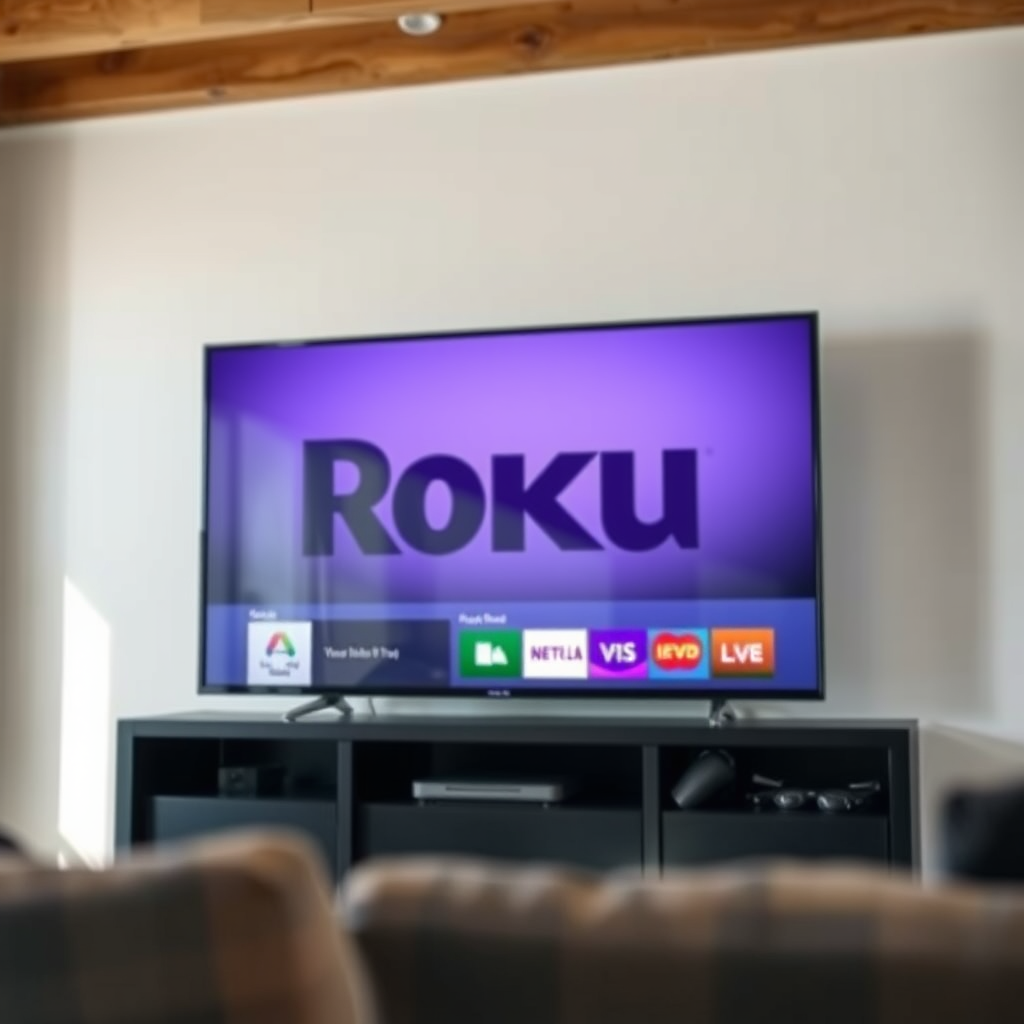
Before you can access your Roku account on a new TV, you need to ensure that the television is compatible with Roku devices. Most modern TVs have built-in Roku functionality, but if your TV does not, you can connect a Roku streaming device, such as Roku Express, Roku Streaming Stick, or Roku Ultra.
1. Check Compatibility: Verify that your new TV supports Roku functionality. This could mean it has built-in Roku software or that it has an HDMI port available for a Roku device.
2. Connect the Roku Device: If using an external device, plug it into an available HDMI port on the TV. Then connect the power adapter to an electrical outlet and turn on the TV.
3. Select the Right Input: Use the TV remote to switch to the HDMI input where the Roku device is connected.
4. Follow the On-Screen Instructions: Once the Roku device powers on, it will display prompts to guide you through the setup process, including connecting to your Wi-Fi network.
Logging Into Your Roku Account
After setting up the Roku device on your new TV, the next step is to log into your Roku account.
1. Select “Sign In”: On the Roku home screen, you will see the option to sign in. Choose this option to proceed.
2. Enter Credentials: Input your Roku account credentials, which consist of your registered email address and password. Ensure that you enter this information accurately to gain access to your account.
3. Access Your Content: Once logged in, you’ll be directed to your account’s home screen, where you can access all of your previously installed channels and subscriptions.
Syncing Your Channels and Preferences
After you have logged into your Roku account, your settings, preferences, and installed channels will automatically sync with the new device.
– Automatic Sync: The Roku system is designed to sync your channels seamlessly. Any channel you had previously installed on your other Roku devices will appear on your new TV.
– Adjust Settings: If desired, you can modify your viewing preferences, including parental controls, closed captioning settings, and audio options to suit your preferences.
– Reinstall Missing Channels: If any channels do not appear after syncing, you can reinstall them easily through the Roku Channel Store.
Top 7 Roku Channels by Popularity (2024)
| # | Channel | Users (Millions) | Content Type | Rating |
|---|---|---|---|---|
| 1 | Netflix | 238 | Streaming | ★★★★☆ |
| 2 | Amazon Prime Video | 150 | Streaming | ★★★★☆ |
| 3 | Hulu | 45 | Streaming | ★★★☆☆ |
| 4 | YouTube | 85 | User-Generated | ★★★★☆ |
| 5 | Disney+ | 152 | Streaming | ★★★★☆ |
| 6 | Paramount+ | 46 | Streaming | ★★★☆☆ |
| 7 | Peacock | 54 | Streaming | ★★★☆☆ |
Troubleshooting Common Issues
Although the process of logging into your Roku account is generally straightforward, you may encounter some issues. Here are common troubleshooting steps to consider:
– Check Internet Connectivity: If you’re unable to log in, the first thing to check is your internet connection. Ensure that your Roku device is connected to Wi-Fi, as a lack of connectivity will prevent you from accessing your account.
– Restart the Roku Device: If you experience errors during setup or logging in, restarting the device can often resolve temporary glitches. Unplug the device from power, wait a moment, and then plug it back in.
– Verify Account Credentials: Double-check that you are entering the correct email and password. If you’ve forgotten your password, you can use the “Forgot Password” feature to reset it.
Managing Your Roku Account
Once you’re logged in, managing your Roku account is simple and intuitive.
– Adding or Removing Channels: You can browse the Roku Channel Store to add new channels or remove those you no longer wish to use. Simply navigate to the Channel Store from the home screen, search for channels, and follow the prompts to install or uninstall.
– Account Settings: Access your account settings to update your personal information, payment methods, and subscription management. If you need to change subscription levels or cancel any services, this is where you’ll do it.
– Parental Controls: If children access your Roku device, consider setting up parental controls to restrict certain content. This can be done through the settings menu under the “Parental Controls” section.
Using Multiple Roku Devices
One of the significant benefits of a Roku account is its versatility across multiple devices.
– Simultaneous Use: You can have Roku devices connected to different TVs throughout your home, all linked to the same account. This means you can enjoy personalized content on any device.
– Individual Setup: Keep in mind that while the account information will sync across devices, each Roku device will require its own setup process. You will need to log into your account on each device separately but will not need to re-enter payment information or preferences once they are synced.
Roku Account Security Tips
Maintaining the security of your Roku account is crucial to protect your personal information and viewing preferences.
– Regularly Update Your Password: To keep your account secure, consider changing your password periodically. A strong password should include a mix of letters, numbers, and special characters.
– Enable Two-Factor Authentication: If available, enable two-factor authentication for an added layer of security. This means that even if someone obtains your password, they will need a second form of verification to access your account.
– Monitor Account Activity: Regularly check for any unauthorized devices connected to your account. If you notice anything suspicious, change your password immediately and remove any unknown devices.
Your Roku account is versatile and allows for easy access across multiple TVs. Whether you’re setting up a new device or troubleshooting issues, following these steps will ensure a smooth experience. If you have further questions or need assistance, don’t hesitate to explore Roku’s support resources or community forums for additional help. By understanding how to manage and secure your Roku account, you can enjoy a seamless streaming experience tailored to your preferences.
Frequently Asked Questions
Can I use my Roku account on another TV without any issues?
Yes, you can use your Roku account on another TV. Simply connect the Roku device to the new TV and log in with your existing Roku account credentials. This will allow you to access all your channels and preferences, making the transition seamless.
How do I set up my Roku account on a different TV?
To set up your Roku account on a different TV, first, connect your Roku device to the new TV via HDMI. Turn on the TV and select the correct input, then follow the on-screen instructions to connect to Wi-Fi and log into your Roku account. Once logged in, all your channels and settings will be available.
Why can’t I access my Roku channels on another TV?
If you’re having trouble accessing your Roku channels on another TV, ensure that you are logged into the correct Roku account. Additionally, verify that the Roku device is properly connected to the TV and that it has internet access. If issues persist, try restarting the device or re-linking it to your Roku account.
What should I do if I want to use my Roku account on multiple TVs?
If you want to use your Roku account on multiple TVs, simply purchase additional Roku devices for each TV. Log into the same Roku account on each device to access your channels and settings. This way, you can enjoy your favorite content on any TV in your home.
Which Roku devices are best for connecting to multiple TVs?
The best Roku devices for connecting to multiple TVs are the Roku Streaming Stick 4K and the Roku Ultra. Both offer excellent streaming quality and easy portability, allowing you to switch between TVs effortlessly. Additionally, they support 4K and HDR content, enhancing your viewing experience on any compatible TV.
References
- Roku
https://www.roku.com/support - Roku
https://support.roku.com/article/208754258-how-do-i-use-my-roku-account-on-multiple-roku-devices - Roku
https://www.roku.com/blog/using-your-roku-account-on-multiple-devices - Roku
https://www.roku.com/products - Account, payments & subscriptions Help | Official Roku Support
https://www.roku.com/help - Google Scholar Google Scholar
https://scholar.google.com/scholar?q=Roku+account+multiple+devices - Google Scholar Google Scholar
https://scholar.google.com/scholar?q=Roku+account+usage+on+different+TVs - Google Scholar Google Scholar
https://scholar.google.com/scholar?q=streaming+devices+account+management - Roku
https://en.wikipedia.org/wiki/Roku - https://www.bbc.com/news/technology-58297410
https://www.bbc.com/news/technology-58297410
