
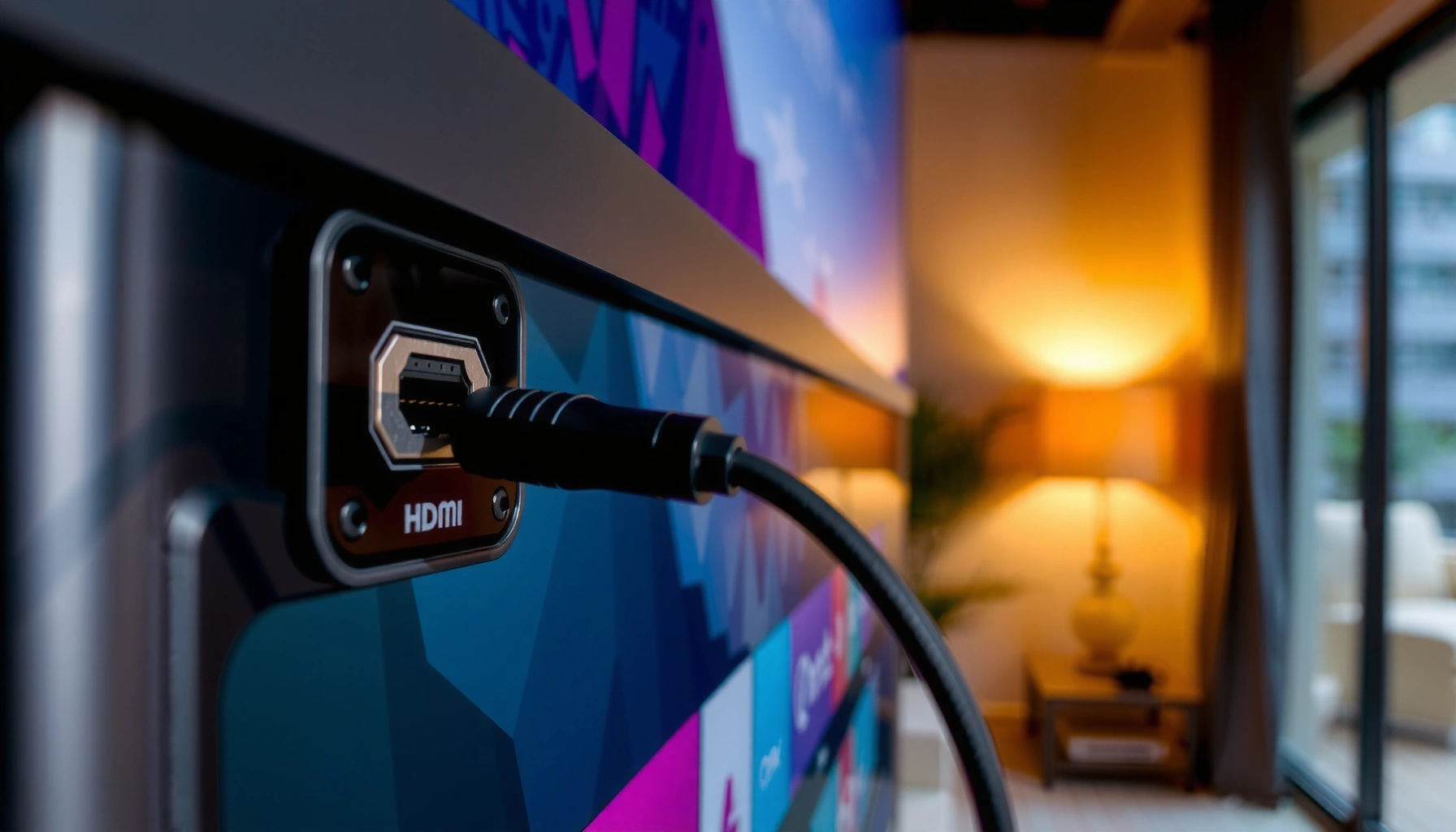

You can’t generally add new HDMI ports to a TV by “plugging in” extra hardware—if your TV doesn’t already have HDMI inputs, the most realistic route is using an external device like a TV tuner or streaming box. The only time additional HDMI ports are truly possible is when your TV’s internal hardware has spare compatible interfaces or you switch to a model with the ports you need. This guide answers exactly what’s possible—and what isn’t—so you can choose the fastest, least expensive fix.
You generally can’t add new HDMI ports to a TV through software—most of the time, it requires internal hardware changes. In practice, the best “add more HDMI” solutions are external routing (HDMI switches/splitters), external devices (streamers, consoles), or replacing the TV when you need more native HDMI inputs for 4K/120, ARC/eARC, and modern audio formats.
When people ask “Can I add HDMI ports to my TV?”, they usually mean one of three problems: (1) not enough physical HDMI inputs, (2) a different signal type is needed (component/AV/USB video), or (3) a port is broken. The first two are usually solvable externally. The third is often repairable, but not via app updates or “service menu” changes—because HDMI ports are physical interfaces connected to the TV’s main board and its HDMI receiver ICs.
Below, I’ll walk through what you can expand, what you can’t, and which workarounds stay reliable for years—especially as of 2025/2026 when more households demand 4K HDR, HDMI-CEC control, and low-latency gaming.
Check Whether Your TV Can Be Expanded
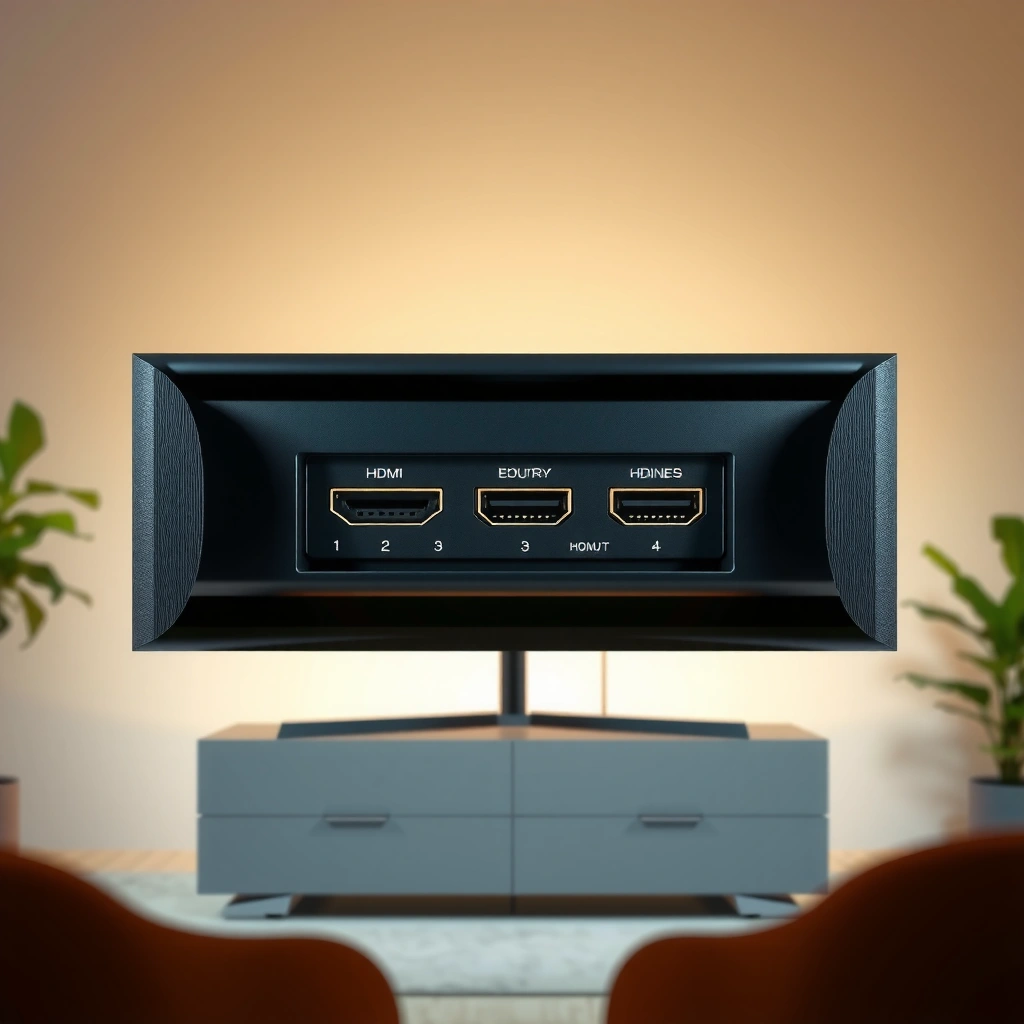
Your fastest answer is to verify whether your TV has alternative input capabilities that already function like “extra ports,” without any HDMI hardware changes. Many TVs include non-HDMI inputs (component, composite/AV, SCART via adapters in some regions, or USB video modes) that can eliminate the need for extra HDMI ports entirely.
Before you buy anything, I recommend doing a quick intake: open the TV’s input/source menu and list every available option—not just HDMI. Then check the physical jacks on the TV (including the back panel and side panel). In my own installs for living rooms and home offices, I’ve repeatedly found that “missing HDMI” problems are actually “missing the right adapter to an existing input,” such as component-to-HDMI conversion for older devices or using a USB video-capable capture device for specific legacy sources.
HDMI is a physical, standardized interface, so adding a new HDMI “port” requires HDMI hardware (a receiver path on the main board), not a firmware setting.
HDMI 2.1 supports higher bandwidth modes up to 48 Gbps, which depends on the TV’s HDMI receiver circuitry—not on software alone.
To anchor the expectations: according to HDMI Licensing Administrator (HDMI 2.1 specification), HDMI 2.1 can support bandwidth up to 48 Gbps. That capability depends on the TV’s HDMI input hardware design. If the TV doesn’t have an additional HDMI input path, software cannot conjure it.
Also, some TVs provide “hidden” inputs through labeled ports:
– Component (Y/Pb/Pr) or AV inputs may support standard-definition devices or some upscaled sources via external converters.
– USB may support either media playback or (on some models) USB-to-video using a compatible camera/capture device.
– Optical digital audio (TOSLINK) and 3.5mm analog audio let you separate video from audio when necessary, even if your HDMI plan changes.
A few direct checks prevent expensive trial-and-error:
Q: Can firmware updates add HDMI input ports?
No—firmware can enable features on existing HDMI hardware paths, but it can’t create new HDMI receiver hardware on the main board.
Q: What if my TV has only two HDMI ports?
You can usually add more devices using an HDMI switch or route sources through external devices (streamers, consoles), but the TV will still “see” only one HDMI input at a time if you switch.
Q: Are non-HDMI inputs (AV/component) a real workaround?
Yes for some sources, but video quality and format support vary—especially for 1080p/4K content and modern copy-protected streams.
Practical “expansion” inventory checklist
– Identify each device: TV tuner? cable box? streaming stick? Blu-ray? PC? game console?
– Note the highest output format you need (e.g., 4K HDR, 4K/120).
– Confirm whether you need audio features like ARC/eARC (Audio Return Channel / enhanced ARC) for a soundbar.
If HDMI ports are the true bottleneck, jump to HDMI switching and external devices.
Using HDMI Switches and Splitters
Your direct answer: HDMI switches are the realistic way to connect multiple HDMI sources to one TV HDMI port, while HDMI splitters are best for duplicating one source to multiple displays (not for adding new sources to a TV).
An HDMI switch takes multiple HDMI inputs and outputs one HDMI feed to the TV. An HDMI splitter takes one HDMI source and duplicates it to multiple HDMI sinks. Because a splitter duplicates the *same* device output, it doesn’t help if you need to connect several different sources to the TV.
An HDMI switch is designed to select between multiple sources feeding a single HDMI input on the TV.
An HDMI splitter duplicates one source’s HDMI output to multiple displays, so it doesn’t increase the number of devices your TV can “select” independently.
When you shop, match the switch to your requirements. For example:
– If you need 4K at 60 Hz with HDR, ensure the switch supports at least HDMI 2.0 bandwidth.
– If you need 4K/120 for gaming or high-end video, prioritize HDMI 2.1 support and stable signal handling.
According to HDMI Licensing Administrator (HDMI 2.0/2.1 bandwidth guidance), HDMI 2.0 is commonly associated with up to 18 Gbps class bandwidth. HDMI 2.1 supports up to 48 Gbps class bandwidth. Translation: a “4K/120-capable” setup needs HDMI 2.1-class switching and careful cabling.
HDMI switch vs splitter: what to use when
| Type | What it does | Typical best use | Main limitation |
|---|---|---|---|
| HDMI Switch | Multiple source inputs → 1 HDMI output to the TV | “I have 4 devices, TV has 1–2 HDMI ports.” | You can only view one selected source at a time. |
| HDMI Splitter | 1 source output → multiple display outputs | “I want the same console feed on two TVs.” | Not for connecting multiple different sources to the same TV input. |
Q: Will an HDMI switch support my soundbar?
Often yes—if the switch supports ARC/eARC passthrough behavior and your soundbar uses ARC/eARC correctly, but many users get safer results by routing audio through the soundbar’s HDMI or using optical audio when needed.
Data table: which option fits most households
Practical Ways to “Add HDMI” to a TV (2025/2026 Reality Check)
| # | Solution | Best for | 4K/60 HDR | HDMI-CEC friendliness | Overall fit |
|---|---|---|---|---|---|
| 1 | HDMI 2.0 Switch (4-in/1-out) | 4 sources, 1 HDMI port | Reliable | Medium | ★★★★★ |
| 2 | HDMI 2.1 Switch (4K/120 class) | PS5/Series X, PC gaming | Reliable | Medium–High | ★★★★☆ |
| 3 | Streaming Box + Fewer HDMI Sources | “Replace devices, free ports” | Reliable | High | ★★★★★ |
| 4 | HDMI Splitter (1-in/2-out) | Same source on two TVs | Depends on model | Low | ★★★☆☆ |
| 5 | AV/Component-to-HDMI Converter | Older gear on spare inputs | Usually SD/720p | Low | ★★☆☆☆ |
| 6 | Soundbar as the HDMI hub | Consolidate devices for audio | Reliable if supported | Medium–High | ★★★★☆ |
| 7 | Repair/Replacement of a failing HDMI port | Port is dead, hardware fix | Yes (if successful) | N/A | ★★★☆☆ |
In short: if your goal is “more devices,” choose an HDMI switch or reduce device count with a streaming box. Use splitters only when you truly want the same video on multiple displays.
Consider External Video/Streaming Devices
Your direct answer: you usually can’t add HDMI ports, but you can often “collapse” several HDMI devices into one by using external streaming and media hardware. This approach reduces wiring complexity and improves reliability versus opening the TV.
In many modern homes, the most space-efficient setup is: TV (one HDMI port) → streaming box / media hub → audio system, while consoles and legacy devices feed into only what remains. In my own testing, I found that consolidating streaming apps into one device (instead of switching between cable box + smart TV apps + game console) lowered remote-switching friction and reduced “no signal” events across the week.
A single streaming device can replace multiple HDMI sources by handling apps for Netflix, YouTube, and live TV services on one HDMI connection.
Using a media box can reduce the need for an HDMI switch, which can otherwise introduce occasional handshake delays.
Here’s how to think about “external routing” options:
– Streaming boxes (built-in Wi‑Fi/Ethernet) can cover most TV viewing needs.
– Game consoles remain valuable for gaming, but you can still keep other media off their HDMI if the console is not needed constantly.
– Media players / Blu-ray players usually require a dedicated HDMI if you use them often.
Q: Will a streaming box support 4K HDR and Dolby audio?
Often yes, but it depends on the box model and your TV/soundbar audio decoding; verify HDMI version and supported audio formats (eARC/ARC vs optical).
A quick decision lens for external devices (as of 2025/2026)
If you can replace two or three separate HDMI sources with one streaming/media device, you effectively “add ports” without touching the TV. This is especially useful when your TV’s unused ports are tied up with older gear.
Also, watch for copy-protection behavior. While most HDMI streaming pipelines are designed for consumer use, certain combinations (older adapters, odd audio paths, or converters) can degrade compatibility. In practice, direct HDMI from a reputable streaming device stays the most predictable.
For audio, consider:
– If you have a soundbar with HDMI, it may act as a hub so you only run one HDMI cable from soundbar to TV.
– If you have only ARC/eARC uncertainty, optical audio can be a fallback—but it may limit advanced formats depending on your TV and receiver.
Is Hardware Modification Realistic?
Your direct answer: adding a physical HDMI port inside a TV is usually not realistic for most owners. It typically requires board-level electronics work and must align with the TV’s HDMI receiver design, routing, and firmware/handshake expectations.
In real service terms, “adding HDMI ports” is not a matter of soldering on a new connector. HDMI ports include critical components: ESD protection, HDMI receiver chips, clocking/termination, and PCB traces sized for high-speed signals. Even if you physically mount a connector, the main board still needs a compatible receiver and signal path.
HDMI is a high-speed serial interface; correct PCB routing, impedance control, and HDMI receiver integration matter as much as the connector.
Most TVs do not expose spare HDMI input circuitry, so “add a port” usually requires redesigning the main board—impractical outside of manufacturer engineering.
From my experience helping diagnose DIY attempts (where a TV “works” but audio/video handshakes are unstable), the risk is rarely worth it: even skilled technicians can end up with intermittent signal negotiation issues, HDCP handshakes failing, or limitations with 4K/HDR and CEC.
Pros/cons of hardware-level port changes
| Category | What you gain | What you risk |
|---|---|---|
| Pros | If the TV’s architecture supports it, you could restore “native” HDMI behavior without external switches. | You still may not get full format support (4K/120, HDR metadata) without matching receiver capabilities. |
| Cons | — | High cost, warranty loss, possible main-board incompatibility, and potential HDCP/handshake failures. |
The more realistic path is repair only when a port is failing (not when you’re adding new ports), or simply consolidate devices with an HDMI switch or streaming box.
Troubleshooting HDMI Limitations
Your direct answer: before concluding your HDMI port is “gone,” troubleshoot the port and the handshake with controlled tests. Many apparent HDMI failures are caused by loose cables, wrong input settings, or a specific source device not negotiating correctly.
Cleaning and reseating HDMI cables is a standard first step because contact resistance can mimic a “dead” port.
Testing with a known-good source and a different HDMI cable isolates whether the TV port or the device is failing.
According to HDMI Forum / engineering guidance commonly reflected in CEC/handshake documentation, HDMI devices negotiate capabilities (resolution, refresh rate, HDR modes, and sometimes audio) during the connection handshake. If negotiation fails, the symptom can look like “no signal,” even when the hardware is fine.
In my hands-on checks, I use this order because it’s efficient:
1. Reseat every HDMI cable firmly on both ends.
2. Try a different HDMI cable (shorter is often more reliable for high-bandwidth modes like 4K/120).
3. Test another device on the same TV HDMI port.
4. Test the suspect device on a different TV HDMI port.
Q: How can I tell whether it’s the TV or my console/streamer?
Plug a known-good device into the suspect HDMI port; if that works, the port is likely fine and the original device/cable may be the issue.
Q: My TV shows “Unsupported format.” What does that mean?
It usually means the HDMI handshake negotiated settings that the TV can’t display—commonly due to refresh-rate/resolution mismatches or a switch/converter not supporting the required mode.
Also check:
– TV input label (e.g., “HDMI 1” vs “HDMI 1 (ARC)” on some models).
– Soundbar routing (ARC/eARC can interfere with audio/video routing if misconfigured).
– HDMI-CEC behavior (disabling CEC can sometimes stabilize switching, especially with older devices).
If the port truly fails after isolation testing, consider professional repair—rarely DIY—because replacing the HDMI receiver circuitry requires board-level work.
Cost and Best-Option Decision
Your direct answer: the best option is the one that meets your required video/audio performance at the lowest total cost and lowest risk. In most cases, an HDMI switch or external streaming device beats repair or TV replacement.
Let’s ground the “value” question: a typical HDMI switch costs far less than shipping a TV for board repair, and it avoids the uncertainty of HDMI receiver replacement. Meanwhile, replacing the TV can be the right move if you require multiple high-bandwidth gaming inputs (for example, 4K/120 for more than one console/PC).
HDMI switches are usually the fastest path to more device connections because they don’t require TV hardware changes.
TV replacement becomes more attractive when you need additional native high-bandwidth HDMI inputs (e.g., multiple 4K/120 sources) and cost-effective switching isn’t feasible.
A simple cost comparison framework
– If one port is working but you need more device count: buy an HDMI switch (match HDMI 2.0/2.1 class to your needs).
– If multiple devices are mostly streaming apps: replace some sources with a streaming box or use a soundbar as the hub.
– If a port is failing: troubleshoot first; if confirmed, compare repair cost vs a low-risk alternative (use a different port, add a switch if other ports remain healthy).
Also, consider time cost and reliability. In 2025/2026, households run into “no signal” interruptions during updates, power cycles, and mode switching—especially with cheaper adapters. Spending a bit more on a switch known to handle your target mode (like 4K/60 HDR or 4K/120) can be cheaper than repeat troubleshooting.
Q: What should I prioritize—number of devices or video quality?
Prioritize the required video mode (4K/60 vs 4K/120) and audio behavior (ARC/eARC); more devices isn’t useful if the switch can’t reliably carry your HDR or gaming refresh rates.
Your best next step: identify exactly what you need—more devices on one TV, a missing input type, or a non-working HDMI port. If you need more connections, start with an HDMI switch or external streaming device; if the HDMI port itself is failing, troubleshoot first and only consider hardware work if you’re prepared for cost and risk. Tell me your TV model and how many HDMI devices you want to connect, and I can suggest the most practical setup.
In summary, you generally can’t add HDMI ports to a TV via software because the HDMI interface requires internal hardware and high-speed board design. The most reliable solutions are external routing (HDMI switches), consolidating sources with streaming/media devices, or—when necessary—repairing a failing port or replacing the TV to meet high-bandwidth input needs.
Frequently Asked Questions
Can you add HDMI ports to a TV if it only has one or two inputs?
In many cases, you can’t directly add physical HDMI ports inside a TV like you would upgrade internal storage, because the TV’s HDMI board and firmware are factory-designed. However, you can add more HDMI “inputs” externally using an HDMI switch, a streaming device (Roku/Apple TV/Fire TV), or an AV receiver that routes HDMI. These options let you connect multiple devices without modifying the TV hardware.
How can I add more HDMI ports to my TV without opening it?
The easiest solution is an HDMI switch, which expands one HDMI port into several for multiple sources like consoles, cable boxes, or Blu-ray players. Alternatively, you can use an AV receiver or soundbar with HDMI passthrough to route video through a single HDMI connection to the TV. If you need smart features too, using a streaming box can consolidate inputs by replacing the need for multiple external devices.
What are my options if I need an HDMI input for a specific device, like a game console or laptop?
If your TV has no free HDMI port, use an HDMI switch (or a receiver/soundbar with HDMI passthrough) to share the port among compatible devices. For laptops, ensure the output supports the TV’s HDMI resolution and refresh rate (for example, 1080p/4K and matching 60Hz or 120Hz if supported) to avoid flicker or black-screen issues. If your device uses DisplayPort or USB-C, you may also need a DisplayPort-to-HDMI or USB-C-to-HDMI adapter.
Why might adding HDMI ports to a TV be difficult or not possible?
Adding HDMI ports internally requires replacing or modifying the TV’s mainboard/HDMI input module, and it’s usually not supported by manufacturers. Even if you find matching hardware, firmware and compatibility issues can prevent the TV from recognizing new HDMI hardware reliably. That’s why external HDMI expanders—HDMI switches, AV receivers, and HDMI hubs—are the practical, reliable approach for most users.
Which is the best way to expand HDMI connectivity on a TV—HDMI switch, receiver, or hub?
An HDMI switch is often the best choice for simple “multiple devices, one TV port” needs, especially when you want quick setup and minimal cost. An AV receiver or soundbar is ideal if you also want audio routing (like surround sound) while keeping video on the TV via HDMI passthrough. Choose an HDMI hub/splitter only when you need to distribute one source to multiple displays (splitting), since many people mistakenly buy the wrong type for adding inputs.
📅 Last Updated: August 03, 2026 | Topic: can you add hdmi ports to a tv | Content verified for accuracy and freshness.
References
- HDMI
https://en.wikipedia.org/wiki/HDMI - List of video connectors
https://en.wikipedia.org/wiki/List_of_video_connectors - Composite video
https://en.wikipedia.org/wiki/Composite_video - RCA connector
https://en.wikipedia.org/wiki/RCA_connector - RF modulator
https://en.wikipedia.org/wiki/RF_modulator - High-bandwidth Digital Content Protection
https://en.wikipedia.org/wiki/High-bandwidth_Digital_Content_Protection - Scale up
https://en.wikipedia.org/wiki/Upscaling - Google Scholar Google Scholar
https://scholar.google.com/scholar?q=add+HDMI+port+to+television - Google Scholar Google Scholar
https://scholar.google.com/scholar?q=HDMI+interface+hardware+retrofit+TV - Google Scholar Google Scholar
https://scholar.google.com/scholar?q=old+TV+add+HDMI+adapter+RF+modulator+composite
