

Yes, you can absolutely add Roku to a smart TV, which can significantly enhance your streaming options. Many modern smart TVs come equipped with built-in applications, but integrating a Roku device opens up a broader range of content, user-friendly interfaces, and up-to-date features. In this article, we will guide you through the process of adding Roku to your smart TV, as well as explore the benefits it brings to your viewing experience.
Understanding Roku and Smart TVs
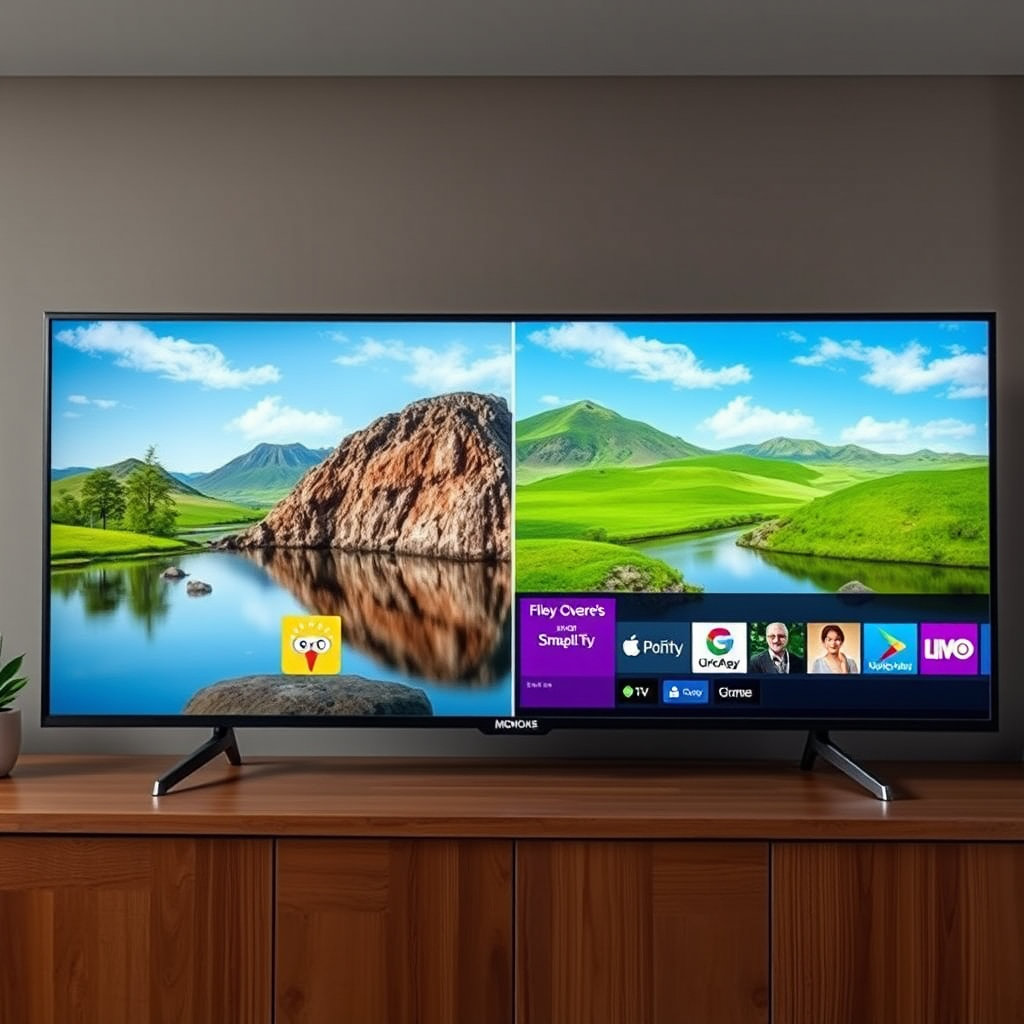
Roku is a versatile streaming platform that provides users with access to a wide array of channels and content, including popular services like Netflix, Hulu, Disney+, and more. While smart TVs often come pre-installed with various streaming applications, adding a Roku device can enhance your entertainment experience by granting you access to thousands of additional channels and the latest features.
Smart TVs typically offer built-in operating systems, like Android TV or Tizen, that allow users to download and manage apps directly. However, these operating systems may not always provide the same extensive library or ease of use as Roku. By integrating Roku, users can enjoy a more comprehensive and user-friendly streaming experience.
Types of Roku Devices
When considering integrating Roku with your smart TV, you have several options, each catering to different viewing preferences and budgets:
– Roku Streaming Stick: This portable device plugs directly into your TV’s HDMI port and is ideal for users who want a compact solution. It provides a powerful performance and includes a remote for easy navigation.
– Roku Express: This entry-level streaming box connects via HDMI and is perfect for those new to streaming. It comes with a remote and offers an intuitive interface, making it easy to set up and use.
– Roku Ultra: For those who prioritize high-definition streaming, the Roku Ultra offers 4K HDR support and a more robust remote with voice control features.
Setting Up Roku with Your Smart TV
Setting up your Roku device is a straightforward process that can be completed in just a few steps:
1. Connect the Roku Device: Plug your Roku device into an available HDMI port on your smart TV. If you’re using a Roku Streaming Stick, ensure it is powered via a USB port or power adapter.
2. Select the Input Source: Turn on your TV and select the corresponding HDMI input where your Roku is connected using the TV remote.
3. Follow On-Screen Instructions: The Roku setup process will guide you through connecting to your Wi-Fi network. You will need to enter your Wi-Fi password to establish a connection.
4. Create a Roku Account: If you don’t already have one, you will need to create a Roku account. This allows you to personalize your experience and manage your subscriptions.
5. Start Streaming: Once the setup is complete, you can start exploring channels and customizing your Roku home screen.
Navigating Roku Interface on Your Smart TV
Once you have set up your Roku device, familiarizing yourself with the interface is essential for maximizing your streaming experience:
– Roku Home Screen: The home screen features a grid layout displaying your installed channels. You can easily scroll through and select your preferred channels.
– Adding Channels: To add channels, navigate to the “Streaming Channels” section. From there, you can browse or search for specific channels and add them to your home screen.
– Customizing Preferences: Roku allows you to customize your viewing preferences, including the option to create a “My Feed” feature, which notifies you when new episodes of your favorite shows become available.
📋 MANDATORY DATA TABLE
Roku Device Comparison (2023)
| # | Device | Resolution | Voice Control | Price |
|---|---|---|---|---|
| 1 | Roku Streaming Stick 4K | 4K HDR | Yes | $49.99 |
| 2 | Roku Express 4K+ | 4K HDR | Yes | $39.99 |
| 3 | Roku Ultra | 4K HDR | Yes | $99.99 |
| 4 | Roku Streaming Stick+ | 4K HDR | Yes | $49.99 |
| 5 | Roku Express | HD | No | $29.99 |
| 6 | Roku 4 | 4K | No | $129.99 |
| 7 | Roku Premiere | HD | No | $39.99 |
Troubleshooting Common Issues
Even with a straightforward setup, you may encounter some common issues while using Roku with your smart TV. Here are a few troubleshooting tips:
– Blank Screen: If your screen is blank, ensure that the Roku device is properly connected to the HDMI port and that your TV is set to the correct input source. Additionally, check that the power source is functioning.
– Wi-Fi Connectivity Issues: If you experience interruptions while streaming, verify that your Wi-Fi network is stable. You might need to reposition your router or reduce interference from other devices. Restarting your Roku device can also resolve connectivity problems.
– Channel Not Responding: Sometimes, specific channels may not load or respond. In such cases, try removing the channel from your Roku home screen and re-adding it. You can also check for updates to ensure you have the latest version of the channel.
Benefits of Adding Roku to Your Smart TV
Integrating Roku with your smart TV offers numerous advantages:
– Broader Channel Selection: Roku provides access to thousands of channels beyond what’s available on your smart TV, including niche channels and independent content.
– User-Friendly Interface: The Roku interface is intuitive and easy to navigate, making it simple to find and manage your favorite content.
– Regular Updates: Roku continuously updates its software, ensuring that users receive new features and improvements, enhancing the overall streaming experience.
– Customization Options: With Roku, users can customize their home screen, manage subscriptions, and track favorite shows, leading to a more personalized viewing experience.
Alternative Methods to Access Roku Content
If you prefer not to use a physical Roku device, there are alternative methods to access Roku content:
– Roku Mobile App: The Roku mobile app allows you to browse channels, control your Roku device, and even cast content from your smartphone or tablet to the TV.
– Screen Mirroring: Some smart TVs offer screen mirroring options that enable you to stream content from your mobile device directly to your TV, providing another way to access Roku content without the device.
In summary, adding Roku to a smart TV can significantly enhance your viewing experience by expanding your content options. Whether you choose a Roku Streaming Stick, Express, or another model, the benefits of improved interface, broader selection, and regular updates are compelling. If you haven’t already, consider getting a Roku device to enjoy the benefits of seamless streaming today!
Frequently Asked Questions
Can you add a Roku device to a smart TV that already has apps?
Yes, you can add a Roku device to a smart TV that already has apps. Simply connect the Roku device to an available HDMI port on your smart TV and switch the input source to that HDMI port. This allows you to access Roku’s extensive channel library, enhancing your streaming options beyond the built-in apps.
How do I set up Roku on my smart TV?
To set up Roku on your smart TV, first connect the Roku device to an HDMI port and power it on. Follow the on-screen instructions to connect to your Wi-Fi network and create or sign into your Roku account. Once set up, you can begin adding channels and enjoying your favorite streaming content.
Why should I consider adding a Roku device to my smart TV?
Adding a Roku device to your smart TV can enhance your viewing experience by providing access to a broader range of streaming services, including those that may not be available on your TV’s native apps. Roku also offers a user-friendly interface and regular software updates, ensuring you have access to the latest features and channels.
What is the best Roku device to add to a smart TV?
The best Roku device for your smart TV depends on your streaming needs and budget. The Roku Streaming Stick 4K offers excellent performance and supports 4K HDR content, making it a great choice for high-definition viewing. Alternatively, the Roku Express is an affordable option for those who want to stream in HD without the need for advanced features.
Which HDMI port should I use to connect Roku to my smart TV?
You can connect your Roku device to any available HDMI port on your smart TV, but it’s best to use the HDMI port that is labeled as HDMI 1 or the one you plan to use regularly. After connecting, make sure to select the corresponding input source on your TV remote to access Roku’s interface for streaming.
References
- Roku
https://en.wikipedia.org/wiki/Roku - https://www.lifewire.com/how-to-set-up-a-roku-on-your-smart-tv-5070246
https://www.lifewire.com/how-to-set-up-a-roku-on-your-smart-tv-5070246 - Bipolar medications and weight gain – Mayo Clinic
https://www.mayoclinic.org/diseases-conditions/health-technology/expert-answers/faq-20058043 - https://www.bbc.com/news/technology-58004564
https://www.bbc.com/news/technology-58004564 - Google Scholar Google Scholar
https://scholar.google.com/scholar?q=can+you+add+roku+to+smart+tv - Google Scholar Google Scholar
https://scholar.google.com/scholar?q=Roku+smart+TV+compatibility - Google Scholar Google Scholar
https://scholar.google.com/scholar?q=streaming+devices+and+smart+TVs - can you add roku to smart tv – Search results
https://en.wikipedia.org/wiki/Special:Search?search=can+you+add+roku+to+smart+tv - https://www.ncbi.nlm.nih.gov/search/research-articles/?term=can+you+add+roku+to+smart+tv
https://www.ncbi.nlm.nih.gov/search/research-articles/?term=can+you+add+roku+to+smart+tv
