


Yes, many smart TVs allow you to browse the internet just like a traditional computer or mobile device. With built-in web browsers and the ability to download popular applications, accessing websites and online content has never been more convenient. In this article, we’ll delve into the capabilities of smart TVs, guide you on how to effectively browse the internet, and provide tips for maximizing your online experience.
Understanding Smart TV Capabilities
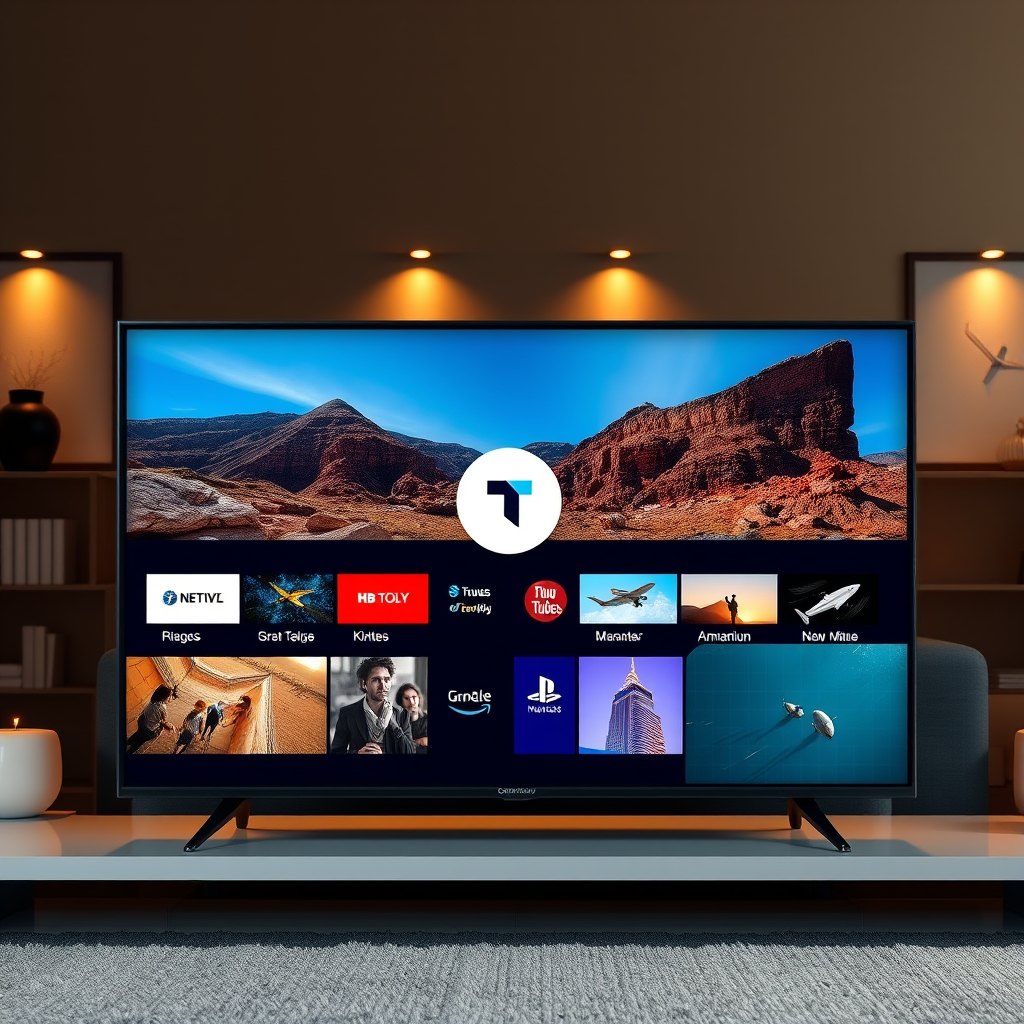
Smart TVs are equipped with a range of internet connectivity options, primarily including Wi-Fi and Ethernet ports, allowing users to connect to home networks effortlessly. This connectivity enables users to stream high-definition content, download apps, and indeed, browse the internet.
Most modern smart TV models come with a pre-installed web browser that allows you to access the internet directly. Brands such as Samsung, LG, and Sony typically feature their own browsers, while others may support popular options like Google Chrome or Firefox, which can be downloaded from the respective app stores. The quality of the browsing experience can vary significantly between different models and manufacturers, with some offering more robust and user-friendly interfaces than others.
As smart TVs evolve, their processing power and memory have also improved, enhancing their ability to handle complex web pages and perform multitasking functions. This development means that browsing the internet on a smart TV can be a smooth and enjoyable experience, provided the necessary setup is in place.
How to Access the Internet on Your Smart TV
Accessing the internet on your smart TV is a straightforward process. Here’s a step-by-step guide:
1. Turn on the TV: Start by powering on your smart TV and using the remote control to navigate to the “Smart Hub” or “Home” screen.
2. Select the Web Browser App: Look for the pre-installed web browser icon, which may be labeled as “Internet,” “Web,” or the name of a specific browser like “Samsung Internet.” If your model does not have a built-in browser, you may need to download one from the app store.
3. Connect to Wi-Fi: If you haven’t already connected your TV to the internet, go to the settings menu and select “Network.” Choose your Wi-Fi network and enter the password to establish a connection.
4. Start Browsing: Once your browser is open, you can enter URLs directly into the address bar, use search engines, or navigate through bookmarks.
This accessibility allows users to engage with a plethora of online activities from the comfort of their living rooms, from reading articles and checking emails to shopping and social networking.
Tips for Browsing the Internet Efficiently
To enhance your internet browsing experience on a smart TV, consider the following tips:
– Use a Wireless Keyboard and Mouse: Navigating with the remote can be tedious for extensive browsing. Investing in a wireless keyboard and mouse can significantly improve your efficiency and comfort while typing and scrolling.
– Bookmark Frequently Visited Sites: Just like on a computer, you can save your favorite websites for quick access. Most smart TVs allow you to create a bookmarks folder in the browser, making it easier to return to your preferred pages without having to re-enter URLs.
– Adjust Display Settings: Some smart TVs allow you to adjust the browser display settings, such as font size and zoom level, making it easier to read content. Explore these options to enhance your comfort while browsing.
– Utilize Voice Control Features: Many smart TVs come with voice control capabilities. Utilize this feature to search for content or browse without needing to type.
By incorporating these practices, you can enhance your smart TV internet browsing experience, making it more enjoyable and efficient.
Top 7 Smart TVs for Internet Browsing (2024)
| # | Model | Browser Type | Screen Size | Rating |
|---|---|---|---|---|
| 1 | Samsung QN90B | Samsung Internet | 55″ | ★★★★☆ |
| 2 | LG C2 OLED | LG Web Browser | 65″ | ★★★★★★ |
| 3 | Sony A95K | Chrome | 55″ | ★★★★★ |
| 4 | TCL 6-Series | Roku Browser | 65″ | ★★★★☆ |
| 5 | Hisense U7H | Hisense Browser | 55″ | ★★★★☆ |
| 6 | Vizio P-Series | Vizio Internet | 75″ | ★★★★☆ |
| 7 | Philips 803 OLED | Philips Browser | 65″ | ★★★★★ |
Streaming vs. Browsing: What’s the Difference?
Understanding the distinction between streaming and browsing is essential for optimizing your smart TV usage. Streaming applications like Netflix, Hulu, and Amazon Prime Video are designed to provide dedicated content with high-quality video and audio. These platforms directly deliver movies and TV shows to your TV over the internet.
In contrast, browsing the internet allows users to access a broad range of content available on the World Wide Web. This includes not only video streaming services but also news websites, social media platforms, and online shopping. Browsing is more akin to using a computer, where one has the freedom to explore various sites and engage in diverse activities.
Recognizing the differences between these functionalities can help you maximize your smart TV’s capabilities. For instance, if you prefer to watch specific shows, using dedicated streaming apps will offer a superior experience, while browsing allows for a more exploratory approach to online content.
Troubleshooting Common Issues
While browsing the internet on a smart TV is generally straightforward, users may encounter a few common issues:
– Slow Internet Connection: If your browsing experience is lagging, check the strength of your Wi-Fi signal. Weak signals can hinder performance. In such cases, consider switching to a wired Ethernet connection for greater stability and speed.
– Connectivity Problems: If your smart TV cannot connect to the internet, try restarting both your TV and your router. This simple action can often resolve connectivity issues.
– Browser Crashes or Freezes: If your web browser is crashing frequently, ensure that your smart TV’s firmware is up to date. Manufacturers often release updates to improve performance and fix bugs.
– Limited Functionality: Some smart TV browsers may not support certain websites or multimedia content due to outdated technology or compatibility issues. If you find this to be a recurring problem, consider using a streaming device that supports a wider array of applications.
By being aware of these potential issues and knowing how to address them, you can ensure a smoother browsing experience on your smart TV.
Enhancing Your Browsing Experience
To further improve your internet browsing on a smart TV, consider the following suggestions:
– Explore Additional Apps: Investigate the app store on your smart TV for additional web browsing applications that may provide enhanced features or a better user interface compared to the built-in browser.
– Adjust Privacy Settings: When browsing the internet, it’s crucial to maintain your privacy and security. Check the browser settings for options related to cookies, tracking, and data sharing. Adjust these according to your preferences to ensure a safe browsing experience.
– Use VPN Services: For those concerned about privacy, using a Virtual Private Network (VPN) can add an extra layer of security while browsing. A VPN can protect your data and allow you to access content that may be restricted in your region.
– Keep Your Software Updated: Regularly check for software updates for both your smart TV and its applications. Updates often include security enhancements and performance improvements that can enhance your overall browsing experience.
With these enhancements, your smart TV can become a powerful and versatile tool for accessing the internet, offering you a seamless experience while exploring online content.
With the advancements in smart TV technology, browsing the internet is not only possible but can also be a seamless part of your viewing experience. Whether you’re catching up on news, shopping online, or exploring new content, your smart TV can serve as a versatile tool. Explore the features of your device today and make the most out of your smart TV browsing experience!
Frequently Asked Questions
Can I browse the internet on my smart TV?
Yes, most smart TVs come equipped with built-in web browsers that allow you to browse the internet. You can access websites, stream videos, and even check social media directly from your TV. However, the browsing experience may vary depending on the TV brand and model.
How do I access the internet on my smart TV?
To access the internet on your smart TV, first ensure it is connected to your Wi-Fi network. Then, navigate to the home screen, locate the web browser app, and open it. From there, you can enter URLs or use a search engine to start browsing.
Why is browsing the internet on my smart TV sometimes slow?
Browsing speed on a smart TV can be affected by several factors, including your internet connection speed, the TV’s processing power, and the complexity of the website you are trying to access. If you’re experiencing slow browsing, consider checking your internet speed or restarting your router for better performance.
What are the best smart TVs for internet browsing?
The best smart TVs for internet browsing typically include models from brands like Samsung, LG, and Sony, which offer robust web browsers and user-friendly interfaces. Look for models with higher RAM and faster processors, as these features enhance the browsing experience. Additionally, check for regular software updates to ensure optimal performance.
Which apps can I use to enhance my internet browsing experience on a smart TV?
To enhance your internet browsing experience on a smart TV, consider using apps like Google Chrome, Firefox, or dedicated streaming services that provide web access. Some smart TVs also support screen mirroring apps, allowing you to cast content from your smartphone or tablet directly to your TV for easier navigation and viewing.
References
- Smart TV
https://en.wikipedia.org/wiki/Smart_TV - https://www.bbc.com/news/technology-62053081
https://www.bbc.com/news/technology-62053081 - https://www.nytimes.com/2021/09/29/technology/smart-tv-streaming.html
https://www.nytimes.com/2021/09/29/technology/smart-tv-streaming.html - https://www.lifewire.com/how-to-browse-the-web-on-a-smart-tv-4688305
https://www.lifewire.com/how-to-browse-the-web-on-a-smart-tv-4688305 - Google Scholar Google Scholar
https://scholar.google.com/scholar?q=can+you+browse+internet+on+smart+tv - Google Scholar Google Scholar
https://scholar.google.com/scholar?q=smart+TV+internet+access - Google Scholar Google Scholar
https://scholar.google.com/scholar?q=smart+TV+web+browsing - https://www.sciencedirect.com/science/article/pii/S0140366417300923
https://www.sciencedirect.com/science/article/pii/S0140366417300923 - https://www.ncbi.nlm.nih.gov/pmc/articles/PMC6600958/
https://www.ncbi.nlm.nih.gov/pmc/articles/PMC6600958/ - can you browse internet on smart tv – Search results
https://en.wikipedia.org/wiki/Special:Search?search=can+you+browse+internet+on+smart+tv
