
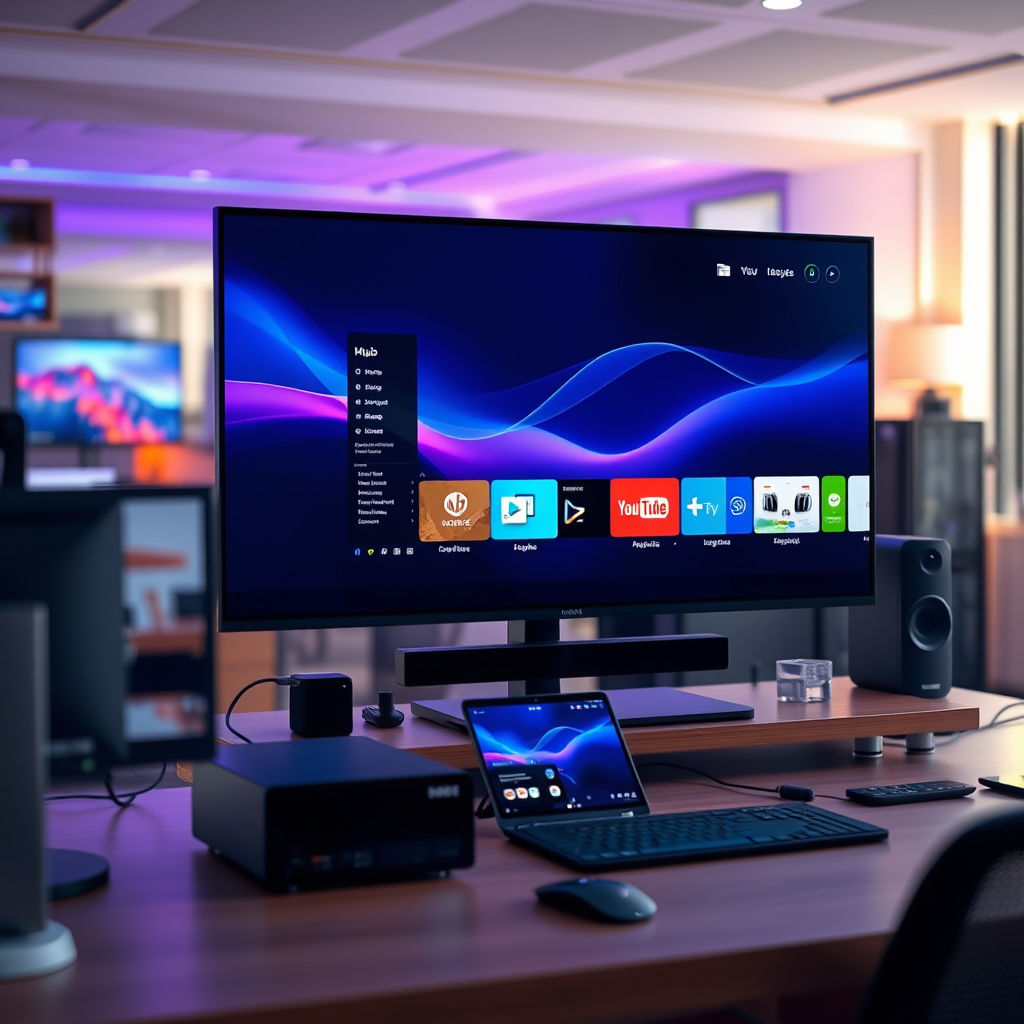

Yes, you can browse the internet on a smart TV! Many modern smart TVs come equipped with built-in web browsers, offering users the ability to access a wide range of online content directly from their television screens. This feature transforms a traditional viewing experience, allowing you to stream videos, check social media, and explore websites in a more expansive format. In this article, we will delve into the specifics of how to browse the internet on a smart TV, the features it offers, its limitations, and tips for optimizing your browsing experience.
Understanding Smart TV Browsers
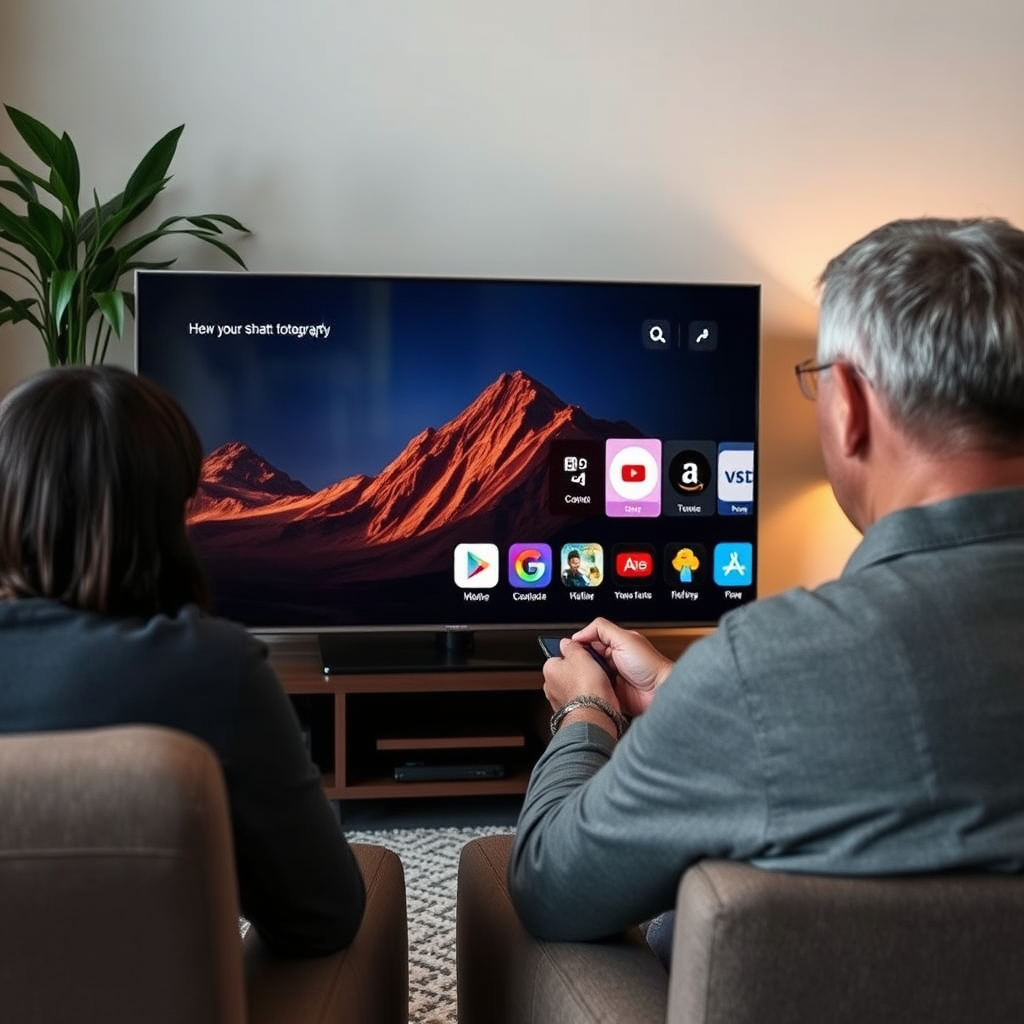
Smart TVs typically include a native web browser that allows users to surf the internet. This capability varies between brands and models, with each manufacturer providing its own unique user interface and functionality. For instance, popular brands such as Samsung, LG, and Sony have developed proprietary browsers that cater to their respective ecosystems. Some of these browsers may offer a more user-friendly experience, featuring simplified navigation and optimized performance for streaming content.
While browsing on a smart TV can be beneficial, it is important to understand that the experience may not be as seamless as browsing on a desktop or mobile device. Factors such as screen size, input methods, and the overall performance of the TV’s operating system can impact usability.
How to Access the Internet on Your Smart TV
Accessing the internet on your smart TV is typically straightforward. Here’s a step-by-step guide on how to get started:
1. Power On Your Smart TV: Ensure your television is turned on and connected to the internet, either via Wi-Fi or an Ethernet cable.
2. Navigate to the Home Screen: Use your remote control to access the home screen of your smart TV.
3. Locate the Internet Browser App: Look for an app labeled ‘Browser’, ‘Web’, or similar. This app may be found within an ‘Apps’ section or directly on the home screen.
4. Launch the Browser: Click on the browser app to open it.
5. Use the Remote Control or Keyboard: While you can navigate using the TV remote, connecting a wireless keyboard and mouse can make the browsing experience more efficient, especially for typing long URLs or searching.
By following these steps, you can easily begin browsing the internet on your smart TV, accessing a world of content at your fingertips.
Features of Smart TV Browsers
Smart TV browsers come with several features designed to enhance the browsing experience:
– Streaming Capabilities: Most smart TV browsers support streaming from popular sites such as YouTube, Netflix, and Hulu, allowing viewers to watch videos directly from the browser.
– Bookmarking: Users can save their favorite websites for quick access later, making it easy to revisit frequently used sites.
– History Tracking: Browsers typically keep track of recently visited sites, allowing users to easily navigate back to previous pages.
– Integrated Search Engines: Many smart TV browsers come with built-in search engines, letting users enter keywords directly to find content without needing a specific URL.
– User-friendly Interface: Some smart TV browsers are designed to be more visually appealing and easier to navigate, featuring large icons and simplified menus.
These features collectively enhance the functionality of a smart TV, making it a versatile tool for entertainment and information access.
Comparison of Smart TV Browsers (2023)
| # | Browser | Streaming Support | Bookmarking | User-friendly | Performance Rating |
|---|---|---|---|---|---|
| 1 | Samsung Internet | Yes | Yes | ★ ★ ★ ★ ★ | Excellent |
| 2 | LG WebOS | Yes | Yes | ★ ★ ★ ★ | Good |
| 3 | Sony Internet Browser | Yes | No | ★ ★ ★ | Fair |
| 4 | Roku Browser | Limited | Yes | ★ ★ ★ | Low |
| 5 | Amazon Fire TV Browser | Yes | No | ★ ★ ★ | Fair |
| 6 | Vizio Smart TV Browser | Limited | Yes | ★ ★ | Low |
| 7 | Panasonic Smart TV Browser | Yes | No | ★ ★ | Poor |
Limitations of Browsing on a Smart TV
While browsing on a smart TV can be appealing, there are several limitations to consider:
– Screen Size: The larger screen can make it harder to navigate complex websites, especially those designed for desktop viewing. Text and images may appear smaller or distorted, making reading difficult.
– Input Methods: The traditional remote control may not be the most efficient way to navigate the web. Typing long URLs or searching for content can be cumbersome, leading to frustration.
– Limited Browser Support: Some smart TV browsers do not support certain web features, such as Flash, advanced HTML5 applications, or specific plugins that enhance browser functionalities.
– Performance Constraints: Depending on the hardware of the smart TV, browsing speed may lag compared to computers or mobile devices. This can result in slower loading times and a less responsive browsing experience.
Understanding these limitations can help users set realistic expectations when browsing the internet on their smart TVs.
Tips for Enhanced Browsing Experience
To make the most out of your internet browsing experience on a smart TV, consider the following tips:
– Connect a Wireless Keyboard and Mouse: This can simplify navigation, making it easier to type and interact with web content, similar to using a computer.
– Optimize Your Internet Connection: Ensure your Wi-Fi signal is strong and stable. Consider using an Ethernet cable for faster connection speeds and reduced latency.
– Update Your TV Software: Regularly checking for software updates can improve your browser’s performance and security features.
– Use Streaming Apps: Whenever possible, consider using dedicated streaming apps instead of the browser for a better user experience, as these apps are optimized for TV displays.
– Adjust Display Settings: Explore your TV’s display settings to optimize resolution and scaling for web content, which can enhance readability and usability.
Implementing these tips can greatly enhance your overall browsing experience on your smart TV.
Alternative Browsing Methods
If the built-in web browser doesn’t meet your needs, there are alternative ways to access online content:
– Screen Mirroring: Many smart TVs support screen mirroring or casting from smartphones and tablets. This allows you to display content from your mobile device directly onto your TV screen, providing a larger view for browsing apps or websites.
– Using Streaming Devices: Devices like Roku, Amazon Fire TV Stick, and Google Chromecast can enhance your browsing experience. They often have more capable browsers and a wider range of apps available for streaming and browsing.
– Smartphone Remotes: Some smart TVs allow you to control the TV through a smartphone app, which can provide an easier interface for browsing the internet.
These alternative methods can be beneficial, especially for users seeking a more straightforward or versatile browsing experience.
Summarizing the capabilities of smart TVs, users can indeed browse the internet, making their viewing experience more versatile. Whether you choose to use the built-in browser or explore other options like screen mirroring, having access to the internet on your television can greatly enhance your entertainment choices. For a seamless experience, ensure your smart TV is updated and your internet connection is reliable. By understanding the features, limitations, and tips for optimal use, you can maximize the benefits of browsing the internet on your smart TV.
Frequently Asked Questions
Can you browse the internet on a smart TV?
Yes, you can browse the internet on a smart TV. Most smart TVs come equipped with built-in web browsers that allow you to access websites, stream videos, and use apps. Simply use your remote control or connect a Bluetooth keyboard for easier navigation.
How do you connect a smart TV to Wi-Fi for internet browsing?
To connect your smart TV to Wi-Fi, go to the settings menu and select the network or internet option. Choose your Wi-Fi network from the list, enter the password if prompted, and once connected, you can start browsing the internet directly from your TV.
Why is browsing the internet on a smart TV sometimes slow?
Browsing on a smart TV can be slow due to factors like a weak Wi-Fi signal, limited processing power of the TV, or heavy website content. To improve speed, ensure your TV is close to the router, close unused apps, or consider using an Ethernet cable for a more stable connection.
What are the best apps for browsing the internet on a smart TV?
Some of the best apps for internet browsing on a smart TV include Google Chrome, Firefox, and the built-in web browser specific to your TV brand. These apps provide user-friendly interfaces and improved functionality, making it easier to access websites and enjoy online content.
Which smart TVs have the best internet browsing capabilities?
Smart TVs from brands like Samsung, LG, and Sony generally offer the best internet browsing capabilities, featuring fast processors and high-quality web browsers. When choosing a smart TV, look for models that support the latest software updates and have a user-friendly interface for optimal browsing experiences.
References
- Smart TV
https://en.wikipedia.org/wiki/Smart_TV - https://www.bbc.com/news/technology-51182935
https://www.bbc.com/news/technology-51182935 - https://www.theguardian.com/technology/2020/jan/14/smart-tvs-privacy-issues
https://www.theguardian.com/technology/2020/jan/14/smart-tvs-privacy-issues - https://www.nytimes.com/2020/01/09/technology/smart-tv-privacy.html
https://www.nytimes.com/2020/01/09/technology/smart-tv-privacy.html - https://www.sciencedirect.com/topics/computer-science/smart-tv
https://www.sciencedirect.com/topics/computer-science/smart-tv - https://www.ncbi.nlm.nih.gov/pmc/articles/PMC7150842/
https://www.ncbi.nlm.nih.gov/pmc/articles/PMC7150842/ - https://www.cdc.gov/media/releases/2020/p0121-smart-tv-health.html
https://www.cdc.gov/media/releases/2020/p0121-smart-tv-health.html - Google Scholar Google Scholar
https://scholar.google.com/scholar?q=can+you+browse+the+internet+on+a+smart+tv - Google Scholar Google Scholar
https://scholar.google.com/scholar?q=smart+tv+internet+browsing - Google Scholar Google Scholar
https://scholar.google.com/scholar?q=smart+TV+internet+capabilities
