


Yes, you can cast Instagram to your TV! Most modern TVs support screen casting, allowing you to enhance your Instagram experience by viewing your favorite content on a larger screen. This functionality not only provides a better visual experience but also allows you to share and enjoy Instagram posts and stories with friends and family. In this article, we will guide you through various methods to cast Instagram, ensuring that you can easily enjoy all your favorite posts and stories in a more immersive way.
Understanding Screen Casting
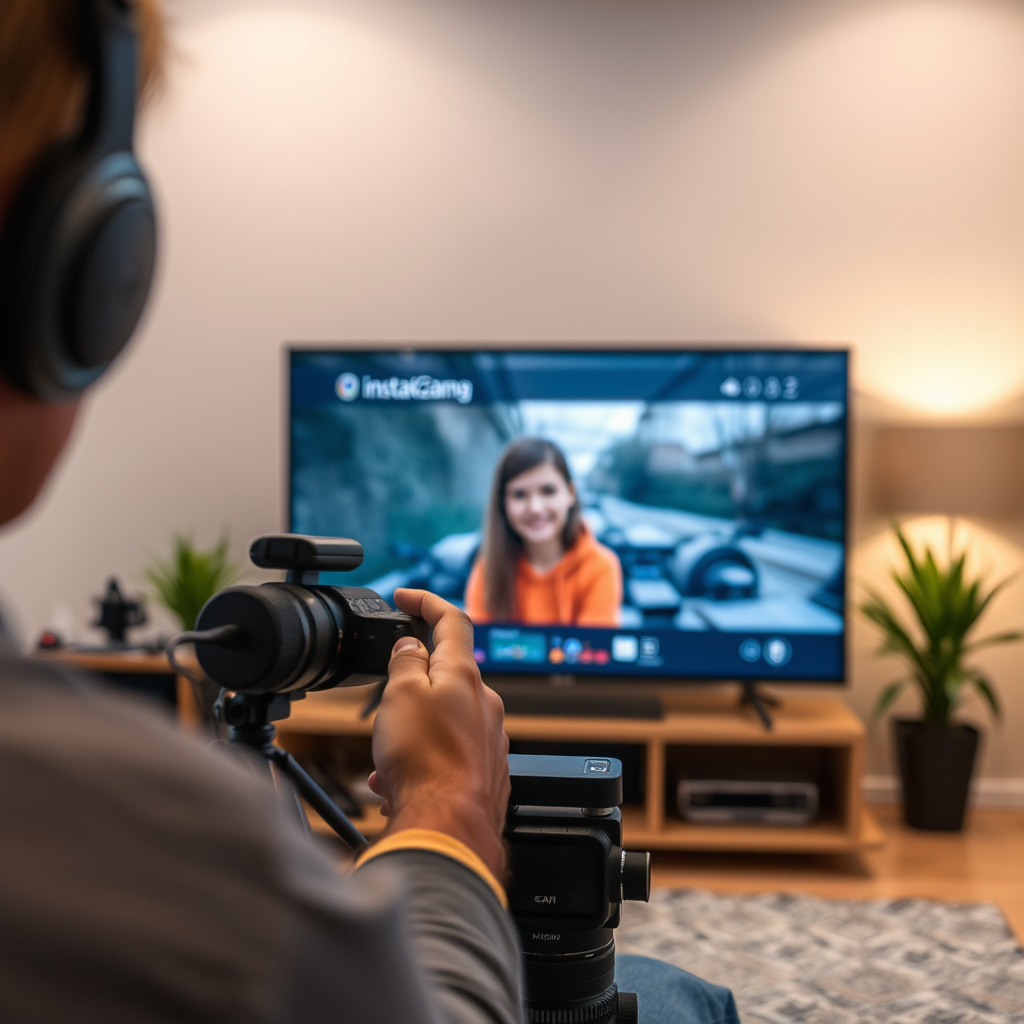
Screen casting is the process of mirroring your device’s display onto your TV, enabling users to display content from their smartphones or tablets directly on a larger screen. This technology has gained popularity due to the convenience it offers, especially for social media platforms like Instagram.
There are several popular technologies that facilitate screen casting, including:
– Chromecast: A device that plugs into your TV’s HDMI port and allows you to cast content from your mobile device.
– Apple AirPlay: A wireless streaming protocol that enables users with Apple devices to share content seamlessly with Apple TV.
– Smart TV Built-in Features: Many smart TVs come with integrated casting capabilities that allow users to mirror their smartphones without additional hardware.
Understanding how these technologies work can help you choose the best method for casting Instagram to your TV.
Requirements for Casting
Before you start casting Instagram, there are a few requirements that you need to fulfill:
1. Compatibility: Ensure your TV supports casting features. This can be either a smart TV equipped with built-in casting capabilities or an external device like Chromecast or Apple TV.
2. Wi-Fi Network: Both your smartphone and your TV must be connected to the same Wi-Fi network. This is crucial for establishing a connection between the two devices.
3. Device Updates: Make sure both your smartphone and TV are updated to the latest software versions to prevent any compatibility issues.
Ensuring these requirements are met will help facilitate a smooth casting experience.
How to Cast Instagram Using Chromecast
Casting Instagram using Chromecast is straightforward. Follow these steps:
1. Open the Instagram App: Launch the Instagram app on your smartphone.
2. Find the Cast Icon: Tap the Cast icon, usually located in the top-right corner of the app. If you don’t see the icon, ensure that your Chromecast device is powered on and connected to the same Wi-Fi network as your smartphone.
3. Select Your TV: From the list of available devices, select your Chromecast-enabled TV.
4. Start Casting: Once connected, you can start browsing your Instagram feed or viewing stories, and they will be mirrored on your TV screen.
This method allows you to enjoy a larger display of your favorite posts and videos.
Using Apple AirPlay to Cast Instagram
For Apple users, using AirPlay to cast Instagram is a seamless experience. Here’s how to do it:
1. Check Compatibility: Ensure your Apple device is compatible with AirPlay and that your Apple TV is set up and connected to the same Wi-Fi network.
2. Access Control Center: Swipe down from the top-right corner of your screen to access the Control Center on your iPhone or iPad.
3. Select Screen Mirroring: Tap on “Screen Mirroring” and choose your Apple TV from the list of available devices.
4. Open Instagram: Once connected, launch the Instagram app and start scrolling through your feed or viewing stories, which will now display on your TV.
Using AirPlay provides a smooth and high-quality viewing experience, perfect for sharing content with a group.
Casting Instagram on Smart TVs
Many modern Smart TVs come equipped with built-in screen mirroring options, making it easy to cast Instagram directly without additional devices. Here’s how you can do it:
1. Access TV Settings: On your TV remote, navigate to the settings menu and find the screen mirroring option.
2. Enable Screen Mirroring: Turn on the screen mirroring feature on your TV. The specific menu options may vary depending on the brand.
3. Connect Your Smartphone: On your smartphone, open the Instagram app and look for the screen mirroring option in your settings or notifications.
4. Follow Prompts: Follow the prompts on both your TV and smartphone to establish a connection.
Once connected, you can enjoy your Instagram content on your TV screen.
Top Smart TVs for Screen Casting (2024)
| # | Brand | Model | Screen Size | Cast Technology |
|---|---|---|---|---|
| 1 | Samsung | QLED 8K | 75″ | Smart View |
| 2 | LG | OLED CX | 65″ | Screen Share |
| 3 | Sony | Bravia XR | 55″ | Google Cast |
| 4 | TCL | 6-Series | 65″ | Roku |
| 5 | Vizio | P-Series | 70″ | Smartcast |
| 6 | Philips | PUS8505 | 58″ | Screen Mirroring |
| 7 | Hisense | U8G | 65″ | Anyview Cast |
Troubleshooting Common Issues
While casting Instagram to your TV is generally straightforward, you might encounter some issues along the way. Here are some common troubleshooting tips:
– Check Your Wi-Fi Connection: A weak or unstable Wi-Fi connection can lead to casting failures. Ensure both your smartphone and TV are connected to a strong and stable Wi-Fi network.
– Device Compatibility: Ensure that both your smartphone and TV are compatible with the casting technology you are using (e.g., Chromecast or AirPlay).
– Restart Devices: If you are experiencing connectivity issues, restarting both your TV and smartphone can often resolve the problem.
– App Updates: Make sure your Instagram app is updated to the latest version to avoid any bugs that might affect casting.
By following these tips, you can address most common issues that arise during the casting process.
Additional Tips for a Better Experience
To further enhance your Instagram casting experience, consider the following tips:
– Use High-Quality HDMI Cable: If you decide to connect devices directly via HDMI, ensure you use a high-quality cable to prevent signal loss and ensure optimal picture quality.
– Optimize TV Settings: Adjust your TV’s display settings for the best quality. Many TVs have modes specifically designed for gaming or streaming, which can enhance your viewing experience.
– Adjust Your Device’s Screen Orientation: Depending on the content you are viewing, switching between portrait and landscape modes on your smartphone can provide a better visual experience.
– Share the Experience: Make use of the larger screen to share your Instagram content with friends and family. Plan watch parties for Instagram Live sessions or popular IGTV videos.
By applying these tips, you can significantly improve your overall experience while casting Instagram to your TV.
In conclusion, casting Instagram to your TV is not only possible but also a fantastic way to enjoy your favorite content more vividly and share it with others. By understanding the various methods available, ensuring your devices are compatible, and troubleshooting any issues that arise, you can create a seamless viewing experience. Start casting your favorite content today and elevate your Instagram experience!
Frequently Asked Questions
How can I cast Instagram to my TV using Chromecast?
To cast Instagram to your TV using Chromecast, ensure your phone and Chromecast device are connected to the same Wi-Fi network. Open the Instagram app, select the content you want to cast, tap the three dots for options, and choose “Cast.” Your TV should display the Instagram content directly, allowing for a larger viewing experience.
Why is my Instagram not casting to my TV?
If your Instagram is not casting to your TV, check that both your mobile device and TV are on the same Wi-Fi network. Additionally, ensure that the Instagram app is updated to the latest version and that your TV’s casting feature is enabled. Restarting both the app and your devices can also resolve connectivity issues.
What devices can I use to cast Instagram to my TV?
You can cast Instagram to your TV using a variety of devices, including Google Chromecast, Amazon Fire TV Stick, Apple TV, and smart TVs with built-in casting capabilities. Each device may have specific casting methods, so refer to your device’s instructions for the best experience.
Which method is best for casting Instagram to my TV: Chromecast or Apple AirPlay?
The best method for casting Instagram to your TV depends on your existing setup. If you have an Apple device and an Apple TV, AirPlay offers a seamless experience. However, if you’re using Android or prefer a broader range of compatibility, Chromecast is an excellent choice for casting Instagram content.
Can I view Instagram Live on my TV?
Yes, you can view Instagram Live on your TV by casting it through a compatible device like Chromecast or Apple TV. Simply start the Instagram Live on your mobile device, select the casting option, and choose your TV. This allows you to enjoy live streams on a larger screen with friends and family.
References
- https://www.lifewire.com/how-to-cast-instagram-to-tv-4776967
https://www.lifewire.com/how-to-cast-instagram-to-tv-4776967 - Google Scholar Google Scholar
https://scholar.google.com/scholar?q=cast+instagram+to+tv - Google Scholar Google Scholar
https://scholar.google.com/scholar?q=streaming+social+media+to+tv - Google Scholar Google Scholar
https://scholar.google.com/scholar?q=casting+applications+to+television - Google Scholar Google Scholar
https://scholar.google.com/scholar?q=can+you+cast+instagram+to+tv - can you cast instagram to tv – Search results
https://en.wikipedia.org/wiki/Special:Search?search=can+you+cast+instagram+to+tv - https://www.ncbi.nlm.nih.gov/search/research-articles/?term=can+you+cast+instagram+to+tv
https://www.ncbi.nlm.nih.gov/search/research-articles/?term=can+you+cast+instagram+to+tv
