
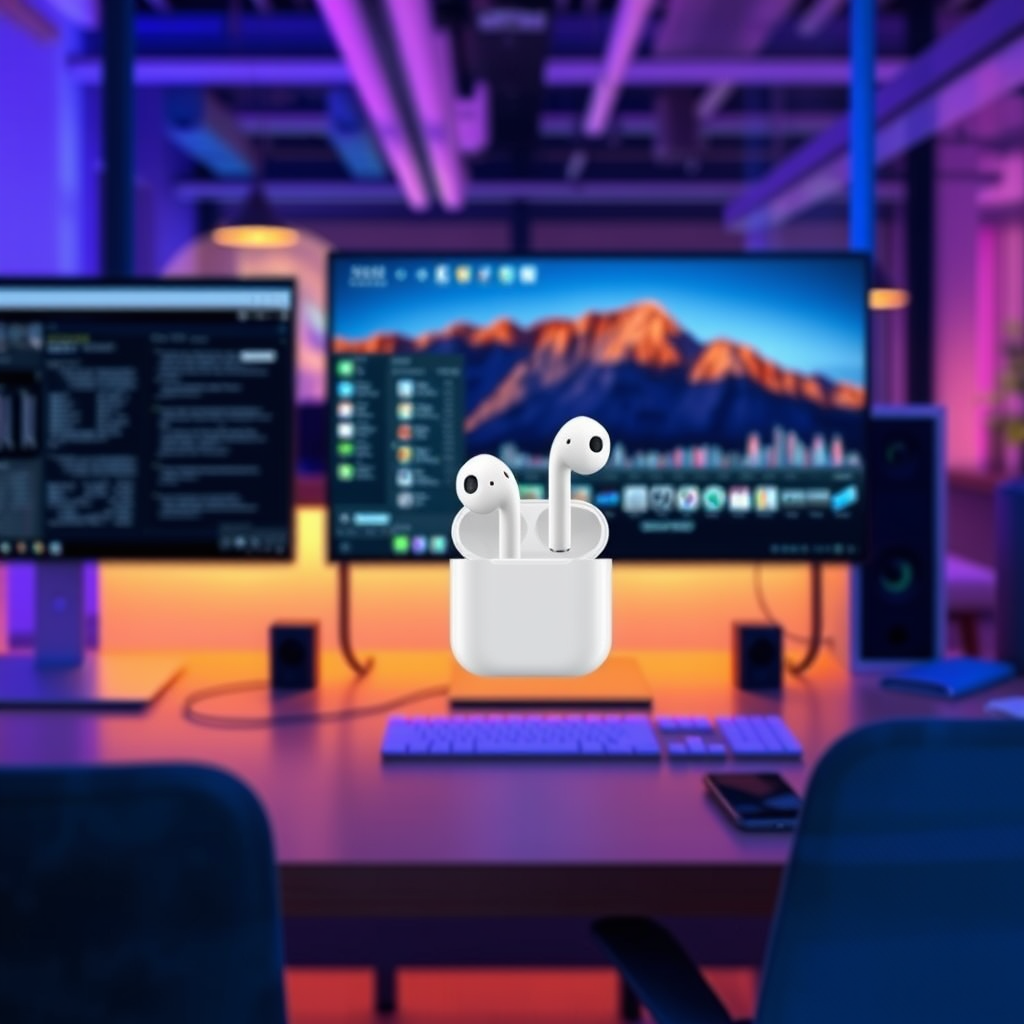

Connecting your AirPods to your TV is not only possible but also quite simple. Many modern TVs support Bluetooth connectivity, allowing you to enjoy your favorite shows and movies with wireless audio. This capability enhances your viewing experience by delivering high-quality sound without the clutter of wires. In this article, you’ll learn how to pair your AirPods with various types of TVs, including smart and non-smart models, and troubleshoot common connectivity issues to ensure smooth operation.
Understanding Bluetooth Compatibility
The first step in connecting your AirPods to your TV is to confirm that your television supports Bluetooth connectivity. Most smart TVs manufactured in the last five years feature this capability, allowing for seamless connection with various Bluetooth devices, including wireless headphones like AirPods.
To determine if your TV has Bluetooth capabilities, check the specifications in the user manual or on the manufacturer’s website. Additionally, navigate to the settings menu on your TV and look for a section labeled “Bluetooth” or “Audio” to find the option to connect Bluetooth devices. If your TV does not support Bluetooth, you will need to consider alternative methods for connecting your AirPods, such as using a Bluetooth transmitter.
Pairing AirPods with a Smart TV
If your TV is Bluetooth-enabled, pairing your AirPods is a straightforward process. Here’s how you can quickly connect them:
1. Put Your AirPods in Pairing Mode: Open the AirPods case without removing the earbuds. Press and hold the setup button on the back of the case until the LED light starts flashing white. This indicates that your AirPods are in pairing mode.
2. Access the Bluetooth Settings on Your TV: Navigate to the settings menu on your TV and select “Bluetooth” or “Devices.” Make sure Bluetooth is turned on.
3. Select Your AirPods: Your TV will search for discoverable Bluetooth devices. Once it finds your AirPods, select them from the list to initiate the pairing process. Upon successful pairing, you will hear a confirmation sound through your AirPods.
4. Adjust Audio Settings if Necessary: Once connected, you may need to adjust the audio settings on your TV to ensure sound is directed to your AirPods.
By following these steps, you can enjoy the convenience of wireless audio while watching your favorite shows.
Connecting AirPods to Non-Smart TVs
If you own a non-smart TV, connecting your AirPods may require additional equipment, specifically a Bluetooth transmitter. Here’s a step-by-step guide to help you through the process:
1. Purchase a Bluetooth Transmitter: Choose a Bluetooth transmitter that connects to your TV’s audio output. Look for one that supports the aptX codec for enhanced audio quality and low latency.
2. Connect the Transmitter: Plug the transmitter into your TV’s audio out port. This could be a 3.5mm headphone jack, optical audio output, or RCA output, depending on your TV model.
3. Power On the Transmitter: Turn on the Bluetooth transmitter and put it in pairing mode. Refer to the transmitter’s manual for specific instructions.
4. Put Your AirPods in Pairing Mode: As mentioned earlier, open your AirPods case and press the button on the back until the light flashes white.
5. Pair Your AirPods: The Bluetooth transmitter should detect your AirPods and establish a connection. Once paired, you will be able to enjoy audio from your TV wirelessly.
By using a Bluetooth transmitter, you can easily connect your AirPods to virtually any TV, making it a versatile solution for enjoying high-quality audio.
Top Bluetooth Transmitters for TV (2024)
| # | Brand | Model | Connection Type | Battery Life | Audio Latency | Price ($) |
|---|---|---|---|---|---|---|
| 1 | TaoTronics | TT-BA07 | 3.5mm, Optical | 15 hours | <30ms | 39.99 |
| 2 | Mpow | BH386A | 3.5mm | 10 hours | <40ms | 29.99 |
| 3 | TROND | BT-DUO | 3.5mm, Optical | 20 hours | <30ms | 49.99 |
| 4 | Avantree | Leaf | USB, Optical | 20 hours | <40ms | 59.99 |
| 5 | ZIOCOM | Z-07 | 3.5mm | 12 hours | <30ms | 24.99 |
| 6 | ZEXMTE | BTA-01 | 3.5mm, Optical | 15 hours | <40ms | 39.99 |
| 7 | TaoTronics | TT-BA06 | 3.5mm | 16 hours | <30ms | 34.99 |
Troubleshooting Connection Issues
Even with the best technology, connection issues can sometimes arise. Here are some common problems and their solutions when connecting your AirPods to your TV:
1. AirPods Won’t Connect: Ensure your AirPods are fully charged and within the operational range of your TV (typically around 30 feet). If they still won’t connect, try resetting your AirPods by pressing and holding the setup button until the light flashes amber, then white again.
2. Audio Delays: If you experience a delay in audio, check for any software updates for your TV, as manufacturers often release fixes for latency issues. Additionally, using devices that support low-latency codecs like aptX can help minimize delays.
3. Connection Drops: If the connection drops intermittently, ensure there are no physical obstructions between your AirPods and the TV. Other electronic devices may also interfere, so try relocating your TV or the transmitter.
4. Audio Quality Issues: If you notice poor audio quality, check the audio settings on your TV. Adjusting the sound settings to a higher quality or stereo output can improve your listening experience.
Following these troubleshooting steps can help you resolve most issues you might encounter while using your AirPods with your TV.
Optimizing Audio Experience
To enhance your audio experience when using AirPods with your TV, consider the following tips:
1. Adjust Sound Settings: Dive into your TV’s audio settings and experiment with options like equalizers, surround sound, and sound modes. Tweaking these settings can significantly improve audio quality and make dialogue clearer.
2. Use a Soundbar: If you desire an even richer audio experience, consider integrating a soundbar into your setup. Many soundbars offer wireless connectivity, allowing you to pair them with your AirPods for a dual audio system that enhances both depth and clarity.
3. Update Firmware: Regularly check for firmware updates for both your AirPods and your TV. Keeping your devices updated ensures you benefit from the latest features and improvements, which can enhance audio performance.
By optimizing your audio settings and possibly incorporating additional audio equipment, you can create a more immersive viewing experience.
Additional Tips for Enhanced Use
Your AirPods can serve as a versatile audio solution beyond just your TV. Here are a few additional uses and tips:
1. Streaming Devices Compatibility: Consider connecting your AirPods to streaming devices such as Roku, Amazon Fire Stick, or Apple TV. These devices often have built-in Bluetooth support, allowing for easy pairing and enhanced content streaming.
2. Seamless Device Switching: If you frequently switch between devices, take advantage of the automatic switching feature available with AirPods. This allows you to effortlessly move from watching TV to taking a phone call without needing to disconnect or reconnect your AirPods.
3. Voice Control: If you have a smart TV, use voice commands through your AirPods to control playback without needing to reach for the remote. This feature can make your viewing experience more interactive and enjoyable.
By exploring these additional functionalities, you can maximize the use of your AirPods, making them a truly multifunctional audio accessory.
In summary, connecting your AirPods to your TV is straightforward with the right steps. Whether you have a smart TV or a traditional model, you can enjoy wireless audio for an immersive viewing experience. If you encounter any issues, refer back to the troubleshooting section or explore additional tips for optimizing your setup. Happy listening!
Frequently Asked Questions
Can you connect AirPods to your TV?
Yes, you can connect AirPods to your TV if your television supports Bluetooth connectivity. Most modern smart TVs have this feature, allowing you to pair your AirPods just like any other Bluetooth device. Simply put your AirPods in pairing mode and navigate to the Bluetooth settings on your TV to complete the connection.
How do I connect my AirPods to a Samsung smart TV?
To connect your AirPods to a Samsung smart TV, first ensure your AirPods are charged and in pairing mode. On your TV, go to Settings > Sound > Sound Output > Bluetooth Speaker List. Select your AirPods from the list of available devices and confirm the pairing. Once connected, you should be able to enjoy audio from your TV directly through your AirPods.
Why won’t my AirPods connect to my TV?
If your AirPods won’t connect to your TV, it may be due to compatibility issues, Bluetooth settings, or an outdated firmware. Make sure your TV supports Bluetooth and is set to discoverable mode. Additionally, check that your AirPods are charged and in pairing mode, and try resetting them if the issue persists.
What is the best way to watch TV with AirPods?
The best way to watch TV with AirPods is to ensure a stable Bluetooth connection with your TV for seamless audio streaming. Use your AirPods with a compatible smart TV or a streaming device that supports Bluetooth, and keep the TV and AirPods within a close range to avoid audio lag. Consider adjusting the audio settings on your TV for optimal sound quality.
Which TVs are compatible with AirPods?
Most modern smart TVs from brands like Samsung, LG, Sony, and Vizio are compatible with AirPods as they feature built-in Bluetooth. However, it’s essential to check the specifications of your TV model for Bluetooth support. If your TV doesn’t have Bluetooth, you can use an external Bluetooth transmitter to connect your AirPods.
References
- https://www.lifewire.com/how-to-connect-airpods-to-your-tv-5072081
https://www.lifewire.com/how-to-connect-airpods-to-your-tv-5072081 - About the security content of the iOS 4.0.2 Update for iPhone and iPod touch – Apple Support
https://support.apple.com/en-us/HT202092 - https://www.bbc.com/news/technology-51375555
https://www.bbc.com/news/technology-51375555 - https://www.nytimes.com/2020/10/19/technology/personaltech/airpods-tv.html
https://www.nytimes.com/2020/10/19/technology/personaltech/airpods-tv.html - Client Challenge
https://www.khanacademy.org/computing/computer-science/internet-intro - Google Scholar Google Scholar
https://scholar.google.com/scholar?q=can+you+connect+airpods+to+your+tv - Google Scholar Google Scholar
https://scholar.google.com/scholar?q=Airpods+TV+connectivity - Google Scholar Google Scholar
https://scholar.google.com/scholar?q=how+to+pair+airpods+with+tv - can you connect airpods to your tv – Search results
https://en.wikipedia.org/wiki/Special:Search?search=can+you+connect+airpods+to+your+tv - https://www.ncbi.nlm.nih.gov/search/research-articles/?term=can+you+connect+airpods+to+your+tv
https://www.ncbi.nlm.nih.gov/search/research-articles/?term=can+you+connect+airpods+to+your+tv
