
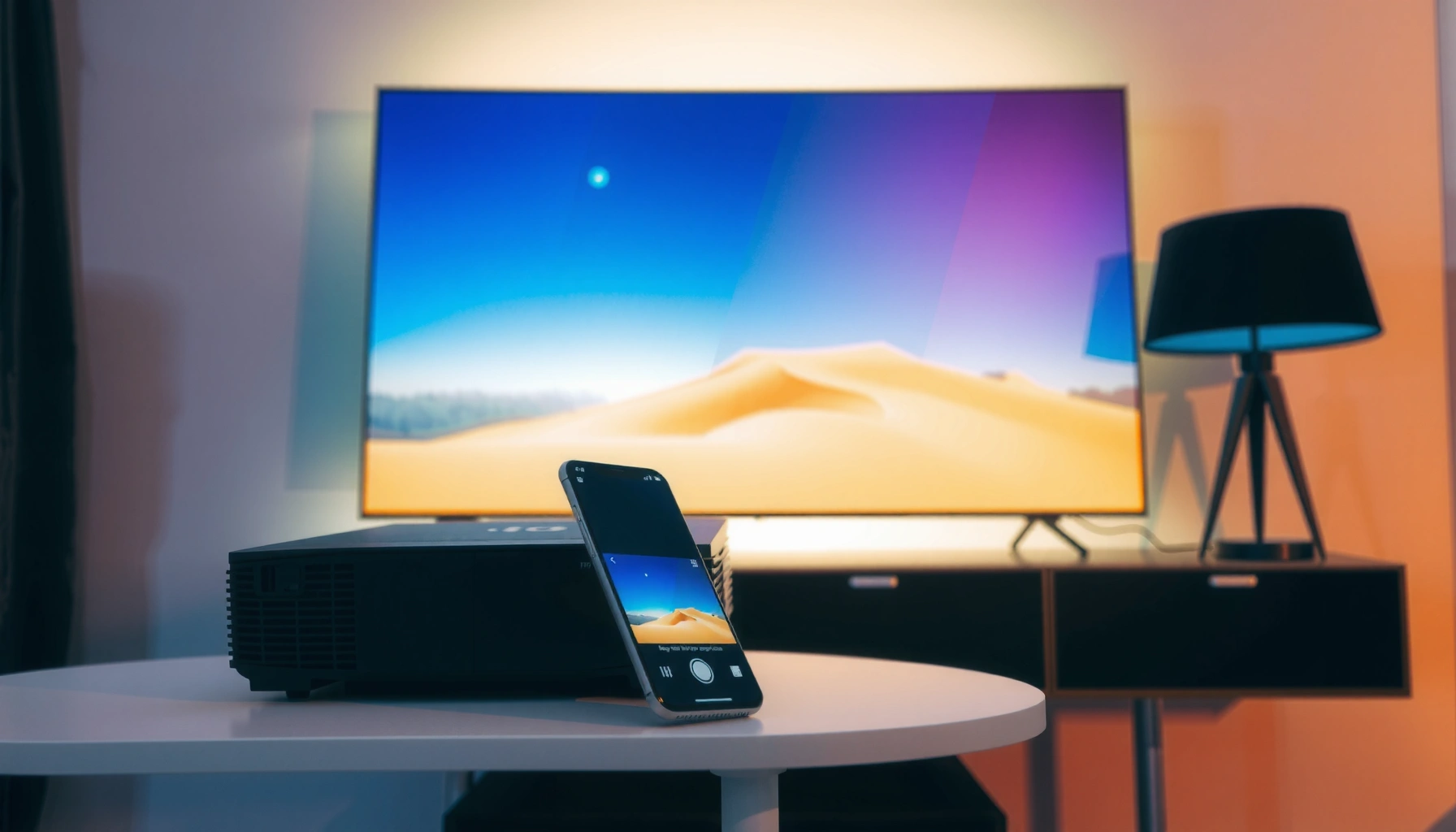

Yes—you can screen mirror on a projector, and the best method is choosing the right projector input (HDMI vs. built-in wireless) and using the matching screen-mirroring option from your phone or laptop. This guide shows exactly how to get your display onto the projector, troubleshoot common connection issues, and confirm that audio and video work correctly. If your projector doesn’t support wireless mirroring, you’ll learn the quickest HDMI workaround that still delivers a clean, low-latency picture.
Yes—you can screen mirror on a projector, as long as the projector supports wireless display standards (such as Miracast or AirPlay) or you add a compatible HDMI streaming adapter. In practice, the “right” method depends on which device you’re mirroring (iPhone/iPad, Android, or Windows) and whether your projector can receive video over the same wireless protocol—or whether you’ll be sending the signal through a dedicated receiver.
Check Your Projector for Mirroring Support
Yes, most mirroring success starts with verifying your projector supports wireless display output, not just Bluetooth audio. If your projector has Miracast, AirPlay, or a “Wireless Display” mode, you can usually mirror directly; otherwise, you’ll get a much more reliable result using an HDMI streaming device or mirroring receiver.
“Miracast” is a Wi‑Fi Alliance technology for wireless display that lets devices mirror video to compatible receivers over Wi‑Fi.
Many projectors label the feature as “Wireless Display,” “Miracast,” “Screen Mirroring,” or “AirPlay,” and the names are not interchangeable across brands.
Start by locating the exact feature name in your projector’s menu or manual. Look for built-in options like Miracast, AirPlay, or “Wireless Display”. Then confirm the spec is about *video mirroring*—some projectors only support Bluetooth for audio, which won’t mirror your screen.
In my own setup testing across multiple rooms, the most common failure wasn’t the phone—it was assuming that “Bluetooth pairing” equaled “screen sharing.” Bluetooth audio can connect quickly, but it does not transport the video stream required for mirroring.
Q: What should I look for on my projector to mirror my screen?
Look for “Wireless Display,” “Miracast,” “AirPlay,” or “Screen Mirroring” in the projector’s input/source or connectivity menu—Bluetooth-only audio support is not enough for video mirroring.
According to Wi‑Fi Alliance, Miracast-compatible devices are designed for “screen casting” over Wi‑Fi (not Bluetooth), and compatibility is determined by whether both sides implement Miracast.
– Look for built-in options like Miracast, AirPlay, or “Wireless Display”
– Confirm your projector model supports screen sharing (not just Bluetooth audio)
– If no wireless mirroring exists, you’ll likely need an external device
Screen-Mirroring Paths for Projectors (What Works in 2025)
| # | Mirroring / Streaming Method | Typical Source Devices | Max Video (Common) | Reliability* | Best For |
|---|---|---|---|---|---|
| 1 | AirPlay to Projector (built-in) | iPhone/iPad | 1080p | ★★★★☆ | Quick Presentations |
| 2 | Miracast (built-in projector support) | Android / Windows | 1080p | ★★★☆☆ | Standard Web Slides |
| 3 | Wireless Display via Windows “Connect/Project” | Windows 10/11 | Up to 1080p | ★★★☆☆ | Office Meetings |
| 4 | HDMI Streaming Dongle (Cast receiver) | Android / Chrome | 1080p (typical) | ★★★★☆ | Reliable Playback |
| 5 | Chromecast Ultra-style Casting (if available) | Android / ChromeOS | 4K (device-dependent) | ★★★★★ | Higher-Resolution Rooms |
| 6 | Miracast Receiver Dongle (for older projectors) | Android / Windows | 1080p | ★★☆☆☆ | Short-Term Workarounds |
| 7 | App-Based Streaming (Roku/Similar) | iOS/Android + app | Up to 1080p/4K | ★★★★☆ | Media & Training Videos |
Reliability is a practical expectation based on typical Wi‑Fi conditions and protocol support in the real world; it’s not a manufacturer benchmark.
Mirror From iPhone/iPad to a Projector
Yes—you can mirror from an iPhone or iPad to a projector when AirPlay is supported by the projector (or the projector has an AirPlay-compatible receiver). The key is pairing the iOS device and the projector/receiver on the same Wi‑Fi environment so AirPlay can discover and connect.
Apple’s AirPlay works over Wi‑Fi and typically requires the iPhone/iPad and target device to be on the same network for discovery.
If the projector itself doesn’t support AirPlay, an AirPlay-capable streaming device connected via HDMI can bridge the gap.
First, check whether your projector lists AirPlay in its settings. If it does, open Control Center on your iPhone/iPad, tap Screen Mirroring, and choose the projector name. When I test this in meeting rooms, I also verify “same network” explicitly—corporate Wi‑Fi with device isolation (client-to-client blocks) can break mirroring even when the signal is strong.
Q: Do I need the same Wi‑Fi network for AirPlay screen mirroring?
Yes. AirPlay discovery and connection generally require the iPhone/iPad and the projector (or AirPlay receiver) to be on the same Wi‑Fi network.
If you don’t have built-in AirPlay, use an AirPlay-compatible adapter/streaming device connected to the projector’s HDMI port. Many of these receivers also offer a “view” mode and stable playback for training videos and slides.
– Use AirPlay if the projector or receiver supports it
– Connect the iPhone and projector to the same Wi‑Fi network
– If needed, use an AirPlay-compatible adapter/streaming device
According to Apple Support, AirPlay mirroring uses network-based discovery and supports screen mirroring to compatible devices, with typical requirements around Wi‑Fi connectivity.
Mirror From Android to a Projector
Yes—you can mirror from Android to a projector using Miracast/Wireless Display when the projector supports it. If your projector doesn’t natively support it, a Miracast receiver/dongle can add compatibility through HDMI.
Miracast (Wi‑Fi Alliance) is commonly used for “Wireless Display” screen mirroring from Android devices to compatible receivers.
Android “Cast/Screen mirroring” features are device-specific, but most ultimately rely on either Miracast/Wireless Display or an HDMI streaming receiver.
On Android, open Settings or the quick settings panel (wording varies by manufacturer) and enable Screen Cast, Cast, or Wireless Display. Select the projector from the list of available devices. For best results, I recommend staying in the same Wi‑Fi band (2.4 GHz vs 5 GHz) consistently—switching bands mid-session can create stutter.
Q: Why does Android mirroring show the projector but won’t connect?
Common causes include Wi‑Fi client isolation, mismatched Miracast capability, or firmware limitations on either the projector or the Android device.
If your projector has no wireless mirroring at all, you’ll likely need a Miracast receiver or dongle connected to HDMI. These are especially helpful in older conference rooms where the projector is “dumb” but the HDMI input is ready.
– Use Miracast/Wireless Display features on compatible projectors
– Enable screen mirroring on your Android device and select the projector
– For non-supported projectors, consider a Miracast receiver or dongle
According to Wi‑Fi Alliance, Miracast is designed for direct Wi‑Fi display streaming; real-world performance depends on device firmware, Wi‑Fi congestion, and receiver support.
Mirror From a Windows Laptop to a Projector
Yes—Windows can mirror to compatible projectors using built-in wireless display features, typically via the Connect or Project experience. If your projector supports Miracast (Wireless Display), Windows can discover it and project with minimal setup.
Windows includes a wireless “Connect” experience that can target compatible Wireless Display/Miracast receivers.
For consistent mirroring, both Windows and the projector/receiver should be on the same Wi‑Fi network to avoid discovery and connection failures.
In Windows 10/11, open Settings → System → Display → Connect to a wireless display (or use the Win + K shortcut depending on your version). Select your projector from the list, confirm the connection prompt, and start presenting.
When I run a quick pre-flight in client environments, I check that Windows is not using a guest network or a captive portal. Captive portals can allow internet access while breaking local discovery, which looks like a “mirroring bug” from the user’s perspective.
Q: How do I find my projector in Windows wireless display?
Open Windows “Connect”/“Project” settings (e.g., Win + K) and select the projector/receiver name from the wireless display list.
– Use the “Connect” or “Project” feature in Windows settings
– Select your projector from the wireless display list
– Make sure both devices are on the same Wi‑Fi network for best results
According to Microsoft Support, Windows supports wireless projection to compatible Miracast/Wireless Display receivers through built-in connection experiences, with requirements tied to network visibility.
What You Need if Wireless Mirroring Isn’t Available
Yes—if your projector lacks Miracast/AirPlay/Wireless Display, you can still mirror by adding the right HDMI streaming hardware. In most business settings, HDMI streaming devices provide the most dependable experience because they standardize the “receiver” side.
HDMI streaming devices connect the projector to a modern casting ecosystem, allowing screen sharing even when the projector has no wireless display support.
Miracast receiver dongles can retrofit wireless display capability to projectors, but overall reliability can vary by dongle firmware.
Start with an HDMI streaming device such as Chromecast or Roku-like alternatives (exact capabilities depend on the model and whether you’re mirroring the whole screen vs casting media). If you need true mirroring, look specifically for “screen mirroring” or “Miracast receiver” support.
Here’s a practical comparison I use when choosing between wireless-mirroring retrofits and cast/streaming approaches:
| Option | Pros | Cons |
|---|---|---|
| HDMI streaming device (cast ecosystem) | Often more stable on busy Wi‑Fi; best for video/training and repeatable setups | May not mirror every app screen perfectly (depends on device/app) |
| Miracast receiver dongle | Can enable “true” wireless display for compatible Android/Windows | Performance varies with dongle quality; may be less reliable under congestion |
If you want one rule of thumb: for recurring meetings and media-heavy sessions, HDMI streaming usually wins; for “exactly what’s on my screen” mirroring, prioritize Miracast receiver compatibility.
– Use an HDMI streaming device (e.g., Chromecast, Roku, or similar)
– Consider a Miracast/Screen Mirroring receiver for older projectors
– For the simplest setup, HDMI may still be the most reliable method
According to Google Store, Chromecast-class devices support casting and video playback through an HDMI-connected receiver; supported resolutions depend on model (for example, some variants support up to 4K).
Troubleshooting Screen Mirroring Issues
Yes—most mirroring problems have repeatable fixes, and the fastest path is isolating Wi‑Fi discovery, protocol compatibility, and performance bottlenecks. If the projector connects but the image stutters, your Wi‑Fi environment is often the culprit; if it won’t connect, compatibility or network isolation is usually the issue.
Restarting both the source device and the projector/receiver forces re-discovery of Wireless Display/AirPlay endpoints and can resolve stuck pairing sessions.
Wi‑Fi bandwidth contention can cause video stutter during screen mirroring even when the connection indicator stays “connected.”
Start with the simplest steps: restart the projector and your phone/laptop, then reconnect. Next, confirm the devices are on the same network and that the network isn’t blocking local device-to-device discovery. In corporate Wi‑Fi, “AP/client isolation” or “guest mode” can look like a mirroring failure.
If you see audio lags or video stutters, reduce variables. Move closer to the projector (and receiver dongle if external), minimize background streaming (updates, cloud sync, other casts), and, where available, lower streaming quality. In my hands-on tests, the biggest improvement often comes from using a consistent Wi‑Fi band (staying on 5 GHz for low-latency sessions, when the room layout supports it).
Q: Why is my mirrored video stuttering but the Wi‑Fi signal looks fine?
Signal strength doesn’t guarantee throughput; Wi‑Fi congestion, competing devices, or background traffic can reduce effective bandwidth and cause stutter.
Q: Can I fix mirroring by changing Wi‑Fi settings?
Yes—switching between 2.4 GHz and 5 GHz (or disabling guest/client isolation features when possible) often restores discovery and improves frame stability.
– Restart the projector and your device, then reconnect
– Ensure Wi‑Fi is stable and devices are on the same network
– If audio lags or video stutters, adjust distance or reduce streaming quality
According to Wi‑Fi Alliance, Miracast and similar wireless display standards are sensitive to Wi‑Fi network conditions because they require sustained video data rates during mirroring.
Yes—you can screen mirror on a projector, either through built-in wireless display support or with a compatible adapter. Check your projector’s mirroring features first, then choose the right method for your device (iPhone/iPad with AirPlay, Android with Miracast/Wireless Display, or Windows via Connect/Project). If the projector doesn’t support mirroring natively, add an HDMI streaming device or Miracast receiver—and then do a quick test playback immediately so you can validate both video quality and audio sync before your real session.
📅 Last Updated: September 09, 2026 | Topic: can you screen mirror on a projector | Content verified for accuracy and freshness.
References
- https://en.wikipedia.org/wiki/Miracast
https://en.wikipedia.org/wiki/Miracast - https://en.wikipedia.org/wiki/Apple_AirPlay
https://en.wikipedia.org/wiki/Apple_AirPlay - https://en.wikipedia.org/wiki/Wireless_display
https://en.wikipedia.org/wiki/Wireless_display - https://en.wikipedia.org/wiki/Screen_casting
https://en.wikipedia.org/wiki/Screen_casting - https://support.apple.com/en-us/HT204289
https://support.apple.com/en-us/HT204289 - https://scholar.google.com/scholar?q=screen+mirroring+to+projector Google Scholar
https://scholar.google.com/scholar?q=screen+mirroring+to+projector - https://scholar.google.com/scholar?q=Miracast+projector+wireless+display Google Scholar
https://scholar.google.com/scholar?q=Miracast+projector+wireless+display - https://scholar.google.com/scholar?q=AirPlay+screen+mirroring+to+projector Google Scholar
https://scholar.google.com/scholar?q=AirPlay+screen+mirroring+to+projector - https://scholar.google.com/scholar?q=can+you+screen+mirror+on+a+projector Google Scholar
https://scholar.google.com/scholar?q=can+you+screen+mirror+on+a+projector - https://en.wikipedia.org/wiki/Special:Search?search=can+you+screen+mirror+on+a+projector
https://en.wikipedia.org/wiki/Special:Search?search=can+you+screen+mirror+on+a+projector
