


If you’re struggling to get Crunchyroll on your Samsung TV, you’re not alone. Many users encounter issues when trying to access this popular streaming service. Fortunately, there are several troubleshooting steps you can take to resolve these problems and get back to enjoying your favorite anime. From checking compatibility to troubleshooting network issues, this guide will help you navigate the technical challenges you may face.
Check Your Samsung TV Compatibility
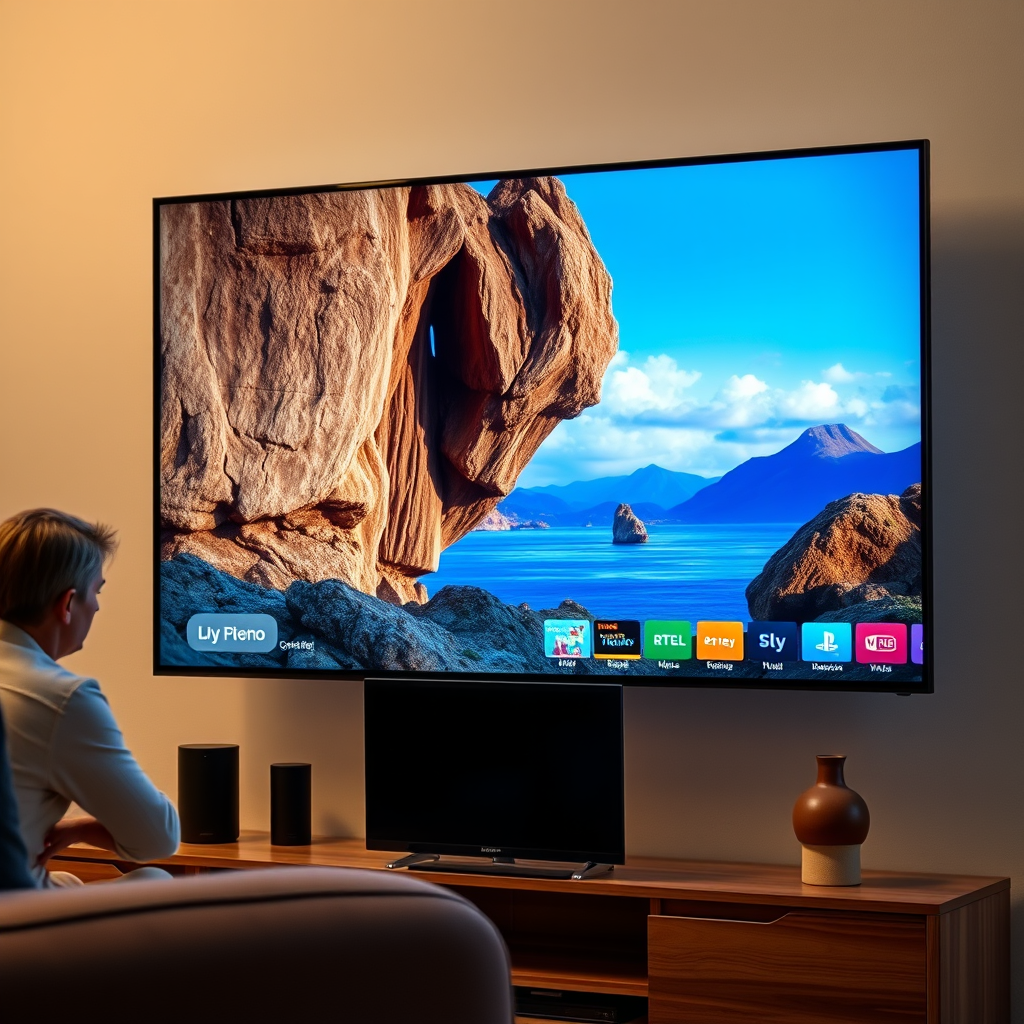
The first step in addressing your Crunchyroll access issues is to ensure that your Samsung TV is compatible with the app. Not all Samsung TV models support Crunchyroll. You can verify compatibility by checking the specifications of your TV model on the Samsung website or in your user manual. Generally, Samsung Smart TVs released from 2016 onwards tend to have good support for popular streaming apps, including Crunchyroll.
Additionally, having the latest firmware installed on your Samsung TV is crucial. Manufacturers often release updates that not only improve performance but also enhance compatibility with various applications. To check for updates, navigate to the settings menu, select “Support,” and then choose “Software Update.” If an update is available, download and install it to ensure your TV operates at its best.
Install or Update the Crunchyroll App
Next, you’ll need to confirm that the Crunchyroll app is properly installed on your Samsung TV. To do this, navigate to the Samsung Smart Hub, where you can find and manage all your applications. If you don’t see the app listed, you can easily download it from the app store available within the Smart Hub.
If the app is already installed, check for any updates that might be available. App updates are essential as they can fix bugs, enhance performance, and introduce new features. To update the app, highlight it in the Smart Hub, press the options button on your remote, and select “Update” if the option is available. Keeping your app updated ensures a smooth viewing experience.
Troubleshoot Network Issues
A stable internet connection is vital for streaming services like Crunchyroll. If your connection is unstable or slow, you may experience buffering or inability to load the app entirely. First, confirm that your Samsung TV is connected to the internet, either through Wi-Fi or an Ethernet cable. You can check this in the settings menu under “Network.”
If your connection seems fine but you’re still experiencing issues, it might be worthwhile to restart both your router and your TV. Unplugging your router for about 30 seconds before plugging it back in can help refresh the connection. Similarly, a simple restart of your TV can sometimes resolve temporary glitches.
Internet Connection Quality
Average Internet Speed for Streaming
| # | Service Provider | Average Speed (Mbps) | Recommended for Streaming (Mbps) | Rating |
|---|---|---|---|---|
| 1 | Comcast | 150 | 25 | ★★★★☆ |
| 2 | AT&T | 300 | 25 | ★★★★★ |
| 3 | Verizon | 200 | 25 | ★★★★☆ |
| 4 | Spectrum | 400 | 25 | ★★★★★ |
| 5 | Cox | 150 | 25 | ★★★☆☆ |
| 6 | Frontier | 100 | 25 | ★★☆☆☆ |
| 7 | Xfinity | 200 | 25 | ★★★★☆ |
Clear Cache and Data for the App
Sometimes, the app may accumulate cache and data that can hinder its performance, leading to issues while trying to launch or stream content. Clearing the cache and data can frequently resolve these problems. To do this, access the settings menu on your Samsung TV, navigate to “Apps,” and locate the Crunchyroll app. From there, select “Storage” and choose the option to clear both the cache and data.
Keep in mind that clearing data means you may need to log back into your Crunchyroll account, but this step can often rectify loading issues and improve the overall performance of the app.
Reset Smart Hub
If you have tried all previous troubleshooting steps and still cannot access Crunchyroll, consider resetting the Smart Hub. This action restores the Smart Hub to its original settings and can resolve persistent app issues. To reset the Smart Hub, go to the settings menu, select “Support,” and then choose “Self Diagnosis.” Within this section, you will find the option to reset the Smart Hub.
Please note that resetting the Smart Hub will remove all installed apps and settings, requiring you to set them up again. However, this step can often clear out any underlying issues that may be preventing you from accessing Crunchyroll.
Contact Customer Support
If none of the above solutions work, it may be time to reach out for professional assistance. Contacting Samsung or Crunchyroll support can provide you with specific guidance tailored to your situation. Both companies typically have dedicated customer service teams that can help you troubleshoot more complex issues, including problems related to specific models or network configurations.
When reaching out for support, be prepared to provide detailed information about your Samsung TV model, the nature of the problem you’re experiencing, and any steps you’ve already taken to try to resolve the issue. This information will help customer support assist you more effectively.
By following these steps, you should be able to resolve the issues preventing you from accessing Crunchyroll on your Samsung TV. If problems continue, it’s advisable to consult professional support for further assistance. Enjoy your streaming!
Frequently Asked Questions
Why can’t I find the Crunchyroll app on my Samsung TV?
If you can’t find the Crunchyroll app on your Samsung TV, it may be due to compatibility issues. Older Samsung TV models may not support the app, or it might not be available in your region. Ensure your TV’s software is up to date, as updates can sometimes add access to new apps.
How can I troubleshoot Crunchyroll not working on my Samsung TV?
To troubleshoot Crunchyroll not working on your Samsung TV, first restart your TV and try launching the app again. If the problem persists, check your internet connection, as a weak signal can affect app performance. Additionally, uninstalling and reinstalling the app can resolve any glitches.
What should I do if Crunchyroll keeps crashing on my Samsung TV?
If Crunchyroll keeps crashing on your Samsung TV, try clearing the app’s cache and data from the settings menu. If that doesn’t work, check for any available firmware updates for your TV, as these can fix bugs and improve app stability. Lastly, consider resetting your TV to factory settings if issues continue.
Which Samsung TV models support the Crunchyroll app?
The Crunchyroll app is generally supported on Samsung Smart TVs that are running Tizen OS 2.4 or later. To ensure compatibility, check your TV model and its software version in the settings. If your model is older or not listed, consider using external streaming devices like Roku or Chromecast to access Crunchyroll.
Why is Crunchyroll not available for download on my Samsung Smart Hub?
Crunchyroll may not be available for download on your Samsung Smart Hub if your TV is not compatible or if the app is restricted in your region. Check the Samsung App Store for updates and ensure your TV is connected to the internet. If all else fails, consider using a different streaming device that supports Crunchyroll.
References
- https://www.crunchyroll.com/help?topic=article&id=1004505
https://www.crunchyroll.com/help?topic=article&id=1004505 - Support Home | Official Samsung Support US
https://www.samsung.com/us/support/ - https://scholar.google.com/scholar?q=can’t+get+crunchyroll+on+samsung+tv Google Scholar
https://scholar.google.com/scholar?q=can’t+get+crunchyroll+on+samsung+tv - https://scholar.google.com/scholar?q=streaming+apps+on+samsung+smart+TV Google Scholar
https://scholar.google.com/scholar?q=streaming+apps+on+samsung+smart+TV - Google Scholar Google Scholar
https://scholar.google.com/scholar?q=streaming+issues+samsung+TV - https://www.lifewire.com/how-to-install-android-apps-on-samsung-smart-tv-4776943
https://www.lifewire.com/how-to-install-android-apps-on-samsung-smart-tv-4776943 - https://www.bbc.com/news/technology-54805574
https://www.bbc.com/news/technology-54805574 - can’t get crunchyroll on samsung tv – Search results
https://en.wikipedia.org/wiki/Special:Search?search=can’t+get+crunchyroll+on+samsung+tv - https://www.ncbi.nlm.nih.gov/search/research-articles/?term=can’t+get+crunchyroll+on+samsung+tv
https://www.ncbi.nlm.nih.gov/search/research-articles/?term=can’t+get+crunchyroll+on+samsung+tv

[…] should work right away. Use the Epson projector settings menu for display and audio, and follow the troubleshooting steps above if you don’t see an image or hear sound. If problems persist, note your input type (HDMI or […]
[…] guide walks you through the physical connection, the Windows/macOS display setup, and the fastest troubleshooting steps so the image appears reliably—especially in business meeting environments where time […]
[…] display mode (duplicate/extend), you’ll usually be up and running in minutes. Follow the troubleshooting steps if you see “no signal” or a blurry image, then test your setup before your presentation—so […]
[…] (typically HDMI or VGA). Once those ports align, you’ll usually avoid the most time-consuming troubleshooting steps—especially “no signal” […]
[…] the full process to screen-mirror your phone with the least friction, and I include practical troubleshooting steps I’ve used after repeated real-world connection attempts in office and home setups (especially […]
[…] wireless only when mirroring is clearly supported and your network is stable), then use the troubleshooting steps to pinpoint whether the issue is input selection, adapter compatibility, or Wi‑Fi […]
[…] based on your projector’s support. This guide walks you through the exact cables, settings, and troubleshooting steps so your phone display mirrors—or extends to—the projector […]
[…] plus audio routing for your environment. If you hit a blank screen or choppy playback, use the troubleshooting steps—reseat HDMI, confirm input source, and stabilize Wi‑Fi—before assuming the projector is […]
[…] devices support it. Try HDMI first if you want the fastest, most dependable results—then use the troubleshooting steps if your TV shows no signal. If you tell me your laptop model and TV type, I can suggest the best […]
[…] the problem is signal selection, adapter compatibility, or network instability. Below are the troubleshooting steps I use in real scenarios when someone says, “It was working five minutes […]
[…] and the projector for a working display. If your screen won’t show up or the image is blank, the troubleshooting steps are built in so you can get it running […]
[…] are the fastest troubleshooting steps I use during real […]
[…] fast. If your Chromebook’s port setup doesn’t match your projector, you’ll still have clear troubleshooting steps to make it […]
[…] for the best video quality, and setting up audio so dialogue stays in sync. It also covers real troubleshooting steps for the most common Netflix + projector problems—loading failures, distorted images, and choppy […]
[…] needs an HDMI input. Check compatibility and settings (HDMI, power, and Wi‑Fi), then follow the troubleshooting steps if anything doesn’t show […]
[…] display/audio settings. Check your projector’s HDMI availability first, then follow the setup and troubleshooting steps above—try a quick test stream once everything is […]
[…] compatibility check first, then use HDMI/adapter or your phone’s casting feature, and apply the troubleshooting steps if needed. Try one method now, and if it doesn’t work, tell me your phone model and projector […]
[…] To watch movies on your projector, the fastest path is usually an HDMI streaming device (Roku/Fire TV/Chromecast with HDMI), then switching your projector to the correct input and fine-tuning picture/audio. I’ll show you the most reliable connection choices (HDMI first, USB when supported, wireless only when both devices support it) so you get clear playback with the fewest troubleshooting steps. […]