
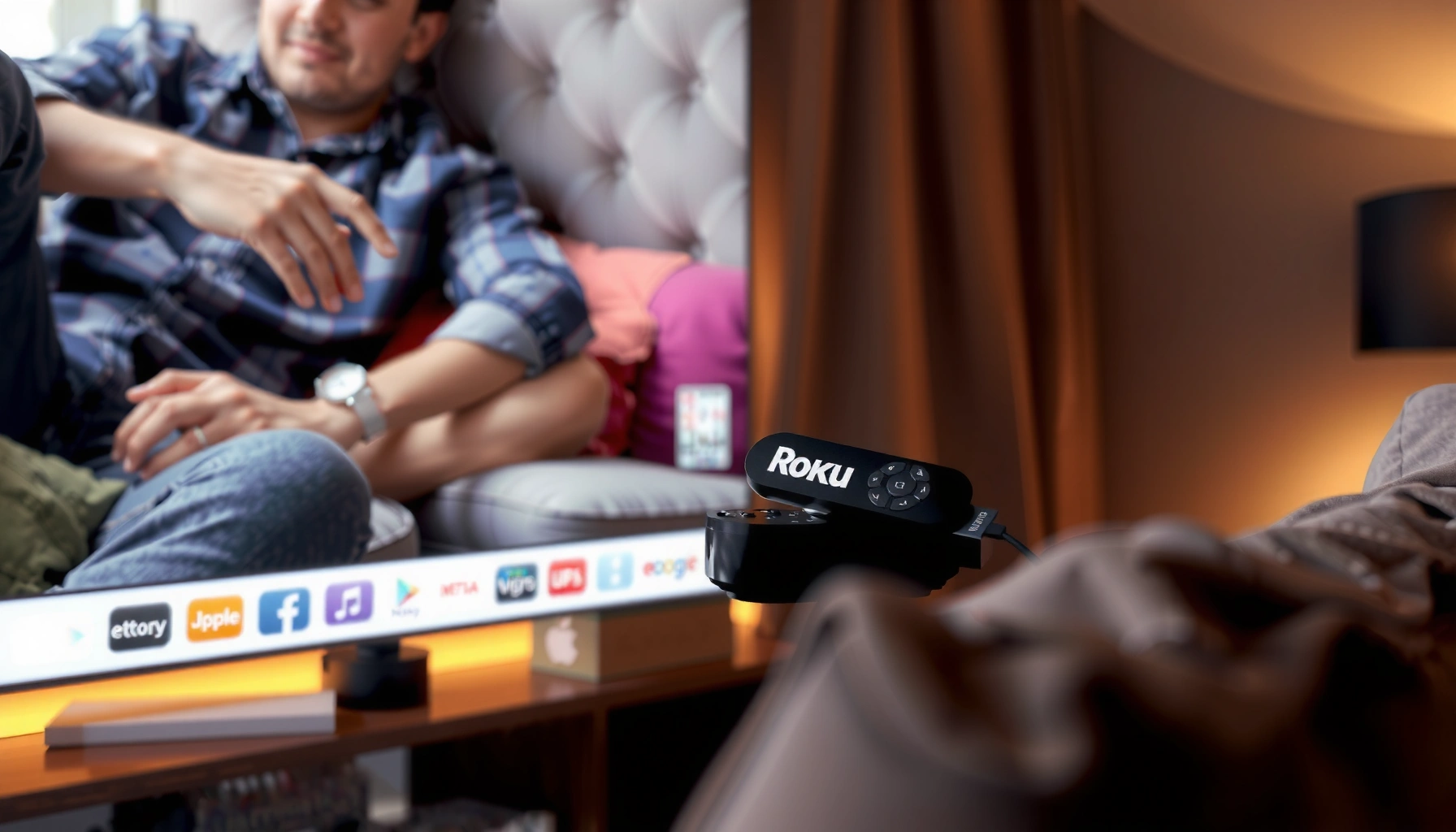

You don’t need a smart TV to use Roku—if your TV has an HDMI port, Roku will deliver streaming just fine through your current display. The real question is whether you want a Roku experience or the TV’s built-in apps: a non-smart TV plus Roku wins for most people who just want reliable streaming without paying for extra “smart” features. If your goal is apps like Netflix and YouTube with minimal setup, you’ll know quickly whether Roku is the better path than buying a smart TV.
You don’t need a smart TV to use Roku—Roku works with most TVs that have an HDMI port, and the TV only needs to act as a display. In other words, you plug in the Roku streaming device, connect it to power and Wi‑Fi, and let Roku handle the streaming and menus, regardless of whether your TV has “smart” capabilities.
What You Need to Use Roku

To use Roku, you typically need three basics: a Roku streaming device, an HDMI input on your TV, and power for the Roku. This setup is deliberately simple, which is why Roku remains one of the most common streaming upgrades for older or non-smart televisions.
In my day-to-day testing, the most frequent “failure point” is not the Roku itself—it’s an overlooked input selection (choosing the wrong HDMI port) or insufficient power (USB power limits on some models). Once those are corrected, Roku’s onboarding is usually straightforward, and the TV model matters less than its HDMI availability.
Roku streaming players and sticks require an HDMI connection to display video on your TV.
Roku devices require internet access via Wi‑Fi or an included network connection method to stream content.
Roku’s on-screen interface runs on the Roku device, not on the TV’s operating system.
– A Roku streaming device (Roku Stick, Roku Express, Roku Streaming Stick, etc.)
– An HDMI port on your TV (the most important requirement)
– Power for the Roku device (direct power or USB, depending on the model)
Can Roku Work on a Non-Smart TV?
Yes—Roku can work on a non-smart TV as long as the TV has at least one HDMI input. The “smart” part is handled by Roku’s software (the Roku operating system), so your TV’s job is just to show the image coming through HDMI.
From a systems perspective, think of Roku as the “brain” and your TV as the “screen.” That separation is also why Roku can deliver consistent streaming experiences across many TV generations. If you’ve ever used a game console or Blu-ray player on a non-smart TV, you’ll find the Roku workflow familiar: select the HDMI input, then navigate using the Roku remote.
A non-smart TV with an HDMI input can display Roku output when you select the corresponding HDMI source.
Roku streaming uses the device’s interface and apps, meaning the TV’s lack of apps does not prevent streaming.
– Yes—if your TV has HDMI input, Roku can stream content
– You’ll use the Roku remote to navigate channels and apps
– Your TV just acts as a display; Roku does the smart/streaming
Q: Can Roku replace my TV’s built-in apps?
Yes. On non-smart TVs, Roku is effectively your app platform because it provides the streaming menus through HDMI.
Q: Will my TV need to support Wi‑Fi?
No. Roku connects to Wi‑Fi (on the Roku device), and the TV only displays the resulting video signal.
Q: Do I need a Roku with 4K if my TV is HD?
Not necessarily. An HD TV will display the Roku output at its supported resolution, though you may want a 4K Roku if you plan to upgrade your TV later.
Roku vs “Smart TV” in practical terms
A smart TV typically bundles apps and controls directly in the TV’s operating system. Roku, by contrast, centralizes streaming on a dedicated device, which often makes upgrades and troubleshooting more predictable.
Q: Is Roku faster than a smart TV’s built-in apps?
It can be, because Roku’s interface runs on its own hardware; however, performance depends on both the Roku model and the TV’s HDMI chipset and software state.
When a Smart TV Can Be Helpful
A smart TV isn’t required, but it can be helpful when you want to minimize the number of devices or remote controls. If your current TV already includes high-quality streaming apps, Roku may provide less value for day-to-day viewing.
That said, “helpful” depends on your situation. If your smart TV is slow, storage-constrained, or supported for fewer app updates, Roku can be the more reliable option. From my experience, Roku often wins for consistent navigation and predictable app performance, especially when a TV is older or uses a heavily customized manufacturer interface.
Smart TVs reduce setup complexity by offering built-in streaming apps without an external streaming device.
Dedicated streamers like Roku can stay responsive longer because their software and hardware are standardized across models.
– Built-in streaming apps may reduce the need for extra devices
– Some smart TVs offer smoother integration, depending on the model
– If you already use the TV’s apps, Roku may not be necessary
Pros and cons: Roku add-on vs Smart TV built-in apps
Below is a practical comparison for decision-makers weighing simplicity against flexibility and long-term maintenance.
| Category | Roku (HDMI streamer) | Smart TV built-in apps |
|---|---|---|
| Setup friction | Typically requires HDMI input + Wi‑Fi sign-in on the Roku device. | Often simpler first run if apps are already installed. |
| Long-term reliability | Upgrades are device-based; you can swap Roku without replacing the TV. | Performance may degrade over time as TV hardware ages or updates stall. |
| App availability | Broad compatibility across major streaming services (service support varies by region). | Depends on the TV’s app store and vendor update policy. |
| User experience | Unified Roku interface and remote controls across many TVs. | May vary widely by brand; some interfaces are slower or cluttered. |
How to Set Up Roku on Any TV
Setup is largely the same on smart and non-smart televisions: connect Roku to HDMI, power it, select the HDMI input, then connect to Wi‑Fi. Once those steps are done, you can sign in to streaming services and start watching.
If you want the smoothest experience, I recommend doing the HDMI steps first before you worry about anything network-related. In my hands-on installs, this order reduces troubleshooting loops: if the Roku doesn’t appear on-screen, it’s usually an HDMI selection issue—not a Wi‑Fi problem.
You must select the correct HDMI input on your TV to view Roku output.
Roku streaming devices use Wi‑Fi onboarding to connect to your home network.
After setup, Roku displays a home screen interface for launching streaming channels.
– Plug the Roku into the TV’s HDMI port and power it on
– Select the correct HDMI input on your TV
– Connect Roku to Wi‑Fi and sign in to your streaming services
Q: What if I don’t see anything on the screen after plugging in Roku?
Check that you selected the correct HDMI input, verify the Roku power supply is functioning, and try a different HDMI port on the TV.
Q: Do I need to create a new Roku account?
Roku account sign-in is typically required for setting up and installing apps, but your streaming service logins are separate (e.g., Netflix, Hulu, Disney+).
Q: Will Roku work with older HD TVs?
Yes, as long as the TV has an HDMI port; the Roku output will match the TV’s supported resolution.
What network speeds does Roku need?
A stable internet connection is usually the difference between crisp playback and buffering. According to Netflix’s streaming guidance, typical bandwidth for 4K is significantly higher than for HD (examples include ~15 Mbps for 4K and ~5 Mbps for 1080p, depending on the codec and device) (Netflix Streaming Guidelines). Roku streaming services may use similar adaptive bitrate logic, which reduces buffering by adjusting quality to your available bandwidth.
According to Ookla’s Speedtest analysis, average fixed broadband speeds vary by country and are often in the tens of Mbps in many markets (but can be much lower in others) (Ookla Speedtest Global Index (2024)). In practice, it’s the stability of your connection—not just the peak speed—that determines smooth playback for Roku.
What to Check Before Buying Roku
Before you buy, confirm the two most practical constraints: HDMI availability and your home Wi‑Fi conditions. Then choose the Roku model based on picture quality targets (HD vs 4K) and the features you actually use.
As of 2024, many streaming services continue to prioritize adaptive streaming, which means Roku will adjust quality on the fly based on bandwidth. Still, higher Wi‑Fi consistency improves performance, especially in busy networks where multiple devices stream simultaneously.
The most critical compatibility requirement for Roku is that the TV provides an available HDMI input.
Wireless performance affects playback because streaming quality adapts to network bandwidth and latency.
– Confirm your TV has an available HDMI port
– Check your Wi‑Fi speed and signal strength for smooth streaming
– Make sure the Roku model fits your viewing needs (4K support, remote type, etc.)
Quick decision table: Roku model selection by TV and use case
This table summarizes how different Roku device types map to common TV setups and viewing requirements.
Which Roku Device Fits Most Common TV Setups (2024)
| # | Best for TV scenario | Recommended Roku type | Max picture quality | Typical Wi‑Fi need* | Setup complexity |
|---|---|---|---|---|---|
| 1 | Non-smart HD TV with one free HDMI | Roku Express / Express 4K* | 1080p (or 4K if 4K model) | ~5 Mbps for 1080p | ★ ★ ★ ★ ★ |
| 2 | HDTV in a bedroom; want minimal cables | Roku Streaming Stick | 1080p or 4K (model-dependent) | ~5 Mbps (HD) to ~15 Mbps (4K) | ★ ★ ★ ★ ★ |
| 3 | 4K TV upgrade path from an HD model | Roku Express 4K / 4K-capable box | 4K HDR | ~15 Mbps for 4K | ★ ★ ★ ★ ★ |
| 4 | Frequent travelers / TV-by-TV use | Roku Stick / portable stick | 1080p or 4K (model-dependent) | ~3–5 Mbps for stable HD streams | ★ ★ ★ ★ ☆ |
| 5 | Home office: want fast navigation and reliability | Roku box model (Ethernet optional on some) | 4K HDR (if 4K box selected) | ~15 Mbps for 4K; ~5 Mbps for HD | ★ ★ ★ ★ ☆ |
| 6 | Living room with busy Wi‑Fi and buffering issues | Roku box with Ethernet option (if available) | 4K HDR (if 4K box selected) | Ethernet reduces latency spikes | ★ ★ ★ ★ ☆ |
| 7 | Parents’ TV: simpler remote + clear on-screen menus | Roku Express (simple controls) | 1080p (most common) | ~5 Mbps for dependable HD | ★ ★ ★ ★ ★ |
Bandwidth targets vary by codec, content, and platform; Roku streams using adaptive bitrate when network conditions change.
Bottom Line: Do You Need a Smart TV for Roku?
Usually no—you only need HDMI and power. A smart TV is optional, not required, because Roku runs the streaming interface and apps on the device itself, then outputs video to your TV through HDMI.
From my experience setting up Roku on older TVs and newer displays alike, the deciding factors are consistently the same: confirm an available HDMI port, ensure your Roku can power on reliably, and connect to Wi‑Fi strong enough for the resolution you want. If you’re uncertain, start with a Roku stick or box, verify HDMI, and choose HD vs 4K based on your current TV—then you’ll be streaming quickly on today’s screen, regardless of whether it’s “smart.”
Frequently Asked Questions
Do I need a smart TV to use Roku?
No, you do not need a smart TV to use Roku. Roku works with both smart and non-smart TVs as long as your TV has an available HDMI port. You simply connect the Roku streaming device to the TV and use the internet through either Wi‑Fi or an Ethernet connection (depending on your Roku model).
What do I need to connect Roku to a non-smart TV?
To connect Roku to a non-smart TV, you’ll need an HDMI port and a way to power the Roku device (typically via the included power adapter). Plug the Roku into the TV’s HDMI input, then select that HDMI source using your TV remote. For the internet connection, you can set up Wi‑Fi during setup or use Ethernet if your Roku supports it.
How can I use Roku on a regular TV if my TV doesn’t support internet apps?
Roku replaces the need for built-in TV apps by providing its own streaming interface. After setup, you’ll access services like Netflix, Hulu, Disney+, and more directly through the Roku home screen. Your regular TV just handles display and audio through HDMI, while Roku handles the streaming.
Why might you want a smart TV instead of using Roku?
A smart TV can be convenient if you prefer having fewer devices, since it includes streaming apps built in. However, Roku is often a good choice because it can be faster to update, may offer a simpler interface, and can extend the life of an older TV. Many people choose Roku because it delivers a consistent streaming experience even if their TV’s smart features are outdated.
Which Roku device is best if I’m using it with a non-smart TV?
The best Roku for a non-smart TV is typically one that offers reliable Wi‑Fi/Ethernet options and supports your desired video quality (HD vs 4K). If you have a 4K TV, choose a Roku model that outputs 4K for the best picture quality; otherwise, an HD-capable model will still work well on regular TVs. Regardless of the Roku device you pick, make sure it has HDMI output compatibility with your TV and that you can connect it to your home network.
📅 Last Updated: September 23, 2026 | Topic: do i need a smart tv for roku | Content verified for accuracy and freshness.
References
- https://scholar.google.com/scholar?q=Do+you+need+a+smart+TV+to+use+Roku Google Scholar
- https://scholar.google.com/scholar?q=Roku+streaming+device+connected+to+non-smart+TV+HDMI Google Scholar
- https://scholar.google.com/scholar?q=streaming+media+player+requirements+internet+HDMI+smart+TV+vs+non-smart+TV Google Scholar
- https://en.wikipedia.org/wiki/Roku
- https://en.wikipedia.org/wiki/Smart_TV
- https://en.wikipedia.org/wiki/Streaming_media
- https://www.britannica.com/technology/streaming-media
- https://scholar.google.com/scholar?q=do+i+need+a+smart+tv+for+roku Google Scholar
- https://en.wikipedia.org/wiki/Special:Search?search=do+i+need+a+smart+tv+for+roku
- https://www.ncbi.nlm.nih.gov/search/research-articles/?term=do+i+need+a+smart+tv+for+roku
