

If you’re wondering whether you need an HDMI cable for your smart TV, the answer is often yes. HDMI cables are essential for connecting your TV to various devices like gaming consoles, Blu-ray players, and streaming devices, ensuring high-quality audio and video output. With the increasing demand for high-definition content, understanding the role of HDMI cables in your home entertainment setup is crucial. In this article, we’ll explore the reasons you may need an HDMI cable, alternatives available, and tips for choosing the right one.
Understanding HDMI Cables
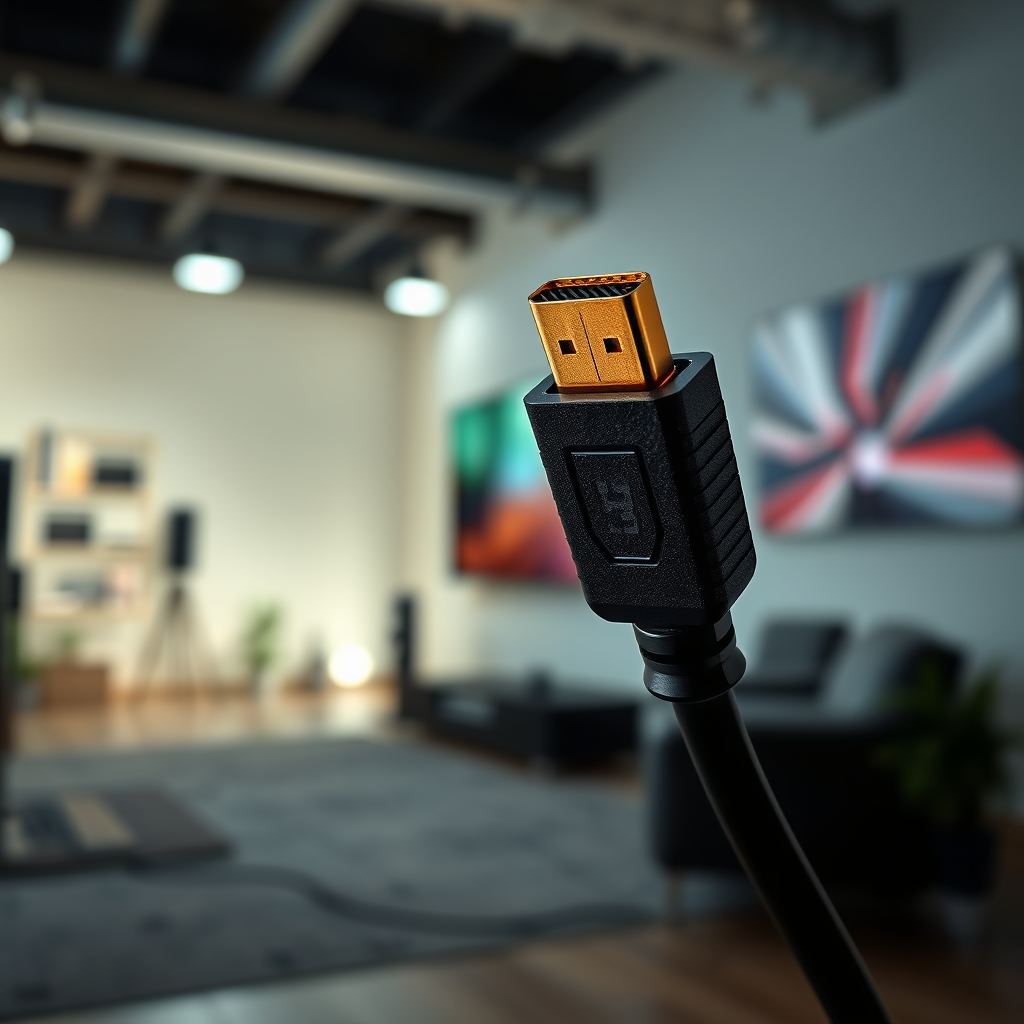
HDMI, or High-Definition Multimedia Interface, is the standard for transmitting high-definition audio and video in a single cable. This technology has become the backbone of modern home entertainment systems, given its ability to carry uncompressed digital video and audio signals from various sources directly to your smart TV. Most modern smart TVs come equipped with multiple HDMI ports, allowing users to connect multiple devices seamlessly.
The evolution of HDMI technology has led to several versions, each offering enhancements in bandwidth and capabilities. For example, HDMI 2.0 supports 4K video at 60 frames per second, while HDMI 2.1 introduces features like 8K video and dynamic HDR. This versatility makes HDMI cables ideal for a wide range of devices, from gaming consoles to high-end Blu-ray players.
Devices That Require HDMI Cables
Several devices in your home entertainment setup rely on HDMI cables for optimal performance. Here are some of the most common:
– Gaming Consoles: Devices like the PlayStation 5 and Xbox Series X require HDMI for high-resolution gaming experiences. These consoles benefit from the high bandwidth that HDMI provides, especially when playing games in 4K resolution with HDR.
– Blu-ray Players: To enjoy high-definition movies, Blu-ray players use HDMI to transmit 1080p or even 4K content directly to your smart TV. The audio experience is equally enhanced with support for advanced audio formats like Dolby Atmos.
– Streaming Devices: Devices such as Roku, Amazon Fire Stick, and Apple TV utilize HDMI to deliver streaming content in high quality. HDMI ensures that you can enjoy your favorite shows and movies without lag or reduced picture quality.
– Sound Systems: Many modern soundbars and home theater systems accept HDMI connections to enhance audio output. These devices often support HDMI ARC (Audio Return Channel), allowing for easy control and improved sound quality.
Alternatives to HDMI Cables
While HDMI cables are the most common choice for connecting devices to your smart TV, there are several alternatives available. Each alternative comes with its own advantages and limitations:
– Wireless Casting Options: Some smart TVs support wireless casting technologies like Chromecast or Apple AirPlay, allowing you to stream content directly from your smartphone or tablet without the need for cables. This can be particularly convenient for quick access to streaming apps.
– Optical Audio Cables: For audio-only setups, optical cables can be used to connect sound systems to your TV. However, this option is limited to audio signals and does not carry video, making it less versatile than HDMI.
– Component Cables: Older devices might utilize component cables for video output. While they can deliver decent picture quality, they require multiple cables and do not support advanced audio formats or high-definition signals as effectively as HDMI.
Top HDMI Cable Brands (2024)
| # | Brand | Cable Type | Max Resolution | Price Range |
|---|---|---|---|---|
| 1 | AmazonBasics | Standard HDMI | 4K | $7-$15 |
| 2 | Mediabridge | High Speed HDMI | 4K | $10-$20 |
| 3 | Belkin | Ultra HD HDMI | 8K | $25-$40 |
| 4 | Cable Matters | Active HDMI | 4K | $15-$30 |
| 5 | Zeskit | Premium HDMI | 8K | $20-$35 |
| 6 | J-Tech Digital | HDMI Extender | 4K | $30-$50 |
| 7 | Ultra Clarity Cables | Standard HDMI | 4K | $12-$22 |
How to Connect Devices Using HDMI
Connecting devices to your smart TV using an HDMI cable is straightforward. Here’s a step-by-step guide to ensure a seamless setup:
1. Identify the HDMI Ports: Locate the HDMI ports on your smart TV and the device you wish to connect. Typically, HDMI ports are labeled and can be found on the back or side of the TV.
2. Connect the Cable: Plug one end of the HDMI cable into the device and the other end into one of the HDMI ports on your TV. Ensure that the connection is firm and secure to avoid any signal loss.
3. Select the Input Source: Once the cable is connected, turn on your TV and the device. Using your TV remote, navigate to the input/source button and select the corresponding HDMI port where the device is connected. This step is crucial for the TV to display the content from the connected device.
4. Adjust Settings if Necessary: Depending on the device, you may need to adjust settings to optimize video and audio output. This could include selecting the resolution or enabling specific audio formats.
Choosing the Right HDMI Cable
When selecting an HDMI cable, it’s essential to consider several factors to ensure that you purchase the most suitable option for your setup:
– Cable Type: Look for HDMI cables labeled as “High Speed” for better performance, especially if you plan to use 4K content. “Premium High Speed” cables are also recommended for 8K resolutions.
– Length: Choose a cable length that fits your setup, keeping in mind that longer cables may require active HDMI solutions to maintain signal quality. If you need to run a cable across a room, consider investing in an active HDMI cable or a wireless HDMI transmitter.
– Build Quality: Look for cables with durable construction, including gold-plated connectors and braided shielding, to ensure longevity and reduced interference.
– Compatibility: Ensure that the cable you select is compatible with the devices you intend to connect. Some devices may have specific requirements or may benefit from features like Ethernet over HDMI.
Troubleshooting HDMI Connection Issues
If you encounter issues while using HDMI connections, here are some troubleshooting steps to help you resolve common problems:
1. Check Power and Input Source: Ensure all devices are powered on and set to the correct input source on your TV. This is often a simple oversight but can lead to a frustrating experience.
2. Inspect HDMI Cables and Ports: Look for any visible damage to the HDMI cable or ports. If a cable appears frayed or bent, it may need replacing. Additionally, try using different HDMI ports on the TV to rule out a faulty port.
3. Update Firmware: Ensure that your smart TV and connected devices are running the latest firmware. Manufacturers often provide updates that improve compatibility and performance.
4. Reset Devices: Sometimes, a simple reset of your devices can fix connection issues. Unplug the devices from power, wait a few moments, and then plug them back in.
In summary, an HDMI cable is typically necessary for connecting your smart TV to various devices for high-quality audio and video. The versatility and performance of HDMI make it the go-to choice for modern home entertainment systems. If you find yourself needing to connect multiple devices, consider investing in a high-quality HDMI cable. By understanding your options and following best practices, you can ensure your home entertainment setup is optimized for the best viewing experience.
Frequently Asked Questions
Do I need an HDMI cable for my smart TV to function properly?
Yes, you typically need an HDMI cable to connect your smart TV to external devices like Blu-ray players, gaming consoles, or streaming devices. HDMI cables transmit both high-definition video and audio, ensuring optimal performance and quality. Without an HDMI cable, you may have limited options for connecting devices, which can affect your viewing experience.
Which HDMI cable should I choose for my smart TV?
When selecting an HDMI cable for your smart TV, look for ones that support at least HDMI 2.0 or higher, as these provide enhanced bandwidth for 4K video and high dynamic range (HDR) content. Additionally, consider cable length based on your setup; longer cables may require active or high-speed HDMI cables to maintain signal quality over distance.
How do I connect my smart TV to a soundbar using an HDMI cable?
To connect your smart TV to a soundbar using an HDMI cable, make sure both devices have HDMI ARC (Audio Return Channel) ports. Use an HDMI cable to connect the HDMI ARC port on your TV to the HDMI ARC port on your soundbar. This setup will allow audio to pass from the TV to the soundbar while also enabling control with a single remote.
Why is my smart TV not detecting the HDMI cable?
If your smart TV is not detecting the HDMI cable, first ensure that the cable is securely connected to both the TV and the external device. Check for any visible damage on the cable, and try using a different HDMI port on the TV. If the issue persists, testing the cable with another device can help determine if the cable itself is faulty.
What is the best way to hide HDMI cables for a clean smart TV setup?
The best way to hide HDMI cables for a clean smart TV setup is to use cable management solutions like cable covers or conduits that blend with your wall color. Alternatively, you can opt for in-wall cable management systems that allow you to route cables behind the wall for a seamless look. Additionally, consider using wireless HDMI transmitters for a completely cable-free appearance.
References
- HDMI
https://en.wikipedia.org/wiki/HDMI - HDMI Licensing Administrator, Inc.
https://www.hdmi.org/spec/ - https://www.bbc.com/news/technology-50725652
https://www.bbc.com/news/technology-50725652 - https://www.reuters.com/article/us-tech-hdmi-idUSKBN1ZL2V7
https://www.reuters.com/article/us-tech-hdmi-idUSKBN1ZL2V7 - https://www.sciencedirect.com/topics/engineering/high-definition-multimedia-interface
https://www.sciencedirect.com/topics/engineering/high-definition-multimedia-interface - https://www.nytimes.com/2020/01/08/technology/hdmi-2-1.html
https://www.nytimes.com/2020/01/08/technology/hdmi-2-1.html - https://www.mayoclinic.org/healthy-lifestyle/consumer-health/in-depth/television-technology/art-20045808
https://www.mayoclinic.org/healthy-lifestyle/consumer-health/in-depth/television-technology/art-20045808 - Google Scholar Google Scholar
https://scholar.google.com/scholar?q=hdmi+cable+smart+tv - Google Scholar Google Scholar
https://scholar.google.com/scholar?q=do+i+need+an+hdmi+cable+for+my+smart+tv - Google Scholar Google Scholar
https://scholar.google.com/scholar?q=smart+tv+connectivity+options
