

Many LG Smart TVs do come with Bluetooth capability, allowing you to connect various devices such as headphones, soundbars, and smartphones wirelessly. This feature enhances your viewing experience by providing flexibility and convenience in managing audio connections. In this article, we’ll explore the Bluetooth features available on LG Smart TVs, how to check for Bluetooth support, and provide a step-by-step guide on connecting your devices.
Understanding Bluetooth on LG Smart TVs
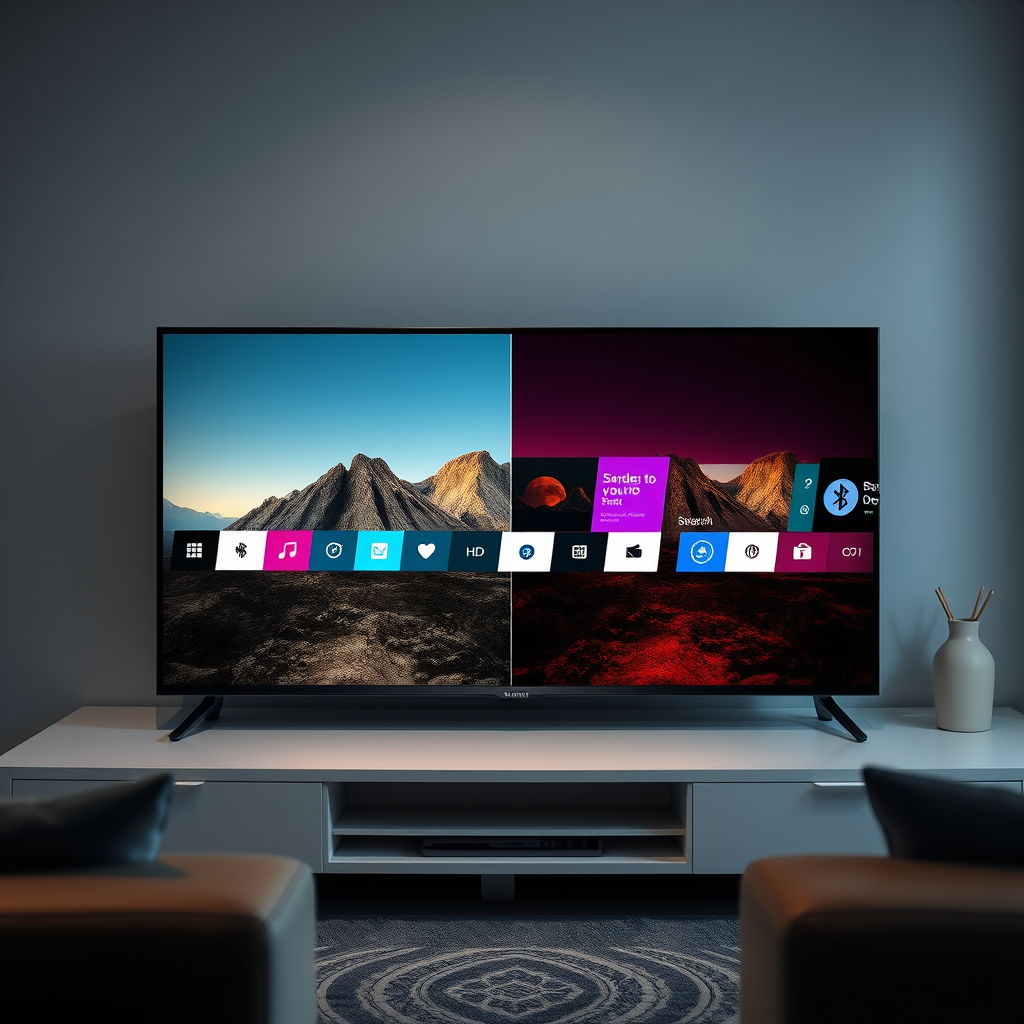
Bluetooth functionality varies by model, with most newer LG Smart TV models supporting this feature. LG has integrated Bluetooth technology into its smart TVs to facilitate wireless connections, catering to the growing demand for seamless device integration. You can typically find Bluetooth support in models released in the last few years, with features ranging from simple audio streaming to more advanced functions like connecting to smart home devices.
To confirm the Bluetooth availability of your specific model, it’s recommended to check the specifications listed on LG’s official website or refer to the user manual that came with your TV. This will provide clarity on the Bluetooth version supported and any other wireless capabilities your TV may have.
How to Check if Your LG Smart TV Has Bluetooth
Verifying whether your LG Smart TV supports Bluetooth is straightforward. Start by navigating to the settings menu on your TV. Here’s how to do it:
1. Press the Settings button on your remote control.
2. Scroll down to the “All Settings” option and select it.
3. Look for the “Sound” or “Connections” section.
If Bluetooth is available, you will see it listed as an option within these settings. Some models may also have a dedicated Bluetooth section, where you can manage connected devices. If you do not find Bluetooth in the settings, your model may not support it.
Connecting Bluetooth Devices to Your LG Smart TV
Connecting Bluetooth devices to your LG Smart TV is a simple process. Follow these steps to establish a connection:
1. Access the Bluetooth Settings:
Go to the settings menu, then navigate to “Connections” and select “Bluetooth.”
2. Initiate Device Scanning:
In the Bluetooth menu, select the option to “Scan for Devices.” Your TV will start searching for nearby Bluetooth devices.
3. Put Your Device in Pairing Mode:
Make sure the device you want to connect (like headphones or a soundbar) is in pairing mode. This usually involves pressing and holding a specific button until a light blinks, indicating it is discoverable.
4. Select Your Device:
Once your TV detects the device, it will appear on the screen. Select the device name to initiate pairing.
5. Complete Pairing:
Follow any on-screen prompts to complete the pairing process. Once connected, the device will usually remain paired for future use.
Here’s a visual representation of popular Bluetooth-compatible LG Smart TVs:
Bluetooth Capability of Popular LG Smart TV Models (2023)
| # | Model | Bluetooth Version | Audio Streaming | Smart Home Integration |
|---|---|---|---|---|
| 1 | LG OLED C1 | 5.0 | Yes | Yes |
| 2 | LG NanoCell NANO90 | 5.0 | Yes | Yes |
| 3 | LG UHD AI ThinQ | 4.2 | Yes | No |
| 4 | LG OLED G1 | 5.0 | Yes | Yes |
| 5 | LG NanoCell NANO85 | 5.0 | Yes | Yes |
| 6 | LG OLED B1 | 5.0 | Yes | Yes |
| 7 | LG UHD AI ThinQ 65 | 4.2 | Yes | No |
Troubleshooting Bluetooth Connections
If you encounter issues while trying to connect Bluetooth devices to your LG Smart TV, several troubleshooting steps can help resolve connectivity problems:
1. Check Device Compatibility: Ensure that the device you are trying to connect is compatible with your TV. Some older devices may not pair properly with newer Bluetooth versions.
2. Proximity Matters: Ensure that both devices are within an acceptable range, typically within 30 feet, and that there are no physical obstructions that could interfere with the signal.
3. Bluetooth Activation: Make sure Bluetooth is enabled on both the TV and the device you are trying to connect. If uncertain, you can toggle Bluetooth off and back on to refresh the connection.
4. Restart Devices: Sometimes, simply restarting both the TV and the Bluetooth device can resolve connectivity issues.
5. Forget and Re-pair: If you’ve previously connected the device, it may help to “forget” it in the Bluetooth settings and attempt to pair again.
If these steps do not resolve the issue, consulting LG’s customer support or referring to the user manual may provide additional insights.
Alternative Audio Connection Options
If your LG Smart TV lacks Bluetooth capability or if you prefer wired connections, there are several alternative audio connection options available:
1. Optical Audio Cable: This is a common method for connecting soundbars and home theater systems to your TV. The optical cable transmits high-quality audio without any electronic interference.
2. HDMI ARC (Audio Return Channel): Many LG Smart TVs come with HDMI ARC ports, allowing you to connect soundbars and speakers easily. This connection supports high-definition audio formats and can also allow control of the devices through the TV remote.
3. RCA Audio Cables: For older devices that do not support HDMI or optical connections, RCA audio cables can be used. This method is less common with modern devices but can still be effective.
4. Wi-Fi Audio Streaming: Some soundbars and speakers support Wi-Fi connections, allowing you to stream audio directly from your TV. This method can often provide better sound quality than Bluetooth.
5. Third-Party Bluetooth Transmitters: If your TV does not support Bluetooth, you can purchase external Bluetooth transmitters that connect via the audio output ports.
Benefits of Using Bluetooth with Your LG Smart TV
The integration of Bluetooth technology with LG Smart TVs offers several notable benefits:
1. Wireless Convenience: Bluetooth eliminates the need for cumbersome cables, creating a cleaner and more organized entertainment space. This is particularly beneficial for setups that are frequently rearranged or for smaller living spaces.
2. Private Listening Experiences: Bluetooth enables users to connect wireless headphones for a private viewing experience, perfect for late-night shows or when sharing a space with others.
3. Multi-Device Connectivity: Multiple Bluetooth devices can often be paired with LG Smart TVs, allowing for flexibility in switching between audio sources without the need to unplug and replug cables.
4. Enhanced Audio Options: Connecting Bluetooth soundbars or speakers can significantly enhance audio quality, providing a more immersive viewing experience.
5. Smart Home Integration: Many smart home devices can be integrated with LG Smart TVs, allowing for convenient voice control and management of home entertainment.
Popular Devices Compatible with LG Smart TVs
A variety of devices can effectively enhance your LG Smart TV experience through Bluetooth connectivity. Here are some popular options:
1. Bluetooth Headphones: Brands like Sony, Bose, and Sennheiser offer high-quality headphones that can be paired with LG Smart TVs for a superior audio experience.
2. Soundbars: Many soundbars, such as those from LG, Samsung, and Vizio, support Bluetooth connectivity, enhancing the TV’s audio output without the hassle of wires.
3. Smart Speakers: Devices like the Amazon Echo and Google Nest can be paired with LG Smart TVs for voice command functionality and to enhance smart home experiences.
4. Streaming Devices: Devices like Roku and Apple TV can utilize Bluetooth for remote control, making navigation through content more convenient.
5. Game Consoles: PlayStation and Xbox controllers can connect via Bluetooth, allowing for a seamless gaming experience on your LG Smart TV.
Summarizing the information, many LG Smart TVs do support Bluetooth, enabling easy connections with various devices. If you’re unsure about your specific model’s capabilities, check the settings or user manual. For connecting devices, follow the simple pairing process outlined above. If you need further assistance, consider reaching out to LG customer support or exploring third-party solutions for audio connectivity. By leveraging Bluetooth and alternative connection options, you can significantly enhance your home entertainment setup.
Frequently Asked Questions
Does my LG Smart TV have Bluetooth capability?
Most LG Smart TVs, especially models from 2016 and later, come equipped with Bluetooth capability. You can easily check this by navigating to the settings menu on your TV, then selecting the “Sound” option, where you should find Bluetooth audio settings if it is available.
How do I connect my Bluetooth headphones to an LG Smart TV?
To connect Bluetooth headphones to your LG Smart TV, first ensure your headphones are in pairing mode. Then, go to the TV’s settings, select “Sound,” followed by “Bluetooth Audio” and search for devices. Your headphones should appear in the list, and you can select them to establish the connection.
Why isn’t my LG Smart TV connecting to Bluetooth devices?
If your LG Smart TV isn’t connecting to Bluetooth devices, it may be due to compatibility issues or distance between the TV and the device. Ensure both devices are in pairing mode and within range. Additionally, check for any software updates for your TV that may enhance Bluetooth functionality.
What Bluetooth devices can I connect to my LG Smart TV?
You can connect various Bluetooth devices to your LG Smart TV, including headphones, speakers, and soundbars. Some LG models also support connecting gaming controllers and smartphones for enhanced functionality. Always consult your TV’s user manual for specific compatibility information.
Which LG Smart TV models support Bluetooth connectivity?
Most LG Smart TVs released from 2016 onward support Bluetooth connectivity, including popular lines like the LG OLED and LG NanoCell series. For the best experience, check the specifications of your specific model on LG’s official website or in the user manual to confirm Bluetooth support.
References
- LG Electronics
https://en.wikipedia.org/wiki/LG_Smart_TV - https://support.lg.com/us/support/product/lg-OLED55C1PUB
https://support.lg.com/us/support/product/lg-OLED55C1PUB - Product Support: Help Library | LG USA Support
https://www.lg.com/us/support/help-library/how-to-connect-lg-smart-tv-to-bluetooth-CT10000021-20200110092739 - Google Scholar Google Scholar
https://scholar.google.com/scholar?q=LG+smart+TV+bluetooth - Google Scholar Google Scholar
https://scholar.google.com/scholar?q=Bluetooth+connectivity+in+smart+TVs - Product Support: Help Library | LG USA Support
https://www.lg.com/us/support/help-library/how-to-use-bluetooth-on-lg-smart-tv-CT10000024-20200110092739 - Product Support: Help Library | LG USA Support
https://www.lg.com/us/support/help-library/how-to-connect-bluetooth-devices-to-lg-smart-tv-CT10000022-20200110092739 - Product Support: Help Library | LG USA Support
https://www.lg.com/us/support/help-library/how-to-connect-bluetooth-audio-devices-to-lg-smart-tv-CT10000023-20200110092739 - Google Scholar Google Scholar
https://scholar.google.com/scholar?q=does+a+lg+smart+tv+have+bluetooth - does a lg smart tv have bluetooth – Search results
https://en.wikipedia.org/wiki/Special:Search?search=does+a+lg+smart+tv+have+bluetooth
