


To add apps on your Sharp Smart TV, you simply need to access the TV’s app store through the home screen and select the apps you want to install. This process is straightforward and will enable you to customize your viewing experience with your favorite applications. With a variety of entertainment options available, from streaming services to games, enhancing your home entertainment system is just a few clicks away.
Accessing the Home Screen
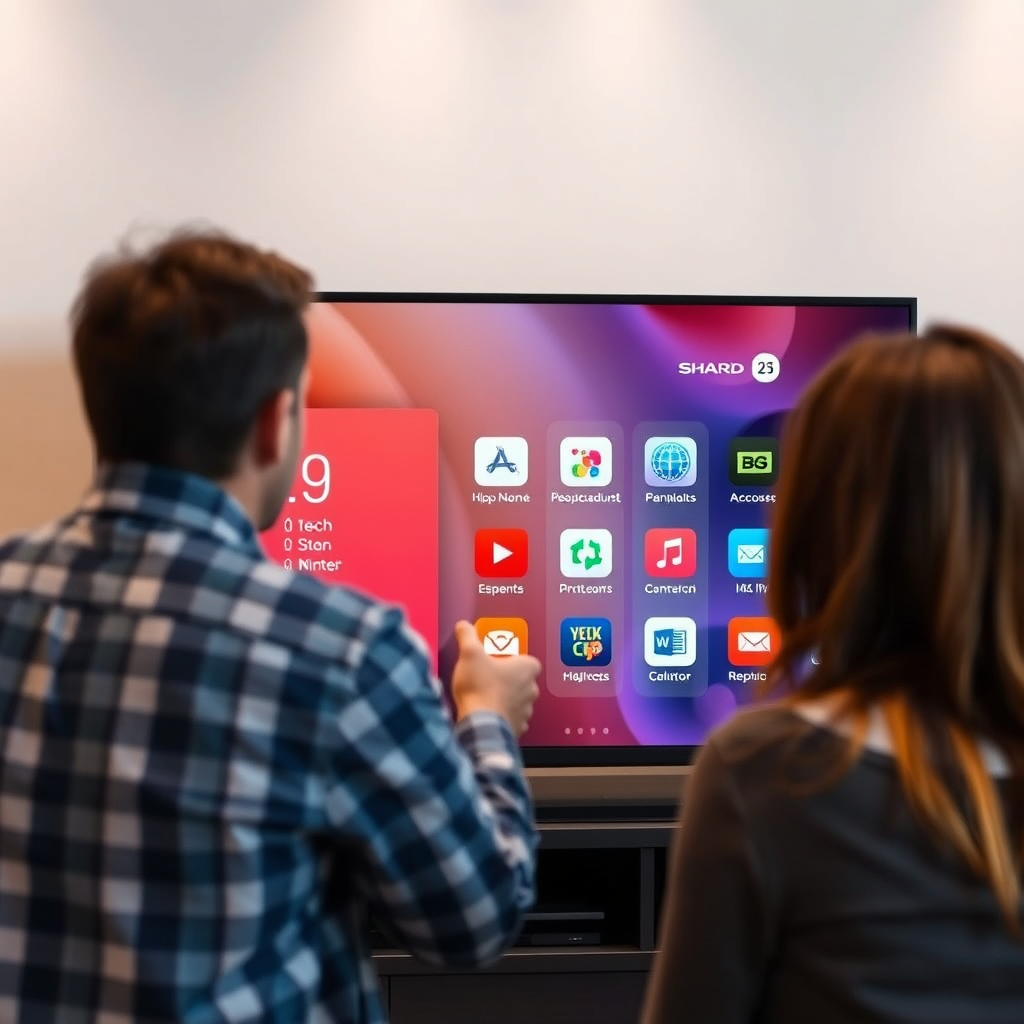
The first step in adding apps to your Sharp Smart TV is to access the home screen. This is your primary navigation hub, where you can control all TV functionalities.
– Press the Home Button: Locate the Home button on your Sharp TV remote, typically marked with a house icon. Pressing this button will bring you directly to the main menu of your TV.
– Navigate to the Apps Section: Once on the home screen, use the arrow keys on your remote to scroll through the available options. Look for the “Apps” section, which is usually found on the main menu or in the list of options. Selecting this will allow you to view all the applications currently available on your device.
Accessing the home screen is a crucial first step, as it provides you the gateway to a world of applications designed to enhance your viewing experience.
Using the App Store
Once you are in the “Apps” section, the next step is to enter the app marketplace.
– Select the App Store: Look for the “App Store” or “Sharp Smart Central” icon. This icon will take you to the vast array of applications available for installation on your TV. The layout of the app store may vary, but it typically includes various categories for easy navigation.
– Browse or Search for Apps: Within the app store, you can either browse through different categories such as “Entertainment,” “Games,” and “News” or use the search feature to find specific apps. This search function is particularly useful if you are looking for popular streaming services like Netflix, Hulu, or Amazon Prime Video.
Exploring the app store gives you the ability to discover new apps that can significantly enhance your entertainment options.
Installing Apps
After finding your desired app, the next step is installation.
– View App Details: Click on the app you wish to install to see more details, including user ratings, descriptions, and the permissions the app requires. This information can help you determine if the app meets your needs.
– Install the App: If you decide to proceed, simply press the “Install” button. The app will begin downloading and installing on your Sharp Smart TV. The installation process may take a few moments depending on your internet speed.
Once the installation is complete, the app will typically appear in your “My Apps” section, making it readily accessible for future use.
Managing Installed Apps
With apps installed, managing them becomes an essential task for maintaining an organized interface.
– Access My Apps: Navigate back to the home screen and select the “My Apps” section. Here, you will see all your installed applications.
– Rearranging or Deleting Apps: You can easily rearrange the order of apps to prioritize your favorites by selecting an app and using the options provided to move it. If you find that you no longer use a particular app, you can delete it by selecting the app and choosing the delete option. This helps keep your interface clutter-free and tailored to your viewing preferences.
Effective management of your apps ensures that you can quickly access your favorite content without sifting through a long list of applications.
Troubleshooting App Issues
Sometimes, issues may arise with installed apps, and knowing how to troubleshoot can save you time and frustration.
– Restart Your TV: If an app isn’t functioning properly, the first step should be to restart your Sharp Smart TV. This can resolve minor glitches that may be affecting app performance.
– Check for Software Updates: Ensure that your TV’s software is up to date. Software updates can improve app compatibility and performance. Navigate to the settings menu to check for any available updates.
– Internet Connection: A stable internet connection is crucial for apps that require streaming. Ensure that your Wi-Fi signal is strong and stable to enhance performance.
By following these troubleshooting steps, you can quickly resolve any issues and maintain optimal app functionality.
Updating Apps
Keeping your apps updated is critical for enjoying the latest features and improvements.
– Check for Updates: Regularly visit the App Store to check for updates for your installed apps. Many apps will notify you when new updates are available, but it’s good practice to check periodically.
– Automatic vs. Manual Updates: Some apps may update automatically, while others will require you to initiate the update manually. Familiarize yourself with how each app handles updates to ensure you have the latest version.
By maintaining updated apps, you can enjoy new features and ensure better performance, enhancing your overall viewing experience.
Exploring Additional Features
Many apps offer additional features beyond just streaming content.
– Account Settings: Within individual apps, you can often customize your experience through account settings. This might include setting up user profiles, managing subscriptions, or adjusting playback preferences.
– Personalized Recommendations: Many streaming apps utilize algorithms to suggest content based on your viewing habits. Familiarize yourself with these features to discover new shows and movies tailored to your interests.
Regularly exploring the features of your installed apps can unlock more value and enhance your viewing experience.
Top 7 Streaming Apps for Sharp Smart TV (2024)
| # | App Name | Genres | Monthly Cost | User Rating |
|---|---|---|---|---|
| 1 | Netflix | Movies, Series | $15.99 | ★★★★☆ |
| 2 | Hulu | TV Shows, Movies | $11.99 | ★★★★☆ |
| 3 | Amazon Prime Video | Movies, Series | $12.99 | ★★★★☆ |
| 4 | Disney+ | Family, Movies | $7.99 | ★★★★☆ |
| 5 | YouTube | All Genres | Free | ★★★★☆ |
| 6 | HBO Max | Movies, Series | $14.99 | ★★★★☆ |
| 7 | Apple TV+ | Movies, Series | $4.99 | ★★★★☆ |
Summarizing the steps to add apps on your Sharp Smart TV can enhance your viewing experience significantly. Start exploring the app store today to discover new content and features that fit your entertainment needs! With a few simple steps, you can access a wealth of applications that cater to your interests, ensuring that your Sharp Smart TV is not just a screen but a gateway to endless entertainment.
Frequently Asked Questions
How do I add apps on my Sharp Smart TV?
To add apps on your Sharp Smart TV, first, turn on your TV and press the ‘Home’ button on your remote. Navigate to the ‘App Store’ or ‘Google Play Store’ if your model supports it, and search for the app you want to install. Once found, select ‘Install’ or ‘Download’ to add the app to your TV.
What apps are available for Sharp Smart TVs?
Sharp Smart TVs offer a variety of apps, including popular streaming services like Netflix, Hulu, YouTube, and Amazon Prime Video. Depending on your TV model and region, you may also find game apps, news apps, and weather applications available for download through the app store.
Why can’t I find certain apps on my Sharp Smart TV?
Certain apps may not be available on your Sharp Smart TV due to compatibility issues or regional restrictions. Additionally, older models may lack the necessary operating system updates to support newer applications, so ensure your TV software is up to date for the best app selection.
How can I uninstall apps on my Sharp Smart TV?
To uninstall apps from your Sharp Smart TV, press the ‘Home’ button and navigate to the ‘Apps’ section. Highlight the app you wish to remove, press the ‘Options’ button on your remote, and select ‘Uninstall’ or ‘Delete.’ Confirm the action to free up space on your device.
Which Sharp Smart TV models support adding apps?
Most current Sharp Smart TV models support adding apps, particularly those running Android TV or the Sharp Aquos platform. To check if your model supports app installation, refer to your user manual or visit the Sharp website for specific features related to your television model.
References
- https://support.sharpusa.com/
https://support.sharpusa.com/ - https://www.lifewire.com/how-to-install-apps-on-sharp-smart-tv-5070152
https://www.lifewire.com/how-to-install-apps-on-sharp-smart-tv-5070152 - https://support.sharpusa.com/ConsumerElectronics/TVs/SmartTVs/Apps
https://support.sharpusa.com/ConsumerElectronics/TVs/SmartTVs/Apps - https://scholar.google.com/scholar?q=how+to+add+apps+on+sharp+smart+tv Google Scholar
https://scholar.google.com/scholar?q=how+to+add+apps+on+sharp+smart+tv - Google Scholar Google Scholar
https://scholar.google.com/scholar?q=Sharp+Smart+TV+apps+installation - https://scholar.google.com/scholar?q=adding+apps+to+smart+TVs Google Scholar
https://scholar.google.com/scholar?q=adding+apps+to+smart+TVs - https://en.wikipedia.org/wiki/Special:Search?search=how+to+add+apps+on+sharp+smart+tv
https://en.wikipedia.org/wiki/Special:Search?search=how+to+add+apps+on+sharp+smart+tv - https://www.ncbi.nlm.nih.gov/search/research-articles/?term=how+to+add+apps+on+sharp+smart+tv
https://www.ncbi.nlm.nih.gov/search/research-articles/?term=how+to+add+apps+on+sharp+smart+tv

[…] the App Store or Apps section from the Smart TV home screen, then search for services like Netflix, Hulu, Disney+, YouTube, or […]
[…] Check for updates in your TV’s app store or system […]
[…] to Settings → System → Check for Updates (menu names vary). On newer SmartCast systems, updates can also bring catalog […]