

Adding apps to your Hisense Smart TV is a straightforward process that enhances your viewing experience by allowing you to access your favorite streaming services and applications. In just a few simple steps, you can customize your TV to suit your entertainment needs. This guide will walk you through the necessary steps to get started.
Understanding Your Hisense Smart TV
Before diving into the app installation process, it’s essential to familiarize yourself with your Hisense Smart TV’s remote control and interface. Most Hisense models come with a simplified remote that features dedicated buttons for quick access to popular streaming services, volume control, and navigation options. The user interface is intuitive, making it easy to navigate through menus and settings.
Additionally, knowing the specific model of your Hisense TV can significantly influence the apps available for download. Hisense produces various models, including those running on their proprietary operating system and those that utilize Android TV. The latter typically has access to a broader range of applications through the Google Play Store. Therefore, confirming your model ensures you are following the correct procedures for app installation.
Accessing the App Store
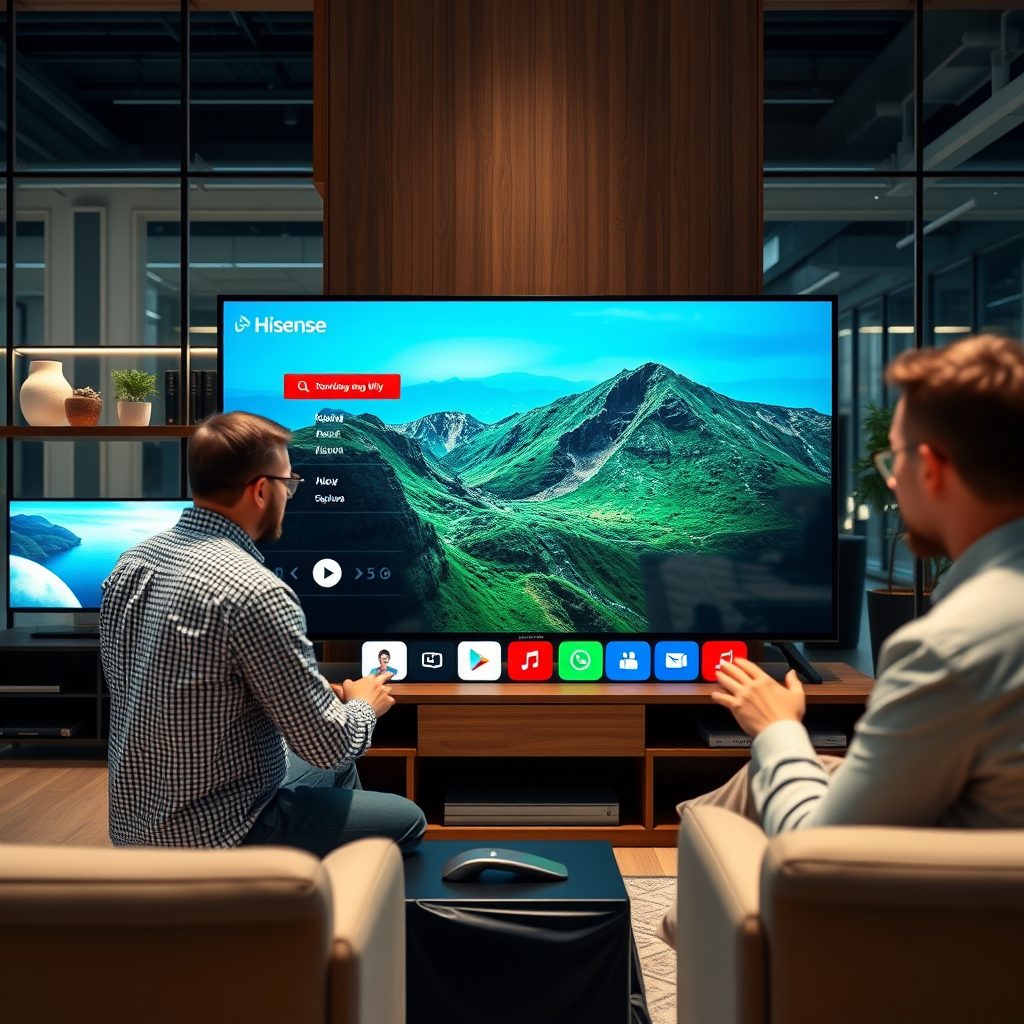
To add apps, start by navigating to the home screen of your Hisense Smart TV using the remote control. This can typically be done by pressing the “Home” button, which takes you to the main interface. Once you’re on the home screen, look for the “App Store” or “Google Play Store” icon. The design may vary slightly depending on your model, but it is usually represented by a shopping bag or a stylized “Play” button.
Click on the App Store icon, and you will be directed to a marketplace featuring various applications available for download. This is where you can explore and find the apps you want to enhance your viewing experience.
Browsing and Searching for Apps
Once you’re in the App Store, you can either browse through different categories or utilize the search function to find specific apps quickly. Categories often include genres such as Movies, TV Shows, Music, and Games, allowing you to discover new and popular applications tailored to your interests.
If you’re looking for a specific app, such as Netflix or YouTube, use the search bar at the top of the screen. Type in the app’s name, and relevant results will appear. This feature saves time and allows you to locate your favorite apps without scrolling through an extensive list.
Popular Streaming Apps for Hisense Smart TV (2024)
| # | App Name | Category | Rating | Availability |
|---|---|---|---|---|
| 1 | Netflix | Streaming | ★★★★☆ | Yes |
| 2 | YouTube | Video | ★★★★★ | Yes |
| 3 | Amazon Prime Video | Streaming | ★★★★☆ | Yes |
| 4 | Hulu | Streaming | ★★★★☆ | Yes |
| 5 | Disney+ | Streaming | ★★★★★ | Yes |
| 6 | Spotify | Music | ★★★★☆ | Yes |
| 7 | Plex | Media | ★★★★☆ | Yes |
Installing Apps
After you have located the desired app, select it from the search results or categories. This will take you to the app’s detail page, where you can see more information, including user reviews and the app’s features. To install the app, simply click on the “Install” button. The download process will begin, and you may see a progress indicator showing the installation status.
Once the app is installed, it will typically appear in your “My Apps” section or on the home screen, depending on your TV’s settings. Ensure that your internet connection is stable to avoid interruptions during the installation process.
Managing Installed Apps
To access the apps you have installed, navigate to the “My Apps” section from the home screen. This section lists all applications that you have added to your Hisense Smart TV. You can manage these apps by selecting an app to open it, or you can move, update, or uninstall apps as needed.
To move an app, highlight it and look for an option to rearrange your apps. For updates, your TV may notify you when an app has a new version available, or you can check manually by selecting the app and looking for an “Update” option. If you wish to uninstall an app, highlight it, and look for the “Uninstall” option, which will remove it from your device.
Troubleshooting Common Issues
While the process for adding apps to your Hisense Smart TV is generally smooth, you may encounter some common issues. If an app fails to install, the first step is to check your internet connection. A weak or unstable connection can hinder the installation process. Ensure that your TV is connected to Wi-Fi and that the signal is strong.
If you continue to have trouble, try restarting your TV. This simple step can often resolve minor software glitches that may be causing issues. After the restart, attempt to reinstall the app. If problems persist, consider checking for software updates for your Hisense TV, as outdated software can affect app compatibility.
Exploring Additional Features
To maximize your Hisense Smart TV experience, explore features that allow you to link your streaming accounts for easy access. Most major streaming apps will allow you to log in with your existing account, saving time on navigating through login screens in the future.
Additionally, many apps have settings that can enhance usability, such as adjusting video quality, enabling subtitles, or setting parental controls. Familiarizing yourself with these settings can provide a more tailored viewing experience.
In summary, exploring the app landscape on your Hisense Smart TV opens up a world of entertainment options tailored to your viewing preferences. Regularly checking the app store for new releases and keeping your software updated ensures that you have access to the latest features and improvements.
By following these steps, you’ll be well on your way to adding apps to your Hisense Smart TV and enjoying a personalized entertainment experience. Don’t hesitate to explore the app store regularly for new additions, and ensure that your TV’s software is updated for optimal performance.
Frequently Asked Questions
How do I download apps on my Hisense Smart TV?
To download apps on your Hisense Smart TV, start by pressing the Home button on your remote. Then, navigate to the “Apps” section, where you can browse the available applications. Select the app you want to download, click on it, and choose “Install” to add it to your TV.
What should I do if I can’t find an app on my Hisense Smart TV?
If you can’t find a specific app on your Hisense Smart TV, check if your TV’s firmware is up to date, as some apps may require the latest software version. Additionally, use the search function in the app store to find the app directly or consider downloading it through an external device like a streaming stick.
Why won’t my Hisense Smart TV install new apps?
Your Hisense Smart TV may not install new apps due to insufficient storage space or an outdated software version. Ensure you have enough memory available by deleting unused apps, and check for updates in the settings menu to resolve any compatibility issues.
Which apps are recommended for Hisense Smart TVs?
Recommended apps for Hisense Smart TVs include popular streaming services like Netflix, Hulu, and Amazon Prime Video, as well as social media apps like YouTube and Facebook. These apps provide a wide variety of content, ensuring you have plenty of entertainment options on your Smart TV.
How can I uninstall apps from my Hisense Smart TV?
To uninstall apps from your Hisense Smart TV, press the Home button on your remote, navigate to the “Apps” section, and locate the app you want to remove. Select the app, press the Options button on your remote, and choose “Uninstall” to remove it from your device.
References
- Smart TV
https://en.wikipedia.org/wiki/Smart_TV - Google Scholar Google Scholar
https://scholar.google.com/scholar?q=how+to+add+apps+to+Hisense+smart+TV - Product Support | Hisense-USA
https://www.hisense-usa.com/support/faq/how-do-i-install-apps-on-my-hisense-tv - Google Scholar Google Scholar
https://scholar.google.com/scholar?q=Hisense+smart+TV+applications - https://scholar.google.com/scholar?q=installing+apps+on+smart+TV Google Scholar
https://scholar.google.com/scholar?q=installing+apps+on+smart+TV - Google Scholar Google Scholar
https://scholar.google.com/scholar?q=how+to+add+apps+to+hisense+smart+tv - how to add apps to hisense smart tv – Search results
https://en.wikipedia.org/wiki/Special:Search?search=how+to+add+apps+to+hisense+smart+tv - https://www.ncbi.nlm.nih.gov/search/research-articles/?term=how+to+add+apps+to+hisense+smart+tv
https://www.ncbi.nlm.nih.gov/search/research-articles/?term=how+to+add+apps+to+hisense+smart+tv

[…] by turning on your smart TV and opening the App Store or Google Play Store (or Samsung Apps) from the home screen. Search for “Hulu” and select Install/Download, then […]
[…] apps to a Sony Smart TV is easiest through the Google Play Store interface, which gives you a fast, reliable way to install and update apps. If your model supports […]