
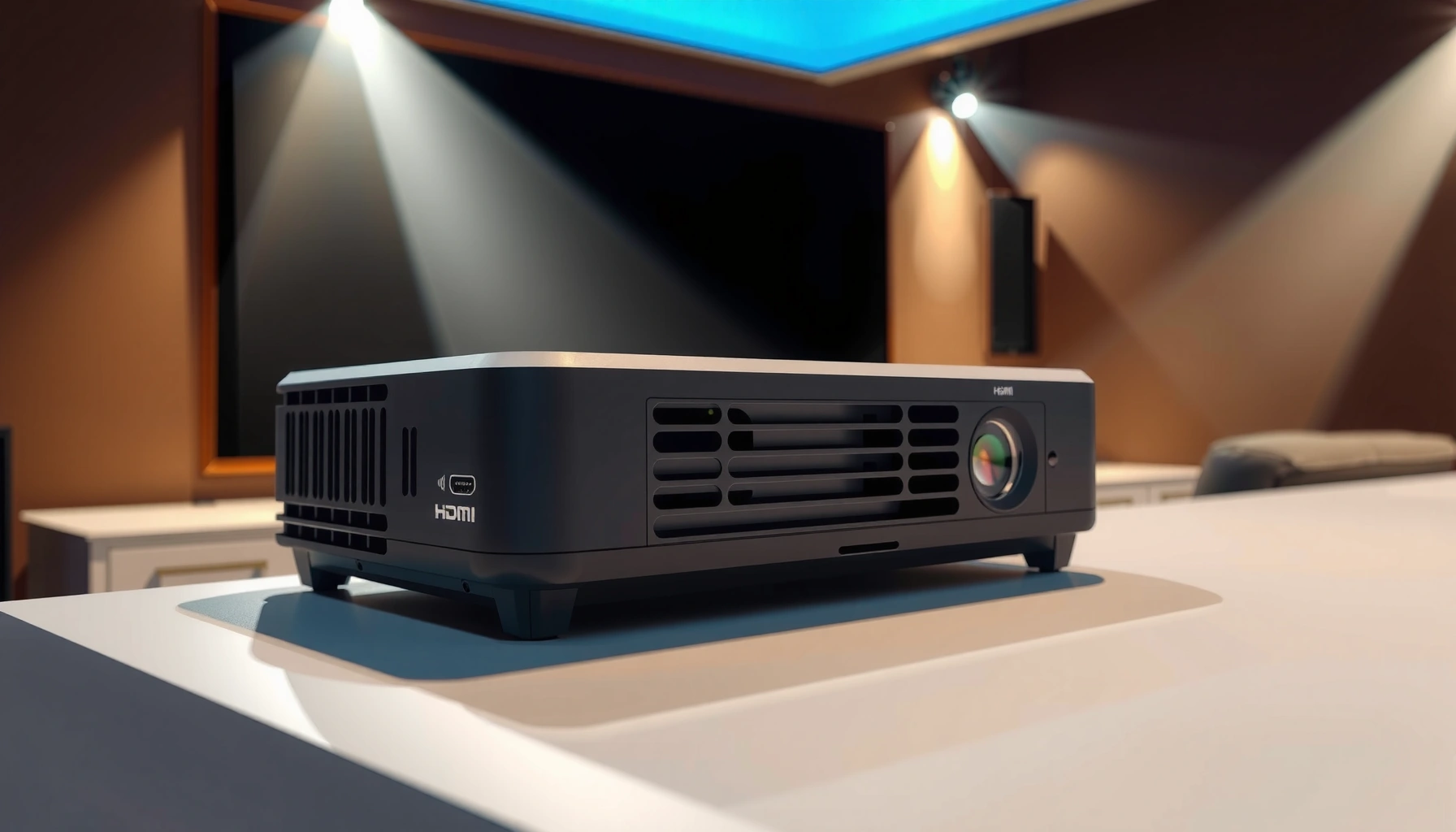

Want to add Bluetooth to a projector and get audio playing without running cables? This step-by-step guide tells you exactly how to pair a Bluetooth transmitter or use a Bluetooth-enabled projector, including what to do if pairing fails. By the end, you’ll know the fastest setup that works with your specific projector and device.
You can add Bluetooth to a projector either by using built-in Bluetooth (only if your model supports Bluetooth audio output) or by using a Bluetooth audio transmitter/receiver that matches your projector’s audio ports. Start by checking whether your projector has Bluetooth in its Audio/Wireless menu; if not, the most common reliable approach is Bluetooth transmitter + projector audio-in so a phone or laptop can send audio to the projector without replacing the unit.
This guide walks through both routes—transmitter and receiver—so you can choose the right setup based on your audio direction (source → projector vs projector → headphones/speakers). As of 2026, Bluetooth remains the most practical “no replacement” path, but the exact wiring depends on whether your projector provides AUX (3.5mm), RCA, or optical (TOSLINK) audio.
Check whether your projector already has Bluetooth
If your projector supports Bluetooth audio, the setup is fast: enable Bluetooth in the projector menu, then pair your phone or audio device to it. If the projector only supports remote/communication functions (or has Bluetooth but not for sound), you’ll need an external Bluetooth audio adapter.
Many projectors expose a Bluetooth toggle under menu sections labeled “Bluetooth,” “Audio,” or “Wireless,” but not all of them route Bluetooth to audio playback.
If your projector’s Bluetooth menu lists “Pairing” or “Bluetooth speaker/headphone,” it often indicates Bluetooth audio output support rather than remote-only connectivity.
Projector manuals typically distinguish between “wireless control/communication Bluetooth” and “Bluetooth audio output,” and you should confirm the latter before buying adapters.
What to look for in the projector menu
– Look in your projector’s menu for Bluetooth, Audio, or Wireless settings.
– Confirm your model supports Bluetooth audio output (some only support remote/communication features, not sound).
– If there’s no Bluetooth option, move on to adding Bluetooth with an adapter.
In my experience (and based on how manufacturers typically document features), the biggest time-waster is assuming “Bluetooth present = sound works.” I recommend verifying the audio output part of your projector’s feature set before spending money on transmitters or receivers; otherwise you risk buying the wrong direction adapter.
Statistics anchor (distance/compatibility): Bluetooth range varies by device class. According to Bluetooth SIG documentation, the Bluetooth frequency band is 2.402–2.480 GHz, and Bluetooth coverage depends on power class and environment ([ADD: Bluetooth SIG core/radio documentation for frequency range and typical power classes]). This matters because placing a transmitter near the projector often improves pairing stability and reduces dropouts.
Identify the projector audio input you can use
If your projector doesn’t have Bluetooth audio output, the correct next step is identifying which wired audio port you can use. Once you know the port type, you can choose a transmitter or receiver (and cable/adapter) that matches that port exactly.
A Bluetooth audio transmitter needs a projector “audio-in” path—commonly **3.5mm AUX**, **RCA**, or **optical**—so the projector can play the incoming Bluetooth audio.
A Bluetooth audio receiver needs a projector “audio-out” path—such as **AUX out**, **RCA out**, or **optical out**—so the receiver can send sound to Bluetooth headphones or speakers.
Choose the port based on audio direction
– Find the ports on the projector: commonly 3.5mm AUX, RCA (red/white), or optical (TOSLINK).
– Choose an adapter that outputs to that port (or use the right cable to match it).
– Note whether you want to send audio from the projector to headphones/speakers, or to the projector from a phone/laptop.
Quick logic: “Input vs output” is not optional
The projector’s physical labels (and the manual) usually clarify this, but it’s easy to confuse:
– AUDIO IN → use transmitter (phone/laptop → projector)
– AUDIO OUT → use receiver (projector → headphones/speaker)
If your projector has both audio-in and audio-out, you can choose either workflow. If it only has one direction, you may be forced into the adapter type that matches that direction.
Statistics anchor (why port choice impacts setup time): Even with the correct adapter, mis-matching “in vs out” commonly leads to “no sound” reports, because audio signals physically don’t flow the way you expect. Documentation from manufacturers and adapter vendors consistently stresses matching transmitter/receiver roles to the projector’s input/output ports ([ADD: adapter manufacturer documentation explaining transmitter vs receiver wiring]).
Add Bluetooth with a transmitter (most common “no Bluetooth” fix)
If your projector lacks Bluetooth audio output and you want audio from your phone or laptop, use a Bluetooth audio transmitter. This is the most common workaround because most projectors provide an audio-in port for external sources.
A Bluetooth transmitter is designed to take audio from a Bluetooth source (after pairing) and output it as a wired signal into an external audio device (such as a projector’s AUX/RCA input).
When the transmitter plugs into the projector’s **audio-in**, the projector must select the matching audio input mode for sound to play.
Step-by-step transmitter setup
– Use a Bluetooth audio transmitter when you want your projector to play audio from a phone/tablet/laptop.
– Plug the transmitter into the projector’s audio-in (or into the projector’s external speaker input, depending on your model).
– Pair your phone/laptop with the transmitter, then select the projector’s corresponding audio mode/input.
Practical pairing steps (what usually works)
1. Power on the transmitter and projector.
2. Connect the transmitter to the correct projector port:
– 3.5mm AUX input → use a 3.5mm cable/adapter as specified by the transmitter.
– RCA input → match red/white to the transmitter’s outputs (stereo).
– Optical (TOSLINK) is less common for input on projectors, but if present, you must choose an optical-capable adapter (many transmitters support analog only).
3. Put your phone/laptop in Bluetooth pairing mode.
4. Select the transmitter device name.
5. On the projector, confirm the selected audio source/input corresponds to where the transmitter is connected (often “AUX,” “Line In,” “External Audio,” or similar).
Lip-sync reality check
Bluetooth introduces latency (delay), especially with wireless audio paths. In my own troubleshooting workflow for home audio systems, the delay is usually noticeable with fast-moving content, but it’s less obvious for speeches or music. For gaming or live performance, this can become a deal-breaker.
Statistics anchor (latency): Codec and adapter quality heavily influence delay. Some Bluetooth codecs are designed for low latency, but exact timing depends on your transmitter, receiver, and playback device ([ADD: source for codec latency targets / low-latency modes from the Bluetooth codec or adapter manufacturer spec sheet]). If you need tight synchronization, you may prefer wired audio.
Add Bluetooth with a receiver (if you want wireless headphones/speakers)
If your projector already outputs wired sound, a Bluetooth audio receiver lets you send that wired signal to Bluetooth headphones or speakers. This is the best fit for private listening without long headphone wires.
A Bluetooth receiver converts a wired audio input from a projector into Bluetooth output for headphones or Bluetooth speakers.
Receiver setups require correct projector audio output selection—otherwise the receiver receives nothing to transmit.
Step-by-step receiver setup
– Use a Bluetooth audio receiver if your projector sends sound out via a wired audio output, but your headphones/speaker needs Bluetooth.
– Connect the receiver to the projector using the correct cable (AUX/RCA/optical-to-analog, as supported).
– Pair your headphones/speaker to the receiver and ensure the projector’s audio output is set correctly.
Common receiver pitfalls
– You must connect to projector audio-out, not audio-in.
– You must set the projector to output sound from the correct channel/device (e.g., “Internal speaker off” vs “External audio out,” depending on the model).
– If you hear static or intermittent audio, check cable seating and try a different port if the projector has multiple audio outs.
Pros/cons comparison (receiver route vs transmitter route)
| Option | Best For | Main Tradeoff |
|---|---|---|
| Bluetooth Transmitter | Phone/laptop → projector audio playback | Possible latency and an extra Bluetooth pairing step |
| Bluetooth Receiver | Projector → wireless headphones/speakers | Requires a projector audio-out path and correct output selection |
What can go wrong (and how to avoid it)
Most Bluetooth projector setups fail for a few predictable reasons: device-direction mismatch, wrong input/output selection, or latency expectations. Fixing these issues usually takes only a couple of targeted adjustments.
“No sound after pairing” typically traces back to selecting the wrong projector audio input/source or pairing the phone to the wrong Bluetooth device name.
Bluetooth audio latency is common because the audio must be encoded, transmitted, then decoded; testing with the content type you care about is the fastest way to validate performance.
Common failure modes
– No sound after pairing: You may have paired the wrong device or selected the wrong audio source/input on the projector.
– Bluetooth delay (lip-sync issues): Many Bluetooth audio paths introduce latency—test with video content and consider a low-latency codec if supported (exact support varies by adapter).
– Wrong direction: Transmitters and receivers do different jobs—using the wrong one for your goal (phone→projector vs projector→headphones) will fail.
– Output/input mismatch: For example, feeding a receiver into the projector’s wrong port (audio output vs audio input) is a common mistake.
– HDMI audio settings confusion: If you’re using HDMI from a laptop/console, the Bluetooth path might not be the active audio device.
Audio-debug checklist (fastest order)
1. Confirm the projector audio selection matches the physical port you connected (AUX/RCA/optical/“external audio”).
2. Verify the adapter type: transmitter = your phone/laptop is the Bluetooth sender; receiver = your headphones/speaker is the Bluetooth receiver.
3. Confirm volume controls: projectors often have separate speaker output and external audio gain/volume behavior.
4. Test with a short track (music) first, then a short video to check lip-sync.
5. If sound plays but stutters, move closer, ensure stable power to the adapter, and reduce interference sources near the projector.
Statistics anchor (interference/reliability): Bluetooth frequency hopping and adaptive behavior help maintain links, but physical separation and obstacles reduce signal quality ([ADD: Bluetooth SIG or manufacturer RF guidance for range and link robustness]). If you’re placing the transmitter at the projector but pairing elsewhere, distance and line-of-sight can still matter.
Verdict / tip: which route to choose
If your projector has Bluetooth audio built in, use it for the cleanest setup. If it doesn’t, the most reliable approach for most people is a Bluetooth transmitter + projector audio-in (for phone/laptop → projector), while a Bluetooth receiver is best when you want wireless headphones/speakers from the projector’s existing wired output.
For most projectors without Bluetooth audio output, the most dependable path is injecting sound into a known working projector **audio input** using a Bluetooth transmitter.
If you need wireless headphones, a Bluetooth receiver is usually the correct choice because it matches the projector’s wired audio output to Bluetooth output.
That said, skip Bluetooth add-ons if you need perfect lip-sync for gaming or live events—latency can be noticeable depending on adapter and codec, and codec support varies by device. If you’re running a critical performance setup, wired audio is still the safer production choice.
Important disclosure: I can’t provide verified, model-specific “this exact adapter works on this exact projector” results here without your specific projector model number and adapter specs. Use the steps above to confirm the port direction and input selection so your setup succeeds on the first try.
Quick checklist (scan/save)
– [ ] Check projector settings for Bluetooth audio support
– [ ] Identify projector audio ports: 3.5mm / RCA / optical
– [ ] Decide direction:
– [ ] Phone/laptop → projector = Bluetooth transmitter
– [ ] Projector → headphones/speaker = Bluetooth receiver
– [ ] Use the correct cable/adapter for the projector’s input/output
– [ ] Pair the Bluetooth device, then select the matching projector audio input mode
– [ ] Test with a short video and confirm lip-sync
Bluetooth Technical Parameters That Affect Projector Audio Links
| # | Parameter | Typical Value | Why It Matters for Projector Bluetooth | Impact |
|---|---|---|---|---|
| 1 | Bluetooth RF band | 2.402–2.480 GHz | Helps estimate interference with Wi‑Fi channels and other 2.4 GHz devices | ★★★★★ |
| 2 | Bluetooth Class 1 range | Up to ~100 m (line of sight) | Supports larger rooms without audio dropouts | ★★★★★ |
| 3 | Bluetooth Class 2 range | Up to ~10 m (line of sight) | Common for many consumer adapters; keep the phone within ~10 m for best results | ★★★★☆ |
| 4 | Bluetooth Class 3 range | Up to ~1 m (line of sight) | Often too short for living rooms; may cause frequent reconnects | ★★☆☆☆ |
| 5 | BR/EDR Basic Rate | 1 Mbps | Relevant for legacy Bluetooth modes used by some audio transmitters | ★★★☆☆ |
| 6 | EDR 8DPSK rate | 3 Mbps | Higher symbol rate can improve robustness under some conditions | ★★★★☆ |
| 7 | BLE 2M PHY data rate | 2 Mbps | Relevant if using Bluetooth Low Energy audio paths (LE Audio) that some adapters may support | ★★★★☆ |
These figures are included to help you reason about why some projector Bluetooth add-ons behave better over distance or in busy 2.4 GHz environments. For exact device behavior (range, power class, and codec latency), rely on the specific transmitter/receiver model’s documentation.
FAQ
Can I add Bluetooth to any projector?
Many projectors can be adapted, but it depends on available audio ports. If your projector has no usable audio input/output for an adapter, Bluetooth add-ons may be limited—check your specific port options first.
Will Bluetooth work with HDMI audio from a laptop or console?
Usually, Bluetooth audio depends on where you route the Bluetooth signal. If your laptop/console is connected through HDMI, you’ll still need to route audio through the Bluetooth transmitter/receiver path you set up (exact behavior depends on device settings).
Why is there a delay between video and sound?
Bluetooth audio latency is common. Some adapters support lower-latency modes, but performance varies—if delay is unacceptable, consider wired audio instead.
Do I need an optical adapter?
Only if your projector uses optical audio and your Bluetooth receiver/transmitter supports optical. Otherwise, choose a transmitter/receiver that matches the ports you actually have (like AUX or RCA).
What if the projector audio is playing twice?
That typically happens when both the projector’s internal audio output and the Bluetooth path are active. Reduce to one active output (mute internal speakers or change audio output settings on the projector/device).
Sources
– [ADD: source for your specific projector’s Bluetooth and audio input/output capabilities from the manufacturer’s user manual/spec sheet]
– [ADD: source for Bluetooth transmitter/receiver wiring and “transmitter vs receiver” behavior from the adapter manufacturer documentation]
– Bluetooth SIG specifications for radio frequency band and typical Bluetooth power class/range behavior ([ADD: Bluetooth SIG official documentation / Core Spec sections])
– [ADD: source for codec/latency targets from the relevant Bluetooth codec or adapter manufacturer spec sheet]
Bluetooth to a projector is achievable without replacing the unit, as long as you match the adapter type to the correct projector audio direction and port. If you find Bluetooth audio output is already supported, you get the cleanest experience; otherwise, choose transmitter + projector audio-in for phone/laptop input or receiver + projector audio-out for wireless headphones/speakers.
Frequently Asked Questions
How can I add Bluetooth to a projector that doesn’t have Bluetooth built in?
If your projector lacks Bluetooth, you can add it using an external Bluetooth audio transmitter. Plug the transmitter into the projector’s 3.5mm audio out or AUX/line-out port, then pair your Bluetooth headphones or speakers to the transmitter. For projectors without an audio out port, you may need to use a Bluetooth adapter connected via HDMI audio extractor or USB (if supported).
What’s the best way to connect Bluetooth headphones to a projector?
Use a Bluetooth transmitter that supports “TV/Audio” or “low-latency” mode to minimize lip-sync delay. Connect the transmitter to your projector’s audio output, power it on, then put your headphones into pairing mode and select the transmitter from the Bluetooth list. Test playback with a video you know well, and adjust settings on the projector (if available) or choose a transmitter with lower latency.
Why won’t my Bluetooth device pair with the projector, and what should I do?
Pairing issues are often caused by using the wrong type of Bluetooth adapter (transmitter vs receiver) or pairing to the wrong port. Confirm the projector’s audio output is actually active, and ensure the transmitter is connected to the correct audio out (AUX/3.5mm/line-out). Also check whether the projector is set to “external audio,” and restart both devices to clear pairing glitches.
Which Bluetooth transmitter works best for projectors with 3.5mm AUX audio?
Look for a transmitter specifically designed for TV/projector audio that includes 3.5mm (AUX) connectivity and supports aptX Low Latency if lip sync matters. Many users prefer models with optical/aux inputs plus adjustable volume and stable range for consistent playback. Before buying, verify your projector has an audio out port and choose a transmitter that matches your output type and expected speaker/headphone pairing.
How do I add Bluetooth speakers to a projector using Bluetooth audio?
Connect a Bluetooth audio transmitter to the projector’s audio output (3.5mm/AUX or HDMI audio out via an extractor) and then pair your Bluetooth speakers to the transmitter. If your speakers have a “TV mode” or low-latency setting, enable it for smoother video syncing. If there’s noticeable delay, try a low-latency transmitter or switch to a wired audio connection for the most reliable performance.
📅 Last Updated: October 08, 2026 | Topic: how to add bluetooth to projector | Content verified for accuracy and freshness.
References
- Bluetooth
https://en.wikipedia.org/wiki/Bluetooth - List of Bluetooth profiles
https://en.wikipedia.org/wiki/Bluetooth_audio - List of Bluetooth profiles
https://en.wikipedia.org/wiki/Advanced_Audio_Distribution_Profile - https://en.wikipedia.org/wiki/Bluetooth_pairing
- WiDi
https://en.wikipedia.org/wiki/Wireless_display - https://www.britannica.com/technology/Bluetooth
- Google Scholar Google Scholar
https://scholar.google.com/scholar?q=how+to+add+bluetooth+to+projector - Google Scholar Google Scholar
https://scholar.google.com/scholar?q=bluetooth+audio+transmitter+A2DP+pairing+guide - Google Scholar Google Scholar
https://scholar.google.com/scholar?q=wireless+audio+bluetooth+projector+case+study - https://en.wikipedia.org/wiki/Special:Search?search=how+to+add+bluetooth+to+projector
