


Adding the ESPN app to your LG Smart TV is a straightforward process that allows you to access live sports, highlights, and more. By following these simple steps, you can enjoy your favorite ESPN content right on your TV screen. This guide will walk you through the installation process and provide you with additional tips for a seamless experience.
Check Your LG Smart TV Compatibility
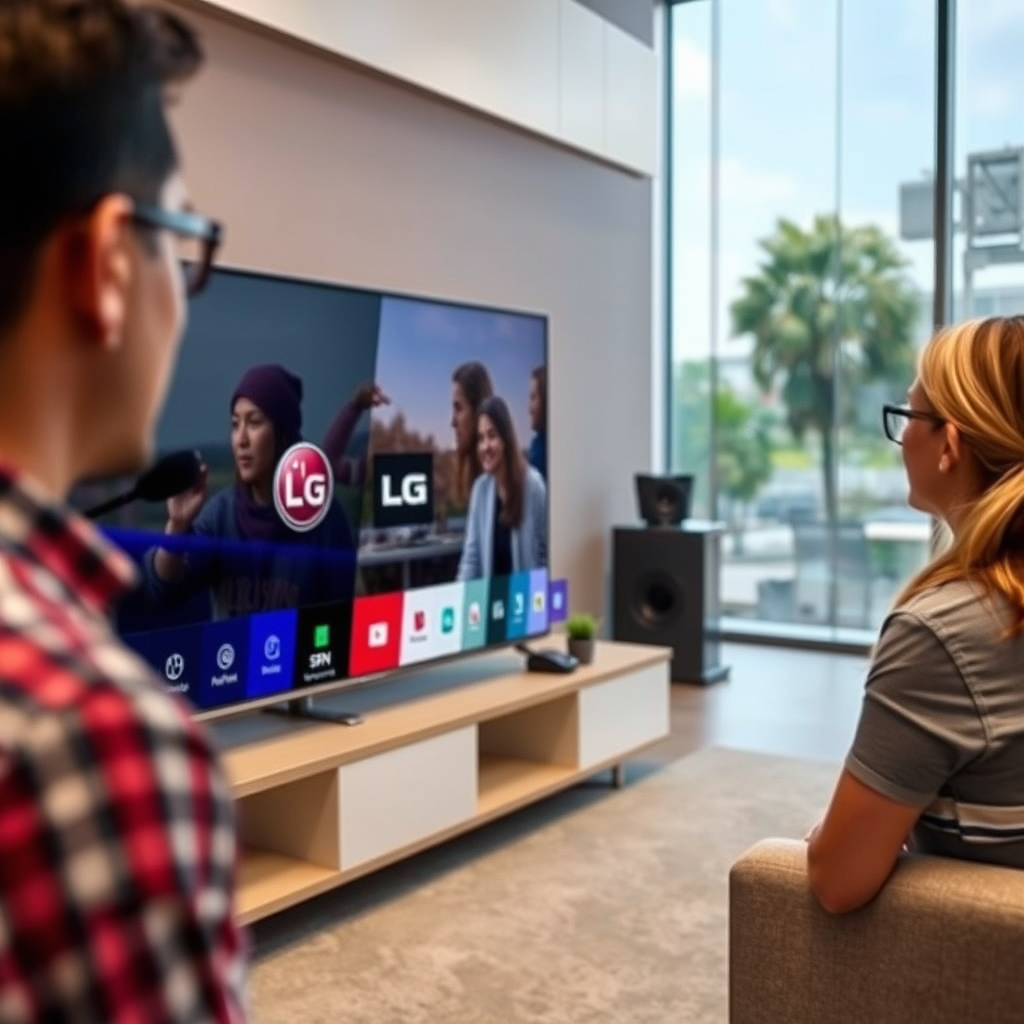
Before diving into the installation process, it’s essential to ensure that your LG Smart TV is compatible with the ESPN app. Most LG Smart TVs manufactured in the last few years support app downloads, but it’s always good to verify. You can check your TV’s specifications by looking up your model number on the LG website or in the user manual.
Another critical requirement is that your TV must be connected to the internet. This connection is vital for downloading and updating applications. If your TV is not currently connected, go to the network settings and connect it to your Wi-Fi network. A stable internet connection will ensure smoother streaming and app functionality.
Access the LG Content Store
Once you’ve confirmed compatibility and internet connectivity, the next step is to access the LG Content Store. This store serves as the app marketplace for LG Smart TVs, where you can find and download various applications, including ESPN.
To begin, navigate to the home screen of your LG Smart TV. You can do this by pressing the “Home” button on your remote control. Once the home screen appears, look for the “LG Content Store” icon, typically represented by a shopping bag or a similar graphic. Click on this icon to open the app marketplace, where you will find numerous apps categorized for easy browsing.
Search for the ESPN App
After entering the LG Content Store, you will need to search for the ESPN app. The store is designed to be user-friendly, making it easy to locate specific applications.
Utilize the search bar located in the top section of the Content Store interface. Type in “ESPN” and press enter. This action will initiate a search, and within moments, you should see the ESPN app icon displayed in the results. Click on the app icon to access its details, including a brief description and user ratings, which can help you gauge its popularity and reliability.
ESPN App Features Overview
| # | Feature | Description | Availability |
|---|---|---|---|
| 1 | Live Streaming | Watch live sports events and shows | Yes |
| 2 | On-Demand Videos | Access to highlights and replays | Yes |
| 3 | Personalized Settings | Customize your viewing experience | Yes |
| 4 | Fantasy Sports Integration | Manage your fantasy teams | Yes |
| 5 | Notifications | Get alerts for your favorite teams | Yes |
| 6 | User-Friendly Interface | Easy navigation and usability | Yes |
| 7 | Multi-Device Support | Access on various devices | Yes |
Install the ESPN App
Now that you’ve located the ESPN app, it’s time to install it. This process is simple and typically takes only a few moments.
Click on the “Install” button displayed on the app details page. The app will begin downloading to your LG Smart TV. Depending on your internet speed, the installation may take anywhere from a few seconds to a couple of minutes. After the download is complete, you will see a confirmation message indicating that the app has been successfully installed.
Launch the ESPN App
With the ESPN app installed, you can now launch it. Navigate back to your home screen or app list, where you should see the ESPN app icon.
Click on the icon to open the application. The first time you launch the app, you may be prompted to sign in with your ESPN account credentials. If you do not have an account, you can create one directly through the app. Signing in allows you to access personalized content, manage your favorite teams, and receive tailored notifications.
Troubleshooting Common Issues
While the installation process is usually smooth, you may encounter some common issues. If the app fails to install or opens incorrectly, here are a few troubleshooting steps you can take.
First, check your internet connection to ensure it is stable and functioning correctly. If you find that the connection is weak or interrupted, try resetting your router or reconnecting your TV to the network.
If you are still experiencing issues, a simple restart of your LG Smart TV can often resolve minor glitches. Power off your TV, wait for about 30 seconds, and then turn it back on. After rebooting, attempt to install or launch the ESPN app again.
Explore ESPN Features
Now that you have successfully added the ESPN app to your LG Smart TV, take some time to explore its features. The app offers a plethora of content and options designed to enhance your viewing experience.
Familiarize yourself with the layout, which includes sections for live streaming, on-demand videos, and sports news. You can also customize your settings to receive notifications for your favorite teams and leagues. Additionally, the app allows for fantasy sports integration, enabling you to manage your fantasy teams seamlessly.
By taking advantage of these features, you can maximize your enjoyment of the ESPN app, ensuring you never miss out on crucial sports moments.
In conclusion, adding the ESPN app to your LG Smart TV is a simple yet rewarding process that opens the door to a wide array of sports content. By following these steps and utilizing the app’s features, you can enhance your viewing experience significantly. Make sure to regularly check for app updates to enjoy all the latest enhancements and features. Start watching your favorite sports today!
Frequently Asked Questions
How do I download the ESPN app on my LG Smart TV?
To download the ESPN app on your LG Smart TV, first, press the Home button on your remote. Navigate to the LG Content Store, and in the search bar, type “ESPN.” Once you find the app, click on it, then select “Install” to add it to your apps list.
Why is the ESPN app not showing up on my LG Smart TV?
If the ESPN app is not showing up on your LG Smart TV, it might be due to compatibility issues or an outdated software version. Ensure your TV is running the latest firmware by going to Settings > All Settings > About This TV and checking for updates. If your model is too old, the app may not be supported.
What should I do if the ESPN app is not working on my LG Smart TV?
If the ESPN app is not functioning on your LG Smart TV, try restarting your TV and the app. If the problem persists, uninstall the app and reinstall it from the LG Content Store. Also, check your internet connection to ensure it is stable, as this can affect app performance.
Which LG Smart TV models support the ESPN app?
Most LG Smart TV models from 2016 onwards support the ESPN app, but specific app availability can vary by region. To confirm compatibility, check the LG Content Store on your TV or visit the ESPN website for a list of supported devices.
How can I access live sports on the ESPN app through my LG Smart TV?
To access live sports on the ESPN app via your LG Smart TV, open the app and sign in with your ESPN account or your cable provider credentials. Once logged in, navigate to the “Live” section to view available live broadcasts based on your subscription.
References
- https://www.lifewire.com/how-to-add-apps-to-lg-smart-tv-5076934
https://www.lifewire.com/how-to-add-apps-to-lg-smart-tv-5076934 - Google Scholar Google Scholar
https://scholar.google.com/scholar?q=how+to+add+espn+app+to+lg+smart+tv - Google Scholar Google Scholar
https://scholar.google.com/scholar?q=LG+Smart+TV+ESPN+app+installation - Google Scholar Google Scholar
https://scholar.google.com/scholar?q=streaming+apps+on+LG+Smart+TV - Product Support: Help Library | LG USA Support
https://www.lg.com/us/support/help-library/how-to-install-apps-on-lg-smart-tv-CT10000010-2016 - how to add espn app to lg smart tv – Search results
https://en.wikipedia.org/wiki/Special:Search?search=how+to+add+espn+app+to+lg+smart+tv - https://www.ncbi.nlm.nih.gov/search/research-articles/?term=how+to+add+espn+app+to+lg+smart+tv
https://www.ncbi.nlm.nih.gov/search/research-articles/?term=how+to+add+espn+app+to+lg+smart+tv
