
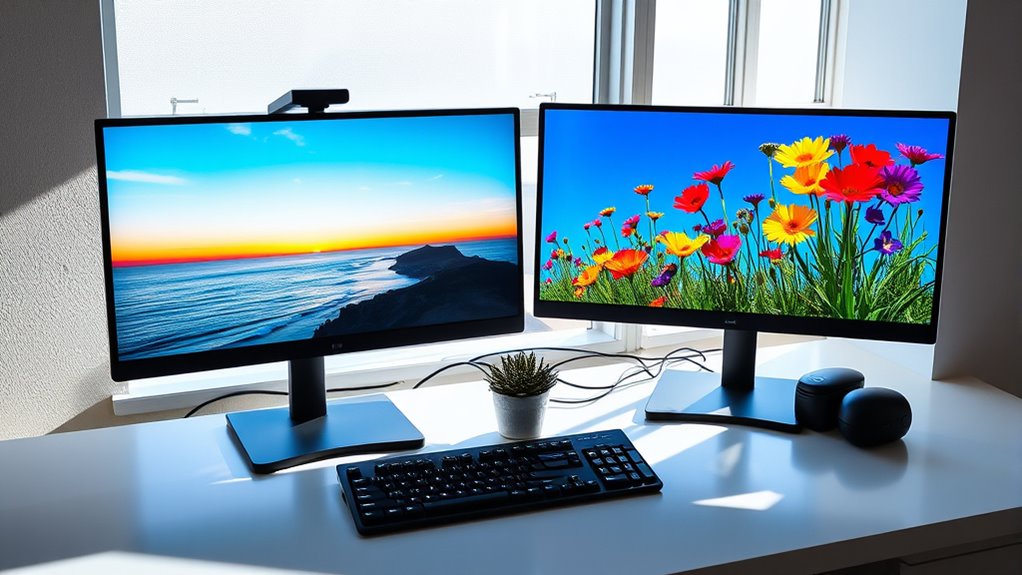

To change both your monitor wallpapers, first, confirm you’ve set up your monitors correctly. On Windows, right-click your desktop, select “Personalize,” and then navigate to “Background” to choose images for each monitor. On macOS, right-click the desktop, choose “Change Desktop Background,” and apply images for each screen. Opt for complementary images and high resolutions for a seamless look. Interested in more tips and tricks for customizing your desktop experience? There’s plenty more to explore!
Understanding Your Monitor Setup
Before you can change your monitor wallpaper, it’s essential to understand your monitor setup. Start by checking your monitor resolution, as this affects how images appear. Higher resolutions provide clearer, sharper visuals, while lower resolutions may distort images.
Next, consider your display arrangement, especially if you’re using multiple monitors. You’ll want to know which screen is primary, as that’s where your wallpaper changes will happen first. In a multi-monitor setup, each display can have its own resolution and orientation, so adjust accordingly to maintain a cohesive look.
Understanding these aspects gives you the freedom to personalize your workspace effectively, ensuring that your wallpaper choice enhances your overall experience and reflects your style.
Changing Wallpaper on Windows
Once you’ve got a good grasp of your monitor setup, changing the wallpaper on Windows is a straightforward process. You can easily personalize your space by using a few simple methods. Here’s how to get started:
Changing your Windows wallpaper is easy and a great way to personalize your workspace. Here’s how to begin.
- Right-click on the desktop and select “Personalize” to access wallpaper settings.
- Use keyboard shortcuts like Windows + I to open Settings directly, then navigate to “Personalization.”
- Explore various wallpaper sources such as online galleries or your own images for unique options.
Once you’ve chosen your desired wallpaper, simply apply it, and enjoy your refreshed backdrop! This simple act can provide a sense of freedom and creativity in your workspace.
Changing Wallpaper on Macos
Changing the wallpaper on macOS is a simple way to make your workspace feel more personal. With various macOS features at your fingertips, you can easily customize your wallpaper preferences. Here’s how to do it:
| Step | Action | Notes |
|---|---|---|
| 1 | Right-click on the desktop | Choose “Change Desktop Background” |
| 2 | Select a folder or image | Explore Apple’s options or your own |
| 3 | Adjust settings | Choose from “Fill Screen,” “Fit to Screen,” etc. |
| 4 | Click “Set Desktop Picture” | Your new wallpaper’s set! |
Now, every time you log in, you’ll enjoy a fresh, personalized view. Embrace your freedom to express yourself through your workspace!
Customizing Wallpapers for Multiple Monitors
When you’re using multiple monitors, choosing the right images can really enhance your workspace. You can opt for images that complement each other or create a stunning panoramic effect. Additionally, setting up different wallpaper styles for each screen can add a personal touch and improve your overall experience.
Choosing Dual Monitor Images
How can you make your dual monitors visually appealing? Choosing the right images is essential, and you want to guarantee they not only look great but also fit well together. Here are some tips to take into account:
- Image Resolution: Make certain your images have high resolutions to avoid pixelation.
- Theme Coherence: Select images that share a common theme or color palette for a harmonious look.
- Aspect Ratio: Confirm the images match the aspect ratio of your monitors to prevent distortion.
Setting Up Wallpaper Styles
Customizing wallpapers for multiple monitors can elevate your workspace considerably. To create a visually appealing environment, start by selecting wallpaper styles that resonate with you and reflect your personality. You might choose a vibrant theme for one monitor and a serene landscape for another, but guarantee there’s some theme consistency to tie them together. This could be through color schemes or design elements.
Once you’ve chosen your images, set them up in your display settings, aligning each wallpaper to its respective screen. If you’re using software, explore options that allow for easy management of multiple wallpapers. This way, you can effortlessly switch styles whenever you want, keeping your workspace fresh and inspiring!
Tips for Choosing the Right Wallpaper
Selecting the right wallpaper for your monitor can greatly improve your workspace’s atmosphere, so it’s essential to take into account a few key factors. First, consider how the colors in your wallpaper will match your overall color schemes. You want something that enhances, not clashes. Second, aim for theme consistency; your wallpaper should reflect the vibe you want in your workspace. Finally, think about the imagery—opt for visuals that inspire and motivate you.
Choosing the right monitor wallpaper enhances your workspace, so consider color harmony, theme consistency, and inspiring imagery.
- Choose soothing colors for a calm environment.
- Select images that resonate with your goals.
- Guarantee high resolution for clarity and detail.
Troubleshooting Common Wallpaper Issues
Even with the perfect wallpaper chosen, issues can still arise when setting it as your monitor background. Common problems include incorrect wallpaper resolution, which can distort the image, and unsupported image formats that prevent the wallpaper from displaying. To help you troubleshoot, here’s a quick reference table:
| Issue | Possible Cause | Solution |
|---|---|---|
| Blurry Image | Low wallpaper resolution | Use a higher resolution image |
| Image Not Displaying | Unsupported image format | Convert to JPEG or PNG |
| Wallpaper Not Changing | Incorrect settings | Revisit your display settings |
| Cropped Image | Aspect ratio mismatch | Adjust settings to fit your screen |
Frequently Asked Questions
Can I Use Different Wallpapers on Each Monitor?
Yes, you can use different wallpapers on each monitor in a dual display setup. Just access your wallpaper settings, select each monitor, and choose your preferred images. It’s a great way to personalize your workspace!
How Do I Find High-Resolution Wallpapers?
You can find high-resolution wallpapers by searching high-quality sources like Unsplash, Pexels, or Wallpaperflare. Look for options that specify wallpaper resolution to guarantee they fit your screens perfectly and enhance your visual experience.
Can I Set a Slideshow as Wallpaper?
Absolutely, you can set a slideshow as your wallpaper! Just explore your slideshow settings, and choose dynamic wallpapers to keep your desktop fresh and engaging. Who wouldn’t love a constantly changing view? Enjoy the freedom!
Are There Any Free Wallpaper Websites?
You can find plenty of free wallpaper collections on popular wallpaper sources like Unsplash, Pexels, and Pixabay. They offer diverse options, ensuring you’ll discover something that matches your style and preferences perfectly.
How Do I Change Wallpapers Quickly?
To change wallpapers quickly, use wallpaper shortcuts for easy access. Organize your desktop with folders for different themes, allowing you to switch backgrounds effortlessly and enjoy a fresh look whenever you desire.
