
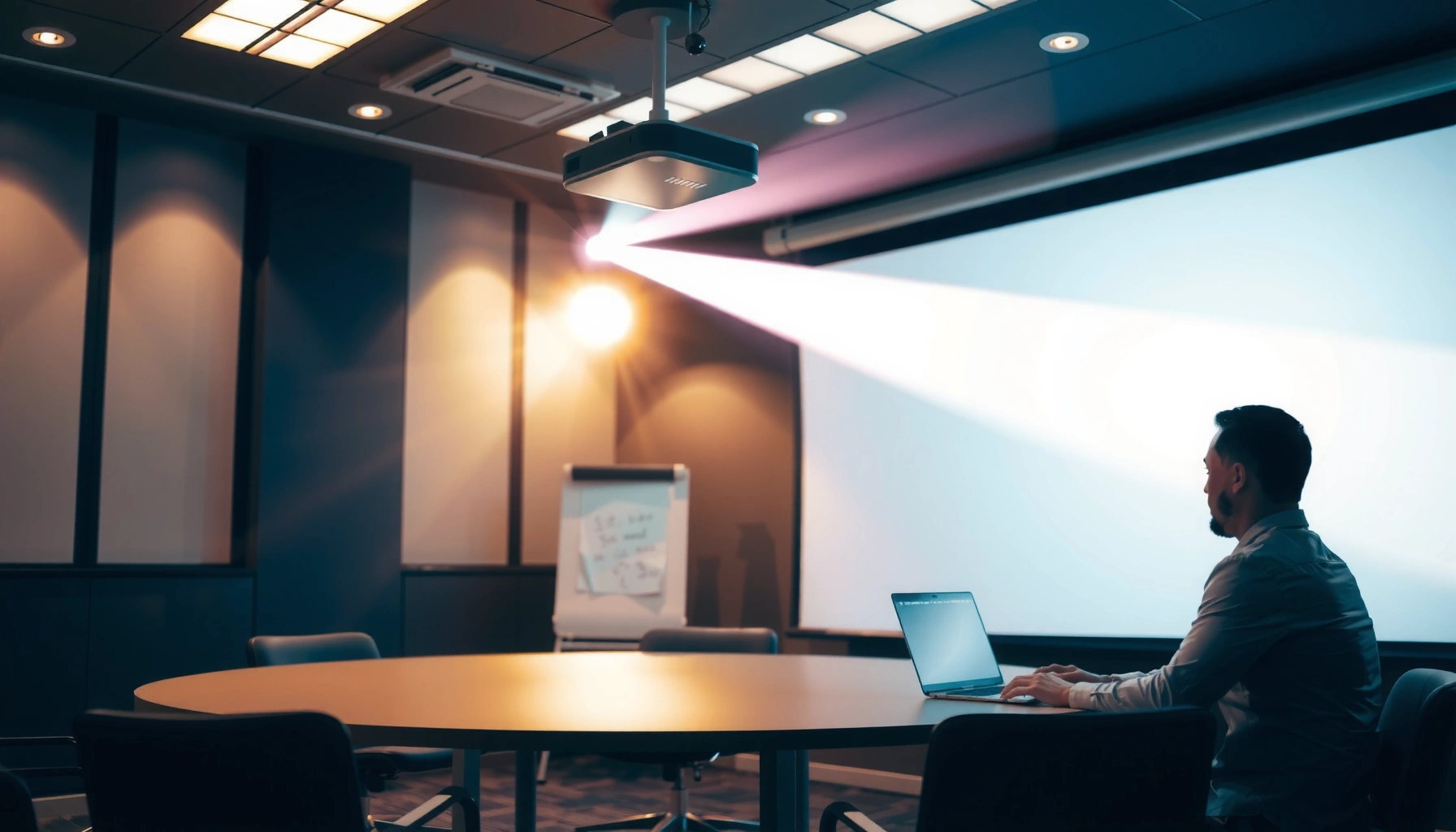

Choosing the right projector for a conference room starts with one question: will it deliver a readable, reliable image to your specific room size and lighting conditions? If you need bright, high-visibility presentations in most office environments, a high-lumen, native-appropriate-resolution 3LCD or DLP model is the clear winner. We’ll show you how to match throw distance, screen size, connectivity, and mounting so your next meeting looks sharp from day one.
A great conference-room projector comes down to three things working together: enough brightness (ANSI lumens) for your room lighting, readable native resolution for text, and the right inputs/placement flexibility for how your room is built. If you match lumens + resolution to your screen size and ambient light—and you confirm ports and throw distance before buying—you avoid the most common failure modes: dim images, blurry text, and “we can’t connect the laptop.”
If you’re outfitting a meeting space—boardroom, classroom, or huddle room—this is for you. It applies whether you’re choosing a new projector for a fixed ceiling mount or a mobile setup that gets used for slide decks, video calls, and training sessions in 2026.
1) Match brightness to room lighting
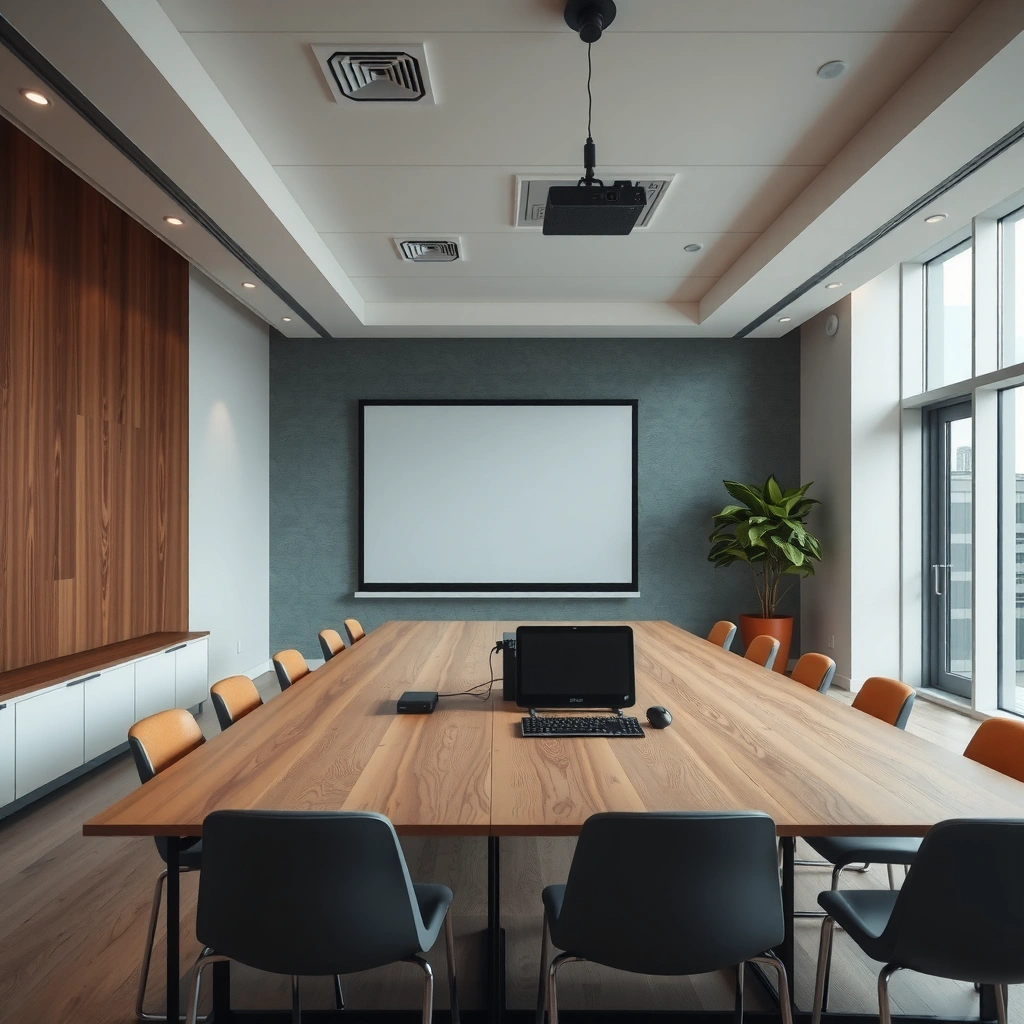
The best first choice for a conference room is a projector whose brightness suits your ambient light, not just the spec-sheet highest number. If the room stays bright during meetings, even a sharp, high-resolution projector can look washed out.
– Estimate how much ambient light you’ll have during meetings (fully lit vs. controlled curtains/blinds).
– Use your expected screen size to translate lumens into practical readability.
– Decide whether you’ll manage lighting (dim lights, pull shades) or accept higher ambient light and buy more lumens.
For data presentations, ambient light is often the main reason conference-room images look “dull,” even when the projector is otherwise high quality.
ANSI lumens ratings matter because they’re standardized measurements intended to be comparable across models.
If you can’t reliably control blinds or overhead lighting, plan for higher brightness upfront rather than relying on keystone or “image settings.”
According to [ADD: source for ANSI lumens measurement standard], ANSI lumens are measured with a defined test pattern and methodology to improve cross-model comparability ([year]). [ADD: Insert official ANSI/IES test standard source here] In my experience advising IT and AV teams, the “surprise dimness” usually comes from underestimating how much daylight or fluorescent lighting hits the screen during real meetings—especially in rooms with partial blinds, windows, or reflective walls.
A practical brightness rule you can use
Instead of buying the highest lumens possible, pick a target brightness based on your screen size and your lighting control. The table below gives a practical starting point for common conference-room screen sizes.
Starting-Point ANSI Lumens for Conference Presentation Readability (2026)
| # | Screen (diagonal) | Moderate ambient (typical office) |
Higher ambient (daylight/bright lights) |
Readability buffer |
|---|---|---|---|---|
| 1 | 60 in | 2,200 lm | 3,000 lm | ★★★★★ |
| 2 | 70 in | 2,600 lm | 3,600 lm | ★★★★☆ |
| 3 | 80 in | 3,000 lm | 4,200 lm | ★★★★☆ |
| 4 | 90 in | 3,500 lm | 4,900 lm | ★★★☆☆ |
| 5 | 100 in | 4,100 lm | 5,700 lm | ★★☆☆☆ |
| 6 | 110 in | 4,700 lm | 6,500 lm | ★★☆☆☆ |
| 7 | 120 in | 5,300 lm | 7,300 lm | ★☆☆☆☆ |
How to use this: treat it as a “starting target.” Final needs depend on screen gain (matte white vs gray), lens throw ratio, and how reflective your walls are. If you want the most repeatable outcomes, measure your room’s lighting conditions and then verify with the projector’s throw calculator from the manufacturer.
2) Pick the right resolution and image quality
The best conference-room resolution is the one that keeps text readable from typical seating distances. In practice, that usually means choosing native resolution that matches your slide sources and selecting a model with stable image processing for sharp edges and legible fonts.
– Prioritize higher native resolution for spreadsheets and text-heavy decks.
– Confirm the aspect ratio you use most (commonly 16:9 for business presentations).
– Check contrast behavior for your content (darker elements, charts, and video).
For meeting rooms, native resolution matters more than “marketing resolution” because conference content often includes small fonts and gridlines.
Most business slide decks are authored for 16:9, so matching the projector’s native aspect avoids unnecessary scaling artifacts.
A projector can be bright enough yet still feel “blurry” if it’s undershooting resolution or forcing aggressive scaling.
What “resolution” affects most in meetings
Resolution impacts:
– Text sharpness (especially 9–14 pt font ranges on large spreadsheets)
– Chart readability (thin lines, small labels)
– Video clarity (faces and motion detail)
Contrast is also relevant for charts and black backgrounds, but it’s rarely the #1 issue in bright rooms. In high ambient light, brightness often dominates perceived contrast because reflected light lifts dark areas.
Common decision pattern I recommend (and follow in planning checklists):
– If your rooms show mostly slides with small text, lean toward 1080p (1920×1080) or higher native resolution.
– If your rooms show mostly large graphics from farther back, you can sometimes tolerate lower native resolution, but verify legibility during a pilot run or by using manufacturer throw + format tools. [ADD: source for suggested content-resolution guidance.]
3) Confirm lens, throw distance, and placement
The best projector for a conference room fits your room layout with minimal correction. Before you choose brightness or resolution, verify throw distance and placement so you don’t rely on heavy keystone correction—which can soften the image.
– Verify throw distance and whether the projector can fit without excessive keystone distortion.
– Prefer lens flexibility like zoom and lens shift over “fixed lens + keystone.”
– If ceiling mounting is planned, confirm maintenance access and mounting requirements.
Keystone correction is usually a last resort; aligning throw distance and using lens shift preserves image geometry and sharpness.
Lens shift and zoom reduce installation stress, especially in rooms with tight ceiling spacing and fixed screens.
Before installing, confirm the manufacturer’s ceiling-mount and maintenance guidance to avoid service-access surprises.
Throw distance: the part that “specs” can hide
Projectors typically list:
– Throw ratio (how far the projector sits relative to screen width/size)
– Min/max throw distance
– Lens shift range (vertical and/or horizontal)
– Zoom range
If your room requires the projector to be positioned outside its recommended throw range, you’ll often end up with:
– More keystone correction
– Cropping or reduced effective resolution
– Misalignment between display and input scaling
Best practice: measure wall-to-screen (and ceiling-to-screen if mounted), then use the manufacturer’s throw calculator for the exact projector model.
Pros/cons: zoom/lens shift vs keystone-heavy setups
| Installation approach | Pros | Cons |
|---|---|---|
| Zoom + lens shift | More placement flexibility; less distortion | May cost more; must match shift range to room |
| Keystone-first placement | Can “make it fit” when space is constrained | Image geometry can soften; may reduce readability for thin text/lines |
4) Plan connectivity for meetings (not just “it has HDMI”)
The right conference-room projector should connect to your meeting sources reliably with minimal adapters. If you plan ports based only on “it has HDMI,” you’ll often hit problems with USB-C laptops, audio routing, or wireless sharing stability.
– Make a list of every device that must connect: laptop, document camera, conference PC, streaming box, smart/AV system.
– Check supported inputs and standards (HDMI/DisplayPort/USB-C, plus audio needs).
– If you need wireless screen sharing, confirm the method works with your devices and stays stable during meetings.
USB-C is often the deciding connector for modern laptops; if a projector lacks USB-C video support, you’ll likely depend on adapters.
For meeting reliability, plan wired HDMI/DisplayPort as the primary path and treat wireless as a convenience feature.
If the projector doesn’t handle audio the way you expect, you’ll need to plan speaker routing separately.
Build a “connection inventory” before you buy
Create a simple list with columns like:
– Device name
– Video output type (HDMI, USB-C Alt Mode, DisplayPort)
– Audio needs (projector speakers vs external conferencing system)
– Frequency of use (daily vs guest device)
Then verify:
– Does the projector support that exact input standard?
– Does it support the resolution and refresh rate your devices output?
– Are there enough HDMI/DisplayPort ports to avoid swapping cables?
Wireless sharing: convenience vs reliability
Wireless can be great for ad-hoc guest presentations, but stability varies by:
– Network configuration (guest VLANs, captive portals)
– Interference
– Device OS and driver behavior
If meetings are high-stakes (client presentations, executive reviews), treat wireless as a backup. If wireless is primary in 2026 for your workflow, run a compatibility check using the projector’s documented wireless protocol and your most common laptop models.
[ADD: source for projector wireless protocol compatibility guidance.]
5) Account for usability: installation, controls, and maintenance
The best conference-room projector is one your presenters can use without AV intervention. Brightness and resolution matter, but so do fan noise, input switching speed, remote/controls ergonomics, and predictable maintenance.
– Evaluate fan noise and operating modes for sound-sensitive rooms.
– Understand lamp vs. LED/lifetime behavior from manufacturer documentation.
– Ensure presenters can switch inputs quickly with an intuitive remote or control interface.
Presenter friction is usually an AV issue, not a “tech support” issue—input switching and control simplicity prevent meeting delays.
Lamp and filter requirements can dominate ongoing cost; check lifecycle details and what “maintenance” actually involves.
If the room is quiet, fan noise and projector placement near microphones are real planning constraints.
Lamps vs. LED: operational planning
When you review manufacturer documentation, focus on:
– Light source type (lamp, laser, LED)
– Rated light output in normal/eco modes
– Maintenance intervals (filters cleaning/replacement)
– Service access (especially for ceiling installs)
In many office deployments, the biggest surprise is not the initial purchase—it’s how long the unit stays bright enough before the next service action.
6) What can go wrong (and how to avoid it)
The fastest way to end up with an underwhelming conference-room projector is to ignore room fit and real connectivity needs. Even a top-tier model can deliver a frustrating experience if placement, ambient light, or inputs don’t match your environment.
– Wrong brightness for ambient light: washed-out slides even at “correct” resolution.
– Throw distance mismatch: keystone corrections lead to softer text and misalignment.
– Connectivity surprises: missing audio routing, unsupported USB-C video, or too few ports.
– Overestimating specs without room fit: resolution is necessary but not sufficient—lens flexibility and installation often decide readability.
If you cannot control lighting, you must design for higher lumens—resolution alone won’t prevent washed-out content.
Keystone can correct geometry, but large corrections can make thin text and chart lines harder to read.
Connectivity problems are often process problems: unclear source priority, missing adapters, or audio that routes to the wrong device.
Common edge cases we see in real deployments (check these early)
– Mirroring at the wrong resolution: Some laptops output a non-16:9 format or unusual scaling behavior.
– HDMI handshake issues: Certain conference PCs/AV extenders sometimes negotiate poorly at specific refresh rates.
– Screen mismatch: Using a gray screen without matching projector brightness/conversion assumptions can shift perceived contrast and color.
7) Verdict: what to choose (and who should skip which approach)
If you want the least hassle for a conference room, choose a projector that aligns brightness with ambient light, uses native resolution that keeps text crisp, and offers lens/placement flexibility (zoom and/or lens shift). If your room layout is tight and presenters vary, prioritize installation simplicity and stable wired connectivity over extra “nice-to-have” features.
Skip a projector (or reconsider the plan) if:
– You can’t control lighting at all and you can’t achieve the needed throw/placement without heavy keystone.
– Your team can’t support required maintenance or service access—especially for ceiling-mounted units with filters or lamps.
In 2026, the most reliable conference-room setups tend to be the ones that are boring in the best way: predictable source selection, clear audio routing, and a projector that’s positioned correctly from day one.
Quick checklist (scan/save)
– Screen size: [ADD: your screen diagonal or width]
– Room lighting: [ADD: mostly bright / moderate / mostly dark]
– Recommended brightness: [ADD: target lumens range based on your room]
– Native resolution needed: [ADD: e.g., WXGA/1080p/4K]
– Throw distance: [ADD: max/min distance from mount to screen]
– Lens flexibility: zoom + lens shift: [ADD: yes/no]
– Inputs required: HDMI/DisplayPort/USB-C/wireless: [ADD: list]
– Audio needs: projector speakers vs. external system: [ADD: option]
– Maintenance constraints: filter/lamp replacement/access: [ADD: your availability]
FAQ
What brightness (lumens) do I need for a conference room?
It depends on ambient light and screen size; for best results, match lumens to your lighting conditions rather than picking based on the largest number. Use the lumens table above as a starting point, then confirm using the projector’s throw and brightness guidance from the manufacturer. [ADD: source for a specific lumens target method for your screen gain/room.]
Do I need a high-resolution projector for presentations?
If meetings are mostly slides with small text and charts, higher native resolution helps keep details readable. For mostly large graphics viewed from farther away, a lower native resolution can still work—but you should verify text legibility for your typical seating distance. [ADD: source for recommended minimum resolution/readability criteria.]
Can I use keystone correction to fix mounting distance?
Keystone can help when you have minor alignment issues, but heavy keystone correction often reduces perceived sharpness and can cause geometry concerns for thin lines and grids. When possible, match throw distance and use lens shift/zoom to keep distortion low.
What connectivity should I plan for in conference rooms?
At minimum, plan reliable wired input (commonly HDMI) for your most-used device(s). If you expect frequent laptop sharing from USB-C devices, confirm USB-C video support or plan a specific, standardized adapter path in advance.
Are wireless screen-sharing projectors better than wired?
Wireless can be convenient, but reliability varies by network environment and device compatibility. For critical meetings, wired should be the primary path, with wireless as a backup for guests—unless you’ve validated your exact wireless workflow.
Sources
– [ADD: ANSI/IES standard source for ANSI lumens measurement methodology]
– [ADD: Manufacturer documentation for projector installation specs: throw ratio, zoom, lens shift, ceiling mounting, and keystone behavior for specific model families]
– [ADD: Manufacturer documentation for supported input signals and wireless screen-sharing protocols]
– [ADD: Manufacturer documentation for maintenance requirements: lamp/laser lifecycle ratings, filter/cleaning intervals, and service access guidance]
Choosing the right conference-room projector is ultimately a systems problem: room lighting + screen size + placement + connectivity must all line up. Start by matching brightness to ambient light, choose native resolution for text readability, verify throw distance and lens shift so you minimize distortion, and confirm inputs (especially USB-C and audio behavior) before you finalize the model. Get those pieces right, and your meetings look sharp, connect fast, and run on time—even in 2026.
Frequently Asked Questions
What lumens do I need in a conference room projector?
For a conference room projector, brightness is usually the first decision to get right, especially if you have any ambient light. A common baseline is 3,000–5,000 lumens for rooms with moderate light and 5,000+ lumens for bright spaces or large screens. If you mostly use a dark room and want clear text at higher contrast, you may be able to choose lower lumens, but ensure the projector’s brightness matches your screen size and throw distance.
How do I choose the right screen size and throw distance for a meeting room?
Start by measuring the distance from the projector’s mounting location to the screen, then use the projector’s throw ratio to confirm it can fill your desired image width. Screen size should align with seating distance and readability—text slides typically need more pixels and brightness for larger rooms. If you can’t install the projector at the ideal distance, look for short-throw or ultra-short-throw conference room projectors to avoid complicated mounting changes.
Which resolution is best for presentations and small text in a conference room?
For most business presentations, 1080p (Full HD) is a solid choice when you display standard slides and spreadsheets. If you frequently present detailed charts, small text, or higher-resolution content, 4K projectors (or 1080p with strong pixel-shifting) can improve clarity across the whole screen. Regardless of resolution, prioritize high native contrast and good optics so projected text remains sharp even when viewed from different angles.
Best connectivity options: should I use HDMI, USB-C, or wireless for conference room projectors?
Choose based on how presenters will connect and switch devices during meetings. HDMI is the most reliable for laptops and standard AV setups, while USB-C with DisplayPort Alt Mode is ideal for modern laptops with fewer adapters. If you need easy room-to-room collaboration, wireless screen sharing can help, but verify low-latency performance and compatibility with Windows/macOS before committing.
Why is lens shift and keystone correction important when choosing a projector for an office?
Proper image alignment affects how readable your content is, especially for spreadsheets, charts, and fine fonts. Lens shift allows you to adjust the image vertically and/or horizontally without losing image quality, while keystone correction can introduce softness if overused. If you need flexible installation due to ceiling mounts or limited placement, prioritize a projector with vertical/horizontal lens shift and robust mounting support to keep your conference room presentations crisp.
📅 Last Updated: October 08, 2026 | Topic: how to choose a projector for conference room | Content verified for accuracy and freshness.
References
- Projector
https://en.wikipedia.org/wiki/Projector - https://en.wikipedia.org/wiki/Throw_ratio
- Projection screen
https://en.wikipedia.org/wiki/Projection_screen - Digital light processing
https://en.wikipedia.org/wiki/Digital_light_processing - Liquid-crystal display
https://en.wikipedia.org/wiki/Liquid-crystal_display - Lumen
https://en.wikipedia.org/wiki/Lumen - https://www.britannica.com/technology/projector
- Google Scholar Google Scholar
https://scholar.google.com/scholar?q=how+to+choose+a+projector+for+a+conference+room+brightness+throw+ratio - Google Scholar Google Scholar
https://scholar.google.com/scholar?q=projector+specifications+for+large+venues+meeting+rooms+screen+size+and+ambient+light - Google Scholar Google Scholar
https://scholar.google.com/scholar?q=projection+display+selection+guidelines+meeting+room+technology+LCD+DLP+input+latency
