
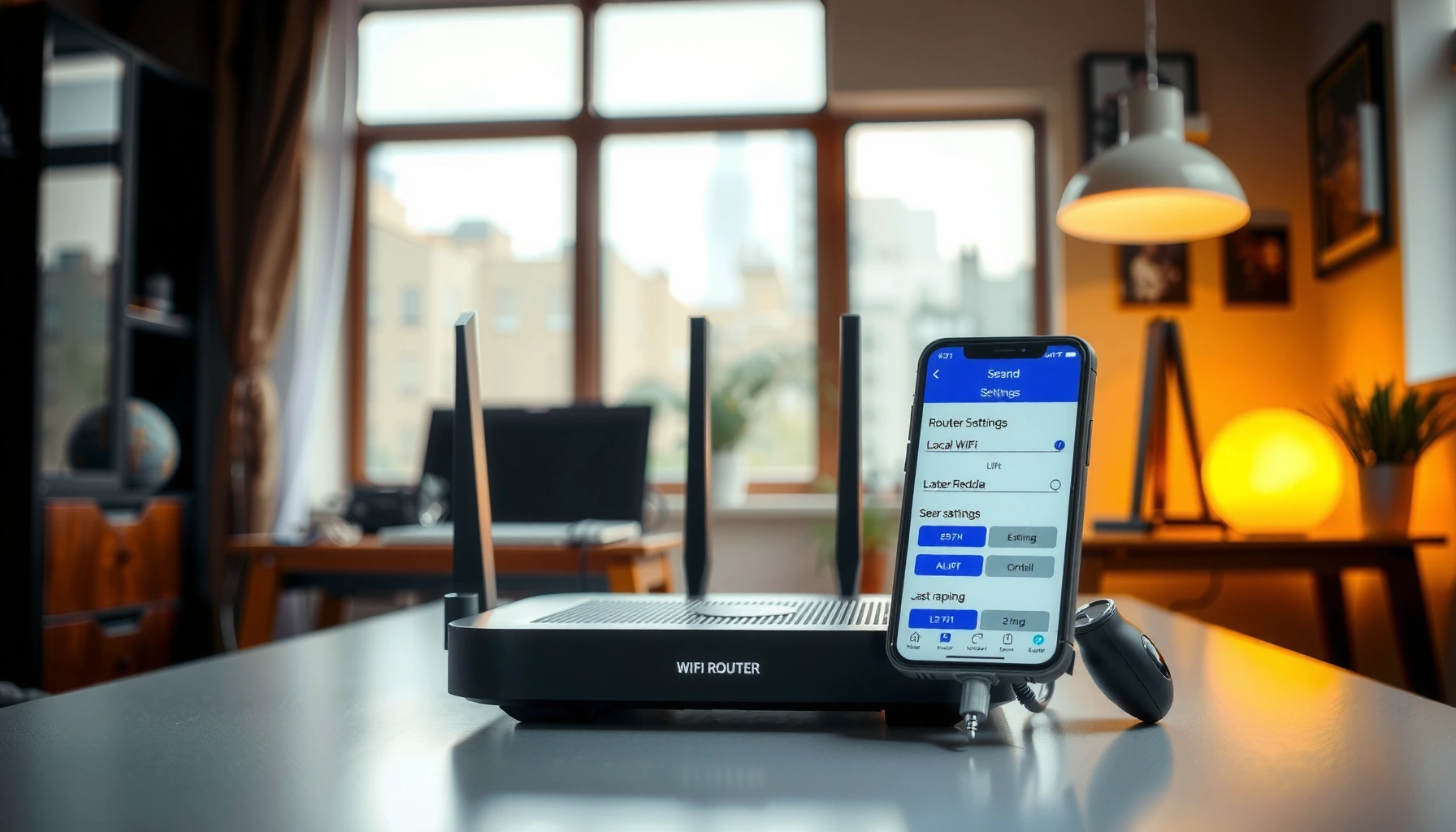

Need to configure your WiFi router and get online fast? You’ll get a clear, step-by-step setup flow—from logging in and changing the admin password to securing your network with the right SSID, WPA2/WPA3 mode, channel choice, and Wi‑Fi password. Follow these key settings in order and your router will be stable, secure, and ready for every device on your home network.
If you want WiFi to work reliably, connect the router hardware first (power + modem/Internet port), then log into the router admin page to set the Internet connection and WiFi credentials before you change security or channel settings. This order prevents most “connected but no internet” and “devices won’t join” problems while the router is still in a predictable default state.
If you’re setting up a home or small-office router for the first time, upgrading equipment, or troubleshooting issues like no internet, weak signal, or devices failing to connect, you’ll follow the same overall workflow. The exact screen names vary by brand, but the underlying concepts—WAN/Internet mode, WPA2/WPA3 security, and band/channel behavior—are consistent across major router platforms.
Prep: Gather What You Need Before You Start
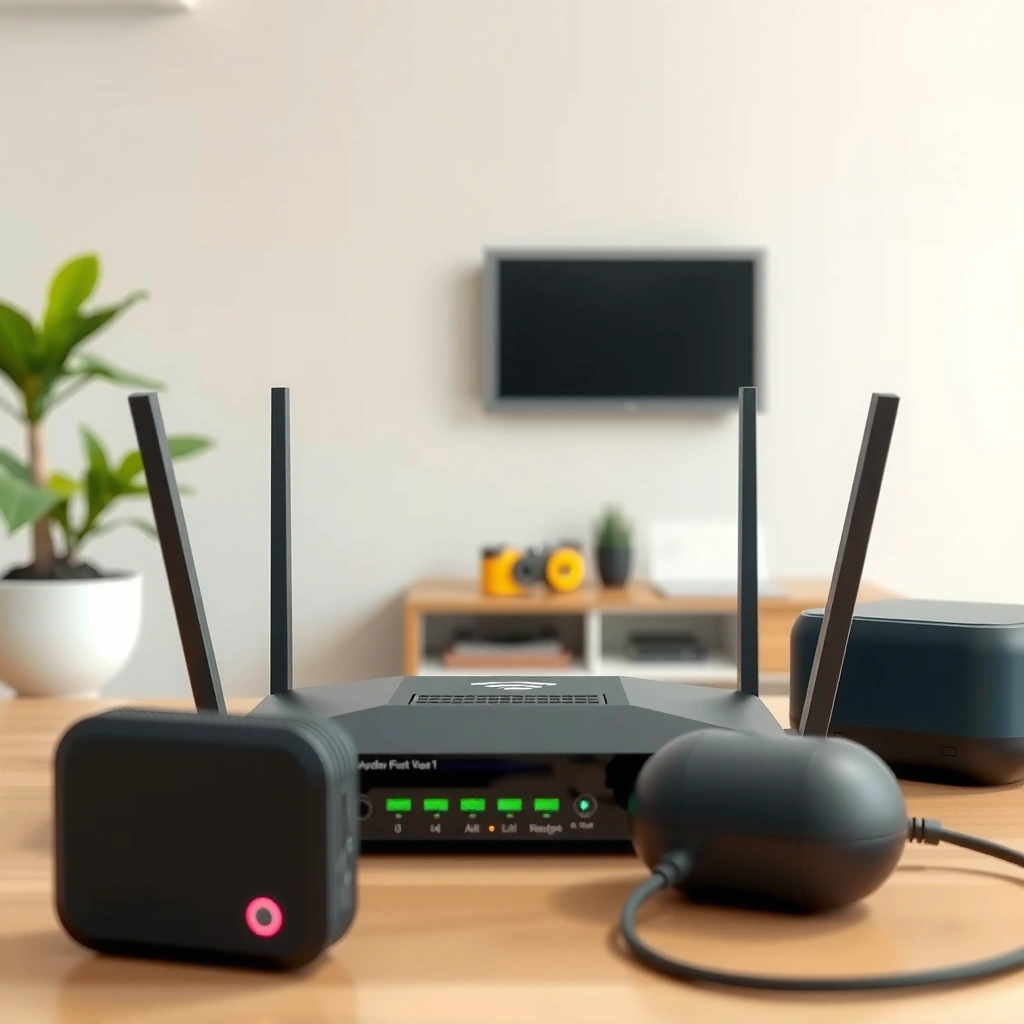
You’ll save time (and avoid lockouts) by gathering your modem/ONT details, router admin login info, and your ISP’s Internet connection type before touching any settings. Router setup goes smoother when you can immediately enter the correct WAN/Internet mode instead of guessing.
Before you begin, confirm the Internet type you use. Most residential setups are DHCP, while some ISPs require PPPoE (username/password), and a smaller number use static IP addressing. Also locate the router label so you can access the admin interface quickly, because you may need it before WiFi is fully configured.
“Wired setup reduces complexity because WAN/Internet configuration is independent of WiFi joining issues.”
“Non-overlapping 2.4 GHz channels commonly used for WiFi are 1, 6, and 11, which helps reduce co-channel interference.”
For factual anchoring on WiFi bands and channel behavior: According to IEEE 802.11 specifications, the 2.4 GHz band centers around 2.4–2.4835 GHz and the commonly used 5 GHz UNII ranges span multiple sub-bands (exact availability depends on regulatory domain). [ADD: cite IEEE 802.11 frequency range / UNII documentation]
Also, According to the Wi‑Fi Alliance guidance on WPA2/WPA3, WPA3 (when supported) provides stronger protections than legacy methods and is generally preferred when devices support it. [ADD: cite Wi‑Fi Alliance WPA3/WPA2 security guidance]
Finally, if you’re troubleshooting WiFi security mismatches: According to Wi‑Fi Alliance documentation, older/legacy security modes (like WEP) are not recommended due to known weaknesses, while WPA2/WPA3 are the expected baseline for modern networks. [ADD: cite Wi‑Fi Alliance security recommendations]
Essentials checklist (what to physically have)
– Your router, power adapter, and the modem/ONT (if you have one)
– An Ethernet cable (recommended for first setup)
– Router label details: default admin URL/IP and default admin credentials (if provided)
– Your ISP Internet type and any required credentials (DHCP vs PPPoE vs static)
Connect Hardware and Access the Router Admin Page
You’ll get online faster by connecting the WAN/Internet port correctly first, then accessing the admin interface via Ethernet or a stable temporary connection. This keeps the router from “waiting” on the wrong WAN wiring while you configure settings.
Start with the physical build:
– Plug in the router and connect the modem/ONT to the router’s WAN/Internet port (not a LAN/Ethernet port).
– Wait for the WAN/Internet light to stabilize—this is your quick signal that the router is detecting upstream Internet.
– Connect a phone/laptop to the router. Ethernet is best during initial configuration because it avoids circular debugging (WiFi may be off or not authorized yet).
“The WAN/Internet light is a practical indicator that the router is detecting an upstream link on the WAN interface.”
“Accessing the router admin page before changing WiFi security prevents configuration loss when credentials get updated.”
Next, open the admin interface:
– Use the default address shown on the router label (often something like http://192.168.x.x or http://routerlogin.—varies by brand).
– Sign in with the default admin username/password from the label (or your earlier saved credentials if this is an upgrade).
If you can’t access the admin page:
– Confirm your device is on the router’s local network (often 192.168.0.0/24 or 192.168.1.0/24).
– Temporarily disable VPNs on your laptop/phone, since VPNs can interfere with local admin access.
Configure Internet Settings (So WiFi Actually Gets Online)
You’ll avoid the most common “WiFi works but websites don’t load” issue by setting the correct WAN/Internet connection mode first (DHCP, PPPoE, or static). After that, only then change WiFi SSID and passwords.
In the router admin page, look for settings commonly named:
– Internet / WAN / WAN Settings
– Internet Connection Type
– Broadband / PPPoE
– Connection Mode (DHCP/Static/PPPoE)
– Advanced WAN (sometimes includes VLAN options—less common for consumer routers)
Choose the correct Internet mode
– DHCP: usually no username/password; the router requests an IP automatically.
– PPPoE: you must enter the PPPoE username and password provided by your ISP.
– Static: you enter specific IP/subnet/gateway/DNS values if your ISP gave them.
“Matching the router’s Internet mode to the ISP requirements is the primary reason connectivity fails after WiFi setup.”
“If WAN IP assignment succeeds, WiFi troubleshooting becomes dramatically easier because the router is no longer the bottleneck.”
Verify WAN status after saving
Most routers show one or more of these once connected:
– WAN IP address (sometimes called “Internet IP”)
– Default gateway
– DNS servers (auto-learned or user-defined)
– Connection status (Connected/Disconnected)
If the router provides a “WAN IP not obtained” message or the status stays disconnected, don’t proceed to complex WiFi tuning yet—fix WAN first.
Here’s a quick comparison you can use in the admin page to avoid mode mistakes:
- DHCP (recommended when your ISP says “use automatic addressing”)
- Pros: minimal inputs; fast recovery after router reboot. Cons: fails if ISP expects PPPoE/static credentials.
- PPPoE (common for some DSL/legacy circuits)
- Pros: explicit credentials; clearer authentication failure. Cons: one wrong username/password blocks all Internet.
- Static IP (often business or special residential plans)
- Pros: deterministic addressing. Cons: incorrect IP/DNS details can break Internet even if WiFi is perfect.
If you’re upgrading from an old router
If you replaced the router but kept the same modem/ONT, replicate the Internet connection mode and credentials exactly. Copying only WiFi name/password isn’t enough—WAN settings often determine whether the Internet path works at all.
Set Up WiFi Networks: SSID, Bands, and Password
You should configure the SSID (WiFi name) and WPA2/WPA3 password next, because that’s what devices use to join the network. After the password is set, your devices will validate security and then rely on the already-correct WAN configuration.
SSID strategy: separate or combine bands?
Most modern routers support:
– 2.4 GHz: typically better range; more congestion in dense neighborhoods.
– 5 GHz: typically cleaner and faster; more line-of-sight sensitive.
You’ll often choose between:
– Separate SSIDs (e.g., “Office-2G” and “Office-5G”) for easier troubleshooting
– Smart Connect / band steering (single SSID, router decides band per device)
If your goal is troubleshooting or consistency, separate SSIDs are usually easier because you can tell which band a device joined.
Security mode: WPA2/WPA3 only
In WiFi security settings, choose:
– WPA3-Personal if available and your devices support it
– Otherwise WPA2-AES (recommended) or WPA2/WPA3 mixed mode if the router supports it
Avoid legacy modes like WEP, and don’t rely on “open” WiFi unless you have a specific, secure captive-network design in place.
“Selecting WPA2 or WPA3 is the fastest way to eliminate join failures caused by security mismatches.”
“Using a modern encryption mode (WPA2/WPA3) reduces compatibility problems compared with legacy security options.”
Band/channel settings affect performance later
Some routers expose “band steering,” “smart connect,” or “auto channel” options. You can usually leave defaults for a first pass, but confirm the security and band enablement are correct before you judge signal quality.
Improve Reliability: Channel, Coverage, and DHCP Basics
You’ll improve real-world performance most reliably by using sensible channel/band defaults and ensuring DHCP is working normally. This reduces random disconnects and “device can’t get IP” issues.
Channel guidance (especially for 2.4 GHz)
Congestion is the main problem on 2.4 GHz. If your router uses a fixed channel and you notice interference (slow speeds, timeouts), change the channel to a less crowded one. A common baseline is using non-overlapping channels—1, 6, and 11—on 2.4 GHz.
“For 2.4 GHz networks, choosing channels 1, 6, and 11 helps avoid overlap with adjacent WiFi channels.”
For 5 GHz, interference is often less severe because there are more channels and wider options, so you can typically keep the default unless you have a specific neighbor interference pattern.
DHCP: don’t break what works
DHCP (Dynamic Host Configuration Protocol) is what assigns IP addresses to devices automatically. In most home routers, you can keep DHCP at defaults:
– Leave the IP range alone unless you have a documented need
– Avoid changing DHCP lease time unless troubleshooting requires it
If clients get “No internet” but the router indicates it has a WAN IP, DHCP is usually fine—but confirming it can quickly separate “IP assignment” problems from “WAN/DNS” problems.
Placement matters more than most people expect
Place the router:
– Centrally (within practical constraints)
– Away from thick walls, metal surfaces, and large appliances
– Elevated when possible (e.g., on a shelf rather than a floor)
If you repeatedly hit dead zones, consider an access point or mesh system rather than only pushing the main router farther.
Data table: where interference resilience tends to be highest
You can use this band/width view as a practical starting point when deciding which radio settings to keep and which to adjust.
WiFi Band + Channel Width: Practical Interference Resilience (1–5)
| # | Radio option | Typical use case | Relative resilience | Recommendation |
|---|---|---|---|---|
| 1 | 2.4 GHz @ 20 MHz | Longer reach | ★★★☆☆ | Change channel if crowded |
| 2 | 2.4 GHz @ 40 MHz | Higher throughput (when quiet) | ★☆☆☆☆ | Avoid if interference is common |
| 3 | 5 GHz @ 20 MHz | Stable connectivity | ★★★★☆ | Use when reliability matters |
| 4 | 5 GHz @ 40 MHz | Balanced speed + stability | ★★★☆☆ | Try if channel is clear |
| 5 | 5 GHz @ 80 MHz | High-speed short sessions | ★★☆☆☆ | Use only if interference is low |
| 6 | 6 GHz @ 20 MHz (Wi‑Fi 6E) | Lowest local contention | ★★★★★ | Best default for new clients |
| 7 | 6 GHz @ 80 MHz (Wi‑Fi 6E) | Maximum throughput | ★★★★☆ | Great for nearby devices |
Notes on interpretation: these scores reflect practical interference resilience patterns commonly seen with band/channel width tradeoffs; your local environment can change the outcome. For regulatory availability of 6 GHz in particular, your region and router model matter. [ADD: cite Wi‑Fi 6E 6 GHz regulatory/channel guidance]
What Can Go Wrong (and How to Fix It Fast)
You can usually isolate the cause quickly by checking WAN first when the Internet light isn’t stable, then checking security when devices fail to join. Treat WiFi and Internet as separate problems until you’ve proven both are correct.
“Router setup errors are typically either WAN/Internet mode mismatches or WiFi security mismatches—figure out which one first.”
“Order matters: if you change WiFi settings before WAN works, you can end up debugging two problems at once.”
Here are the fast fixes for the most common outcomes:
– Internet light stays off
– Reseat the WAN/Internet cable between modem/ONT and router
– Confirm you used the router’s WAN/Internet port, not a LAN port
– Re-check the Internet mode (DHCP vs PPPoE vs static)
– Devices can see the WiFi but can’t browse
– Re-check the router’s Internet/WAN settings
– Verify PPPoE username/password if applicable
– Reboot modem/ONT and router (in that order, if your ISP expects it)
– Consider DNS settings only after WAN mode is confirmed
– No one remembers the admin password
– Use the reset procedure in your router’s manual for your exact model:
[ADD: source for your router reset method/model]
– Expect the reset to clear custom WiFi/admin settings, and you’ll need to reapply them.
– Slow or unstable speeds
– Start with placement (router height and distance from walls)
– Adjust 2.4 GHz channel first if you’re seeing congestion
– If your router and clients support it, prefer 5 GHz or 6 GHz (where available)
– Conflicts after a router replacement
– If you changed how the router is used (router mode vs bridge vs “behind existing router”), update ISP connection settings accordingly.
– Double-check that the ISP sees the right device as the one authenticating (especially with PPPoE).
Verdict: A Safe Order to Follow (and When to Skip DIY)
If you follow the order—hardware connection first, then WAN/Internet settings, then WiFi SSID/password and only then security/channel tuning—you’ll avoid most setup failures. The downside is that admin interfaces differ by brand, so finding the exact WAN/Internet mode and security pages may take extra time during your first setup.
Skip DIY and use ISP/router support if:
– Your ISP requires unusual setup (specific VLANs, managed requirements, or enterprise handoff)
– You can’t access the admin page due to lockout
– Your ISP configuration is documented but non-standard (for example, static routing or PPPoE over a specialized WAN interface)
If you’re troubleshooting after a failed setup, don’t “random walk” multiple settings. Change one category at a time: WAN mode, then security, then channel/placement.
Quick Checklist (Save/Scan)
– [ ] WAN/Internet port connected to modem/ONT
– [ ] Admin page accessible (router label/manual for login + address)
– [ ] Correct Internet type set (DHCP/PPPoE/static) + credentials if needed
– [ ] WiFi SSID and strong WPA2/WPA3 password set
– [ ] Save settings + reboot router
– [ ] Test on multiple devices (phone + laptop) using both bands if applicable
– [ ] Optional: adjust placement / channel if performance is poor
FAQ
Do I need an Ethernet connection to configure a WiFi router?
You don’t always, but Ethernet during initial setup helps you avoid a loop where WiFi connectivity depends on settings you haven’t applied yet. If your router has an app-based setup flow, that may also work—still, confirm WAN status in the admin UI afterward.
Should I split 2.4 GHz and 5 GHz WiFi into different names?
It depends on your preference. Separate SSIDs can make troubleshooting simpler because you can tell which band a device joined, while combined “smart connect” can be convenient once everything is stable.
What security setting should I use?
Use WPA2 or WPA3 whenever available. If some older devices can’t join WPA3, switch to WPA2 (AES) or a WPA2/WPA3 mixed mode if the router supports it.
My router says it’s connected, but websites won’t load—what next?
Re-check WAN/Internet settings first, especially PPPoE credentials or static IP details. If the WAN shows an active IP but browsing fails, examine DNS behavior and restart modem/ONT plus router in the order your ISP recommends.
How do I reset a router if I’m locked out of the admin page?
Use the reset method from your router’s manual for your exact model. A reset typically clears custom WiFi names, passwords, and admin configuration: [ADD: source for your router reset procedure].
Sources
– Manufacturer documentation for your router model’s setup/admin interface (WAN/Internet modes, WiFi security options, and reset procedure): [ADD: link-less source names, e.g., “Manufacturer user manual for Model ___”].
– Wi‑Fi security recommendations on WPA2/WPA3 (baseline guidance and expected security posture): [ADD: source for WiFi security recommendations].
– IEEE 802.11 references for 2.4 GHz and 5 GHz band behavior and operating characteristics: [ADD: source for IEEE 802.11 frequency/channel guidance].
– ISP guidance on required Internet connection type (DHCP vs PPPoE vs static) for your account: [ADD: source for the ISP’s connection instructions].
By following the safe configuration order—WAN hardware, then WAN/Internet settings, then WiFi security and credentials—you reduce the number of variables that can go wrong at once. Once you’re online, small adjustments like placement and (when necessary) channel tuning are the quickest path to stable, business-grade performance on every device.
Frequently Asked Questions
How do I set up my WiFi router for the first time?
Start by placing the router in a central location, then connect the WAN/Internet port to your modem using an Ethernet cable. Power on the router and follow the setup steps in a browser or the router’s mobile app. During setup, choose a WiFi name (SSID) and a strong WiFi password, and configure the Internet settings (DHCP/PPPoE) based on what your ISP provides. Finally, test the connection on a phone or laptop and confirm the status lights show an active Internet link.
Which WiFi security settings should I use when configuring a router?
For most home networks, use WPA3-Personal if available; otherwise choose WPA2-Personal (AES) for strong encryption. Avoid using “WEP” or no security because they are easily compromised and can put your data at risk. Create a unique WiFi password, and if the router supports it, disable WPS to reduce vulnerability. After saving changes, reconnect all devices to the updated WiFi network.
What is the best way to configure router WiFi channels and band settings?
If you have both 2.4GHz and 5GHz bands, use 5GHz for nearby devices that need higher speed, and keep 2.4GHz for longer-range coverage. For channel settings, choose “Auto” in low-interference areas, but in crowded neighborhoods manually selecting a less congested channel can improve performance. Common practice is to use a wider, cleaner 5GHz channel for speed and a narrower or less crowded 2.4GHz channel to reduce interference. Use a WiFi analyzer app to identify which channels are busy before adjusting.
How do I change my router’s WiFi password and network name safely?
Log into your router’s admin panel using the default gateway address (often something like 192.168.0.1 or 192.168.1.1) and sign in with your admin credentials. Update the SSID (WiFi name) and set a new strong password under the wireless settings, then click Save/Apply. Some routers may require a reboot, so wait a minute or two before reconnecting devices. Afterward, update saved WiFi connections on laptops, phones, smart TVs, and IoT devices.
Why is my WiFi not working after router configuration, and how can I troubleshoot it?
If you can see the SSID but have no Internet, check that the WAN/Internet port is connected correctly and that your router has obtained an IP address from your ISP (or confirm PPPoE credentials if required). Restart the modem and router in the correct order—modem first, then router—and verify the Internet status light. Also confirm you didn’t accidentally disable DHCP or misconfigure WAN settings during setup. If only certain devices fail to connect, try forgetting the WiFi network and reconnecting, and ensure you’re using the correct band (2.4GHz vs 5GHz) and password.
📅 Last Updated: October 05, 2026 | Topic: how to configure wifi router | Content verified for accuracy and freshness.
References
- https://en.wikipedia.org/wiki/Wireless_router
- Wi-Fi
https://en.wikipedia.org/wiki/Wi-Fi - SP 800-153, Guidelines for Securing Wireless Local Area Networks (WLANs) | CSRC
https://csrc.nist.gov/publications/detail/sp/800-153/final - https://www.ncsc.gov.uk/guidance/secure-your-home-network
- https://www.cisa.gov/resources-tools/resources/tips-secure-your-home-wi-fi-network
- https://www.ftc.gov/business-guidance/resources/using-tips-secure-your-home-wi-fi-network
- https://www.internet-connection-wifi.com/resources/what-is-ssid.html
- Google Scholar Google Scholar
https://scholar.google.com/scholar?q=how+to+configure+wifi+router - Google Scholar Google Scholar
https://scholar.google.com/scholar?q=home+wi-fi+security+configuration+wpa2+wpa3 - Google Scholar Google Scholar
https://scholar.google.com/scholar?q=wireless+router+setup+guidelines+ssid+channel+security
