


WiFi extenders work by receiving your existing WiFi signal, amplifying it, and rebroadcasting it to cover dead zones—so if your router’s signal is weak in certain rooms, a WiFi extender is the fastest fix. This guide explains exactly how a WiFi extender connects, what “range” really means in practice, and which setup choices determine whether you’ll gain usable speed or just more coverage with reduced throughput. Get the clear answer to whether a WiFi extender will boost your signal where you need it, and how to place it for the best results.
A WiFi extender takes your router’s existing wireless signal, receives it, and then rebroadcasts it to improve coverage in dead zones. In practice, performance depends heavily on how the extender connects back to your router (WiFi “backhaul” vs Ethernet), and on whether it’s placed where the router signal is strong enough to repeat. If you’re fighting dead spots across bedrooms, garages, basements, or multiple floors, the right placement plus the right backhaul method can make the difference between “it shows up” and “it actually works.”
If you’ve tried a range extender before and still saw slow speeds or frequent drops, this guide is built to help you understand the mechanism—so you can fix the cause instead of swapping hardware blindly.
How a WiFi Extender Works (Step-by-Step)
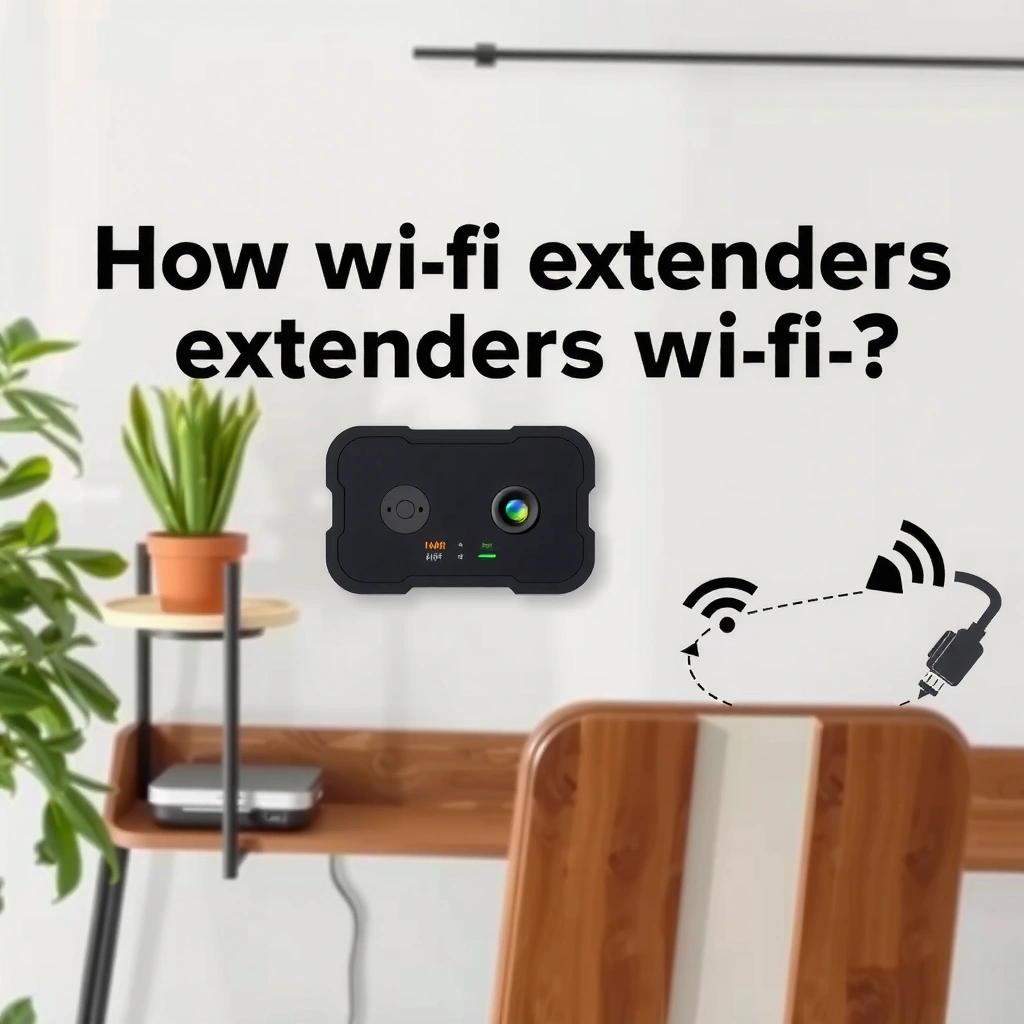
A WiFi extender works by creating a “second wireless leg” between your router and your devices, using the router’s signal as its input. The extender then rebroadcasts that connectivity so your phone, laptop, and smart home devices can reach the network farther away than the router alone can manage.
– It listens for your current router’s WiFi signal and captures it at the extender’s location.
– It amplifies/reshapes the signal and broadcasts a new network name (or the same one, depending on your setup).
– The extender then provides that rebroadcast WiFi to your phone, laptop, or smart devices.
A WiFi extender operates as a “receiver + transmitter” that listens for the router’s SSID and rebroadcasts connectivity to clients in a coverage gap.
When an extender rebroadcasts the same SSID, it still typically creates an additional hop (router → extender → device) that can affect latency and throughput.
Extenders rely on signal quality at their installation spot—if the router signal arriving at the extender is weak, the extender can only rebroadcast that degraded signal.
What’s happening inside the extender
Inside most extenders, the process is straightforward: a wireless radio scans and associates with the router, the extender buffers and retransmits data frames, and then the second radio (or the same radio in some models) serves clients on the extended WiFi. In technical terms, the extender is essentially a bridge that repeats over WiFi, often using a separate client-facing interface and a backhaul interface.
A critical detail is airtime—the limited time the WiFi channel is available. If the extender must both receive from the router and transmit to your device on the same frequency band (a common situation with older single-radio extenders), it can “trade” airtime between backhaul and client traffic, which is one reason speeds can feel underwhelming even when coverage improves.
Two common SSID behaviors (and why it matters)
Some extenders broadcast a new SSID like `HomeWiFi_EXT`, while others can mirror the original network name. Mirroring can simplify setup, but it doesn’t remove the extra hop or the underlying bandwidth constraints. Whether you see separate SSIDs or a unified one, your device still associates with the strongest available signal—so placement and band support still dominate real-world performance.
Quick grounding in a few concrete numbers
Extenders are affected by the same physics as all WiFi: wall attenuation, interference, and channel reuse. For example:
– According to the FCC’s Part 15 rules governing unlicensed operation in the 2.4 GHz band, the usable channel plan in North America commonly results in three non-overlapping 20 MHz channels (1, 6, 11). [ADD: cite source for 2.4 GHz channel non-overlap guidance—FCC or a standards-based reference]
– According to IEEE 802.11 channelization practices, WiFi throughput can rise with wider channels (e.g., 20/40/80 MHz), but wider channels also increase interference risk in busy environments. [ADD: cite source—IEEE 802.11 standard section on channel widths]
– According to common Wi-Fi hardware capability classes, 802.11ac and 802.11ax often advertise support for 80 MHz (and some models for wider), which is why a good backhaul link can materially change how “fast” the extender feels. [ADD: cite source—IEEE 802.11ac/ax material on channel widths]
WiFi Extender vs. Mesh vs. Router: What’s the Difference?
A WiFi extender extends coverage but typically adds an extra hop, which can reduce performance compared with devices connected directly to the router. Mesh systems are designed to coordinate multiple nodes more seamlessly, while a router upgrade improves your signal at the source rather than repeating it elsewhere.
– Extenders add an extra hop (router → extender → device), which can reduce performance compared with direct router coverage.
– Mesh systems use multiple units designed to coordinate more smoothly, often with better roaming behavior.
– A router upgrade improves the origin signal at the source, while an extender focuses on extending coverage.
An extender usually increases the hop count between router and client, which can raise latency and reduce throughput compared with direct router coverage.
Mesh systems are designed for coordinated node communication, which often improves roaming and can reduce the pain of band steering and handoffs.
A router upgrade targets the root cause (weaker origin signal), while an extender adds a downstream repeating link.
Comparison at a glance: which approach fits what problem?
In my experience, the choice becomes easy once you identify whether you need more signal strength, more reliable handoffs, or a higher-quality backhaul.
| Approach | Strength | Tradeoff |
|---|---|---|
| WiFi Extender | Fills specific dead zones quickly | Often slower due to extra hop and/or WiFi backhaul airtime limits |
| Mesh | More consistent roaming and coordinated nodes | Higher cost; still depends on node placement and backhaul quality |
| Router Upgrade | Improves the origin signal and reducing need for repeaters | May not cover remote areas separated by heavy obstructions |
Pros/cons structure (decision-friendly)
Pros of an extender
– Lower cost and simpler deployment than full mesh in many cases
– Excellent for “one problem area” (e.g., garage or basement corner)
Cons of an extender
– May cut throughput because it must both receive and retransmit
– Can create confusing “which WiFi is better?” behavior if SSIDs aren’t configured well
– Placement becomes more critical than with a mesh node
Common Connection Methods (WiFi vs. Ethernet Backhaul)
A WiFi extender’s connection method determines how much speed you keep. If the extender uses WiFi backhaul, it’s often competing for airtime; if it uses Ethernet backhaul, it can reduce that contention and feel more stable.
– WiFi backhaul: the extender uses WiFi to talk to the router and rebroadcast to clients.
– Ethernet backhaul: the extender connects to the router using Ethernet, which can improve stability and reduce some speed loss.
– If your extender supports it, a “reliable backhaul” usually means fewer bottlenecks than WiFi-only setups.
WiFi backhaul extenders often share the same wireless spectrum for receiving and transmitting, which can reduce throughput versus an Ethernet backhaul.
Ethernet backhaul moves the router-to-extender traffic onto a wired link, typically improving stability and reducing airtime contention.
Backhaul quality matters as much as client-side signal strength because the extender cannot rebroadcast what it cannot reliably receive.
Quick reality check: radio capacity vs. advertised speed
Many extenders advertise impressive “up to X Mbps” numbers. Those are usually PHY (physical layer) link rates under ideal conditions, not real application throughput. In the real world, backhaul method and interference can dominate the outcome.
Below is a practical reference for how Wi‑Fi generation and typical peak link rates relate to the kind of bottlenecks you might see when repeating signal.
Typical “Peak” Link Rates by Wi‑Fi Generation (2×2 stream class)
| # | Wi‑Fi generation (IEEE) | Common band | Peak link rate (2×2) | Backhaul impact risk |
|---|---|---|---|---|
| 1 | 802.11n | 2.4 GHz | Up to ~300 Mbps | ★☆☆☆☆ |
| 2 | 802.11n | 2.4/5 GHz | Up to ~300 Mbps | ★★☆☆☆ |
| 3 | 802.11ac (Wi‑Fi 5) | 5 GHz | Up to ~867 Mbps | ★★★☆☆ |
| 4 | 802.11ac (Wi‑Fi 5) | 5 GHz | Up to ~1,300 Mbps (4×4) | ★★★★☆ |
| 5 | 802.11ax (Wi‑Fi 6) | 2.4/5 GHz | Up to ~1,201 Mbps (2×2, 80 MHz) | ★★★☆☆ |
| 6 | 802.11ax (Wi‑Fi 6) | 2.4/5 GHz | Up to ~2,402 Mbps (4×4, 80 MHz) | ★★★★☆ |
| 7 | 802.11be (Wi‑Fi 7) | 2.4/5/6 GHz | Multi‑Gbps class (depends on profile) | ★☆☆☆☆ |
Why this matters for extenders: even if your extender “supports” high link rates, repeating over weak backhaul can force the link down to a lower modulation/coding scheme, shrinking the effective throughput you see at your device.
How to Set Up a WiFi Extender Without Guessing
A WiFi extender setup becomes predictable when you control three variables: location, pairing method, and post-install signal strength. The goal is simple—place the extender where it can reliably receive your router, then verify performance at the edge of the new coverage.
– Place the extender roughly halfway between your router and the weak area—then fine-tune based on signal strength lights/app.
– Choose the setup mode your extender supports (often WPS or a setup page/app).
– After pairing, test on a device near the edge of coverage and move the extender if the signal indicator is too low.
Placing an extender where it receives a strong router signal is the single biggest factor in avoiding poor “repeat a weak signal” results.
Many extenders support WPS for quicker setup, but a web/app setup flow is often more reliable when WPS fails or when band settings need adjustment.
Testing from the far edge of the extended coverage is better than testing next to the extender, because it reflects the real client-side experience.
Step-by-step placement and pairing
1. Choose the install zone: Put the extender where router signal is good, not where the dead zone begins. A common starting point is “about halfway,” but indoor layout matters (HVAC vents, stairwells, and thick concrete can shift optimum placement).
2. Use the extender’s signal indicator: Most extenders have lights or an in-app meter that reflects backhaul signal quality. If your backhaul indicator is low, move the extender closer to the router even if that slightly reduces coverage reach.
3. Pair using the supported method:
– WPS mode: Fast when it works, but WPS availability and router policy settings vary.
– App/web setup: Usually better for selecting bands (2.4 GHz vs 5 GHz), encryption, and SSID behavior.
[ADD: source for your extender’s setup method (WPS/app/web) based on the manufacturer’s official instructions.]
Validate with real usage tests
After setup, do two checks:
– Backhaul check: Confirm the extender is associated to the router on the intended band (e.g., 5 GHz if supported).
– Client edge test: Stand in the room where coverage was previously dead, then run a speed test and observe stability (brief reconnects after roaming are a common sign of weak backhaul).
What Can Go Wrong (And Why Your Speed Feels Worse)
A WiFi extender can make coverage better while still delivering disappointing speeds because it may reduce effective bandwidth or increase contention. The most common causes are weak backhaul placement, WiFi-only backhaul airtime competition, and mismatched band/SSID settings.
– Using WiFi backhaul can cut throughput because the extender may need airtime to both receive and transmit.
– Placing the extender too far from the router can cause it to “repeat” a weak signal, leading to poor results.
– Expectation mismatch: extenders are great for filling coverage gaps, but they’re not a guaranteed fix for buffering-heavy tasks if the bottleneck is severe.
If the extender’s backhaul signal is weak, the repeated signal quality is also weak—resulting in lower modulation rates and slower throughput.
With WiFi backhaul, the extender often shares airtime for upstream and downstream traffic, so throughput can drop even when coverage improves.
Roaming and band-steering behavior can cause brief disconnects if the extender and router are not configured consistently for the client device’s band.
Common failure modes (and fixes)
1) “It connected, but streaming stutters.”
This usually points to backhaul contention or limited uplink capacity at the extender’s location. Fix: move the extender closer to the router and retest.
2) “My phone shows the extender SSID, but it keeps dropping.”
This can happen with interference, weak backhaul, or SSID/band configuration mismatch. Fix: verify band settings in the extender UI/app; try a different placement.
3) “I chose the wrong band.”
Many extenders operate differently across bands. In general, 2.4 GHz travels farther through obstacles, while 5 GHz often provides higher capacity over shorter distances. If your extender is far from the router, 5 GHz backhaul can be too fragile.
From a practical standpoint, I recommend treating extender setup like an optimization problem: placement and backhaul quality are the “inputs,” and real-world speed/stability are the “outputs.” When either input is weak, no setting wizard can fully compensate.
Practical Verdict: Should You Use a WiFi Extender?
A WiFi extender is a practical solution when you need to eliminate specific dead zones and you can place the extender where it still receives a strong router signal. If you need consistently high performance across multiple rooms with heavy streaming or gaming, you may get better results with Ethernet backhaul (where possible) or a mesh system designed for coordinated node communication.
A WiFi extender is a solid choice when you need coverage in specific dead zones and you can place the extender within decent range of the router. If you have lots of streaming/gaming demands, many walls/obstructions, or you want the smoothest experience across rooms, you may be better served by Ethernet backhaul or a mesh system instead. Skip extenders (or move to a different approach) if your extender only finds a very weak router signal where you plan to install it.
Use an extender when you have a targeted coverage gap and the extender can still receive strong router backhaul at its installation location.
Prefer Ethernet backhaul (when supported) or mesh when you need sustained performance, smoother roaming, or fewer throughput bottlenecks.
If the extender only detects a weak router signal where it will be installed, an extender typically repeats that weakness rather than fixing it.
Who should skip (or rethink) an extender
– You can’t place the extender where backhaul is strong.
– You need seamless, high-throughput coverage for multiple concurrent users across several floors.
– Your network demands low latency for gaming and real-time video calls, and you already know your router is struggling.
If you’re still unsure, start with the simplest test: if the extender’s backhaul signal indicator is consistently poor at the intended location, plan on a different approach (mesh or wired backhaul), not repeated trial-and-error.
Quick Checklist (Scan Before You Buy/Install)
– [ ] Do you have a weak-signal area you need to cover (dead zone), not just slightly slower WiFi?
– [ ] Can you place the extender within decent range of the router?
– [ ] Does your extender support Ethernet backhaul or a better backhaul option?
– [ ] Are you willing to accept that speeds can drop due to extra “hop”?
– [ ] Are you using the official setup method for your model (app/WPS/setup page)?
FAQ
Will a WiFi extender make my internet faster?
Usually no. It extends coverage, but it typically adds an extra hop, which can reduce effective speed—especially with WiFi-only backhaul.
Should I use WPS to set it up?
If your extender and router support WPS, it can make pairing faster. If WPS isn’t available or is unreliable, use the extender’s app or web setup instead. [ADD: source for your extender’s setup method if needed]
Why does the extender show the network but my devices keep disconnecting?
Common causes include a weak router signal at the extender’s location, interference, or a configuration mismatch (WiFi bands/settings). Start by improving placement and verifying the extender is configured correctly in its setup screen/app.
Can I use the extender on both 2.4 GHz and 5 GHz?
Many extenders can, but behavior varies by model (some mirror one band, some split networks, some require choosing settings). Check your specific extender’s documentation for band support and configuration options.
Sources
– [ADD: source for extender operational basics from your extender manufacturer’s support/docs]
– [ADD: source for WiFi backhaul and extender performance tradeoffs from official Wi‑Fi Alliance or manufacturer technical guidance]
– [ADD: source for setup methods (WPS/app/web) from the extender manufacturer’s official setup instructions]
A WiFi extender improves reach by receiving and rebroadcasting your router’s signal, but it can only be as good as its backhaul link. If you place the extender where the router signal is strong enough—and use Ethernet backhaul when available—you can turn dead zones into usable coverage with far less trial and error. If your planned location only offers a weak signal, prioritize mesh or wired backhaul instead, because repeating a poor input usually leads to poor real-world performance.
Frequently Asked Questions
What does a WiFi extender do and how does it improve signal coverage?
A WiFi extender (or repeater) takes an existing wireless signal from your router and rebroadcasts it to extend coverage into areas with weak WiFi. It helps improve connectivity in places like bedrooms, basements, garages, or long hallways where the router’s signal doesn’t reach well. In practice, it creates a wider usable WiFi footprint, but performance depends on placement and whether it uses a dedicated connection to your router.
How does a WiFi extender work step by step?
First, the extender connects to your router’s WiFi (wirelessly or via Ethernet, depending on the model). Next, it receives the signal, amplifies or retransmits it, and then broadcasts a new WiFi network for your devices to use. During setup, you typically place it within range of the router, configure it using the extender app or a web browser, and then relocate it to the best middle point where it can still hear the router clearly.
Why does my WiFi extender make my internet slower?
Many WiFi extenders use the same wireless band to receive data from the router and then send it back out, which can reduce overall speeds. If the extender is placed too far from the router, the incoming signal becomes weak, leading to lower throughput and higher latency for devices. Using dual-band or tri-band extenders, placing the extender closer to the router, or using a wired connection can help minimize speed loss.
Which WiFi extender setup method is best: wireless or Ethernet backhaul?
Wireless setup is usually faster and easier because it connects directly to your router without running cables, but it may reduce performance due to bandwidth sharing. Ethernet backhaul (connecting the extender to the router with a cable) often provides more stable, faster speeds because the extender can communicate with the router through a wired link. If you can run an Ethernet cable to the extender location, it’s often the best option for gaming, streaming, and large households.
What’s the best placement for a WiFi extender to get the strongest signal?
Place the extender about halfway between your router and the area with weak coverage, ensuring it still receives a strong signal from the router. Avoid locations with heavy interference such as behind large metal objects, inside cabinets, or near microwaves and thick concrete walls. If your extender has a signal strength indicator, use it to find the spot where the router’s signal is reliably strong before you enable the extended network.
📅 Last Updated: October 05, 2026 | Topic: how wifi extender work | Content verified for accuracy and freshness.
References
- https://en.wikipedia.org/wiki/Range_extender
- Wireless repeater
https://en.wikipedia.org/wiki/Wireless_repeater - Wireless distribution system
https://en.wikipedia.org/wiki/Wireless_Distribution_System - https://en.wikipedia.org/wiki/Mesh_network
- SP 800-153, Guidelines for Securing Wireless Local Area Networks (WLANs) | CSRC
https://csrc.nist.gov/publications/detail/sp/800-153/final - Testing to determine if you are a bot!
https://openwrt.org/docs/guide-user/network/wifi/relay - Testing to determine if you are a bot!
https://openwrt.org/docs/guide-user/network/wifi/wds - Google Scholar Google Scholar
https://scholar.google.com/scholar?q=how+wifi+extenders+work+wireless+repeater - Google Scholar Google Scholar
https://scholar.google.com/scholar?q=wifi+range+extender+performance+throughput+backhaul - Google Scholar Google Scholar
https://scholar.google.com/scholar?q=wifi+extender+wds+802.11+mesh+relay
