
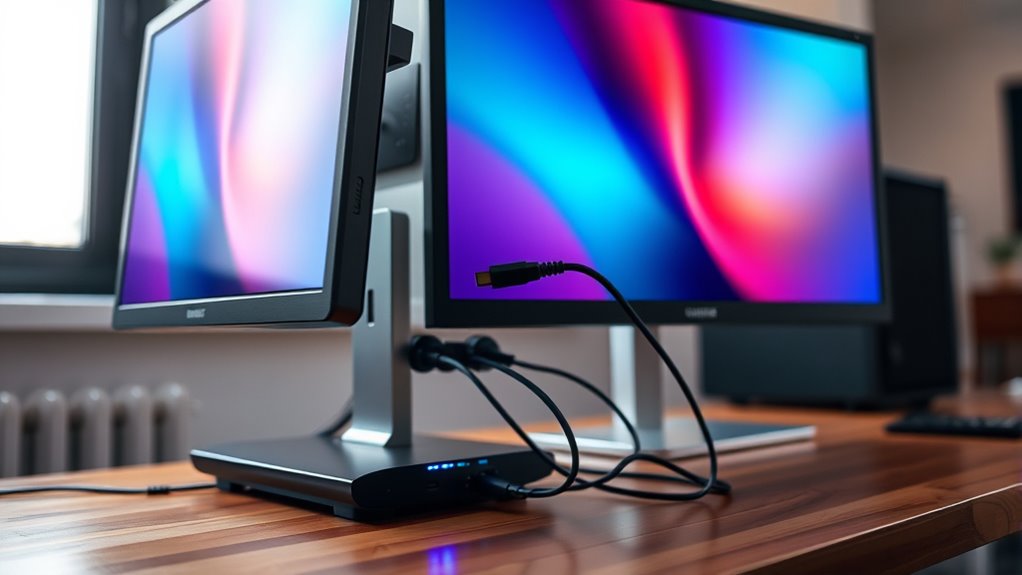

To connect two monitors to one PC, first, check your graphics card for multiple display support and necessary ports like HDMI or DisplayPort. Gather compatible cables for both monitors. Connect the first monitor, configuring the settings, then do the same for the second monitor. Access the display settings on your PC to adjust resolutions and choose between extended or duplicated displays. You can further enhance your setup by optimizing your workspace for better productivity.
Check Your PC’s Compatibility
Before you plunge into setting up dual monitors, it’s essential to check your PC’s compatibility. Start by examining your graphics card; it needs to support multiple displays for a smooth experience. Most modern graphics cards can handle dual monitors, but older models might not. Check the specifications of your graphics card to confirm its display compatibility. Look for ports like HDMI, DisplayPort, or DVI; these are typically necessary for connecting additional monitors. You’ll also want to confirm your operating system supports multiple displays, as this can affect how well your setup functions. Taking these steps will help you avoid frustration and guarantee that you’re ready to enjoy the freedom of working across two screens.
Gather Necessary Cables and Adapters
To successfully connect two monitors to your PC, you’ll need the right cables and adapters. Start by identifying the cable types compatible with your monitors and PC ports. Common cable types include HDMI, DisplayPort, DVI, and VGA. Check which ports your monitors and graphics card have to guarantee compatibility.
Next, consider adapter options if your monitors and PC ports don’t match. For instance, you might need an HDMI to DVI adapter or a DisplayPort to HDMI converter. Keep in mind that using an adapter can sometimes limit your display quality, so choose wisely. Having the right cables and adapters ready will make the setup process smoother and let you enjoy the freedom of multitasking across your dual monitors.
Connect the First Monitor
To connect your first monitor, start by identifying the available ports on both your monitor and PC. Once you know which ports you’re working with, grab the appropriate cables to make the connection. Finally, you’ll need to configure your display settings to guarantee everything is set up correctly.
Identify Monitor Ports
Connecting your first monitor starts with identifying the right ports on your PC. This step is essential for ensuring a smooth setup. Here’s a quick guide to help you locate the common monitor ports:
- HDMI: Check for HDMI ports, which support high-definition video and audio, adhering to HDMI specifications.
- DisplayPort: Look for DisplayPort connections, offering advanced features and high bandwidth through DisplayPort capabilities.
- DVI: Older systems might have DVI ports, suitable for digital video signals.
- VGA: You may find VGA ports, mainly used for older monitors, relying on analog signals.
Once you identify these ports, you’ll be ready to choose the best one for your monitor connection. Enjoy the freedom of multitasking!
Use Appropriate Cables
When you’re ready to connect your first monitor, using the right cables is essential for achieving ideal performance. Start by identifying the cable types compatible with your monitor and PC. Common options include HDMI, DisplayPort, and VGA. Each type has its advantages, so choose one that best fits your needs.
Next, consider cable lengths. Confirm your cables are long enough to reach your monitor without straining, but avoid excess length that can clutter your workspace. If your setup allows, using shorter cables often helps maintain a cleaner look and better signal quality. Once you’ve gathered the appropriate cables, you’re one step closer to enjoying the freedom of a multi-monitor setup!
Configure Display Settings
Now that you’ve gathered the right cables, it’s time to set up your display settings for the first monitor. Follow these steps to configure your dual screen experience:
- Right-click on your desktop and select “Display settings.”
- Identify your monitors by clicking “Identify.” You’ll see numbers appear on each screen.
- Adjust the display resolution for the first monitor. Choose a resolution that suits your needs, ideally matching the monitor’s native resolution.
- Set the orientation (landscape or portrait) as desired and click “Apply” to save changes.
Once you’ve configured these settings, you’re on your way to enjoying a seamless dual screen setup, enhancing your productivity and freedom to multitask efficiently!
Connect the Second Monitor
Now that you’ve connected your first monitor, it’s time to set up the second one. Start by choosing the appropriate video cables and connecting them to the monitor and power source. Once that’s done, you’ll need to configure your display settings for ideal use.
Choose Video Cables
To successfully connect your second monitor, you’ll need to choose the right video cables that match both your PC’s output and the monitor’s input. Here are some options to evaluate:
- HDMI: Enjoy high-definition video and audio with HDMI advantages like ease of use and widespread compatibility.
- DisplayPort: Explore DisplayPort features, including support for higher resolutions and refresh rates, perfect for gaming or graphic design.
- VGA: If you’re using older equipment, VGA can still get the job done, but keep in mind it’s limited to lower resolutions.
- DVI: This option offers a balance between quality and compatibility, great for a variety of monitors.
Choose wisely to enhance your multi-monitor experience and release your productivity!
Connect to Power
After selecting the appropriate video cables, the next step is to connect your second monitor to a power source. Locate the monitor’s power cord and plug it into an outlet. Confirm you’re using a reliable power source to avoid any disruptions. If you’re using a power strip, check that it’s functioning properly to manage power effectively for both monitors.
Once plugged in, verify the monitor’s power management settings are optimized. This includes configuring energy-saving modes or adjusting brightness to suit your preferences. By connecting to a dependable power source and managing your monitor’s energy settings, you’ll enjoy a seamless dual-screen experience. Now you’re one step closer to maximizing your productivity!
Configure Display Settings
With your second monitor powered on and connected, it’s time to configure the display settings to optimize your dual-screen setup. Here’s how to guarantee your multiple displays work seamlessly together:
- Right-click on the desktop: Select “Display settings” from the dropdown menu.
- Identify your monitors: Click on “Identify” to see which number corresponds to each screen.
- Adjust display resolution: Choose the desired resolution for each monitor to guarantee clarity and a cohesive look.
- Select display mode: Choose between “Extend” or “Duplicate” based on how you want to use your screens.
Configure Display Settings
Configuring display settings for your dual-monitor setup is essential to guarantee a seamless experience. Start by right-clicking on your desktop and selecting “Display settings.” Here, you’ll see both monitors listed. Confirm that each monitor’s display resolution is set to the recommended value for ideal clarity. Adjust the resolution if necessary, as mismatched resolutions can lead to a frustrating experience. Next, explore the multi-monitor configurations available, such as extending or duplicating your display. Extending allows for a larger workspace, while duplicating mirrors your primary screen. Once you’ve made your selections, click “Apply” to save the changes. With these settings refined, you’ll enjoy a more efficient and enjoyable dual-monitor experience tailored to your needs.
Arrange Your Monitors
To guarantee your dual monitors work harmoniously, it’s essential to arrange them correctly within your display settings. Proper monitor positioning and screen alignment can greatly enhance your productivity. Here’s how to set it up:
- Identify Primary Monitor: Choose which monitor will be your main display for task management.
- Drag and Drop: In your display settings, drag the monitor icons to match their physical layout on your desk.
- Adjust Resolution: Confirm that both monitors run at their ideal resolution for clarity.
- Set Orientation: Decide if one or both monitors should be portrait or landscape mode based on your tasks.
With these steps, you’ll create a seamless workspace that feels natural and boosts your efficiency.
Optimize Your Dual Monitor Setup
While you might have successfully connected your dual monitors, maximizing their potential requires some thoughtful optimization. Start with monitor positioning; place them at eye level and angle them slightly inward for a more comfortable viewing experience. This setup helps reduce neck strain and enhances productivity. Next, verify proper display alignment in your operating system settings. You want your monitors to flow seamlessly, so adjust the resolution and orientation to match. If one monitor’s display is larger, resize it accordingly for consistency. Consider using a taskbar that spans both screens for easier navigation. By taking these steps, you’ll create a harmonious workspace that empowers you to work more efficiently and enjoyably across your dual monitor setup.
Troubleshooting Common Issues
Even if you’ve set up your dual monitors successfully, you might still encounter some common issues that can disrupt your workflow. Here are a few to watch out for:
- Display Flickering: This might be due to a loose connection or incompatible refresh rates. Check your cables and settings.
- Resolution Issues: Verify both monitors are set to their native resolutions. Right-click on your desktop and adjust display settings.
- Incorrect Display Order: You might need to rearrange your displays in the settings if they’re not aligned as you wish.
- Driver Problems: Outdated graphics drivers can cause various issues. Make certain you’ve got the latest version installed.
Frequently Asked Questions
Can I Use Different Monitor Brands for a Dual Setup?
Absolutely, you can mix different monitor brands for a dual setup! Just make certain their monitor compatibility aligns in resolution and aspect ratio. You’ll need to adjust your display settings for a seamless experience. Enjoy the freedom!
What if My Monitors Have Different Resolutions?
If your monitors have different resolutions, you can adjust resolution scaling in your display settings. This helps guarantee a smoother experience, allowing you to enjoy your dual setup without sacrificing clarity or functionality.
Is It Possible to Extend Rather Than Duplicate Displays?
Absolutely, you can extend displays instead of duplicating them! By adjusting your display settings, you’ll enjoy multi monitor benefits like increased workspace and improved productivity. Isn’t it great to have more screen real estate?
How Do I Switch Between Monitors Quickly?
You can quickly switch between monitors using keyboard shortcuts like Windows + P. In Display settings, select “Extend” and choose your desired monitor layout. This way, you’ll effortlessly navigate your workspace and enhance productivity.
Can I Connect More Than Two Monitors to One PC?
Yes, you can connect more than two monitors to one PC, but it depends on your graphics card limitations. Verify your setup supports multi monitor configurations to enjoy the freedom of expanded screen space.
