
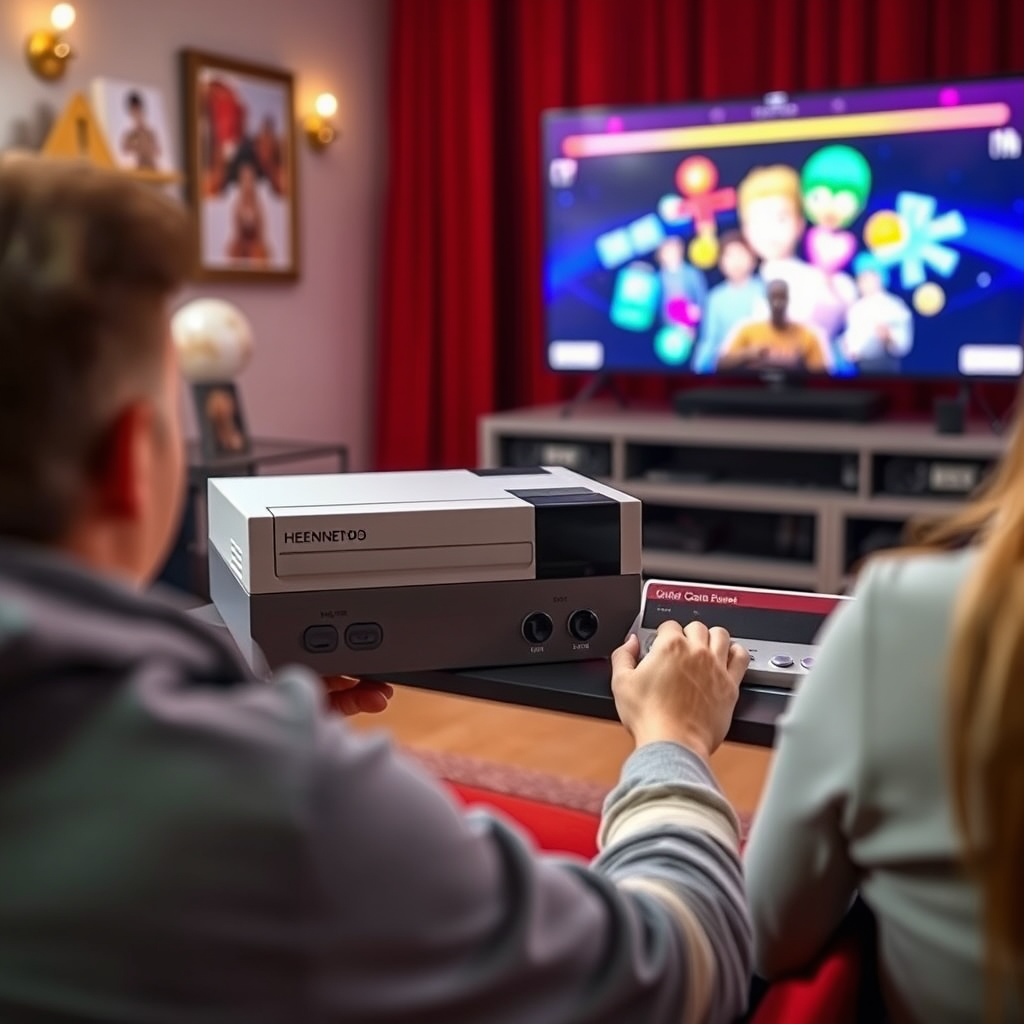

Connecting your NES (Nintendo Entertainment System) to a smart TV is straightforward and can be done using a few simple steps. In this guide, you’ll learn how to set up your NES for optimal performance on your smart TV, ensuring you can enjoy your classic games without hassle. By following these methods, you’ll be able to relive your favorite childhood gaming moments with ease and clarity.
Understanding the Necessary Cables
The first step in connecting your NES to a smart TV is understanding the types of cables involved. Typically, the NES uses either a standard RF switch or AV cables for its connection. The RF switch is a traditional method that connects through coaxial input, while AV cables offer a more direct connection to your TV’s AV ports.
To ensure a smooth setup, verify that you have the correct cables compatible with your smart TV. Most modern TVs come equipped with HDMI ports and may not have the older AV or coaxial inputs that the NES uses. In such cases, you might need an adapter or converter to bridge the gap between the retro console and your modern television.
Connecting via AV Cables
If your smart TV has AV ports, this is usually the simplest method to connect your NES. Here’s how to do it:
1. Locate the AV Ports: On your smart TV, find the AV ports, which are usually color-coded: yellow for video, red for audio right, and white for audio left.
2. Connect the AV Cables: Take the corresponding AV cables from your NES and plug them into the matching ports on your TV. Ensure that the yellow cable goes into the yellow port, the red into red, and the white into white.
3. Power On the NES: Turn on your NES and select the appropriate input on your TV. You should now see the NES menu displayed on your screen, ready for you to start playing.
Connecting via RF Adapter
For those who prefer to use an RF switch, follow these steps:
1. Connect the RF Switch: Locate the antenna input on your TV. This is where you will connect the RF switch.
2. Use the Coaxial Cable: Connect a coaxial cable from the NES to the RF switch. This is a straightforward connection, ensuring that the NES signal can be transmitted to the television.
3. Set the TV to Antenna Mode: After connecting, turn on your TV and switch the input setting to the antenna mode. You may need to perform a channel scan to locate the NES signal, which is usually on channel 3 or 4.
Configuring Your TV Settings
Once you have made the physical connections, it’s essential to configure your TV settings for optimal performance:
1. Select the Correct Input Source: Depending on how you connected your NES (AV or RF), ensure your TV is set to the right input source. This could be labeled as AV, HDMI, or Antenna.
2. Resolution and Display Adjustments: Typically, the NES outputs in a standard definition resolution. Adjust your TV settings to match, if necessary, to avoid any display issues. Some smart TVs may have settings to enhance retro gaming by adjusting the display aspect ratio.
Troubleshooting Common Issues
Even with a proper setup, you might encounter some issues. Here are troubleshooting tips to ensure a seamless gaming experience:
1. Check Cable Connections: If there’s no signal or the screen is blank, inspect all cable connections. Ensure they are securely plugged in.
2. Power Issues: Verify that the NES is powered on. If the power indicator light is not on, check the power source or adapter.
3. Channel Settings: If using an RF switch, double-check that your TV is set to the correct channel (usually 3 or 4) for the NES.
4. Signal Interference: Sometimes, interference from other devices can cause issues. Make sure there are no other devices that may disrupt the signal.
Enhancing Your Experience
To elevate your gaming experience further, consider the following enhancements:
1. HDMI Converter: If your smart TV lacks the appropriate input ports, an HDMI converter can significantly improve picture quality. These devices convert the NES output to HDMI, providing a sharper image.
2. Wireless Controllers: For a more modern gaming experience, explore options for wireless controllers compatible with the NES. This allows for greater mobility and comfort during gameplay.
3. Retro Gaming Accessories: There are various accessories available, such as upscalers, that can enhance the visual quality of your NES games on modern screens.
Maintaining Your NES
Proper maintenance of your NES ensures its longevity and optimal performance:
1. Regular Cleaning: Dust and debris can accumulate in the console and cartridges, leading to performance issues. Regularly clean the NES and the cartridge slots using a soft cloth and compressed air.
2. Storage Conditions: Store your NES in a cool, dry place. Extreme temperatures and humidity can damage the console and cartridges over time.
3. Check for Updates: If you are using any modern adapters or converters, ensure they are updated to the latest firmware to maintain compatibility with your TV.
Top 7 NES Accessories for Enhanced Gaming Experience (2024)
| # | Accessory | Type | Compatibility | User Rating |
|---|---|---|---|---|
| 1 | AV Cable | AV | NES | ★★★★☆ |
| 2 | RF Switch | Coaxial | NES | ★★★★☆ |
| 3 | HDMI Converter | HDMI | NES | ★★★★★ |
| 4 | Wireless Controller | Wireless | NES | ★★★★☆ |
| 5 | Cleaning Kit | Maintenance | NES | ★★★★★ |
| 6 | Game Storage Case | Storage | NES | ★★★★☆ |
| 7 | Upgraded Power Supply | Power | NES | ★★★★☆ |
By following these steps, you can successfully connect your NES to a smart TV and relive the nostalgia of classic gaming. Start playing your favorite NES titles today, and enjoy the retro fun on your modern screen! Remember, with the right setup and some maintenance, your NES can provide countless hours of entertainment.
Frequently Asked Questions
How do I connect my NES console to a smart TV?
To connect your NES console to a smart TV, you will need an RCA to HDMI converter. First, connect the NES’s RCA cables (yellow, red, and white) to the converter, then use an HDMI cable to connect the converter to an available HDMI port on your smart TV. Finally, switch your TV input to the corresponding HDMI channel to start playing.
What adapters do I need to connect my NES to a smart TV?
To connect your NES to a smart TV, you typically need an RCA to HDMI adapter. This adapter converts the analog signal from the NES into a digital signal compatible with modern TVs. Make sure to choose a high-quality adapter to ensure the best video and audio output.
Why won’t my NES display on my smart TV after connecting?
If your NES isn’t displaying on your smart TV, check that all connections are secure and the correct input source is selected on your TV. Additionally, ensure that the RCA to HDMI converter is powered on if it requires external power. Lastly, verify that your NES is functioning properly by testing it on a different display.
What is the best way to improve the picture quality when connecting a NES to a smart TV?
The best way to improve picture quality when connecting a NES to a smart TV is to use a high-quality RCA to HDMI converter that supports upscaling. Look for converters that offer features like 720p or 1080p output to enhance the resolution. Additionally, adjusting your TV’s picture settings can help optimize the display for retro gaming.
Which smart TVs are best for playing NES games?
The best smart TVs for playing NES games are those that offer low input lag and good picture quality. Look for models with gaming modes, as they often optimize performance for retro consoles. Brands like Samsung, LG, and Sony are known for their excellent display technology, making them great options for classic gaming experiences.
References
- Nintendo Entertainment System
https://en.wikipedia.org/wiki/Nintendo_Entertainment_System - Nintendo Switch Online overview – Nintendo Official Site
https://www.nintendo.com/switch/online-service/ - https://www.lifewire.com/how-to-connect-an-nes-to-a-tv-4171160
https://www.lifewire.com/how-to-connect-an-nes-to-a-tv-4171160 - Google Scholar Google Scholar
https://scholar.google.com/scholar?q=how+to+connect+a+nes+to+a+smart+tv - Google Scholar Google Scholar
https://scholar.google.com/scholar?q=Nintendo+Entertainment+System+modern+connections - Google Scholar Google Scholar
https://scholar.google.com/scholar?q=video+game+console+connectivity+to+TVs - Reddit – The heart of the internet
https://www.reddit.com/r/console_gaming/comments/4pxsga/how_to_connect_an_old_nintendo_to_a_modern_tv/ - how to connect a nes to a smart tv – Search results
https://en.wikipedia.org/wiki/Special:Search?search=how+to+connect+a+nes+to+a+smart+tv - https://www.ncbi.nlm.nih.gov/search/research-articles/?term=how+to+connect+a+nes+to+a+smart+tv
https://www.ncbi.nlm.nih.gov/search/research-articles/?term=how+to+connect+a+nes+to+a+smart+tv
