
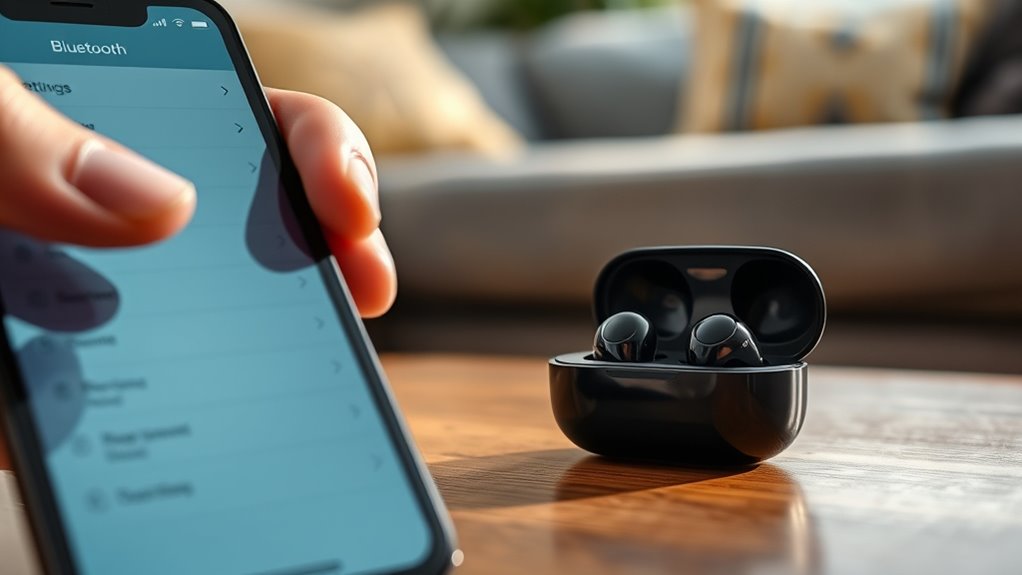

To connect your Bluetooth earbuds, first verify they’re fully charged and in pairing mode. Then, enable Bluetooth on your device and make it discoverable. Search for available devices and select your earbuds from the list. Confirm the connection when prompted. Test the audio to verify it’s working properly. If you run into issues, there are simple troubleshooting steps you can follow to improve connectivity and performance. Discover more tips to enhance your Bluetooth experience.
Understanding Bluetooth Technology
Bluetooth technology is a wireless communication standard that allows devices to connect and exchange data over short distances. This technology uses Bluetooth protocols, which define how devices communicate, ensuring a seamless experience. By utilizing radio waves in the 2.4 GHz frequency range, Bluetooth provides a reliable connection without the need for cables. It’s designed for low power consumption, making it ideal for portable devices like earbuds. With Bluetooth, you can enjoy the freedom of movement while staying connected to your audio devices. Understanding how these protocols work helps you appreciate the convenience of wireless communication, enabling you to connect multiple devices effortlessly. Embrace the possibilities that Bluetooth offers, and enjoy a clutter-free listening experience.
Preparing Your Bluetooth Earbuds
Before you can enjoy your music or podcasts, you’ll need to prepare your Bluetooth earbuds for use. Start by making sure they’re fully charged. Check the battery care guidelines in the manual to maximize battery life and avoid overcharging. Next, clean your earbuds regularly as part of earbud maintenance; use a soft, dry cloth to wipe them down and remove any debris. For models with removable tips, wash those separately to keep them fresh. It’s also a good idea to store your earbuds in their case when not in use to protect them from dust and damage. By taking these simple steps, you’ll guarantee your earbuds perform at their best, giving you the freedom to enjoy your audio experience.
Enabling Bluetooth on Your Device
To connect your Bluetooth earbuds, you’ll first need to enable Bluetooth on your device. Start by accessing your device settings, then locate the Bluetooth option. Once you find it, simply toggle Bluetooth on to get started.
Access Device Settings
Accessing your device settings is essential for connecting your Bluetooth earbuds. Start by accessing your device and locating the settings icon, often found on your home screen or in the app drawer. Once you’ve opened the settings, you’ll need to navigate through the menus to find the Bluetooth option. This step is vital, as ensuring device compatibility with your earbuds is key to a smooth connection. If your device supports Bluetooth, you should see options related to it. Take a moment to familiarize yourself with the layout, as settings navigation can vary by device. By knowing where to find these options, you’re setting yourself up for a hassle-free connection experience with your wireless earbuds.
Locate Bluetooth Option
Once you’ve navigated to the settings menu, finding the Bluetooth option is your next step. Depending on your device, you might see it listed under “Connections,” “Wireless & Networks,” or a similar section. Tap on that option to reveal the Bluetooth scanning methods available. Here, you can often choose to make your device visible to other Bluetooth devices, which is essential for pairing. You may also find options to manage paired devices or adjust settings related to Bluetooth device visibility. By understanding these settings, you empower yourself to connect your Bluetooth earbuds seamlessly, allowing you the freedom to enjoy your music without the hassle of wires. Just remember, visibility is key for successful connections!
Toggle Bluetooth On
Before you can pair your Bluetooth earbuds, you’ll need to verify that Bluetooth is enabled on your device. This step is essential for guaranteeing device compatibility and a smooth connection. Here’s how to toggle Bluetooth on:
- Access Settings: Open your device’s settings menu.
- Find Bluetooth Settings: Look for the Bluetooth option—it’s usually near the top.
- Turn Bluetooth On: Toggle the switch to enable Bluetooth. You should see a message confirming that it’s active.
- Check for Discovery Mode: Confirm your device is discoverable, allowing your earbuds to connect easily.
Once Bluetooth is on, you’re ready to connect your earbuds and enjoy the freedom of wireless listening!
Pairing Your Earbuds With Your Device
Now that you’ve enabled Bluetooth on your device, it’s time to pair your earbuds. Start by preparing your earbuds for pairing mode, which usually involves pressing and holding a button. Once they’re ready, you can complete the pairing process on your device to enjoy your audio wirelessly.
Prepare Your Earbuds
To successfully pair your Bluetooth earbuds with your device, you’ll want to start by verifying that they’re fully charged and in pairing mode. This guarantees peak battery life and enhances the earbud features during the connection process. Follow these simple steps:
- Charge Your Earbuds: Make sure they’re fully charged to avoid interruptions.
- Power On: Turn on your earbuds, usually by pressing and holding the power button.
- Enter Pairing Mode: Activate pairing mode, which often involves holding the power button until a light blinks.
- Check Indicators: Look for visual or audio cues that confirm they’re ready to connect.
Once your earbuds are prepped, you’ll be ready to pair them with your device seamlessly. Enjoy the freedom of wireless listening!
Enable Bluetooth on Device
With your earbuds prepared and ready to connect, the next step involves enabling Bluetooth on your device. First, check your device’s settings; you’ll usually find Bluetooth options under “Connections” or “Wireless.” Tap on the Bluetooth toggle to turn it on. Keep in mind that not all devices have the same Bluetooth compatibility, so verify your device supports the version your earbuds use. If your device has limitations, like older models, it may not connect properly or might lack certain features. Once Bluetooth is enabled, your device will start scanning for nearby devices. This step is essential for a seamless connection, paving the way for your earbuds to pair effortlessly and provide that freedom you crave.
Complete Pairing Process
Once Bluetooth is enabled, you’re ready to complete the pairing process. Follow these steps to connect your earbuds without encountering common pairing mistakes:
- Turn on your earbuds: Make sure they’re in pairing mode, often indicated by a flashing light.
- Open Bluetooth settings: On your device, go to Bluetooth settings and scan for available devices.
- Select your earbuds: Choose your earbuds from the list. If prompted, enter the pairing code, usually “0000” or “1234.”
- Test the connection: Play audio to verify you’re within Bluetooth range. If you experience connectivity issues, confirm there are no obstacles blocking the signal.
Testing the Connection
Before you start enjoying your favorite tunes, it’s essential to test the connection of your Bluetooth earbuds to verify they’re working properly. First, play a song or audio clip you love. Listen closely for any interruptions or dropouts, which can indicate a weak connection. Next, try moving around to see how the connection holds up. Ideally, you should be able to walk a reasonable distance from your device without losing audio quality. If you notice any issues during these connection tests, check if your earbuds are fully charged and within range. Remember, a solid connection enhances your listening experience, so take the time to guarantee everything’s working smoothly before diving into your music.
Troubleshooting Common Issues
Troubleshooting common issues with Bluetooth earbuds can save you time and frustration. If you’re experiencing problems, try these steps to resolve them:
- Check Bluetooth Connection: Confirm your earbuds are paired with your device. If not, disconnect and reconnect them.
- Battery Level: Low battery can lead to common connectivity issues. Charge your earbuds fully before use.
- Distance and Interference: Maintain a clear line of sight between your device and earbuds. Walls or other electronics can cause disruptions.
- Sound Quality Troubleshooting: If sound quality is poor, try resetting your earbuds or adjusting the audio settings on your device.
Frequently Asked Questions
Can I Connect Multiple Devices to My Bluetooth Earbuds?
Yes, you can connect multiple devices to your Bluetooth earbuds, but audio quality may vary. Enjoy the freedom of multi-device connectivity, switching seamlessly between your phone, tablet, and laptop without missing a beat.
How Do I Reset My Bluetooth Earbuds?
To reset your Bluetooth earbuds, locate the reset button or method in the user manual. This usually restores factory settings, erasing all connections. Follow the reset process carefully for a fresh start and better performance.
What Is the Range of Bluetooth Earbuds?
Bluetooth earbuds typically boast a range of about 30 feet, but signal interference from walls or other devices can diminish that distance. For the best experience, keep your device close and obstacles at bay.
Will Bluetooth Earbuds Work With Non-Bluetooth Devices?
Bluetooth earbuds won’t work with non-Bluetooth devices directly. However, you can use Bluetooth adapters to connect them. Alternatively, consider wired alternatives for seamless compatibility with non-Bluetooth gadgets, ensuring you enjoy your audio experience freely.
How Long Do Bluetooth Earbuds Typically Last on a Charge?
Bluetooth earbuds usually last around 4 to 10 hours on a charge, depending on the model. To maximize battery life, you can try lowering the volume and turning them off when not in use.
