


Connecting ceiling speakers to a receiver is an uncomplicated process that significantly enhances your home audio experience. With the right preparation and guidance, you can seamlessly integrate ceiling speakers into your sound system for a rich auditory environment. This detailed guide will navigate you through the necessary preparations and connection steps, ensuring that you can set up your ceiling speakers with confidence and ease.
Understanding Your Equipment
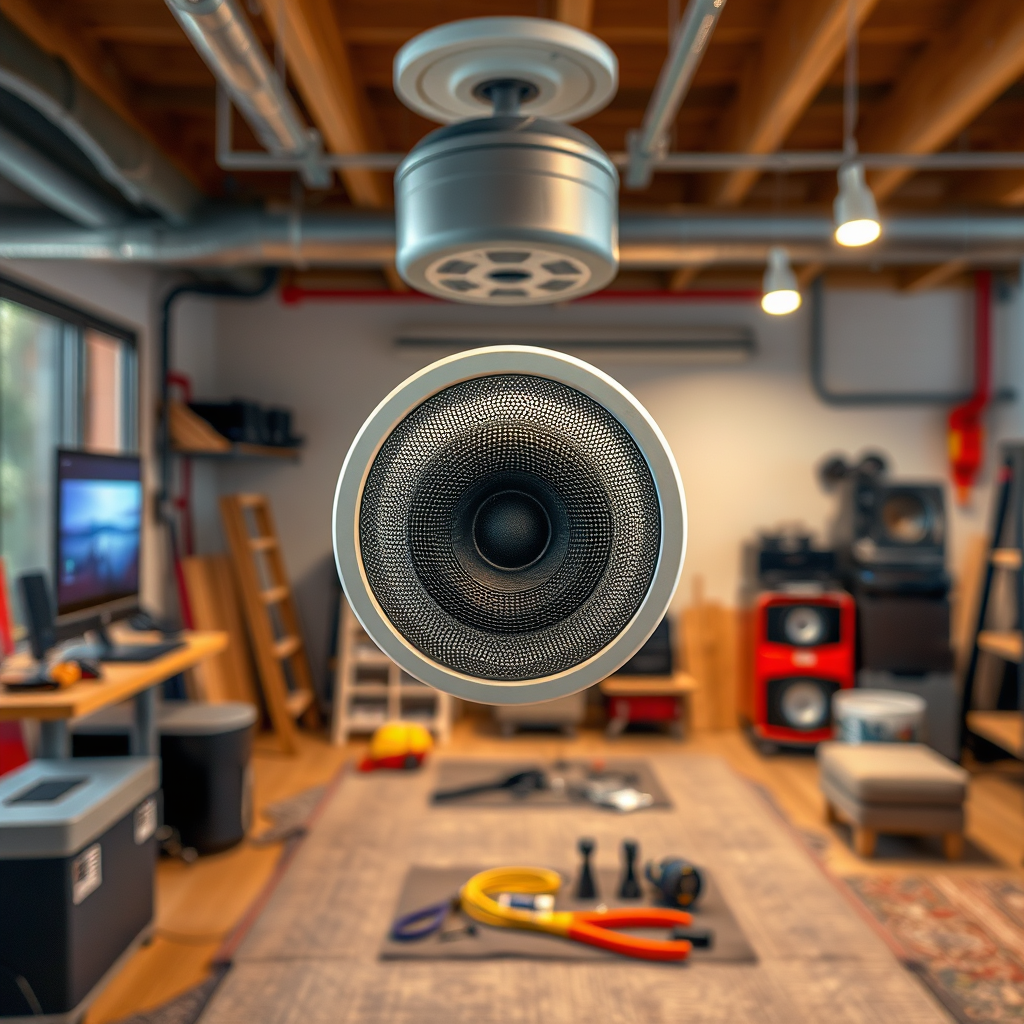
To start, it’s essential to have a clear understanding of both your receiver and your ceiling speakers.
– Identify the receiver inputs: Examine the back panel of your audio receiver. Look for speaker terminals, usually labeled as positive (+) and negative (−). Noting these will help you make the correct connections later on. Additionally, check for any specific settings related to speaker configuration that could affect your setup, such as impedance matching or multi-zone audio options.
– Check speaker specifications: Before proceeding, ensure that your ceiling speakers are compatible with your receiver. This compatibility mainly involves matching the speakers’ power output and impedance ratings with those of the receiver. Ideally, your speaker’s impedance should match the receiver’s output to avoid damaging either component.
Preparing for Installation
Preparation is key to a successful speaker installation.
– Gather necessary tools: To facilitate the installation, ensure you have the appropriate tools on hand. A wire stripper, screwdriver, and speaker wire are essential. Having these tools ready will streamline the process and reduce frustration during installation.
– Plan speaker placement: The placement of your ceiling speakers will determine the quality of sound throughout the room. Aim for a layout that optimizes sound distribution; generally, placing speakers at least two feet away from walls and ensuring they are spaced evenly will yield the best results. Consider the listening area when determining the angles and distances between speakers.
Wiring the Speakers
Now that you are prepared, let’s move on to the wiring process.
– Cut and strip speaker wire: Measure the distance from each speaker location to your receiver, then cut the speaker wire accordingly. Use a wire stripper to remove about half an inch of insulation from both ends of the wire, exposing the copper strands. This will ensure a solid connection.
– Connect wires to speakers: Securely attach the stripped ends of the speaker wire to the corresponding terminals on each speaker. Typically, the positive wire (often red) should connect to the positive terminal, and the negative wire (usually black) should connect to the negative terminal. Make sure the connections are tight to avoid any sound distortion.
Top 7 Ceiling Speaker Brands (2024)
| # | Brand | Power Output | Impedance | Rating |
|---|---|---|---|---|
| 1 | Sonos | 50W | 8Ω | ★★★★☆ |
| 2 | Bose | 60W | 8Ω | ★★★★★ |
| 3 | Klipsch | 75W | 6Ω | ★★★★☆ |
| 4 | Polk Audio | 50W | 8Ω | ★★★★☆ |
| 5 | Yamaha | 70W | 6Ω | ★★★★☆ |
| 6 | JBL | 80W | 8Ω | ★★★★☆ |
| 7 | KEF | 65W | 8Ω | ★★★★★ |
Connecting to the Receiver
With your speakers wired, it’s time to connect them to the receiver.
– Match positive and negative terminals: When connecting the wires to the receiver, it’s crucial to ensure that the positive wire is connected to the positive terminal and the negative wire to the negative terminal. This consistency is vital for maintaining sound quality and preventing phase issues.
– Use the correct zone settings: If your receiver has multi-zone capabilities, configure it to send audio signals to the ceiling speakers. This may involve selecting a specific zone on the receiver or adjusting the audio output settings to include the ceiling speaker channels.
Testing the System
Once everything is connected, testing your system is essential to ensure optimal performance.
– Conduct a sound check: Play a variety of audio through the receiver to evaluate each speaker’s performance. Listen for clarity and volume balance, adjusting as necessary. It’s beneficial to use familiar tracks that highlight the range of sound frequencies.
– Adjust settings as needed: Utilize your receiver’s settings to fine-tune the audio experience. Adjust the balance, volume levels, and equalizer settings to suit your preferences and achieve the best sound quality possible.
Troubleshooting Common Issues
If you encounter any issues during or after installation, here are some common problems and solutions.
– No sound from speakers: If you’re not getting any sound, double-check all connections. Ensure that the speaker wires are securely connected at both the speaker and the receiver. Additionally, confirm that the receiver is set to the correct input source.
– Distorted sound: Distortion can arise from several factors, including damaged speaker wire or mismatched impedance settings. Inspect the wire for any cuts or frays and verify that the impedance settings on the receiver match those of your ceiling speakers.
Maintenance Tips
To maintain optimal performance and prolong the life of your ceiling speakers, consider the following maintenance tips.
– Regularly inspect connections: Periodically check all wiring and connections for wear and tear. Loose or corroded connections can significantly impact audio quality.
– Clean speakers: Dust and debris can accumulate on speakers, affecting sound quality. Use a soft cloth to gently clean the surface of your ceiling speakers, ensuring that the speaker grilles are free from obstructions.
By following these steps, you can successfully connect your ceiling speakers to a receiver, creating an immersive audio environment throughout your home. Take your time during the installation process, and don’t hesitate to revisit any steps if needed. With a little patience and attention to detail, you can enjoy a superior listening experience. Happy listening!
Frequently Asked Questions
How do I determine the correct wire gauge for connecting ceiling speakers to my receiver?
When connecting ceiling speakers to your receiver, it’s essential to use the right wire gauge to ensure optimal sound quality and power delivery. For runs up to 50 feet, a 16-gauge wire is usually sufficient, while longer distances may require a 14-gauge wire. Always check the speaker’s specifications and the receiver’s requirements for the best results.
What is the best way to connect ceiling speakers to a receiver?
The best way to connect ceiling speakers to a receiver is to use speaker wire to create a secure connection. Start by stripping the ends of the wire, connecting the positive (+) and negative (-) terminals on both the receiver and the speakers, ensuring the polarity matches. This will help avoid phase issues and ensure clear audio quality.
Why are my ceiling speakers not producing sound when connected to the receiver?
If your ceiling speakers are not producing sound, it could be due to several factors, such as incorrect wiring, a malfunctioning receiver, or improper settings. Double-check that the speaker wires are securely connected to both the receiver and the speakers and ensure the receiver is set to the correct output. Additionally, verify that the speakers are enabled in the receiver’s settings.
Which type of ceiling speakers should I choose for my home theater system?
When selecting ceiling speakers for your home theater system, consider factors such as sound quality, power handling, and installation ease. Look for speakers with a good frequency response and sensitivity rating, as well as those designed for home theater use. Brands like Klipsch and Polk Audio often provide excellent options for immersive sound experiences.
How can I hide the speaker wires when connecting ceiling speakers to my receiver?
To hide speaker wires when connecting ceiling speakers to your receiver, consider using in-wall rated speaker wire for a clean installation. You can also use wire concealment channels or raceways, which can be painted to match your walls. Additionally, running wires through the ceiling or walls during installation can provide a seamless look and prevent visible clutter.
References
- https://en.wikipedia.org/wiki/Speaker_(audio
https://en.wikipedia.org/wiki/Speaker_(audio - https://www.purdue.edu/engineering/whyinternships/pdfs/Speaker%20Wiring%20Guide.pdf
https://www.purdue.edu/engineering/whyinternships/pdfs/Speaker%20Wiring%20Guide.pdf - https://www.audioholics.com/loudspeaker-design/loudspeaker-impedance-explained
https://www.audioholics.com/loudspeaker-design/loudspeaker-impedance-explained - Temperature Sensor Types for Temperature Measurement
https://www.electronics-tutorials.ws/io/io_3.html - https://www.researchgate.net/publication/319797148_How_to_Connect_Ceiling_Speakers
https://www.researchgate.net/publication/319797148_How_to_Connect_Ceiling_Speakers - https://www.sciencedirect.com/topics/engineering/speaker-technology
https://www.sciencedirect.com/topics/engineering/speaker-technology - Google Scholar Google Scholar
https://scholar.google.com/scholar?q=how+to+connect+ceiling+speakers+to+receiver - Google Scholar Google Scholar
https://scholar.google.com/scholar?q=ceiling+speakers+installation - Google Scholar Google Scholar
https://scholar.google.com/scholar?q=audio+receiver+setup+guide - how to connect ceiling speakers to receiver – Search results
https://en.wikipedia.org/wiki/Special:Search?search=how+to+connect+ceiling+speakers+to+receiver

[…] on the internet on your Smart TV is straightforward—this step-by-step guide tells you exactly how to connect, whether you’re using Wi‑Fi or an Ethernet cable. You’ll […]
[…] to watch PBS on your Smart TV? This step-by-step guide delivers the fastest setup path—using the official PBS apps or the correct streaming […]
[…] by using the TV’s built-in App Store, then installing apps through your Vizio account. This step-by-step guide shows exactly where to find the Apps menu, how to search for the app you want, and what to do if […]
[…] to know how to add apps to a Vizio Smart TV? This step-by-step guide shows the fastest, most reliable method to install apps through the Vizio SmartCast app store using […]
[…] to connect a VCR to a smart TV and get the picture working fast? This step-by-step guide shows the simplest, most reliable setup—using the right cables and the correct input […]
[…] TV, you can do it quickly using the TV’s built-in interface without getting stuck in menus. This step-by-step guide shows exactly where to go, what to select, and how to confirm removal so the app disappears for […]
[…] to get apps on your LG Smart TV? This step-by-step guide walks you through the fastest, most reliable way to install apps—from finding the LG Content […]
[…] to hook your smart TV to WiFi fast? This step-by-step guide gets you connected the first time—whether you’re using your TV’s built-in WiFi menu or […]
[…] to install an application on your LG Smart TV? This step-by-step guide shows the fastest, most reliable way to install apps through the LG Content Store—whether you […]
[…] to know how to screen mirror on a Samsung Smart TV fast and reliably? This step-by-step guide gives you the exact method to mirror from your phone or laptop, with clear instructions for the […]
[…] to know how do i update my LG Smart TV? This step-by-step guide walks you through the fastest official method—using your TV’s built-in update settings—so you […]
[…] when you use your TV’s built-in network setup and select the correct 2.4GHz or 5GHz SSID. This step-by-step guide walks you through finding the WiFi settings, entering your password, and confirming the connection […]
[…] put apps on a smart TV is simple once you follow the right method for your TV’s platform. This step-by-step guide walks you through the fastest, most reliable way to install apps—from finding the app store to […]
[…] to know how to reset a Vizio Smart TV fast? This step-by-step guide walks you through the exact button sequence for a full reset, plus the quick power-cycle method for […]
[…] your TV into a Roku streaming device through the Roku interface—no cable box required. This step-by-step guide shows exactly what to plug in, how to sign in, and how to start streaming so you’re up and […]
[…] to add an app on a smart TV fast—this step-by-step guide tells you exactly how to do it on the screen you’re using. You’ll get the quickest method for […]
[…] to know how to add apps to a smart TV quickly and correctly? This step-by-step guide shows the fastest route to install new apps—whether your TV uses an app store, a Roku-style […]
[…] to know how to cast your phone to your smart TV fast and without frustration? This step-by-step guide walks you through the exact setup for screen mirroring, from connecting both devices to selecting […]
[…] to know how to AirPlay to a Samsung Smart TV quickly and without guesswork? This step-by-step guide walks you through the exact setup that works when your TV supports AirPlay 2, so you can mirror or […]
[…] to reset your Beats wireless earbuds and get them working again? This step-by-step guide delivers the fastest, most reliable reset method, covering the exact buttons and timing to use. […]
[…] support—not relying on Xbox menus that won’t recognize audio devices directly. This step-by-step guide tells you exactly what to press, what screen to watch, and the common fixes when your earbuds […]
[…] into pairing mode in minutes—provided you follow the exact button presses for your model. This step-by-step guide walks you through the LED/prompt signals to watch for, so your earbuds show up on your phone or […]
[…] most reliable method is to use the right cable/adapter—then mirror your screen in minutes. This step-by-step guide walks you through choosing the correct connection (HDMI, USB-C, or DisplayPort), plugging in, and […]
[…] right streaming device—an HDMI streaming stick or box is the clear winner for most people. This step-by-step guide walks you through plugging it in, connecting to Wi‑Fi, signing into your accounts, and getting […]
[…] a video or computer signal into a beam of light that forms an image on a screen, and this step-by-step guide explains that process clearly. You’ll see how the lamp or laser, optics, and image chip(s) […]
[…] to know how to connect a projector to a laptop fast and get a clear picture on the first try? This step-by-step guide walks you through the most reliable connection method—HDMI first—then covers the common […]
[…] to know how do i connect laptop to projector and get a working image fast? This step-by-step guide shows the simplest, most reliable setup path for Windows and macOS—right from the correct cable […]
[…] the fastest way to connect a PC to a projector with a reliable picture every time? This step-by-step guide walks you through the exact cables, ports, and display settings to use—so you can mirror or […]
[…] to know how to connect a projector to a computer quickly and get a picture the first time? This step-by-step guide walks you through the exact cables, input settings, and display modes to match your projector and […]
[…] to know how do I connect to a projector? This step-by-step guide gives you the fastest, most reliable method for your setup—HDMI for most laptops and devices, […]
[…] to know how do you connect a laptop to a projector in minutes? This step-by-step guide shows the fastest, most reliable way to get a clear display—whether you’re using HDMI, VGA, or […]
[…] how to set up a projector with a clear, step-by-step guide that gets you from unpacking to a working image fast. Follow the sequence for placing the […]
[…] your device—wired HDMI for stable video, or wireless casting when you don’t want cables. This step-by-step guide tells you exactly what to plug in (and what adapter you need) to get your screen on the big […]
[…] step-by-step guide shows you exactly how to connect a projector the right way, from powering up to getting a clear […]
[…] to connect a computer to a projector and get an image on screen fast? This step-by-step guide walks you through the exact cables, ports, and settings for Windows and Mac so your display mirrors […]
[…] to connect an Epson projector to your laptop and start projecting in minutes? This step-by-step guide shows the fastest, most reliable method for your setup—whether you’re using HDMI or VGA—so […]
[…] to connect your iPhone to a projector wirelessly and get a stable picture fast? This step-by-step guide shows the quickest path to casting using the right method for your projector—AirPlay for […]
[…] to connect your phone to a projector via USB and get video playing immediately? This step-by-step guide walks you through the exact cable/adapter you need, the right phone output settings, and how to […]
[…] to connect speakers to a projector quickly without trial-and-error? This step-by-step guide shows you the fastest, most reliable setup based on your projector’s audio outputs—whether […]
[…] to hang a projector screen the right way without guesswork? This step-by-step guide shows the exact placement, mounting method, and leveling checks to get a straight, wrinkle-free […]
[…] to connect true wireless earbuds to Android fast and without pairing headaches? This step-by-step guide walks you through getting them into pairing mode, selecting the right device in Bluetooth settings, […]
[…] to get to apps on your Smart TV fast? This step-by-step guide shows the quickest path to your TV’s app screen using your remote and the most common button […]
[…] to pair Raycon earbuds to iPhone and get sound working fast? This step-by-step guide walks you through the exact pairing steps, from putting your earbuds in pairing mode to selecting […]
[…] to put earbuds in pairing mode fast? This step-by-step guide shows the exact button presses and cues to get your earbuds discoverable on the first try. Follow […]
[…] to hook up a VCR to a smart TV? This step-by-step guide gets you a working connection using the right cables and input settings so you can watch tapes on […]
[…] to switch earbuds on AirPods Pro quickly? This step-by-step guide shows exactly how to change tips—choosing the right fit for comfort and maximum noise […]
[…] to know how to make a TV a smart TV? This step-by-step guide tells you the fastest, most reliable method—choose the right streaming device, connect it to your […]
[…] method—AirPlay for most Apple-friendly TVs or your TV’s built-in casting app for others. This step-by-step guide tells you exactly how to connect, get your iPhone screen to the TV, and fix the common “can’t […]
[…] to reprogram your Vizio Smart TV remote? This step-by-step guide shows the fastest working method to pair it to your TV—using the right buttons and settings—so […]
[…] a Samsung Smart TV is the fastest way to stop freezes, audio glitches, and app errors, and this step-by-step guide gives you the exact process. You’ll learn which reset option to use first, how to do it through […]
[…] to know how to screen mirror on a smart TV, fast and without guesswork? Follow this step-by-step guide and you’ll get your phone or laptop’s display showing on your TV in minutes—no extra tech […]
[…] to update your Samsung Smart TV and want the fastest, most reliable method? This step-by-step guide shows you exactly how to check for updates and install the latest firmware using your TV’s […]
[…] your Samsung Smart TV is straightforward when you use the built-in software update path, and this step-by-step guide shows you exactly how to do it. You’ll learn the fastest way to check for the latest firmware, […]
[…] to connect your phone to a projector and get a clear picture fast? This step-by-step guide shows the exact setup for both iPhone and Android—so you’ll know which cable or wireless method […]
[…] to connect Jabra earbuds and pair them fast? This step-by-step guide shows the exact button presses and pairing mode steps for iPhone, Android, and Windows—so […]
[…] to watch live TV on your smart TV with the fewest steps? This step-by-step guide shows you exactly how to get live channels running—starting with the right app or tuner and […]
[…] to pair Bose SoundSport Wireless earbuds in minutes? This step-by-step guide gets you connected fast—whether you’re using Bluetooth for the first time or re-pairing after a […]
[…] to reset your BEAT earbuds fast and stop the pairing or connection errors? This step-by-step guide delivers a clear reset process that works for most BEAT earbuds when they won’t connect, won’t […]
[…] to reset your Raycon earbuds fast and get them working again? This step-by-step guide walks you through the exact reset process for Raycon earbuds, so you can fix pairing failures, […]
[…] when you use your TV’s built-in app store (or the manufacturer’s app marketplace). This step-by-step guide walks you through the quickest path to find, download, and install the app—whether you’re on […]
[…] your Smart TV is straightforward once you know where to sign in and which button path to use. This step-by-step guide walks you through the exact menus to find PBS Passport, activate your subscription, and start […]
[…] to connect your computer to a Smart TV and get a stable picture fast? This step-by-step guide shows the quickest method for your setup—HDMI for the most reliable connection, or wireless […]
[…] to connect your JBL earbuds to a laptop and start listening in minutes? This step-by-step guide shows the quickest, most reliable setup—whether you’re pairing via Bluetooth or using a wired […]
[…] to know how to connect your Beats earbuds and get audio working fast? This step-by-step guide tells you the exact pairing method for iPhone and Android—so you’ll know what to do whether […]
[…] to factory reset JLab earbuds to fix connection, pairing, or audio glitches? Follow this step-by-step guide to wipe the earbuds back to their default settings and get them ready to pair again. You’ll learn […]