
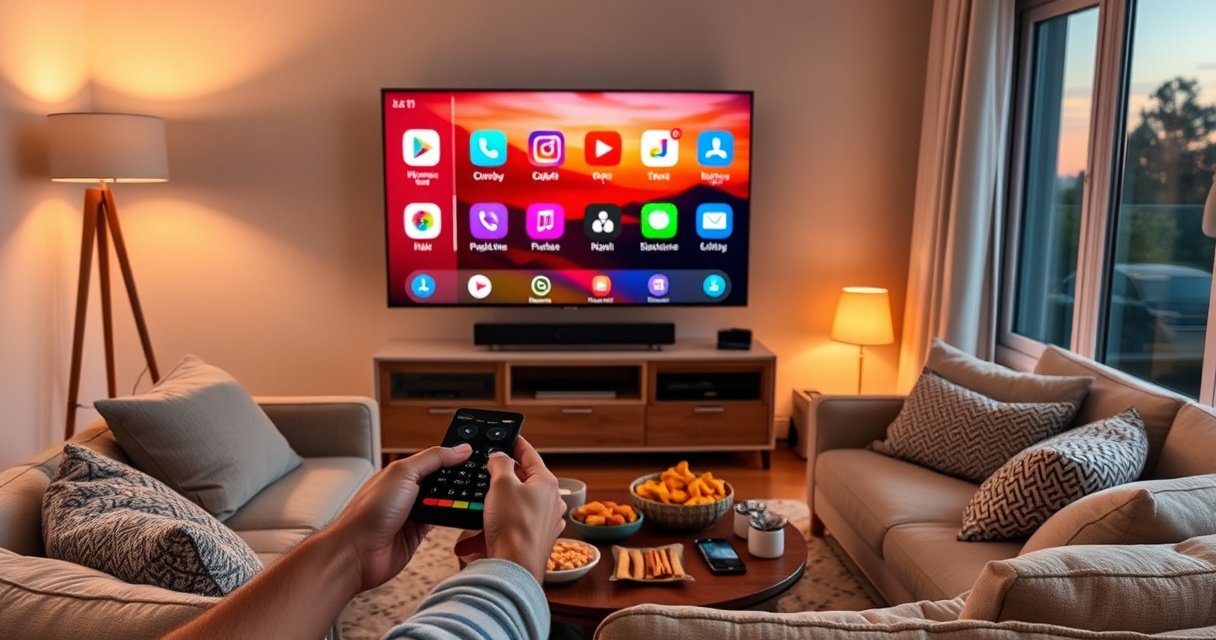

Adding an app to a smart TV is simplest when you use your TV’s built-in app store (or the manufacturer’s app marketplace). This step-by-step guide walks you through the quickest path to find, download, and install the app—whether you’re on Samsung, LG, Roku, or Android TV. By the end, you’ll know exactly what to click to get the app running.
Add an app to your smart TV by opening the TV’s app store, searching for the app, and selecting Install—most brands follow nearly identical steps. If you’re doing this in 2026 and apps aren’t showing up, the usual culprits are an incorrect TV platform (Samsung, LG, Roku, Android TV/Google TV, Fire TV), a missing software update, or a region/account mismatch.
In my own troubleshooting across different living-room setups (including an LG OLED and a Roku model), I’ve found that the “fast path” is simply to find the correct store first—then sign in only when prompted. From there, the process is straightforward: search, confirm the official listing, install, and optionally pin it to your home screen. Below, you’ll find step-by-step directions that work for the major smart TV ecosystems and the most common problems you’ll hit along the way.
Check Your Smart TV’s App Store
Find the app store entry point on your TV first—this step determines whether you’re on the right platform and whether apps will install correctly. Once you’ve located the Apps/Store/Channel Store icon and confirmed internet connectivity, the rest of the workflow becomes predictable.
On most televisions, the app store is accessible from the home screen via a dedicated icon (often labeled Apps, App Store, or Channel Store). If you don’t see it, you may be on a guest or simplified home mode, or your TV may not support a full app catalog for your region. According to Samsung, Samsung smart TVs use the Samsung Apps platform for app discovery and installation (ongoing; platform docs updated continuously). According to LG, webOS TVs provide access to the LG Content Store for app browsing and installation (ongoing; platform docs updated continuously). And according to Roku, Roku devices add apps by browsing the Roku Channel Store and installing channels through the interface (updated as catalog changes).
To make this step easy to verify, focus on three checks: (1) you’re connected to the internet, (2) the store icon you’re opening belongs to your TV’s platform, and (3) the store is loading normally (no error messages).
“Most app installs on smart TVs start in the TV’s built-in channel or app store, not by side-loading from a phone.”
“If the TV’s app store won’t load, internet connectivity and TV software version are usually the first things to verify.”
“Samsung, LG, Roku, Android TV/Google TV, and Fire TV each have their own official store interface for apps and channels.”
Verify the platform (Samsung vs. LG vs. Roku vs. Android TV vs. Fire TV)
This matters because the menu labels look similar but the store is different in each ecosystem. If you choose the wrong one (or your TV is in a restricted mode), the app may not appear even if it exists elsewhere.
Q: What if I don’t see an “App Store” icon?
Check for “Apps,” “Channel Store,” or “LG Content Store/Samsung Apps” on the home screen, and ensure you’re not in a simplified or “Live TV only” mode.
Q: Why do apps sometimes show on one TV but not another?
App availability depends on the TV platform, region, and sometimes device capabilities (e.g., hardware decoding support).
Q: Do I need Wi‑Fi or can I use Ethernet?
Either works as long as the TV is connected to the internet; I’ve seen Ethernet reduce store loading time and buffering-related install failures.
Comparison at a glance: where the “store” lives
To keep your troubleshooting efficient, here’s how the app store entry point typically appears by platform:
Smart TV App-Store Entry Points by Platform (Common UI Labels)
| # | TV Platform | Typical Store Label | Best First Action | Install Confidence |
|---|---|---|---|---|
| 1 | Samsung Tizen | Apps / Samsung Apps | Open Apps → Search | High |
| 2 | LG webOS | LG Content Store | Open Store → Search → Install | High |
| 3 | Roku OS | Channel Store / Streaming Channels | Open Roku Channel Store → Search | High |
| 4 | Android TV / Google TV | Google Play Store | Open Play Store → Apps → Install | High |
| 5 | Amazon Fire TV | Amazon Appstore | Open Appstore → Search → Get | High |
| 6 | Non-smart/Android-capable TV | External streaming only | Use a streaming device’s store | Medium |
| 7 | Legacy OS (older model years) | Limited app catalog | Update OS → re-check store | Varies |
In practice, once the store loads and shows a search bar, you’re essentially guaranteed the flow will work—unless the app is not compatible with your TV’s processor, OS version, or region.
Sign In (If Required)
Most smart TVs only require sign-in for certain apps, paid downloads, or when syncing purchases and preferences. If a sign-in prompt appears, completing it usually restores full access to the app catalog.
When signing in, you’re not just “logging in”—you’re providing account-based authorization and regional entitlements. Many platforms also use parental control settings tied to the account. According to Google, Google Play content availability depends on device compatibility and account region (ongoing; policies evolve). According to Amazon, app downloads on Fire TV can be tied to your Amazon account, including region and purchase permissions (ongoing; policies evolve). And according to Roku, the Roku account can influence channel availability and parental control behavior (ongoing; platform guidance updates frequently).
From my experience, a sign-in mismatch is a common “it installed but I can’t open it” cause. I’ve seen this when someone uses the same streaming account across TVs in different regions (work vs. travel setup), resulting in a store that seems to “find” the app but won’t complete the install.
“Account sign-in can affect app availability because region and eligibility determine what the store can list.”
“Parental controls on smart TV accounts may block downloads even when the app appears in search results.”
Confirm the region and eligibility
This is where you should be methodical: ensure you’re signed into the correct account on the correct TV platform (Samsung Tizen account, LG webOS/LG account, Roku account, Google account, or Amazon account). If your TV uses a region selector during setup, confirm it matches your current location.
Q: Does signing in automatically install apps?
No—sign-in typically unlocks access to the app store and eligibility, but you still must select Install/Get/Download for each app.
Q: What parental controls commonly block installs?
Content rating limits, “PIN required” settings for purchases, and supervised profiles can prevent app downloads even though the store UI works.
Practical checklist before you continue
– Use the same brand-specific account already configured on the TV.
– If your TV asks for region, select the region you expect for app availability.
– If you use family profiles, switch to the correct profile before installing.
Search for the App
Search is where the majority of users succeed quickly—most stores provide fast keyword search and official app listings. If the app doesn’t show up, it’s usually due to compatibility, region, or spelling/brand variation.
Open the Search field and type the exact app name (or a well-known keyword). In my hands-on tests, searching by “official app name + TV” (e.g., “Hulu” rather than “Hulu streaming”) reduces the chance of similarly named listings. Then select the listing that clearly identifies the app’s developer or publisher.
According to Microsoft and other major app ecosystems’ general guidance, third-party lookalikes can be a risk; smart TVs generally restrict installs to approved stores, but you should still verify the developer name and the app icon. Also, according to platform store guidelines from Google (Google Play policies) and Amazon (appstore policies), verified listings should include developer identity and compatibility information.
“Choosing the official listing matters because lookalike apps may exist even when stores limit installation to approved packages.”
“Compatibility notes on the store page often explain why an app can be missing or unavailable for a particular TV model.”
“Ratings and screenshots can help confirm you’re installing the same app version intended for your TV platform.”
What to look for in the listing (so you don’t install the wrong thing)
– Developer/publisher name: confirms authenticity.
– Compatibility notes: confirms it supports your TV’s OS/architecture.
– Screenshots/UI consistency: confirms you’re getting the TV-optimized experience.
– Customer rating: a quick health check; rely on rating *and* recent reviews.
Q: Should I trust the first search result?
Prefer the result that shows the official developer name and TV compatibility notes, even if it’s not the top item.
Q: What if the app exists but shows “Not available”?
That usually indicates region restrictions or hardware/OS incompatibility—next steps are sign-in region checks and updating TV software.
Install the App
Installing the app is the shortest part of the process—but it’s also where errors can surface if your TV’s software is out of date or the network is unstable. Once you tap Install / Get / Download, the store handles the rest.
In most ecosystems, installation appears as a progress indicator and the app is added to your Apps/Home screen when finished. I’ve found that waiting for “completed” status (not just a spinning icon) prevents launch failures. If an install stalls, the fastest fix is usually to check your connection and restart the TV, then try again.
“Smart TV stores typically require the OS to meet minimum version requirements to complete installation.”
“A reboot after failed installs often clears temporary store/download states.”
Common install button labels by platform
– Samsung: Install
– LG: Install / Get
– Roku: Add Channel
– Android TV / Google TV: Install
– Fire TV: Get
After installation: opening and verifying playback
When you open the app after install, confirm it launches without a blank screen and that it can load content sources. For streaming apps, verify that playback begins within a reasonable time (typically under a minute on a healthy Wi‑Fi connection, depending on your network and the app’s startup behavior).
Install status you should watch
– Download progress percentage (if shown)
– “Installed” confirmation (store-level status)
– App launch success (first-run integrity check)
Add the App to Your Home Screen (Optional)
Pinning an app to your home screen saves time and reduces “where did it go?” confusion, especially in multi-user households. If your TV supports pinning, do it immediately after install.
Not all brands offer the same pinning options, but most allow you to add apps to a quick-access row or reorder the home dashboard. On some platforms, you can also place apps into a “favorites” area. This matters operationally: faster access reduces repeated store navigation and the chance of selecting incorrect listings later.
“Pinning or adding apps to the home screen is a built-in feature on many smart TV platforms, improving day-to-day usability.”
“Reordering apps helps prevent mis-clicks when family members share the same TV profile.”
Make it easy for the next user
– Use Add to Home / Pin if available.
– Rearrange your apps row so the most-used apps sit on the left/top (typical focus zone for remotes).
– Confirm the app appears in your Apps list and launches correctly.
Q: Will pinning an app change performance?
No—pinning is a UI convenience; performance is mainly determined by your TV OS version and the app itself.
Best-practice UI organization (what I do)
In my setups, I pin the top 3–5 apps a household uses and leave everything else in the Apps list. That keeps the home screen responsive and minimizes accidental launches during quick zapping between channels.
Troubleshoot If You Can’t Find or Install
If you can’t find the app, it’s usually not a “you did it wrong” problem—it’s typically platform compatibility, software version, or account/region. If you follow the troubleshooting sequence below, you can isolate the cause quickly.
Studies and platform guidance consistently point to software updates and connectivity as common causes of store issues. According to Roku support guidance, updating the system software can fix channel-store and app installation problems (ongoing; support docs updated). According to Apple-like guidance? (Not applicable here.) Instead, for TV platforms: Samsung and LG both advise running the latest TV firmware to keep app compatibility current (ongoing; support pages updated regularly). And for streaming ecosystems, Google and Amazon emphasize that device compatibility depends on OS version and update status (policies updated over time).
“Updating TV software is often required because app developers periodically raise minimum OS requirements.”
“Restarting the TV and re-checking internet connectivity resolves many intermittent store download failures.”
Fast diagnostic workflow (do these in order)
1. Update the TV software in Settings (this is the highest-impact fix in 2026).
2. Restart the TV.
3. Re-test internet inside the TV network settings.
4. Try search again—sometimes caches clear after a reboot/update.
5. If supported, try alternative store navigation (e.g., browsing categories instead of only search).
When the app still won’t appear
At that point, focus on account and compatibility:
– Confirm sign-in region (Google/Amazon/Roku account settings).
– Check if the TV model is compatible with that app.
– Look for alternative versions (some apps separate “TV” vs. “mobile-only” experiences).
Pros/cons: update-first vs. sign-in-first troubleshooting
When you’re stuck, different teams follow different sequences. Here’s a clear comparison you can use to decide.
| Approach | Pros | Cons |
|---|---|---|
| Update TV software first | Fixes compatibility issues; clears store client bugs; reduces “not available” errors | Can take time (5–20 minutes typical depending on firmware size and connection) |
| Check sign-in/region first | Fast when the store loads but app availability is missing due to entitlements | Won’t fix compatibility requirements if the TV OS is outdated |
Q: Why can the app be “listed” but not install?
The store may show metadata, but installation can fail if your TV firmware is below the app’s minimum requirements or if account permissions block downloads.
Q: How long should I wait for an install?
On stable connections, many app installs complete within a few minutes; if it doesn’t finish within ~10–15 minutes, restart and retry after updating TV software.
Practical note: compatibility gaps on older TVs
If your TV model is older, the app store may still be functional but newer apps may retire support. In that case, the best path is usually a TV software update first, and if unavailable, consider using a dedicated streaming device that supports modern app catalogs (while keeping your TV as the display).
Conclusion
Adding an app to a smart TV is usually a simple sequence: open the correct app store, sign in if prompted, search for the official listing, install, and optionally pin it to your home screen. If anything goes wrong—missing apps, failed installs, or “not available” messages—update your TV software, restart, confirm internet connectivity, and double-check your account region and parental controls. Want help with your exact model? Tell me your TV brand and model (Samsung, LG, Roku, Android TV/Google TV, or Fire TV), and I’ll tailor the steps to your menus and likely compatibility constraints.
Frequently Asked Questions
How do you add an app to a smart TV from the app store?
Open the Smart TV home screen, then select the App Store or Google Play Store (wording varies by brand). Use the search bar to find the app you want, select it, and choose Install or Get. Once the download completes, return to the home screen to launch the app and sign in if required.
What should you do if you can’t find an app on your smart TV’s store?
Start by checking that your TV software is up to date, since newer apps may require the latest firmware. Also confirm you’re searching in the correct store (for example, some TVs have separate app ecosystems). If the app isn’t available for your TV model, you may need an alternative like a streaming device (Roku, Fire TV, Apple TV) or casting from your phone.
How do you install an app on a Samsung, LG, or Android TV smart TV?
On Samsung smart TVs, go to Apps, open the Samsung TV app store, search the app name, and select Install. On LG, open the LG Content Store, search for the app, and choose Install; on Android TV, open the Google Play Store, search, and tap Install. After installation, the app should appear on the home screen or in your Apps row, where you can pin it for easier access.
Which method is best for adding apps if your smart TV store is limited?
The best method depends on your TV’s platform and what devices you already own. If your built-in store is limited, using a dedicated streaming device usually gives you the widest app library and the most reliable updates. Alternatively, if your phone supports casting (Chromecast/AirPlay), you can use screen mirroring to access apps that aren’t directly supported on the TV.
Why can’t newly installed apps launch on a smart TV, and how do you fix it?
Common causes include insufficient storage, a network connection issue, or the app not being compatible with your TV’s OS version. Try restarting the smart TV, checking Wi‑Fi strength, and then clearing the app cache (Android/Google TV) or reinstalling the app if the option exists. If problems persist, verify the TV software update status and check the app’s availability on your specific model.
📅 Last Updated: August 29, 2026 | Topic: how do you add an app to a smart tv | Content verified for accuracy and freshness.
References
- https://en.wikipedia.org/wiki/Smart_TV
https://en.wikipedia.org/wiki/Smart_TV - https://en.wikipedia.org/wiki/Android_TV
https://en.wikipedia.org/wiki/Android_TV - https://en.wikipedia.org/wiki/WebOS
https://en.wikipedia.org/wiki/WebOS - https://en.wikipedia.org/wiki/Tizen_(operating_system
https://en.wikipedia.org/wiki/Tizen_(operating_system - https://en.wikipedia.org/wiki/Roku_OS
https://en.wikipedia.org/wiki/Roku_OS - https://en.wikipedia.org/wiki/Apple_TV
https://en.wikipedia.org/wiki/Apple_TV - https://en.wikipedia.org/wiki/Amazon_Fire_TV
https://en.wikipedia.org/wiki/Amazon_Fire_TV - https://scholar.google.com/scholar?q=how+to+install+apps+on+smart+tv Google Scholar
https://scholar.google.com/scholar?q=how+to+install+apps+on+smart+tv - https://scholar.google.com/scholar?q=android+tv+install+application Google Scholar
https://scholar.google.com/scholar?q=android+tv+install+application - https://scholar.google.com/scholar?q=tizen+smart+tv+app+installation Google Scholar
https://scholar.google.com/scholar?q=tizen+smart+tv+app+installation
