
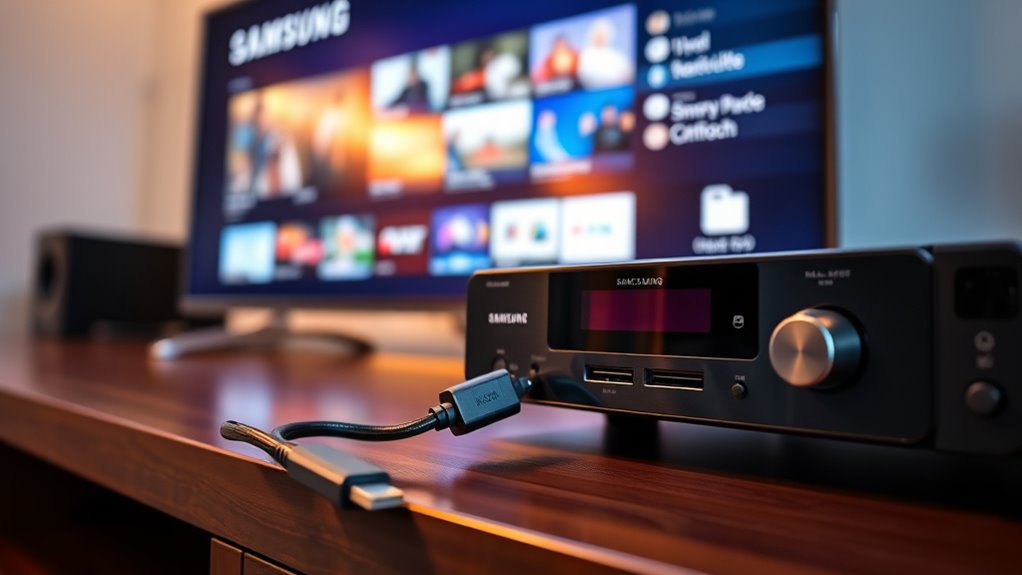

To connect your DVD player to a Samsung Smart TV, start by verifying you have the right cables, ideally an HDMI cable. Check the ports on both your DVD player and TV, then plug the cables in according to the output options. Next, set your TV to the correct input source using the remote. If you encounter any issues, double-check connections and adjust settings as needed. There’s plenty more to learn to guarantee a seamless viewing experience.
Required Equipment for Connection
To connect your DVD player to a Samsung Smart TV, you’ll need a few essential pieces of equipment. First, check the connection types available on both devices—most commonly, HDMI, composite, or component cables. Make sure you have the right cables that match your DVD player and TV; this is vital for equipment compatibility. If you don’t have an HDMI cable, you might need separate audio and video cables for older models. Additionally, a power source for both devices is necessary. Remember, using the correct cables guarantees a seamless connection and best video quality. With the right equipment on hand, you’re one step closer to enjoying your favorite DVDs on your Samsung Smart TV.
Identifying the Connection Ports
Once you’ve gathered the necessary equipment, the next step is identifying the connection ports on both your DVD player and Samsung Smart TV. Start by checking your DVD player for common connection types such as HDMI, RCA, or component ports. HDMI is usually the best option for quality, while RCA ports are often color-coded (red, white, yellow) for easy identification. Next, turn to your Samsung Smart TV and locate the corresponding port locations. Most modern TVs have HDMI ports conveniently placed on the back or side. If you’re using RCA, find the matching inputs. Knowing the connection types and their locations will make the next steps in connecting your devices much simpler and smoother.
Connecting the DVD Player to the TV
To connect your DVD player to your Samsung Smart TV, you’ll need the right cables and adapters based on your device’s output options. You can choose between HDMI for a high-quality connection or composite cables for older models. Once everything’s hooked up, make sure to set the correct input source on your TV to start watching your DVDs.
Required Cables and Adapters
Before you can enjoy your favorite movies, you’ll need the right cables and adapters to connect your DVD player to your Samsung Smart TV. Understanding the various cable types and adapter options is essential for a smooth connection. Here’s what you’ll need:
- HDMI Cable: This is the most common and provides high-quality audio and video.
- RCA Composite Cable: If your DVD player doesn’t have an HDMI port, this is a great alternative, using the red, white, and yellow connectors.
- Adapter: If your TV only has HDMI inputs, you might need an HDMI adapter to connect RCA cables.
With these components in hand, you’re ready to link your devices and start your movie marathon!
HDMI vs. Composite Connections
When connecting your DVD player to your Samsung Smart TV, the choice between HDMI and composite connections can greatly impact your viewing experience. HDMI is the preferred option for its numerous advantages, like delivering high-definition video and audio through a single cable, ensuring a cleaner setup. On the other hand, composite connections have limitations, such as lower video quality and the need for multiple cables, making the setup messier and less efficient.
Here’s a quick comparison:
| Feature | HDMI Advantages | Composite Limitations |
|---|---|---|
| Video Quality | High-definition | Standard definition |
| Audio Quality | Digital audio | Analog audio |
| Cable Management | Single cable | Multiple cables |
| Setup Ease | Quick and straightforward | More complex |
| Compatibility | Widely used in modern devices | Older devices only |
Setting Up Input Source
How do you guarantee your DVD player is properly connected to your Samsung Smart TV? It’s all about setting the correct input source. Follow these steps to verify your connection settings are spot on:
- Turn on both devices: Make sure your DVD player and TV are powered on.
- Select the right input: Use your TV remote to navigate to the “Source” or “Input” button. Choose the HDMI or AV input that corresponds to your DVD player’s connection.
- Check the connection: If you don’t see the DVD player’s menu on the screen, double-check your cables and try switching to different input sources until you find the one that works.
With these steps, you’ll enjoy your DVD collection on your Samsung Smart TV in no time!
Setting the TV to the Correct Input
Once your DVD player is connected, you’ll need to set your Samsung Smart TV to the correct input. Use your TV remote to cycle through the available input options until you find the one corresponding to your DVD player. If you run into any issues, troubleshooting the input settings can help resolve them quickly.
Identify Input Options
Before you can enjoy your favorite movies, it’s essential to set your Samsung Smart TV to the correct input. This guarantees that the connection types you’ve used for your DVD player are compatible. Here’s how to identify the input options:
- Check HDMI Ports: Most DVD players connect via HDMI. Confirm your TV has an available HDMI port for input compatibility.
- Look for AV Inputs: If your DVD player uses RCA cables, locate the red, white, and yellow ports on your TV.
- Explore Component Inputs: For higher quality video, some DVD players may use component cables. Check if your TV supports this connection type.
Once you’ve identified the right input, you’re all set to plunge into your movie experience!
Use TV Remote
To guarantee you’re viewing your DVD player’s content, you’ll need to set your Samsung Smart TV to the correct input using the remote. Start by picking up your TV remote and locate the “Source” or “Input” button. Press it to display the input options on your screen. You’ll see a list of all connected devices; navigate through the options using the arrow keys on your remote. Once you find the input where your DVD player is connected, select it by pressing the “OK” or “Enter” button. This simple step of changing settings allows you to enjoy your DVDs without hassle. Now you’re ready to immerse yourself in the world of your favorite movies!
Troubleshoot Input Issues
How can you resolve input issues when trying to connect your DVD player to your Samsung Smart TV? First, verify that your TV’s input is set correctly; otherwise, you won’t see any signal. Here’s how to troubleshoot:
- Check Input Source: Use your remote to navigate to the correct HDMI or AV input. Make sure it matches where your DVD player is connected.
- Adjust Input Resolution: Sometimes, your DVD player’s output resolution might not match your TV’s settings. Adjust the resolution settings on both devices if needed.
- Look for Signal Interference: Confirm that there’s no interference from other devices or cables. Disconnect unnecessary gadgets that might disrupt the signal.
Following these steps will help you enjoy your DVD movies without hassle!
Adjusting Audio and Video Settings
Once you’ve connected your DVD player to your Samsung Smart TV, it’s essential to adjust the audio and video settings for the best viewing experience. Start by accessing the TV’s settings menu. For audio calibration, choose the sound mode that fits your environment—options like ‘Standard’ or ‘Cinema’ can enhance your movie experience. You can also adjust the treble and bass if needed. Next, head to the video settings. Set the resolution to match your DVD player for ideal quality. If your TV has a picture mode, select one that suits your preference, such as ‘Movie’ or ‘Dynamic.’ These adjustments will let you enjoy your DVDs with enhanced sound and visuals, giving you the freedom to immerse yourself fully in the experience.
Troubleshooting Common Issues
While enjoying your DVDs, you might encounter a few common issues with your Samsung Smart TV and DVD player setup. Here are some troubleshooting tips for addressing common connection problems and video playback issues:
- Check Connections: Confirm all cables are securely connected. Loose or damaged cables can lead to display issues.
- Input Settings: Make sure your TV is set to the correct HDMI or AV input. Switching inputs can sometimes resolve video playback problems.
- DVD Compatibility: Verify that the DVD you’re trying to play is compatible with the player. Some formats may not be supported.
If you still face issues after these steps, consult your user manuals or customer support for further assistance. Enjoy your viewing!
Frequently Asked Questions
Can I Use an HDMI Splitter for Multiple Devices?
Yes, you can use an HDMI splitter for multiple devices, but be aware of HDMI compatibility issues and splitter limitations. Not all splitters support high resolutions or multiple formats, so choose wisely to avoid problems.
Will Connecting a DVD Player Void My TV Warranty?
Connecting a DVD player won’t void your warranty—unless you’re using a device incompatible with your TV! Warranty concerns mainly arise from improper installations, so as long as you’re careful, you’re free to enjoy your movies!
How Do I Clean DVD Discs for Better Playback?
To clean DVD discs for better playback, use a microfiber cloth and wipe from the center outward. Regular disc maintenance can prevent scratches and improve performance, ensuring your movies play smoothly without interruptions.
Can I Connect My DVD Player Wirelessly to the TV?
Connecting your DVD player wirelessly to your TV’s like trying to catch smoke with your bare hands. If your player supports wireless connection, explore streaming options to enjoy your DVDs without the hassle of cables.
What Should I Do if My DVD Player Is Not Powering On?
If your DVD player isn’t powering on, check the power cord and outlet for issues. Try different outlets and verify connections are secure. If problems persist, consult the manual for troubleshooting tips or consider professional assistance.
