

Connecting your Nintendo 64 (N64) to a smart TV is straightforward and can be done with a few simple steps. Whether you want to relive your childhood gaming memories or introduce a new generation to classic games, this guide will help you set up your N64 with your smart TV seamlessly. With the right cables and adapters, you can enjoy nostalgic gaming on your modern display without hassle.
Understanding the Necessary Cables
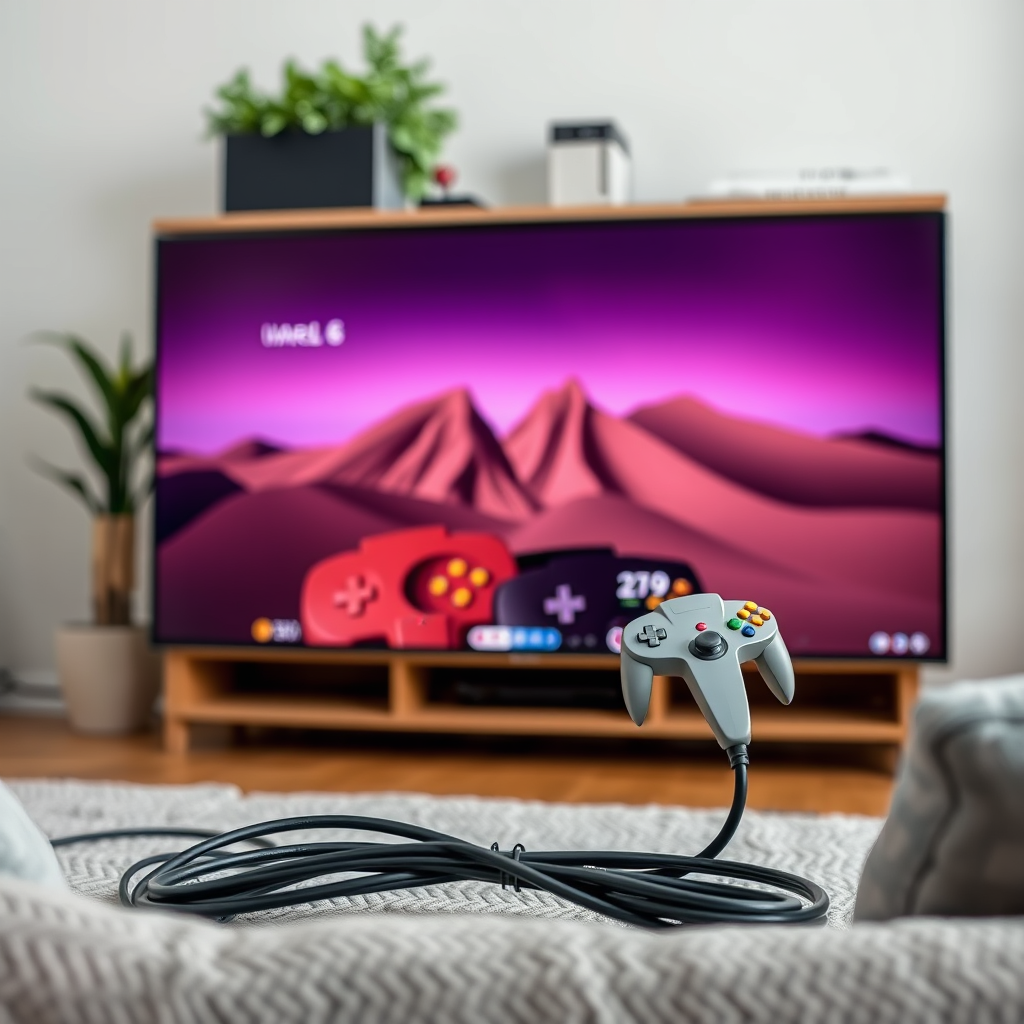
To successfully connect your N64 to a smart TV, you must first understand the necessary cables. The N64 typically uses an AV (Audio/Video) cable, which includes three connectors: red for audio right, white for audio left, and yellow for video. Most modern smart TVs may not have the older composite inputs required for these cables, which can complicate the connection process.
Before setting up, check your smart TV for available inputs. Many smart TVs today primarily feature HDMI inputs. Some might still have component or composite connections, but they are becoming less common in newer models. Knowing what ports are available on your TV is crucial for determining how you will make the connection.
Using AV to HDMI Adapters
If your smart TV lacks composite inputs, you can use an AV to HDMI adapter to convert the N64’s signal. These adapters are widely available and can bridge the gap between the old technology of the N64 and the modern HDMI inputs of your smart TV. Here are some tips when choosing an adapter:
1. Compatibility: Ensure that the adapter supports the N64’s output and is designed for video game consoles.
2. Resolution Support: Look for adapters that can handle at least 480p resolution, as this is the maximum output of the N64.
3. Power Source: Some adapters may require external power, so check if it comes with a power cable or if it can be powered through USB.
Using an AV to HDMI adapter can greatly simplify the connection process, especially for those who have upgraded to newer televisions.
Direct Connection to Smart TV
If your smart TV has composite inputs, connecting the N64 directly is straightforward. Simply follow these steps for a direct connection:
1. Connect the AV Cable: Plug the red, white, and yellow connectors from the N64 into the corresponding ports on your TV.
2. Select Input Source: Turn on your TV and use the remote to select the correct input source. This could be labeled as AV, Composite, or Video, depending on your TV’s specifications.
3. Power Up the N64: Turn on your N64 and ensure it is functioning correctly. You should see the game menu appear on your TV screen.
This method is the simplest if your TV still supports the older composite input connections, allowing for a quick setup without additional devices.
Top AV to HDMI Adapters for N64 (2024)
| # | Adapter Model | Resolution Support | Power Source | User Rating |
|---|---|---|---|---|
| 1 | Portta AV to HDMI Converter | 720p/1080p | USB | ★★★★☆ |
| 2 | GANA AV to HDMI Adapter | 720p/1080p | USB | ★★★★★ |
| 3 | AVerMedia AV to HDMI Converter | 720p | USB | ★★★★☆ |
| 4 | ZASW AV to HDMI Converter | 720p | USB | ★★★★☆ |
| 5 | Ugreen AV to HDMI Adapter | 720p/1080p | USB | ★★★★★ |
| 6 | Tendak HDMI to AV Converter | 720p | USB | ★★★★☆ |
| 7 | HDSunny AV to HDMI Converter | 720p/1080p | USB | ★★★★★ |
Adjusting TV Settings for Optimal Picture
Once the N64 is connected, you may need to adjust your TV settings for the best display. Here’s how you can optimize your gaming experience:
1. Aspect Ratio: Many smart TVs allow you to adjust the aspect ratio. The N64 outputs in a 4:3 aspect ratio, so choosing this option ensures that the display resembles the original output.
2. Picture Settings: Access the picture settings on your smart TV and consider adjusting brightness, contrast, and color settings to enhance the retro gaming experience.
3. Game Mode: Some smart TVs come with a ‘Game Mode’ option, which minimizes input lag and optimizes display settings for gaming. Activate this feature to improve responsiveness during gameplay.
By adjusting these settings, you can enhance the visual quality of your games, making the experience more enjoyable and closer to what you remember from your childhood.
Troubleshooting Common Issues
When connecting your N64 to a smart TV, you may encounter some common issues. Here are some troubleshooting tips to resolve them:
1. No Sound or Picture: If you don’t see anything on the screen, double-check all cable connections. Ensure that the AV cables are securely plugged into the correct ports on both the N64 and the TV.
2. Input Settings: Verify that the correct input source is selected on your TV. Sometimes, toggling through the available input options can help establish the connection.
3. Testing Cables and Adapters: If display issues persist, try using different AV cables or adapters. Faulty cables are a common culprit behind connectivity problems.
By systematically addressing these issues, you can ensure a smooth setup process and get back to gaming without delays.
Exploring Additional Features
For those looking to enhance their N64 gaming experience further, consider exploring additional features:
1. Capture Cards: If you are interested in streaming or recording your gameplay, a capture card can be an excellent addition. These devices allow you to capture video output from your N64 and stream it online or save it for later viewing.
2. Emulation Devices: For a modern approach to playing N64 games, consider retro gaming consoles or devices that can emulate N64 games. These devices often come with improved graphics and additional features that can enhance gameplay.
3. Game Mods: Some enthusiasts modify their N64 consoles for better performance or visual output. While this requires technical knowledge, it could be an exciting project for dedicated fans.
Exploring these additional features can significantly elevate your gaming experience and introduce you to a community of retro gaming enthusiasts.
In summary, connecting your N64 to a smart TV can be accomplished using the right cables and adapters. By following these steps, you can enjoy your favorite classic games on a modern screen. Don’t hesitate to explore additional features for a more enhanced gaming experience, and get ready to dive back into the nostalgia of N64 gaming!
Frequently Asked Questions
How can I connect my Nintendo 64 to a smart TV?
To connect your Nintendo 64 to a smart TV, you’ll need an AV to HDMI converter. First, plug the N64’s multi-out cable into the converter, then connect the HDMI output of the converter to one of your smart TV’s HDMI ports. Finally, switch your TV to the correct HDMI input to start playing.
What cables do I need to connect my N64 to a modern smart TV?
To connect your N64 to a modern smart TV, you will need the original N64 AV cable, which has yellow, red, and white connectors. If your smart TV lacks RCA inputs, you will also need an AV to HDMI converter to facilitate the connection.
Why is my N64 not displaying on my smart TV?
If your N64 is not displaying on your smart TV, ensure that you’ve selected the correct HDMI input where your converter is connected. Additionally, check that your AV to HDMI converter is powered on and functioning properly, as a faulty converter can prevent the signal from reaching the TV.
What is the best way to improve the picture quality of my N64 on a smart TV?
To improve the picture quality of your N64 on a smart TV, consider using a high-quality AV to HDMI converter that supports upscaling. Some converters offer features like enhanced resolution and better color output, which can significantly enhance your gaming experience on modern displays.
Which smart TVs are best for retro gaming like the N64?
The best smart TVs for retro gaming like the N64 are those with low input lag and multiple HDMI ports for connectivity. Brands like LG, Samsung, and Sony often have models that support these features, making them ideal for a smooth gaming experience while playing classic titles.
References
- Nintendo 64
https://en.wikipedia.org/wiki/Nintendo_64 - https://www.bbc.com/news/technology-46957815
https://www.bbc.com/news/technology-46957815 - https://www.sciencedirect.com/topics/computer-science/nintendo-64
https://www.sciencedirect.com/topics/computer-science/nintendo-64 - Google Scholar Google Scholar
https://scholar.google.com/scholar?q=connecting+n64+to+smart+tv - Google Scholar Google Scholar
https://scholar.google.com/scholar?q=Nintendo+64+video+output - Google Scholar Google Scholar
https://scholar.google.com/scholar?q=how+to+use+N64+on+modern+televisions - Reddit – The heart of the internet
https://www.reddit.com/r/Nintendo64/comments/b4x4zj/how_to_connect_n64_to_modern_tv/ - Google Scholar Google Scholar
https://scholar.google.com/scholar?q=how+to+connect+n64+to+smart+tv - how to connect n64 to smart tv – Search results
https://en.wikipedia.org/wiki/Special:Search?search=how+to+connect+n64+to+smart+tv - https://www.ncbi.nlm.nih.gov/search/research-articles/?term=how+to+connect+n64+to+smart+tv
https://www.ncbi.nlm.nih.gov/search/research-articles/?term=how+to+connect+n64+to+smart+tv
