


Connecting speakers to your PS4 is a simple process that can greatly enhance your gaming experience. Whether you’re using Bluetooth speakers or a wired setup, you’ll quickly learn how to get your audio devices working seamlessly with your console. This guide will walk you through the steps to ensure you enjoy immersive sound while gaming.
Understanding Your Audio Options
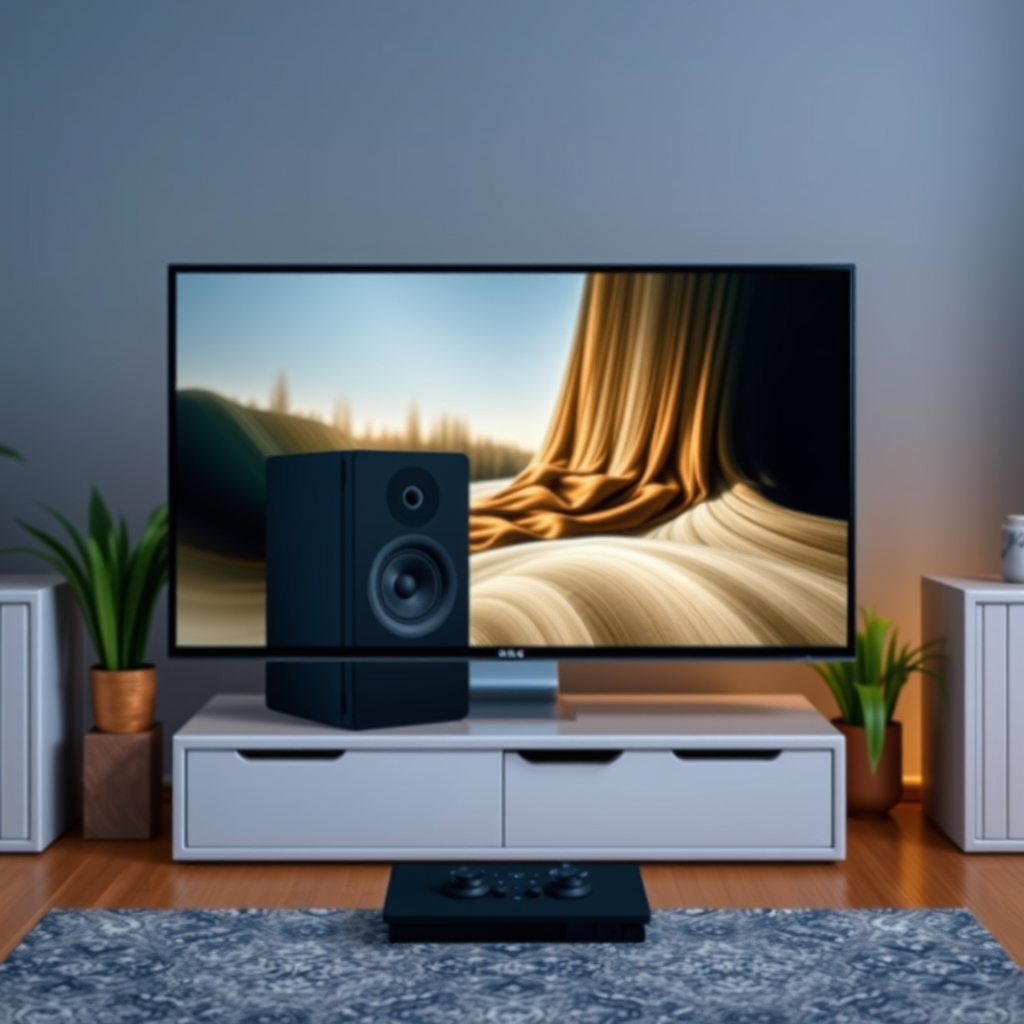
The PlayStation 4 (PS4) offers a range of audio output options, allowing users to customize their audio experience. These options include HDMI, optical audio, and Bluetooth connections. HDMI is typically used for high-definition audio and video, making it ideal for most setups. Optical audio provides a digital connection that can deliver high-quality sound to compatible speakers. Bluetooth connectivity allows for wireless speaker setups, providing convenience without the clutter of cables.
Before you begin, it’s essential to determine whether your speakers are wired or wireless. This decision will guide you in selecting the appropriate connection method for your setup. Assess the specifications of your speakers to ensure compatibility with the PS4’s output options.
Connecting Wired Speakers
To connect wired speakers to your PS4, start by locating the audio output ports on the back of your console. The PS4 typically features an optical audio output and a standard 3.5mm headphone jack.
1. Identify the Correct Cable: Depending on your speakers, you may need either an optical cable or a 3.5mm audio cable. If your speakers have an optical input, use an optical cable for the best sound quality. For speakers with standard audio inputs, a 3.5mm cable will suffice.
2. Make the Connection: Insert one end of the cable into the appropriate port on your PS4 and the other end into the corresponding input on your speakers. Ensure that the connections are secure to avoid any audio issues.
3. Power On: Turn on your speakers and the PS4 console.
By following these steps, your wired speakers should be ready to deliver enhanced audio, creating a more immersive gaming experience.
Connecting Bluetooth Speakers
Connecting Bluetooth speakers to your PS4 is a straightforward process, but it involves a few specific steps to ensure proper pairing.
1. Prepare Your Bluetooth Speakers: Before connecting, ensure that your Bluetooth speakers are fully charged and in pairing mode. This often involves pressing a specific button on the speaker until a light flashes, indicating it’s ready for pairing.
2. Access PS4 Settings: On your PS4, navigate to the main menu and select the “Settings” option. From there, scroll down to “Devices.”
3. Select Bluetooth Devices: In the Devices menu, choose “Bluetooth Devices.” The PS4 will scan for available Bluetooth devices.
4. Pair the Speakers: When your Bluetooth speakers appear on the list, select them. Follow any prompts that may appear to complete the pairing process.
5. Confirm Connection: Once paired, you should see a confirmation message. Test the audio by playing a game or a media file to confirm that sound is being routed through your Bluetooth speakers.
Successfully connecting Bluetooth speakers allows for a wireless gaming experience, free from the limitations of cables.
Configuring Audio Settings on PS4
After connecting your speakers, it’s crucial to configure your PS4’s audio settings to ensure that sound is routed correctly.
1. Access Sound and Screen Settings: From the main menu, go to “Settings,” then select “Sound and Screen.”
2. Adjust Audio Output Settings: Here, you will find options to configure audio output. Depending on your connection type, select either “Audio Output Settings” for wired connections or “Bluetooth Devices” for wireless speakers.
3. Select Output Format: Choose the appropriate audio format. For most users, “Linear PCM” is recommended for optimal sound quality. If you are using a surround sound system, consider selecting “Bitstream (Dolby)” or “Bitstream (DTS)” for a more immersive experience.
4. Test the Sound: After making your adjustments, play a game or media file to ensure that the sound is outputting through your connected speakers. Adjust the volume levels as needed on both the PS4 and your speakers.
These settings will help you tailor the audio output to your preference, ensuring that you enjoy the best sound quality while gaming.
Top 7 Speaker Brands for PS4 Gaming (2024)
| # | Brand | Type | Connection | Rating |
|---|---|---|---|---|
| 1 | Sony | Soundbar | Bluetooth/Wired | ★★★★☆ |
| 2 | Bose | Speakers | Bluetooth | ★★★★★ |
| 3 | Logitech | Surround | Wired | ★★★★☆ |
| 4 | JBL | Portable | Bluetooth | ★★★★☆ |
| 5 | Bang & Olufsen | Home | Wired/Bluetooth | ★★★★★ |
| 6 | Sennheiser | Headphones | Wired | ★★★☆☆ |
| 7 | Klipsch | Home | Wired | ★★★★☆ |
Troubleshooting Common Issues
Despite the straightforward nature of connecting speakers to your PS4, you may encounter some common issues. Here are a few troubleshooting tips to help you resolve them:
1. No Sound Output: If audio is not playing through your speakers, check the following:
– Ensure that your speakers are powered on and set to the correct input source.
– Verify that the cable connections are secure if using wired speakers.
– For Bluetooth speakers, ensure they are still connected in the PS4’s Bluetooth settings.
2. Volume Levels: Check the volume levels on both the PS4 and the speakers. Sometimes, the console volume may be set too low, or the speakers might be muted.
3. Audio Format Compatibility: If you’re using a surround sound system, make sure your audio formats are compatible with your speaker setup. Adjust the settings in the “Sound and Screen” menu as needed.
4. Firmware Updates: Keep your PS4 and speakers updated with the latest firmware. Manufacturers often release updates that can improve connectivity and performance.
By addressing these common issues, you can ensure a smooth audio experience while gaming.
Enhancing Your Audio Experience
To further enhance your audio experience on the PS4, consider investing in additional audio equipment and exploring various settings:
1. Soundbar or Home Theater System: Upgrading to a dedicated soundbar or a home theater system can provide a richer, more immersive sound experience than standard speakers. These systems are designed to deliver high-fidelity audio, which can significantly enhance gaming and movie-watching sessions.
2. Audio Formats and Settings: The PS4 supports various audio formats, including Dolby Digital and DTS. Experiment with these settings to find the best audio output for your speakers. If you have a surround sound setup, make sure to configure the audio output accordingly.
3. Surround Sound Headphones: For those who prefer private gaming sessions, consider investing in high-quality surround sound headphones. They provide an immersive audio experience, allowing you to hear every detail without disturbing others.
4. Audio Calibration: Some systems offer built-in audio calibration features to optimize sound based on your room’s acoustics. Utilize these features if available for the best sound quality.
By exploring these options, you can significantly improve your audio experience while gaming on your PS4.
Connecting speakers to your PS4 can enhance your gaming sessions significantly. Follow the steps outlined above to get started, whether you opt for a wired or wireless setup. Additionally, consider investing in quality audio equipment and experimenting with different configurations to find the best sound for your gaming needs. Enjoy your enhanced audio experience and immerse yourself in the world of gaming like never before!
Frequently Asked Questions
How do I connect wired speakers to my PS4?
To connect wired speakers to your PS4, you’ll need a compatible audio cable, typically a 3.5mm audio jack or optical audio cable. Connect one end of the cable to the headphone jack on your PS4 controller or the optical audio port on the console, and the other end to your speakers. Ensure that your PS4 audio settings are configured to output sound through the selected output method.
What type of speakers work best with a PS4?
The best speakers for a PS4 are those that support either Bluetooth or wired connections. Many gamers prefer surround sound speakers for an immersive experience, while high-quality stereo speakers are also effective for general gameplay. Look for speakers with low latency to ensure sound synchronizes well with your gaming experience.
Why is my PS4 not recognizing my Bluetooth speakers?
If your PS4 is not recognizing your Bluetooth speakers, ensure that the speakers are in pairing mode and within range. Go to the PS4 settings, navigate to “Devices,” then “Bluetooth Devices,” and select your speakers from the list. If issues persist, try restarting both the PS4 and the speakers or ensure that the speakers are compatible with the PS4.
How can I improve sound quality from my PS4 speakers?
To improve sound quality from your PS4 speakers, adjust your audio settings by going to “Settings,” then “Sound and Screen,” and selecting “Audio Output Settings.” Experiment with different audio formats like Linear PCM or Bitstream to find what sounds best. Additionally, ensure your speakers are positioned correctly and consider using an external DAC (Digital-to-Analog Converter) for enhanced audio clarity.
Which audio settings should I use for optimal gaming sound on PS4?
For optimal gaming sound on PS4, navigate to “Settings,” then “Sound and Screen,” and choose “Audio Output Settings.” Select “Primary Output Port” to either HDMI or Optical, depending on your connection type, and choose the audio format that works best with your speakers, such as Linear PCM for most setups. Adjusting the “Audio Format” settings can significantly enhance your overall gaming experience.
References
- https://www.lifewire.com/how-to-connect-bluetooth-speakers-to-ps4-4777851
https://www.lifewire.com/how-to-connect-bluetooth-speakers-to-ps4-4777851 - Google Scholar Google Scholar
https://scholar.google.com/scholar?q=connect+speakers+to+ps4 - https://scholar.google.com/scholar?q=PS4+audio+output+settings Google Scholar
https://scholar.google.com/scholar?q=PS4+audio+output+settings - https://scholar.google.com/scholar?q=how+to+connect+audio+devices+to+PS4 Google Scholar
https://scholar.google.com/scholar?q=how+to+connect+audio+devices+to+PS4 - https://scholar.google.com/scholar?q=how+to+connect+speakers+to+a+ps4 Google Scholar
https://scholar.google.com/scholar?q=how+to+connect+speakers+to+a+ps4 - how to connect speakers to a ps4 – Search results
https://en.wikipedia.org/wiki/Special:Search?search=how+to+connect+speakers+to+a+ps4 - https://www.ncbi.nlm.nih.gov/search/research-articles/?term=how+to+connect+speakers+to+a+ps4
https://www.ncbi.nlm.nih.gov/search/research-articles/?term=how+to+connect+speakers+to+a+ps4
