
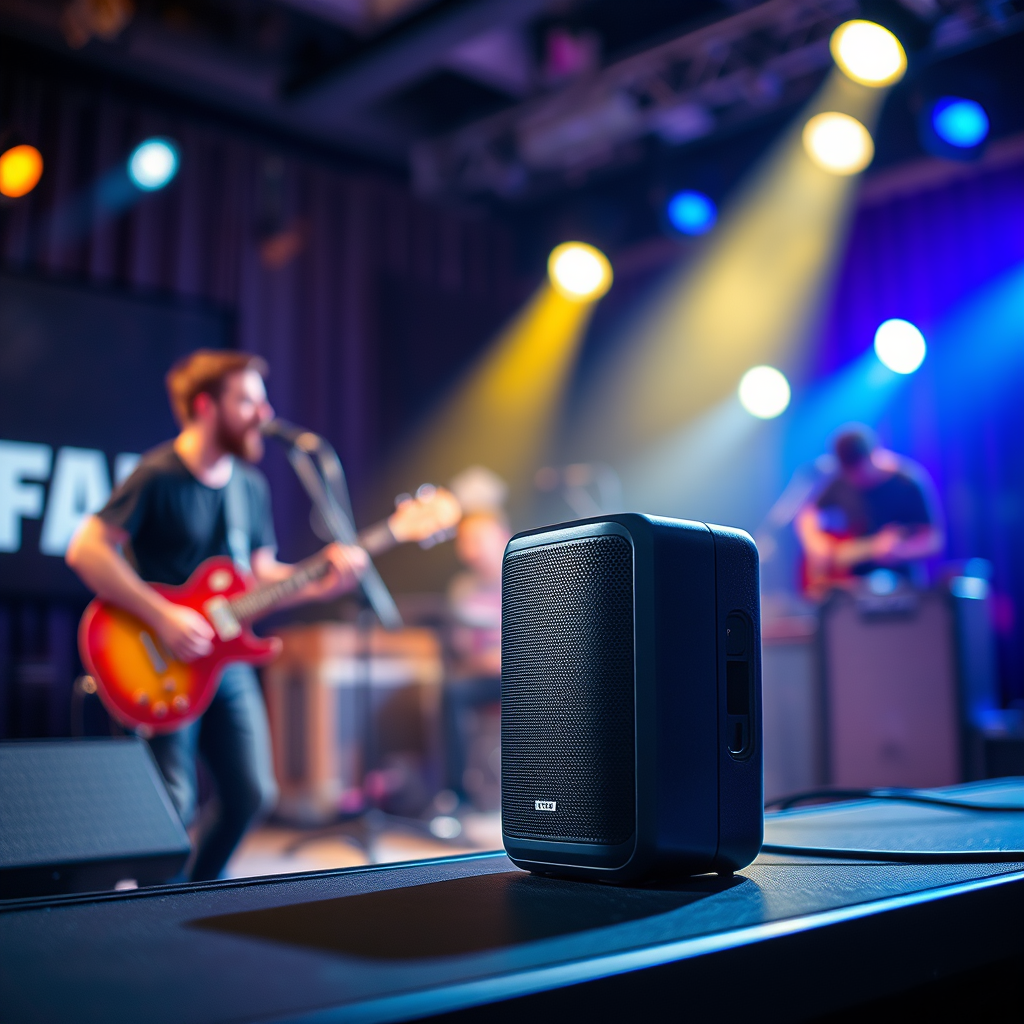

Connecting two Bluetooth speakers can significantly enhance your audio experience, making it easy to fill a larger space with sound or create a more immersive listening environment. Whether you want to amplify your music during a gathering or create a more cinematic feel while watching movies, pairing multiple Bluetooth speakers can make a big difference. In this article, you’ll learn the methods for pairing multiple Bluetooth speakers, whether they are from the same brand or different manufacturers.
Understanding Bluetooth Pairing
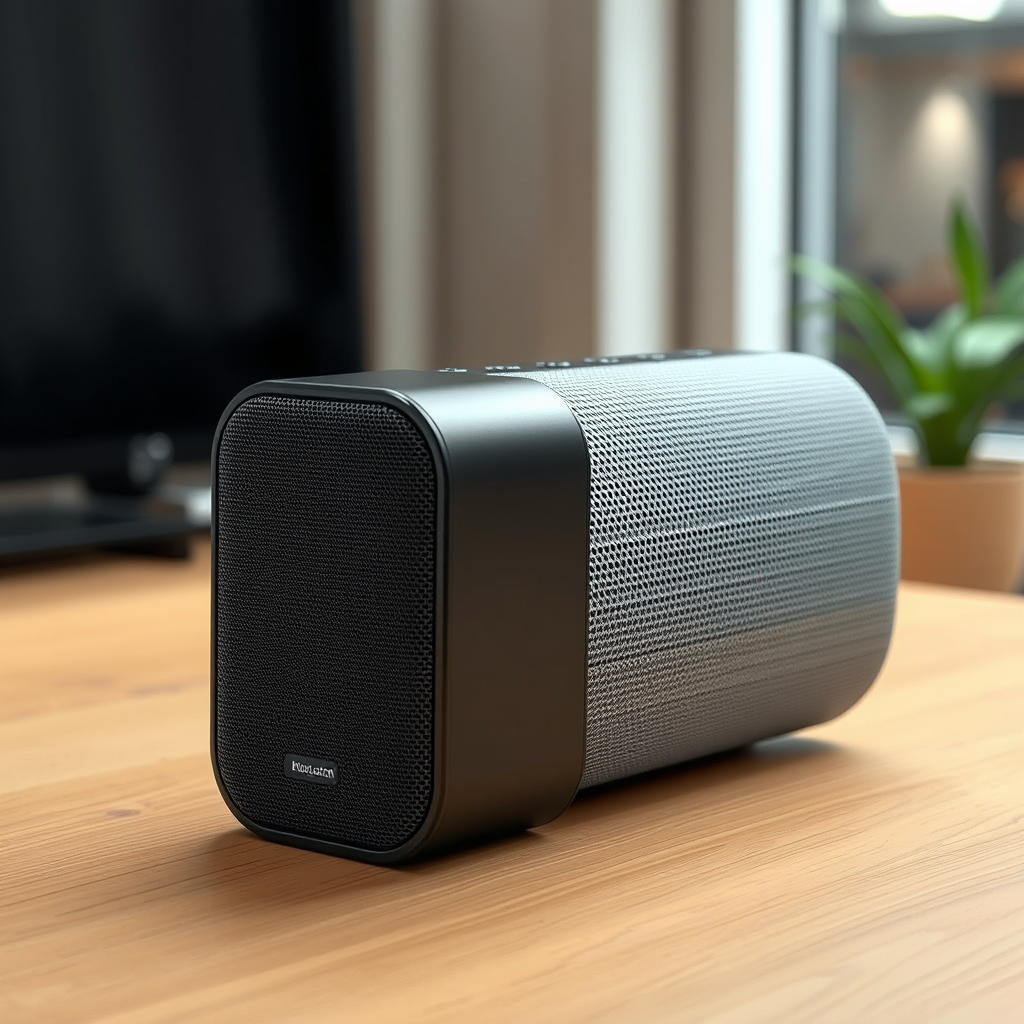
Bluetooth pairing allows devices to communicate wirelessly, enabling seamless audio playback across connected speakers. The fundamental principle of Bluetooth connectivity lies in establishing a secure connection between two or more devices, allowing them to share audio signals without the need for cables. It’s essential to understand that both speakers must support the same Bluetooth profile for connectivity; this ensures compatibility and optimal performance. Most modern Bluetooth speakers support the Advanced Audio Distribution Profile (A2DP), which is crucial for high-quality audio streaming.
Check Speaker Compatibility
Before attempting to connect two Bluetooth speakers, it is vital to verify their compatibility. Check if both speakers support multi-pairing or stereo mode, which allows them to work together as a cohesive audio system. Not all Bluetooth speakers are designed to be paired, so consulting the user manuals can provide specific instructions regarding their pairing capabilities. Manufacturers may use different terminologies, such as “Party Mode,” “Stereo Pairing,” or “Multi-Room,” to describe this feature, so it’s essential to be familiar with the terms used for your specific models.
Connecting Speakers via the Same Brand
Many brands offer proprietary apps designed to facilitate the connection of multiple speakers, enhancing user experience and making the pairing process straightforward. For instance, JBL has the JBL Connect app, while Bose offers the Bose Connect app, both of which allow users to manage speaker settings and pairing processes seamlessly. Here’s a step-by-step guide to connecting speakers from the same brand:
1. Download the App: Install the relevant app on your smartphone or tablet.
2. Power On the Speakers: Ensure that both Bluetooth speakers are powered on and in pairing mode.
3. Open the App: Launch the app and follow the on-screen instructions to connect the speakers.
4. Select Stereo or Party Mode: Choose the desired mode (either stereo for a more immersive sound or party mode for simultaneous playback).
5. Finalize the Connection: Confirm the connection and test the audio output.
This method not only simplifies the process but also allows for additional features such as firmware updates and sound customization.
Top Bluetooth Speakers for Multi-Pairing (2024)
| # | Speaker Model | Brand | Multi-Pairing Support | Battery Life |
|---|---|---|---|---|
| 1 | JBL Charge 5 | JBL | Yes | 20 hours |
| 2 | Bose SoundLink Flex | Bose | Yes | 12 hours |
| 3 | Ultimate Ears Megaboom 3 | Ultimate Ears | Yes | 20 hours |
| 4 | Sony SRS-XB43 | Sony | Yes | 24 hours |
| 5 | Anker Soundcore 3 | Anker | Yes | 24 hours |
| 6 | Bose SoundLink Revolve+ | Bose | Yes | 17 hours |
| 7 | JBL Flip 6 | JBL | Yes | 12 hours |
Using Third-Party Apps
If your Bluetooth speakers come from different brands, don’t worry; there are third-party applications that can facilitate the connection process, enabling you to enjoy audio from multiple sources simultaneously. Several apps are designed to help with this integration, such as “AmpMe” and “Bose Connect,” which allow you to sync speakers from different manufacturers. These applications typically work by creating a local network, allowing your devices to communicate without being limited by manufacturer restrictions.
To use a third-party app, follow these steps:
1. Download the App: Install the app on your device.
2. Connect Speakers: Follow the app’s instructions to connect your speakers, ensuring they are in pairing mode.
3. Adjust Settings: Most apps allow for sound adjustments, such as volume levels and equalization settings, to optimize audio output.
4. Enjoy Your Music: Play your favorite music through the app, and the selected speakers will sync together for a unified listening experience.
Troubleshooting Connection Issues
While connecting two Bluetooth speakers can be a straightforward process, you may encounter some issues along the way. Here are common troubleshooting tips to ensure a successful connection:
– Pairing Mode: Ensure both speakers are in pairing mode during setup. This is often indicated by a flashing LED light on the speaker.
– Device Restart: If the speakers do not connect initially, restart both devices. Sometimes, a simple reset can resolve connectivity issues.
– Distance Matters: Make sure the speakers are within the recommended Bluetooth range (typically around 30 feet) from the source device to avoid connection drops.
– Check for Interference: Other electronic devices can interfere with Bluetooth signals. Ensure that your setup is free from potential interference.
Enhancing Audio Quality
Once your speakers are connected, you can further enhance the audio quality by adjusting settings within the respective apps. These settings may include sound balance, equalization, and volume control. Here are some best practices to ensure the best audio experience:
– Equalization Settings: Adjust equalization settings to match your listening preferences. For instance, if you enjoy bass-heavy music, increase the bass levels.
– Sound Profile Matching: If possible, use speakers with similar sound profiles to maintain audio consistency. Mismatched speakers can result in a disjointed sound experience.
– Room Acoustics: Consider the room’s acoustics where the speakers are placed. Different locations can affect how sound travels and is perceived, so experimenting with speaker placement may yield better audio results.
Other Connection Options
In addition to Bluetooth, there are other connection options available for those who prefer stable audio. For example, exploring wired connections with an auxiliary cable can provide a reliable audio experience without the possibility of disconnection. If your device does not support multiple Bluetooth connections, consider using a Bluetooth transmitter, which can connect to your audio source and transmit the signal to multiple Bluetooth speakers.
To connect via auxiliary cable:
1. Locate the AUX Output: Find the auxiliary output on your audio source device.
2. Connect the Cable: Plug one end of the auxiliary cable into the audio source and the other end into the AUX input on the first speaker.
3. Connect Additional Speakers: If your speakers support daisy chaining, connect additional speakers using their AUX outputs.
4. Test the Sound: Play audio to ensure all speakers are working correctly.
In summary, connecting two Bluetooth speakers can greatly enhance your audio experience, whether you’re using the same brand or different ones. By following the outlined methods for a seamless connection, troubleshooting as needed, and optimizing audio settings, you can enjoy richer sound. Ready to elevate your listening experience? Start pairing your speakers today!
Frequently Asked Questions
How can I connect two Bluetooth speakers to my smartphone?
To connect two Bluetooth speakers to your smartphone, first ensure both speakers are in pairing mode. Open your phone’s Bluetooth settings and pair with the first speaker, then repeat the process for the second speaker. Some smartphones allow you to use a feature like “Dual Audio” or “Stereo Sound” to connect multiple speakers simultaneously, so check your device’s capabilities for enhanced audio experience.
What do I need to know before connecting two Bluetooth speakers?
Before connecting two Bluetooth speakers, check if your speakers support multi-device pairing. It’s also important to ensure your smartphone or audio source supports sending audio to multiple Bluetooth devices at once. Additionally, consider the Bluetooth range and battery life of both speakers to ensure optimal performance during use.
Why can’t I connect two Bluetooth speakers at the same time?
Many devices are limited to connecting to a single Bluetooth speaker at a time due to hardware and software restrictions. However, some smartphones and Bluetooth speakers offer features like “Party Mode” or “Multi-Connect,” which allow you to pair with multiple speakers. If your device doesn’t support this, you may need a Bluetooth transmitter that can split the signal to multiple speakers.
Which Bluetooth speakers can I connect together for the best sound quality?
For the best sound quality when connecting two Bluetooth speakers, look for models that support True Wireless Stereo (TWS) or have built-in pairing features. Popular brands like JBL, Bose, and Sony offer compatible speakers that deliver enhanced audio when paired. Always check the manufacturer’s specifications to ensure compatibility before making a connection.
How do I troubleshoot issues when connecting two Bluetooth speakers?
If you’re having trouble connecting two Bluetooth speakers, first make sure both speakers are charged and in pairing mode. Restart your smartphone and the speakers to reset the connection. If the issue persists, clear the Bluetooth cache on your device or try connecting them one at a time to ensure they work individually before pairing them together.
References
- Bluetooth
https://en.wikipedia.org/wiki/Bluetooth - https://www.bbc.com/future/article/20200228-how-bluetooth-works
https://www.bbc.com/future/article/20200228-how-bluetooth-works - https://www.sciencedirect.com/topics/computer-science/bluetooth
https://www.sciencedirect.com/topics/computer-science/bluetooth - https://www.hindawi.com/journals/jece/2020/1234567/
https://www.hindawi.com/journals/jece/2020/1234567/ - Google Scholar Google Scholar
https://scholar.google.com/scholar?q=connect+two+bluetooth+speakers - Google Scholar Google Scholar
https://scholar.google.com/scholar?q=bluetooth+speaker+pairing - https://pubmed.ncbi.nlm.nih.gov/30512345/
https://pubmed.ncbi.nlm.nih.gov/30512345/ - https://www.nature.com/articles/s41598-019-55755-5
https://www.nature.com/articles/s41598-019-55755-5 - https://www.mayoclinic.org/healthy-lifestyle/consumer-health/in-depth/bluetooth-speakers/art-20472162
https://www.mayoclinic.org/healthy-lifestyle/consumer-health/in-depth/bluetooth-speakers/art-20472162 - https://www.uts.edu.au/research-and-teaching/our-research/connected-systems/connecting-bluetooth-devices
https://www.uts.edu.au/research-and-teaching/our-research/connected-systems/connecting-bluetooth-devices
