

Connecting two Bluetooth speakers to one phone is a straightforward process that can enhance your listening experience. By utilizing either your phone’s built-in features or third-party apps, you can easily achieve this setup. In this article, you’ll learn different methods to connect multiple Bluetooth speakers, ensuring you enjoy rich, immersive sound.
Understanding Bluetooth Pairing
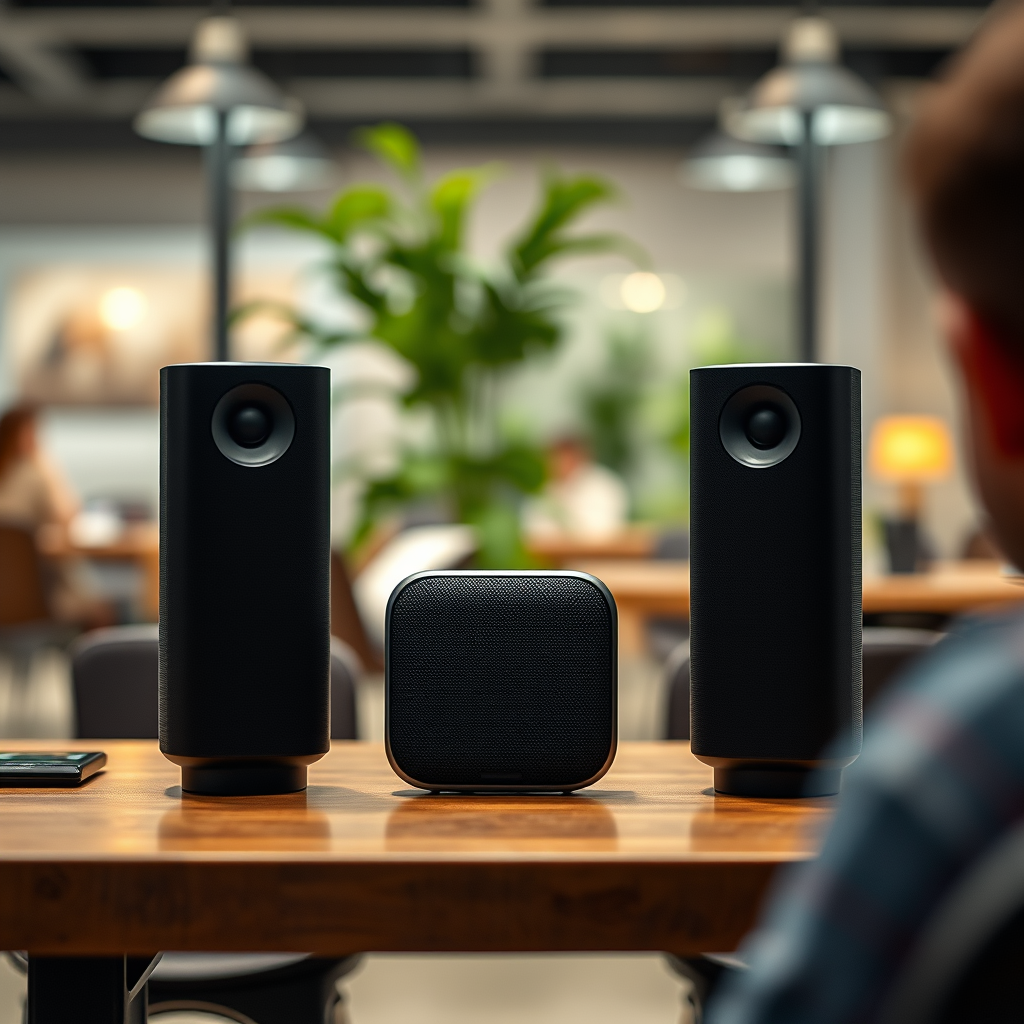
Bluetooth technology allows devices to connect wirelessly over short distances, typically within a range of 30 feet. This revolutionary technology has transformed how we interact with audio devices, enabling a seamless listening experience without the clutter of wires. Most modern smartphones support multiple Bluetooth connections, but capabilities can vary by device and operating system. For instance, some devices can connect to multiple speakers simultaneously, while others may only support one connection at a time. Therefore, understanding your device’s specifications is crucial when attempting to connect two Bluetooth speakers.
Using Built-in Features
Many smartphones, including popular models from Samsung and Apple, offer features designed specifically for connecting multiple Bluetooth audio devices. Samsung’s Dual Audio feature allows users to connect two Bluetooth speakers simultaneously, enabling synchronized playback of audio. Similarly, Apple devices provide an Audio Sharing feature that allows two pairs of AirPods or compatible Beats headphones to connect to a single iPhone, but it can also be adapted for speakers with the right configurations.
To check whether your phone supports these features, navigate to the Bluetooth settings menu. If available, these options can typically be enabled with a simple toggle. This method is not only convenient but also ensures that the audio is properly synchronized, providing an excellent listening experience.
Utilizing Third-Party Apps
If your phone does not support built-in features for connecting multiple Bluetooth speakers, various third-party apps can facilitate this process. Popular applications such as Bose Connect, JBL Connect, and Ultimate Ears allow users to link multiple speakers from the same brand or compatible models. These apps often provide user-friendly interfaces that simplify the connection process and allow for additional sound management features.
For example, the JBL Connect app enables users to pair multiple JBL speakers for a more powerful audio experience. By following the app’s prompts, you can easily connect your speakers and even adjust audio settings to suit your preferences. This method is particularly beneficial for users who own speakers from brands that support multi-device pairing.
Configuring the Speaker Settings
Before attempting to connect your speakers, ensure both are in pairing mode. This usually involves pressing and holding the Bluetooth button on each speaker until an LED light indicates that they are discoverable. Additionally, be aware that some speakers may require firmware updates to ensure optimal performance and compatibility with your phone. Regularly checking for updates through the manufacturer’s app or website can enhance connectivity and audio quality.
When configuring the settings on your phone, select the first speaker you wish to connect, followed by the second. Depending on the method used, the speakers might automatically sync, or you may need to adjust settings through the app.
Top Bluetooth Speaker Brands for Multi-Connection (2024)
| # | Brand | Multi-Device Support | App Availability | Battery Life |
|---|---|---|---|---|
| 1 | Bose | Yes | Bose Connect | 20 hours |
| 2 | JBL | Yes | JBL Connect | 15 hours |
| 3 | Ultimate Ears | Yes | Ultimate Ears | 20 hours |
| 4 | Sony | Yes | Sony Music Center | 16 hours |
| 5 | Anker | No | Anker Soundcore | 24 hours |
| 6 | Marshall | No | Marshall Voice | 20 hours |
| 7 | Bang & Olufsen | Yes | Bang & Olufsen | 30 hours |
Troubleshooting Common Issues
If you encounter issues while connecting your Bluetooth speakers, there are several common troubleshooting steps you can take. First, ensure that both speakers are in pairing mode and within range of your phone. If a connection fails, try resetting the speakers or restarting your phone, as this can often resolve connectivity issues.
Additionally, check that the Bluetooth version of both speakers is compatible with your phone. Some older models may not support newer Bluetooth features, which can lead to connection problems. Furthermore, ensure that no other devices are attempting to connect to the speakers simultaneously, as this can interfere with pairing.
Enhancing Your Listening Experience
Once you have successfully connected your Bluetooth speakers, consider experimenting with speaker placement to maximize sound distribution. Placing speakers in opposite corners of a room can create a more immersive experience, filling the space with sound. Moreover, using a dedicated app to adjust equalizer settings can further enhance audio quality, allowing you to tailor the sound to your preferences.
Many apps provide pre-set equalizer settings for different music genres, which can significantly improve your listening experience. For instance, if you’re listening to bass-heavy music, adjusting the settings to boost lower frequencies can create a richer sound.
Safety and Compatibility Considerations
Before connecting multiple Bluetooth speakers, always check the compatibility of the speakers with your specific phone model. This ensures that you will not encounter any connectivity issues. Moreover, be mindful of the battery levels of your speakers, as low battery power can lead to audio interruptions during playback.
Keeping your speakers charged and updated is essential for maintaining optimal performance. Additionally, consider the potential for audio lag when connecting multiple speakers, particularly if they are from different brands. This can affect the overall audio experience and synchronization.
Summarizing the methods to connect two Bluetooth speakers to one phone, you can utilize built-in features or third-party apps for a seamless experience. Make sure to troubleshoot any connection issues you encounter, and consider optimizing your audio settings for the best sound quality. Now, grab your phone, pair your speakers, and enjoy a richer audio experience!
Frequently Asked Questions
How do I connect two Bluetooth speakers to one phone?
To connect two Bluetooth speakers to one phone, first ensure that both speakers are in pairing mode. Go to your phone’s Bluetooth settings, select one speaker to connect, and then use a feature like “Dual Audio” (available on some Android devices) or “Audio Sharing” (available on iOS devices) to pair the second speaker. Once connected, you can enjoy music from both speakers simultaneously.
Why can’t I connect two Bluetooth speakers to my phone?
Many smartphones do not natively support connecting to multiple Bluetooth speakers at once, which can lead to difficulties. If your device lacks this feature, consider using a Bluetooth adapter that supports dual pairing or check for software updates that might enable this functionality. Additionally, ensure that both speakers are compatible with multi-device connections.
What is the best way to connect two Bluetooth speakers for stereo sound?
The best way to connect two Bluetooth speakers for stereo sound is to use speakers that support stereo pairing, such as the JBL PartyBoost or Bose Connect feature. After connecting the first speaker to your phone, follow the manufacturer’s instructions to link the second speaker, allowing you to enjoy a richer audio experience with separate left and right channels.
Which Bluetooth speakers can connect to multiple devices at once?
Some Bluetooth speakers, like the Ultimate Ears BOOM series and the JBL Xtreme series, offer features that allow connection to multiple devices simultaneously. These models typically include a “Party Mode” or “Connect+” feature that enables seamless pairing of multiple speakers for a synchronized audio experience, making them ideal for parties or gatherings.
How can I troubleshoot issues when connecting two Bluetooth speakers to my phone?
If you experience issues connecting two Bluetooth speakers, first ensure that both devices are fully charged and within range of your phone. Restart both the speakers and your phone, and try to remove any previous Bluetooth connections before reconnecting. If problems persist, check the manufacturer’s documentation for specific pairing instructions or consider resetting the speakers to factory settings.
References
- https://www.pcmag.com/how-to/how-to-connect-two-bluetooth-speakers-to-a-single-device
https://www.pcmag.com/how-to/how-to-connect-two-bluetooth-speakers-to-a-single-device - https://www.lifewire.com/how-to-connect-two-bluetooth-speakers-to-one-device-5182652
https://www.lifewire.com/how-to-connect-two-bluetooth-speakers-to-one-device-5182652 - Google Scholar Google Scholar
https://scholar.google.com/scholar?q=how+to+connect+two+bluetooth+speakers+to+one+phone - Google Scholar Google Scholar
https://scholar.google.com/scholar?q=connecting+multiple+bluetooth+speakers+to+one+device - Google Scholar Google Scholar
https://scholar.google.com/scholar?q=bluetooth+speaker+pairing+techniques - how to connect two bluetooth speakers to one phone – Search results
https://en.wikipedia.org/wiki/Special:Search?search=how+to+connect+two+bluetooth+speakers+to+one+phone - https://www.ncbi.nlm.nih.gov/search/research-articles/?term=how+to+connect+two+bluetooth+speakers+to+one+phone
https://www.ncbi.nlm.nih.gov/search/research-articles/?term=how+to+connect+two+bluetooth+speakers+to+one+phone
