
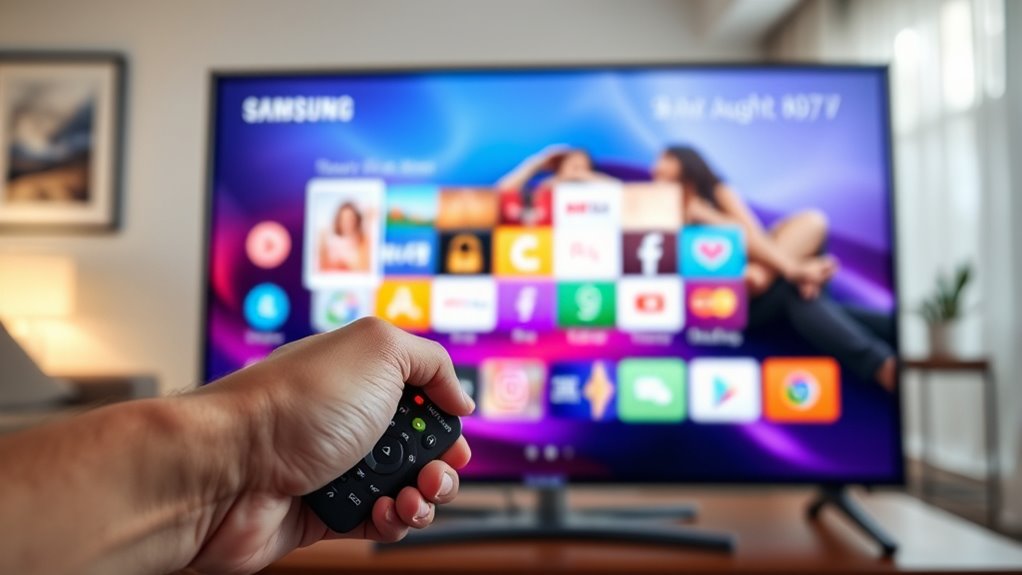

To delete pre-installed apps on your Samsung Smart TV, start by pressing the Home button on your remote to access the Home Menu. Navigate to the Apps section and select ‘My Apps.’ Choose the app you want to delete and look for the delete option. Confirm your choice to remove the app. This process helps streamline your viewing experience and optimize performance. If you’re interested, there are more tips on customizing your home screen.
Understanding Pre-Installed Apps on Your Samsung Smart TV
When you set up your Samsung Smart TV, you’ll notice it comes with several pre-installed apps designed to enhance your viewing experience. These pre-installed features include popular streaming services, news, and sports applications that let you dive right into content without the hassle of downloading. Understanding app management is essential for optimizing your TV’s performance. You can customize your app layout, organize favorites, or remove apps you don’t use. This not only declutters your interface but also frees up system resources, allowing your TV to run smoothly. Knowing how to handle these pre-installed apps empowers you to tailor your entertainment experience, ensuring you enjoy only what matters most to you.
Accessing the Home Menu
How do you access the Home Menu on your Samsung Smart TV? It’s simple! Just press the Home button on your remote. This will bring up the Home Menu, showcasing various home menu features like apps, settings, and connected devices. You’ll find it easy to navigate through your options, whether you’re looking to watch your favorite show or access settings for customization. If you want to modify your TV’s functionality or preferences, accessing settings is just a click away. The Home Menu serves as your command center, allowing you to manage your viewing experience effortlessly. Remember, exploring the Home Menu opens up a world of possibilities for personalizing your Samsung Smart TV. Enjoy the freedom to tailor it to your liking!
Navigating to the Apps Section
To navigate to the Apps Section on your Samsung Smart TV, simply press the Home button on your remote, and then look for the Apps icon on the screen. This section is where you’ll manage your apps effectively. Once you’re in, you’ll find various options for app management within your television settings.
Here’s a quick overview of what you’ll see:
| Feature | Description | Action |
|---|---|---|
| Installed Apps | View all currently installed apps | Select to open |
| App Store | Browse new apps | Download or install |
| My Apps | Manage your favorites | Customize your list |
With these tools, you can easily explore and organize your apps to suit your preferences!
Deleting Unwanted Apps
Deleting unwanted apps from your Samsung Smart TV can help streamline your viewing experience and free up storage space. If you’re tired of clutter and want to focus on the apps you actually use, it’s time for removing bloatware. Start by accessing the Apps section, then navigate to My Apps. Here, you’ll see all installed applications. Select the unwanted app, and you’ll find an option to delete it. Confirm your choice, and voilà! You’ve customized your interface to better suit your preferences. This process not only enhances your TV’s performance but also makes it easier to find your favorite shows and movies. So, take control and enjoy a more personalized viewing experience!
Reorganizing Your Home Screen
Ever wondered how you can create a more intuitive layout on your Samsung Smart TV? With home screen customization, you can easily rearrange your apps to suit your viewing habits. Start by accessing the home screen, then highlight the app you want to move. Simply press and hold the Select button on your remote, and drag the app to your desired position.
Here are some useful app management tips:
| Action | Description |
|---|---|
| Move App | Press and hold, then drag to new spot |
| Delete App | Highlight, then select ‘Remove’ |
| Create Folders | Group similar apps together |
Frequently Asked Questions
Can I Restore Deleted Pre-Installed Apps Later?
Think of your apps as books on a shelf. Once deleted, they might seem lost, but don’t worry! You’ve got app recovery options for reinstalling apps, so you can easily bring them back anytime.
Will Deleting Apps Free up Storage Space?
Yes, deleting apps can free up storage space, improving storage management. However, consider the app functionality you might lose, as some pre-installed apps can enhance your smart TV experience. Choose wisely for ideal performance!
How to Hide Pre-Installed Apps Instead of Deleting?
To hide pre-installed apps, navigate to the settings, select “Apps,” then choose the app you want to hide. This lets you customize your interface, creating a cleaner look without deleting anything. Enjoy your freedom!
Do Pre-Installed Apps Use Internet Bandwidth?
Yes, pre-installed apps can use internet bandwidth if they’re running updates or syncing data. You might notice a slight dip in internet speed during heavy app usage, especially if multiple apps are active simultaneously.
What if My Samsung TV Won’t Let Me Delete Apps?
If your Samsung TV won’t let you delete apps, check for app restrictions in settings. Try troubleshooting steps like restarting your TV or updating the software to regain control over app management and enjoy more freedom.
