
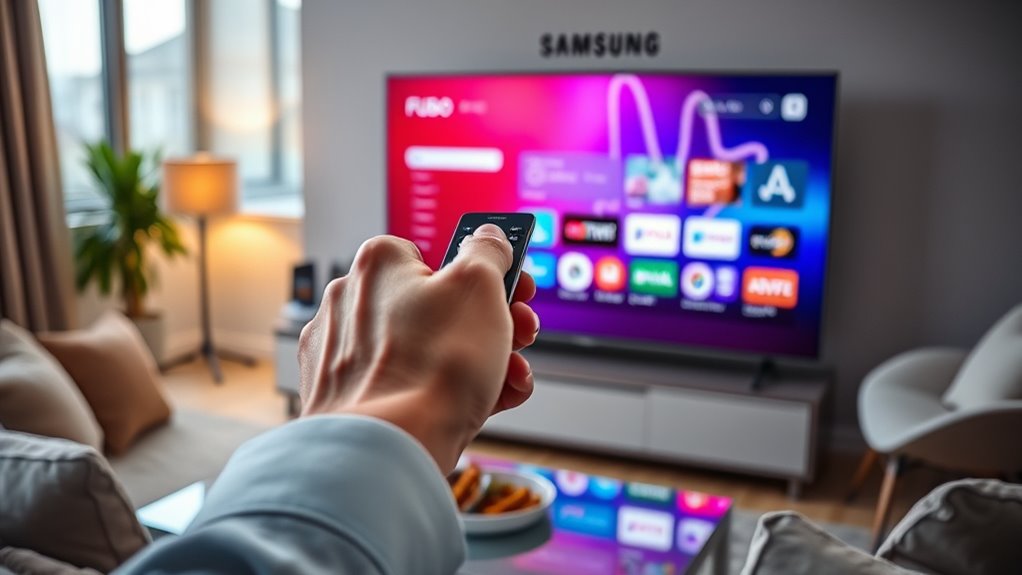

To download Fubo on your Samsung Smart TV, first, check if your model is compatible (2017 or later). Verify your TV is connected to the internet. Then, press the Home button to access Smart Hub and navigate to the Apps Section. Search for the Fubo app in the App Store and click “Download.” Once installed, open the app and sign in or create an account. With the app ready, you’ll discover a wide range of content to enjoy. Keep exploring to uncover helpful tips!
Check Your Samsung Smart TV Compatibility
Before you plunge into downloading Fubo on your Samsung Smart TV, it’s essential to check if your model is compatible. Not all Samsung TVs support Fubo, so you’ll want to verify your device against the Fubo requirements. Generally, Fubo is available on Samsung Smart TVs from 2017 and later. You can do this by visiting the settings menu or checking your model number online. If your TV meets the compatibility criteria, you’re one step closer to accessing a world of live sports and entertainment. Remember, ensuring Samsung compatibility saves you time and frustration during the installation process. So, take a moment to confirm your model before diving into the exciting content Fubo has to offer!
Connect Your TV to the Internet
To enjoy Fubo on your Samsung Smart TV, you need to connect it to the internet. Start by checking your network settings to guarantee everything’s set up correctly. You can choose between using an Ethernet connection for a stable link or connecting to a Wi-Fi network for convenience.
Check Network Settings
While you’re enthusiastic to start streaming Fubo on your Samsung Smart TV, verifying that your TV is properly connected to the internet is essential. Begin with connection verification by checking your network settings. Navigate to the settings menu, select ‘Network’, and confirm your Wi-Fi connection. If there are issues, you may need network troubleshooting.
Here’s a quick reference table to help:
| Step | Action | Result |
|---|---|---|
| 1. Check Wi-Fi | Confirm network connection | TV shows connected status |
| 2. Signal Strength | Test signal quality | Suitable for streaming |
| 3. Reconnect | Disconnect and reconnect | Refresh connection |
| 4. Update Firmware | Check for updates | Guarantees peak performance |
| 5. Restart TV | Power cycle your TV | Resets network settings |
With these steps, you’re on your way to seamless streaming!
Use Ethernet Connection
Using an Ethernet connection is often the most reliable way to connect your Samsung Smart TV to the internet. Wired connections offer several Ethernet advantages, including faster speeds and reduced latency, which means smoother streaming for your Fubo app. To set this up, simply plug one end of an Ethernet cable into your router and the other into your TV’s Ethernet port. This direct connection minimizes interruptions that can occur with wireless networks, ensuring a stable experience when watching your favorite shows. Plus, you won’t have to worry about Wi-Fi signal strength affecting your streaming quality. By choosing an Ethernet connection, you’re taking a step towards a hassle-free viewing experience, giving you more freedom to enjoy your entertainment.
Connect Wi-Fi Network
If an Ethernet connection isn’t an option for you, connecting your Samsung Smart TV to a Wi-Fi network is a great alternative. To start, grab your remote and navigate to the settings menu. Select ‘Network’, then ‘Network Settings’, and choose ‘Wireless’. Your TV will scan for available networks. Once it finds yours, select it and enter your Wi-Fi password. After a moment, your TV should connect successfully. If you encounter issues, don’t panic—network troubleshooting is usually straightforward. Check your router, verify it’s powered on, and confirm your Wi-Fi password is correct. Remember, a strong connection is key for smooth streaming. Once you’re set up, you’re ready to enjoy Fubo on your Samsung Smart TV!
Access the Smart Hub
To access the Smart Hub on your Samsung Smart TV, simply press the Home button on your remote. This will bring up a world of Smart Hub features designed to enhance your viewing experience. With intuitive Smart Hub navigation, you can easily explore a variety of apps, settings, and entertainment options tailored just for you. Take a moment to familiarize yourself with the layout—each icon and menu is crafted for quick access to your favorite content. Whether you’re looking to stream, browse, or customize your TV settings, the Smart Hub serves as your central command center. Embrace the freedom to explore endless entertainment possibilities right from your living room with just a few clicks. Enjoy your journey!
Navigate to the Apps Section
Finding the Apps Section on your Samsung Smart TV is a breeze. First, grab your remote and press the Home button to access the Samsung interface. You’ll see the Smart Hub appear on your screen. From there, look for the “Apps” icon, typically located at the bottom of the screen. This is your gateway to a world of app navigation. Simply select the Apps icon to enter the Apps Section, where you can explore various categories and discover new apps that suit your interests. This step is essential for downloading Fubo, so take your time and enjoy the freedom of browsing through the available options. You’re one step closer to streaming your favorite content!
Search for Fubo in the App Store
Once you’re in the Apps Section, you can easily search for Fubo in the App Store. Follow these simple steps to find it quickly:
- Use your remote to navigate to the search bar.
- Type in “Fubo” using the on-screen keyboard.
- Look through the search results for the Fubo app.
- Check the app details to verify it meets your streaming quality needs.
Once you find it, you’ll be ready to download and enjoy your Fubo subscription. It offers a wide range of live sports, shows, and movies that you won’t want to miss. So, take a moment to search and get ready for some great streaming!
Select and Download the Fubo App
Now that you’ve located the Fubo app in the App Store, it’s time to select and download it. Simply click on the Fubo icon, and you’ll see a description highlighting its fantastic features, like live sports streaming, on-demand shows, and cloud DVR capabilities. These benefits make Fubo a great choice for anyone wanting to catch their favorite teams or binge-watch shows without cable constraints.
Once you’re ready, hit the “Download” button. The app will start downloading, and you can track its progress on your screen. Once it’s fully downloaded, you’ll have access to a world of entertainment right at your fingertips. Enjoy the freedom to watch what you want, whenever you want!
Open the Fubo App
To open the Fubo app, start by launching the Smart Hub on your Samsung Smart TV. Once you’re in, simply search for the Fubo app to get it ready for action. With just a few clicks, you’ll be all set to enjoy your favorite shows and sports!
Launch Smart Hub
After you’ve installed the Fubo app on your Samsung Smart TV, launching Smart Hub is the next step to access it. Smart Hub navigation is straightforward, allowing you to enjoy all the launch features with ease. Here’s how to do it:
- Press the Smart Hub button on your remote.
- Use the arrow keys to navigate through the menu.
- Find the Fubo app icon in your apps section.
- Select the app to launch it.
Search for Fubo
How can you easily find and open the Fubo app on your Samsung Smart TV? Start by routing to the Smart Hub, where you’ll search for Fubo. Use the search function, typing in “Fubo.” As you browse through the options, keep an eye out for the Fubo app icon, which stands out with its vibrant colors. Once you spot it, click on the app to initiate the download. After it’s installed, open the app to explore all its features. You’ll find a variety of streaming options that cater to your interests, from live sports to on-demand shows. Enjoy the freedom of choosing what to watch, when to watch it, and immerse yourself in the world of Fubo!
Sign In or Create a Fubo Account
Before you can enjoy Fubo’s extensive streaming options, you’ll need to sign in or create a Fubo account. Having a Fubo account comes with numerous benefits, such as personalized content recommendations and access to exclusive features. Here’s how to get started:
To unlock Fubo’s vast streaming options, simply sign in or create your account for personalized recommendations and exclusive features.
- Download the Fubo app on your Samsung Smart TV.
- Select ‘Sign In’ if you already have an account, or choose ‘Create Account’ to set one up.
- Fill in your details, including email and password, to create your account.
- Follow the prompts for verification and enjoy seamless account management.
With these account management tips, you’ll maximize your Fubo experience and explore its incredible streaming possibilities!
Explore Fubo’s Content Library
Now that you’ve got your Fubo account set up, it’s time to explore the rich content library waiting for you. Fubo offers an impressive selection of Fubo content, from live sports to popular movies and TV shows. You’ll find everything from NFL games to the latest episodes of hit series, ensuring you never run out of entertainment.
With various streaming options, you can customize your viewing experience to match your interests. Whether you’re a sports fanatic or a binge-watcher, there’s something for everyone. Immerse yourself in the user-friendly interface to easily navigate through channels and on-demand titles. So grab your remote, settle in, and enjoy the freedom of limitless entertainment at your fingertips with Fubo!
Troubleshooting Common Installation Issues
While setting up Fubo on your Samsung Smart TV can be straightforward, you might encounter a few common installation issues along the way. Here are some troubleshooting tips to help you resolve those pesky installation errors and app crashes:
- Check Your Internet Connection: Verify your TV is connected to a stable Wi-Fi network. A weak connection can lead to installation problems.
- Restart Your TV: Sometimes, a simple reboot can clear temporary glitches affecting the installation.
- Update Your TV Software: Make certain your Samsung Smart TV is running the latest software version—this can fix compatibility issues.
- Reinstall the App: If you experience persistent app crashes, uninstall Fubo and reinstall it from the app store.
With these steps, you’ll be back to streaming in no time!
Frequently Asked Questions
Can I Use Fubo on Multiple Samsung Smart TVS?
Yes, you can use your Fubo account on multiple Samsung Smart TVs. Just remember that account sharing has its limits, but as long as you stay within those, enjoy the freedom of streaming wherever you want!
Does Fubo Offer a Free Trial for New Users?
Yes, Fubo offers a free trial for new users, allowing you to explore its features before committing to a subscription. This way, you can enjoy a taste of what Fubo has to offer.
Is Fubo Available in All Countries?
Fubo isn’t available in all countries due to regional restrictions. You’ll find it primarily in the U.S., Canada, and Spain. Check local listings for availability in your area, as it varies greatly.
What Internet Speed Is Recommended for Fubo Streaming?
You’d think you need lightning-fast internet for streaming, but for Fubo, recommended speeds start at 25 Mbps for ideal streaming quality. Enjoy your shows without buffering, embracing the freedom of smooth viewing experiences.
Can I Cast Fubo From My Mobile Device to Samsung TV?
Yes, you can cast Fubo from your mobile devices to your Samsung TV. Just use casting options like Chromecast or AirPlay for an effortless streaming experience, letting you enjoy your favorite shows on the big screen.
