


To download YouTube TV on your Samsung Smart TV, navigate to the Smart Hub and search for the YouTube TV app. Once found, simply select it, and click on the download option to install the app. This article will guide you through the entire process step-by-step, ensuring that you can enjoy your favorite shows and channels in no time.
Accessing the Smart Hub
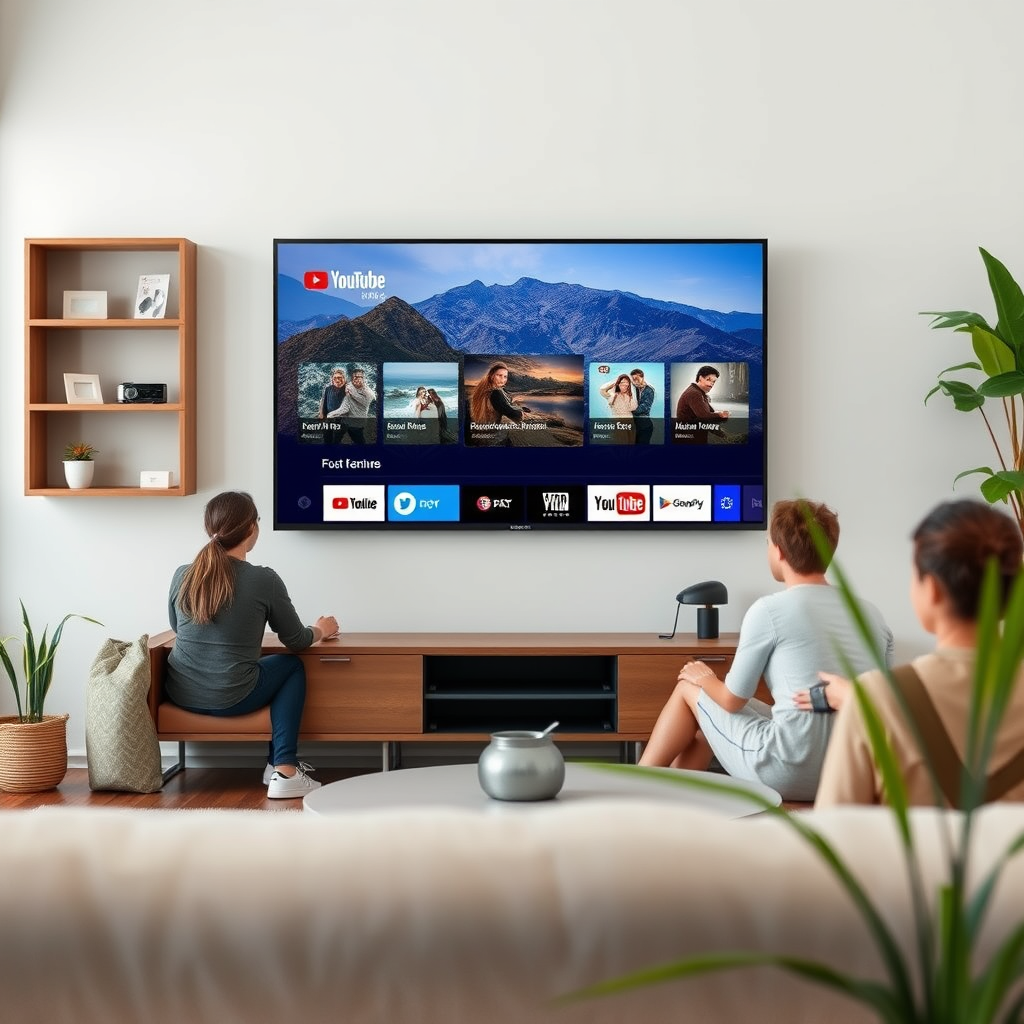
The Smart Hub is your gateway to a wide array of applications on your Samsung Smart TV, including streaming services like YouTube TV. To access it, press the Home button on your remote control. This action will bring you to the main menu, where you can view various options and features available on your TV.
Once you are in the main menu, navigate to the “Apps” section. This section is usually represented by a grid icon and will display a variety of apps you can download or have already installed. The Smart Hub not only allows you to access apps but also provides updates and a personalized experience based on your usage.
Searching for YouTube TV
After accessing the Apps section, you will need to locate the YouTube TV app. To do this, utilize the search function, typically found at the top of the screen. Type in “YouTube TV” using the on-screen keyboard that appears. A stable internet connection is essential for this step; ensure you are connected to your Wi-Fi network to enable a smooth search experience.
As you type, suggestions may appear, allowing you to quickly find the app. Once you see “YouTube TV” in the search results, highlight it to proceed to the next step.
Downloading the App
Once you have selected the YouTube TV app from the search results, you will be taken to the app’s information page. Here, you will see an option to either “Download” or “Install.” Click on this button to begin the installation process. Depending on your internet speed, the download time may vary, but it should not take long.
After the app is installed, it will automatically be added to your app list, which you can access from the Smart Hub. Be sure to check if there are any permissions or additional requirements that need to be addressed before the app can be fully functional.
YouTube TV Features Comparison
| # | Feature | Availability | Notes |
|---|---|---|---|
| 1 | Live TV Channels | Yes | Over 85 channels available |
| 2 | DVR Storage | Unlimited | Cloud DVR feature |
| 3 | On-Demand Content | Yes | Includes movies and shows |
| 4 | Multiple Streams | Yes | Stream on up to 3 devices |
| 5 | Offline Viewing | Yes | Download shows for offline access |
| 6 | User Profiles | Yes | Create up to 6 profiles |
| 7 | Price | $72.99/month | Competitive pricing |
Setting Up YouTube TV
After downloading the app, locate it in your app list and open it. The first time you launch YouTube TV, you will be greeted by an on-screen setup guide. Follow the instructions provided to either log in to your existing YouTube TV account or to create a new one if you are a first-time user.
If you are creating a new account, you will need to provide some basic information such as your email address and a password. Be prepared to choose your local channels during the setup process, as YouTube TV offers customizable options based on your location. Once you complete these steps, you will be ready to explore the extensive library of content available.
Troubleshooting Common Issues
While the process of downloading and setting up YouTube TV is generally straightforward, you may encounter some common issues. If the app does not appear in your search results, ensure that your Samsung Smart TV’s software is up to date. To check for updates, go to the Settings menu, select “Support,” and then choose “Software Update.” An outdated system could result in compatibility issues.
If you experience installation errors, a simple restart of your TV can often resolve these problems. Additionally, ensure that you are connected to a reliable Wi-Fi network, as interruptions during the download process can lead to incomplete installations. If issues persist, check Samsung’s support resources or YouTube TV’s help center for further assistance.
Exploring YouTube TV Features
YouTube TV offers a plethora of features designed to enhance your viewing experience. With a subscription, you gain access to live TV options that include over 85 channels, ranging from news and sports to entertainment networks. The service also provides on-demand content, allowing you to watch shows and movies at your convenience.
The user interface is intuitive, making it easy to navigate through channels and discover new content. The app includes a search function, allowing users to find specific shows or movies quickly. Furthermore, the unlimited DVR storage means you can record shows and watch them later without worrying about running out of space.
Tips for Optimizing Your Experience
To optimize your experience with YouTube TV on your Samsung Smart TV, consider connecting your device to a stable Wi-Fi network. This connection is crucial for smooth streaming, particularly during live broadcasts where buffering can be disruptive.
Additionally, regularly check for app updates in the Smart Hub. Developers frequently release updates to improve performance and add new features, so keeping the app updated ensures you have the best experience possible. Lastly, familiarize yourself with the settings within the YouTube TV app, as there are options that can enhance your viewing experience, such as parental controls and streaming quality settings.
With these steps, you can easily download and set up YouTube TV on your Samsung Smart TV. Enjoy streaming your favorite shows and channels seamlessly on your device! If you encounter any issues, refer back to the troubleshooting section for assistance, or consider reaching out to customer support for further help.
Frequently Asked Questions
How do I download YouTube TV on my Samsung Smart TV?
To download YouTube TV on your Samsung Smart TV, start by turning on your TV and navigating to the Smart Hub. From there, select the Apps section and use the search feature to find “YouTube TV.” Once located, click on the app and select “Install” to download it to your device.
Why can’t I find YouTube TV on my Samsung Smart TV?
If you cannot find YouTube TV on your Samsung Smart TV, it may be because your TV model is not compatible with the app, or it requires a software update. Ensure that your TV’s firmware is up to date by going to Settings > Support > Software Update. If the app is still unavailable, check if your model supports the YouTube TV app.
What do I need to get started with YouTube TV on my Samsung Smart TV?
To get started with YouTube TV on your Samsung Smart TV, you’ll need a stable internet connection, a YouTube TV subscription, and your Samsung Smart TV to be connected to the internet. Once you have these, download the YouTube TV app from the Smart Hub and log in with your account credentials to begin streaming.
Which Samsung Smart TV models support YouTube TV?
Most Samsung Smart TV models from 2016 and later support the YouTube TV app. However, it is recommended to check the official Samsung website or your TV’s app store for compatibility. If your model is older, consider using an external streaming device that supports YouTube TV.
How do I troubleshoot issues with YouTube TV on my Samsung Smart TV?
If you’re experiencing issues with YouTube TV on your Samsung Smart TV, first ensure that your app is updated to the latest version. You can also try restarting your TV and router, clearing the app cache, or reinstalling the app altogether. If problems persist, check the YouTube TV Help Center for specific troubleshooting steps.
References
- Google Scholar Google Scholar
https://scholar.google.com/scholar?q=installing+youtube+tv+on+smart+tv - Google Scholar Google Scholar
https://scholar.google.com/scholar?q=youtube+tv+installation+guide - Google Scholar Google Scholar
https://scholar.google.com/scholar?q=samsung+smart+tv+youtube+tv+download - https://www.lifewire.com/how-to-download-youtube-tv-on-samsung-smart-tv-5072461
https://www.lifewire.com/how-to-download-youtube-tv-on-samsung-smart-tv-5072461 - Google Scholar Google Scholar
https://scholar.google.com/scholar?q=how+to+download+youtube+tv+on+samsung+smart+tv - how to download youtube tv on samsung smart tv – Search results
https://en.wikipedia.org/wiki/Special:Search?search=how+to+download+youtube+tv+on+samsung+smart+tv - https://www.ncbi.nlm.nih.gov/search/research-articles/?term=how+to+download+youtube+tv+on+samsung+smart+tv
https://www.ncbi.nlm.nih.gov/search/research-articles/?term=how+to+download+youtube+tv+on+samsung+smart+tv
